We have three option to create a shortcut on Windows 10 to connect a Virtual Machine running on ESXi:
Use VMware Workstation
Use VMware Player
Use VMRC Console
In all of that options, we need have installed the correspondent application. With Workstation and Player, we can open the session with remote VM on FULL-Screen mode.
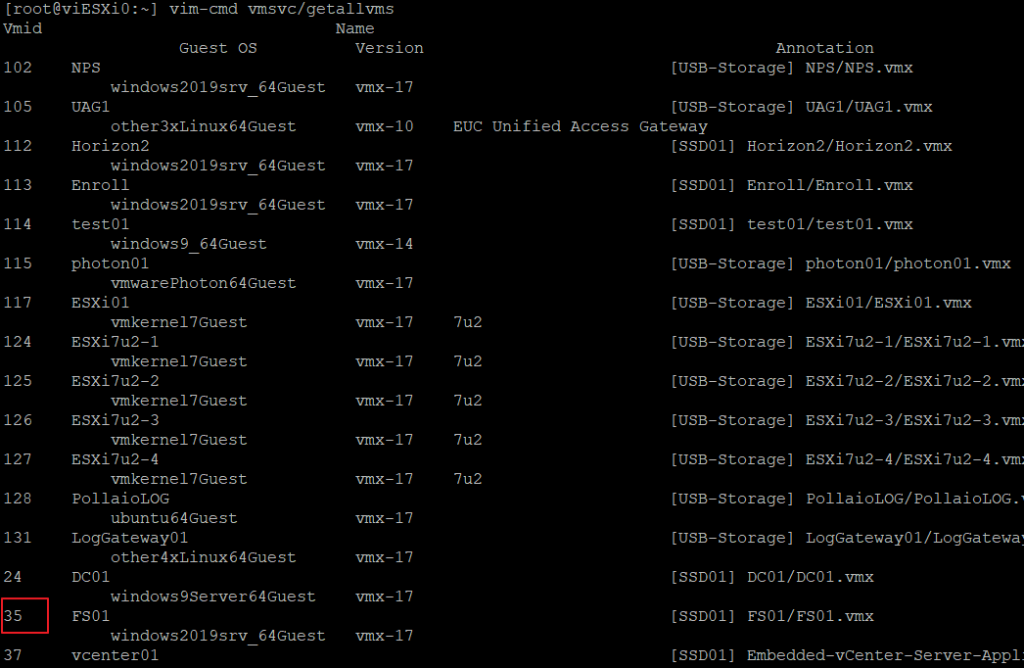
First, we need to recover the MOID identification of VM, connect with SSH to ESXi where is running the VM and launch this command:
[root@viESXi0:~] vim-cmd vmsvc/getallvms
The output show the VM inventory on the ESXi and the relative MOID
Microsoft Azure Sentinel is a scalable, cloud-native, security information event management (SIEM) and security orchestration automated response (SOAR) solution. Azure Sentinel delivers intelligent security analytics and threat intelligence across the enterprise, providing a single solution for alert detection, threat visibility, proactive hunting, and threat response.
Azure Sentinel ingests data from services and apps by connecting to the service and forwarding the events and logs to Azure Sentinel. For physical and virtual machines, you can install the Log Analytics agent that collects the logs and forwards them to Azure Sentinel. For Firewalls and proxies, Azure Sentinel installs the Log Analytics agent on a Linux Syslog server, from which the agent collects the log files and forwards them to Azure Sentinel.
How connect VMware ESXi to Azure Sentinel?
Integration between VMware ESXi and Azure Sentinel makes use of a Syslog server with the Log Analytics agent installed. It also uses a custom-built log parser based on a Kusto function.
For the onboarding of ESXi on Azure Sentinel, these are the step:
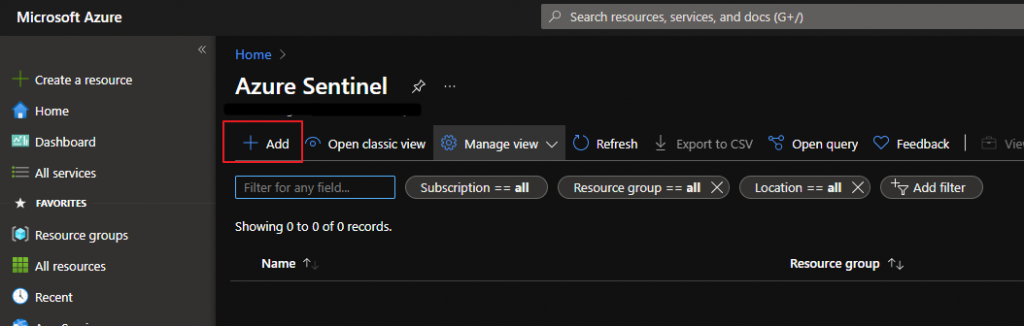
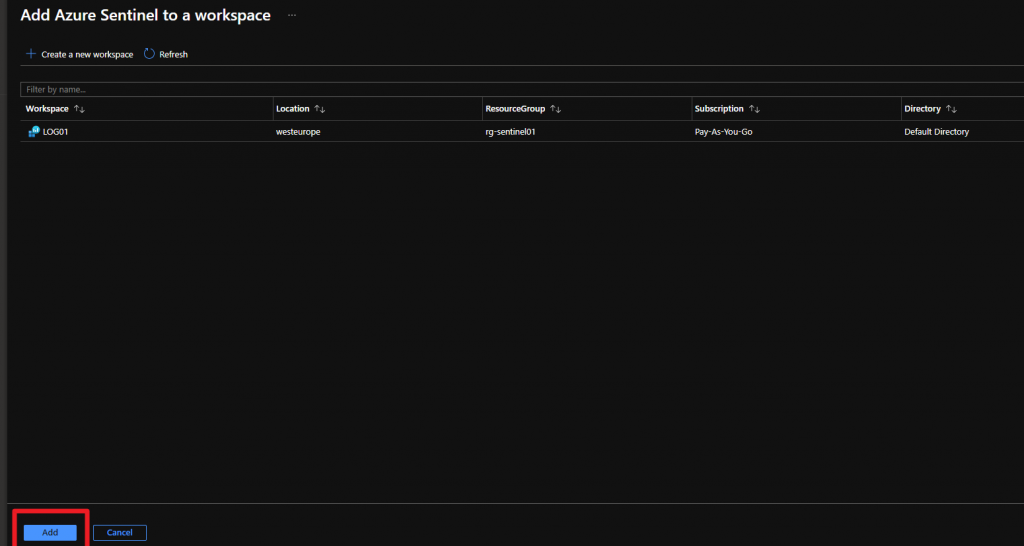
Have up and running a Azure Sentinel service.
Prepare a Linux Syslog Server
Install Log Analytics Agent
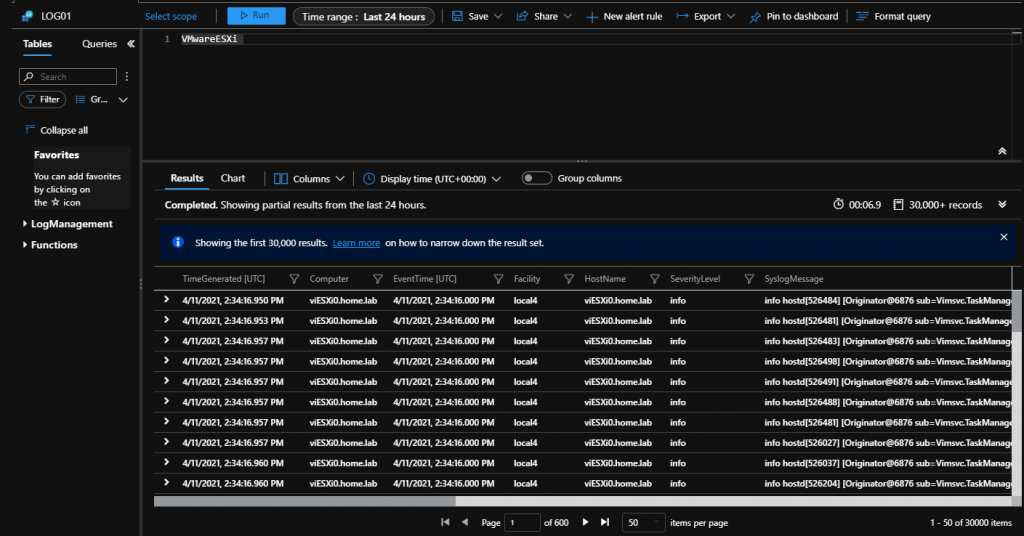
Create the VMwareESXi Kusto function
Configure your ESXi Hosts to forward log to Syslog server
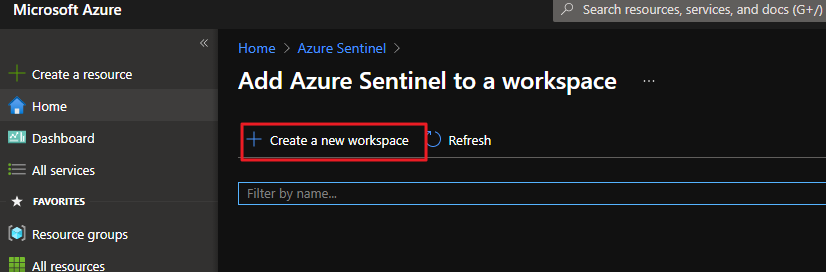
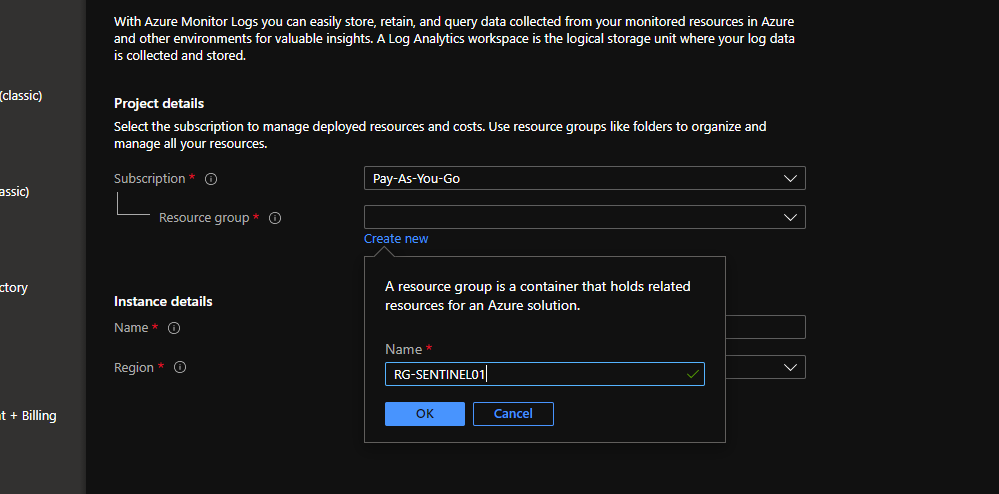
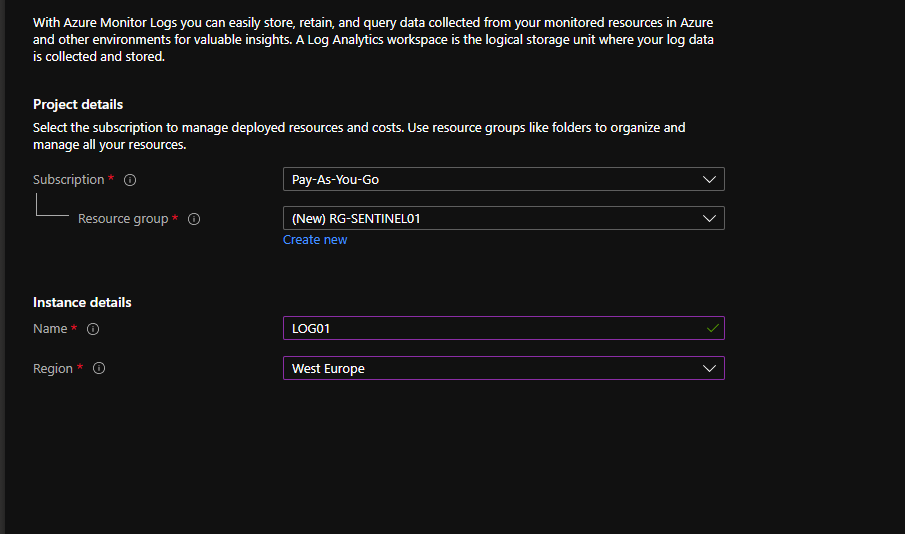
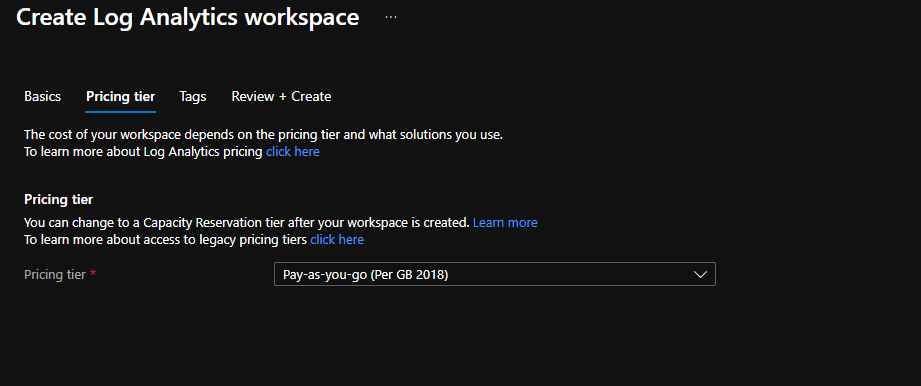
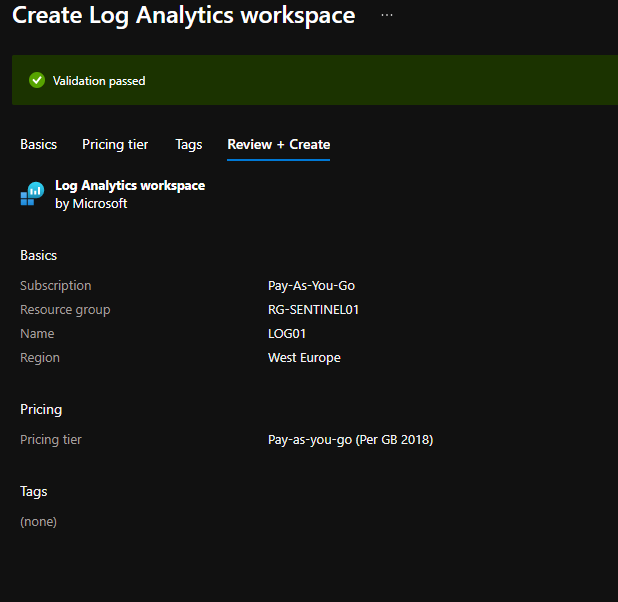
Create a Azure Sentinel Service
This example is related to a basic configuration of the Azure Sentinel infrastructure, for more information and details for sizing and costs check in the respective guides from Microsoft.
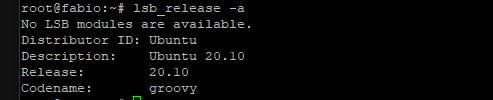
I have installed a virtual machine with Ubuntu Guest OS
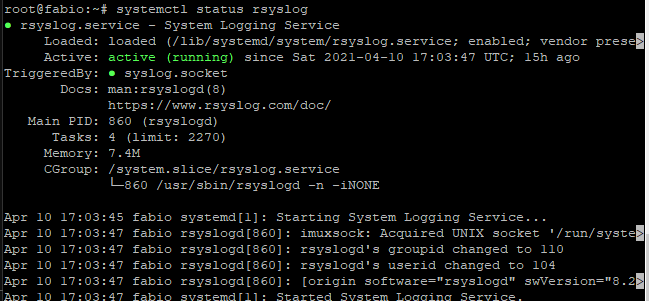
I have checked if rsyslog is installed and running
if rsyslog is not installed run the following installation command
apt-get install rsyslog
Configure rsyslog
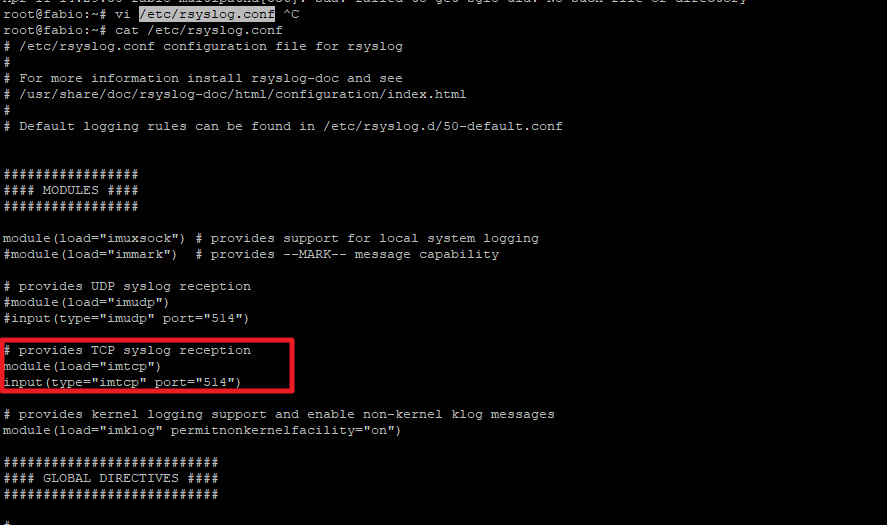
Verify the tcp port used from syslog server
Cat /etc/rsyslog.conf
Configure Kusto function alias
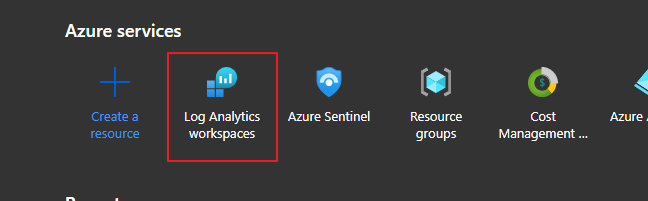
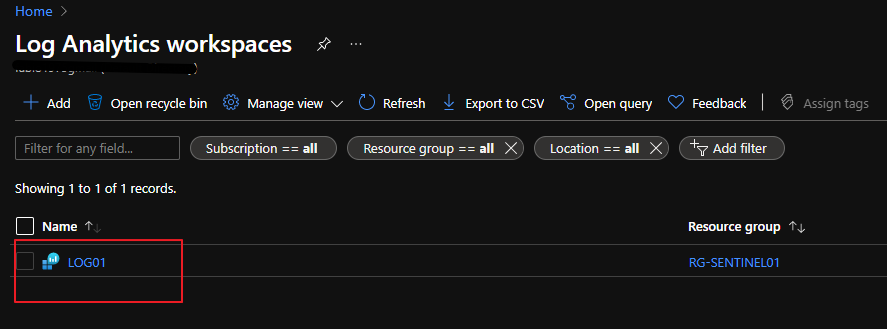
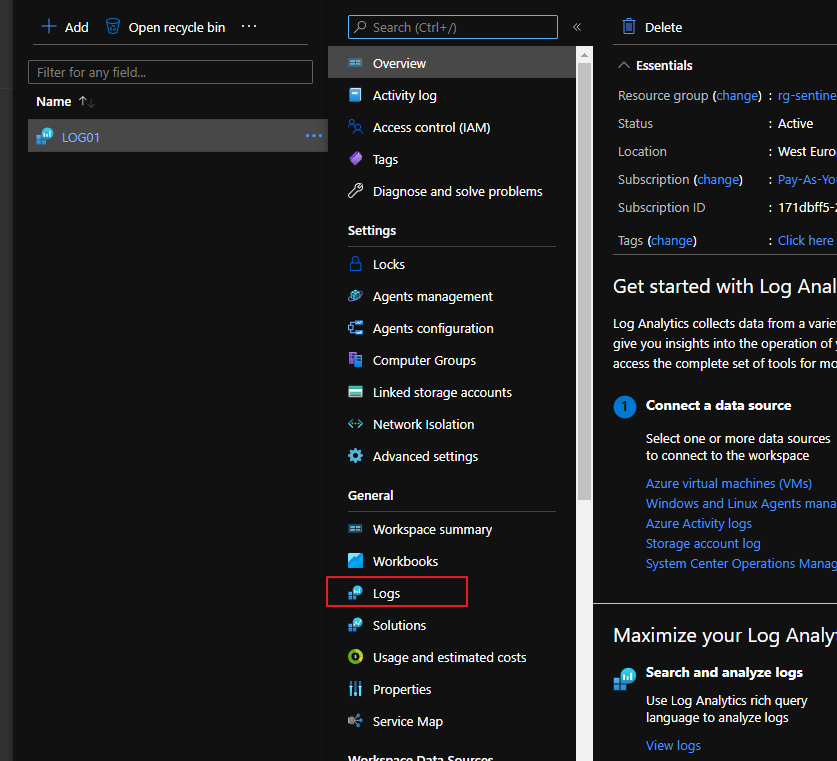
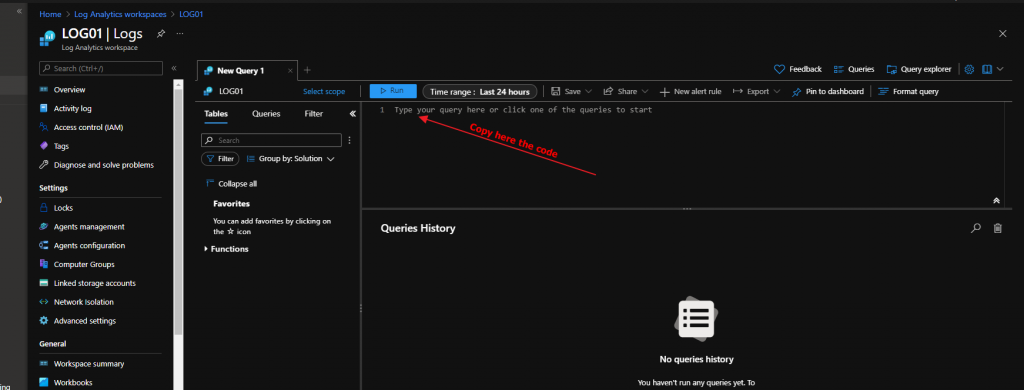
On log analytics workspace
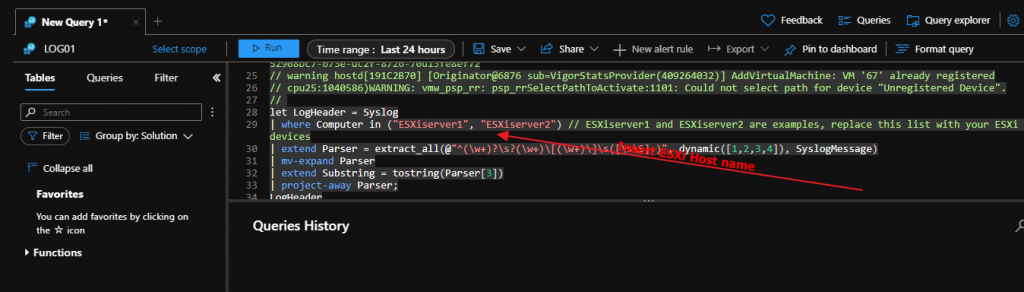
create this function:
/ Title:           VMWare ESXi
// Author:          Microsoft
// Version:         1.0
// Last Updated:    11/13/2020
// Comment:         Inital Release
//
// DESCRIPTION:
// This parser takes raw VMWare ESXi logs from a Syslog stream and parses the logs into a normalized schema.
//
// USAGE:
// 1. Open Log Analytics/Azure Sentinel Logs blade. Copy the query below and paste into the Logs query window.
// 2. In the query window, on the second line of the query, enter the hostname(s) of your VMWare ESXi device(s) and any other unique identifiers for the logstream.
//    For example: | where Computer in ("server1", "server2")
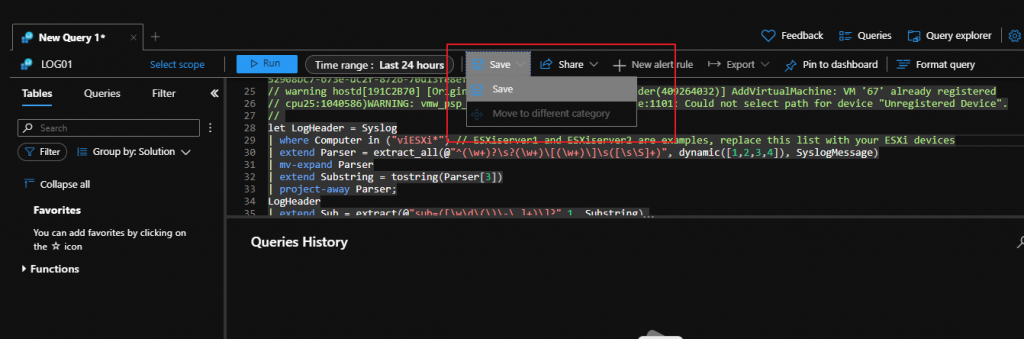
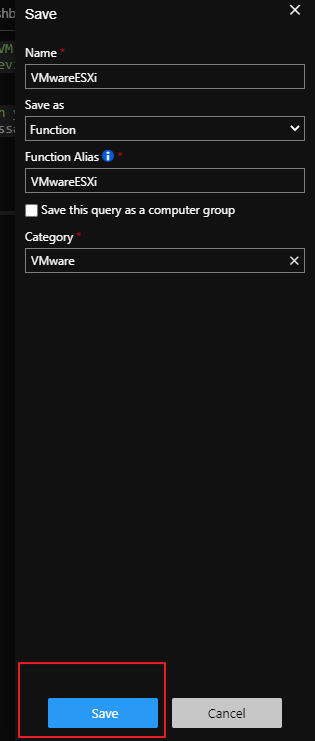
// 3. Click the Save button above the query. A pane will appear on the right, select "as Function" from the drop down. Enter a Function Name.
//    It is recommended to name the Function Alias, as VMwareESXi
// 4. Kusto Functions can typically take up to 15 minutes to activate. You can then use Function Alias for other queries.
//
// REFERENCES:
// Using functions in Azure monitor log queries: https://docs.microsoft.com/azure/azure-monitor/log-query/functions
//
// LOG SAMPLES:
// This parser assumes the raw log are formatted as follows:
//
// info vpxa[D089B70] [Originator@6876 sub=vpxLro opID=HB-host-89929@3678594-5d55f348-40] [VpxLRO] -- BEGIN session[52908bc7-673e-dc2f-8726-70d13fe8ef72]521881cd-707e-cf9b-01c4-f0fd16d7444d -- vpxa -- vpxapi.VpxaService.retrieveChanges -- 52908bc7-673e-dc2f-8726-70d13fe8ef72
// warning hostd[191C2B70] [Originator@6876 sub=VigorStatsProvider(409264032)] AddVirtualMachine: VM '67' already registered
// cpu25:1040586)WARNING: vmw_psp_rr: psp_rrSelectPathToActivate:1101: Could not select path for device "Unregistered Device".
//
let LogHeader = Syslog
| where Computer in ("ESXiserver1", "ESXiserver2") // ESXiserver1 and ESXiserver2 are examples, replace this list with your ESXi devices
| extend Parser = extract_all(@"^(\w+)?\s?(\w+)\[(\w+)\]\s([\s\S]+)", dynamic([1,2,3,4]), SyslogMessage)
| mv-expand Parser
| extend Substring = tostring(Parser[3])
| project-away Parser;
LogHeader
| extend Sub = extract(@"sub=([\w\d\(\)\-\.]+)\]?",1, Substring),
	 OpId = extract(@"opID=([\w\d\(\)\-@]+)\s?\]?",1, Substring),
         UserName = extract(@"\suser=([\w\d\(\)\-]+)\]",1, Substring)
| extend Message = extract(@"\[([\S\s]+)\]\s([\S\s]+)",2, Substring)
| extend Message = iif(isempty(Message),SyslogMessage,Message)
| extend Message = trim(@"^-- ", Message)
| project-away Substring
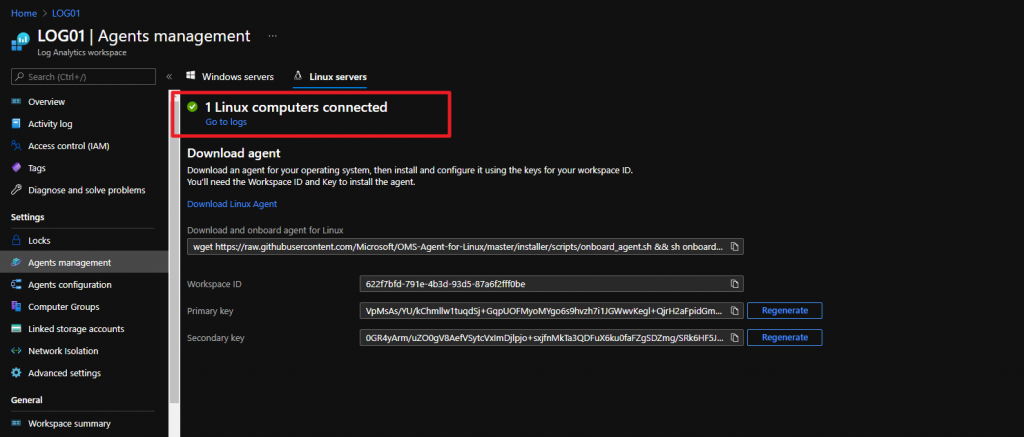
Install Log Analytics Agent
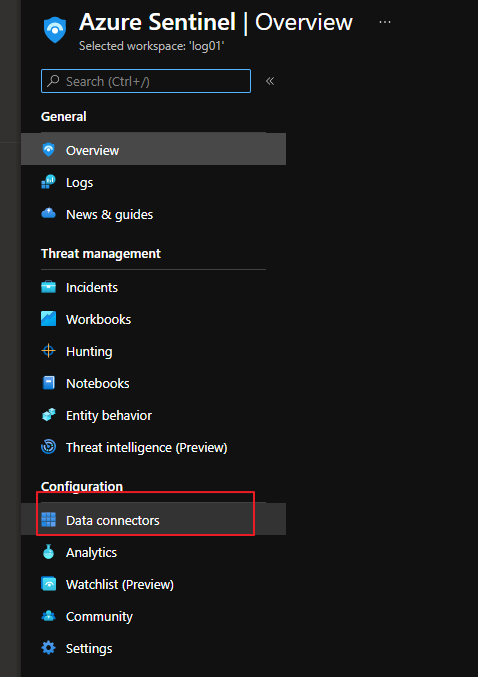
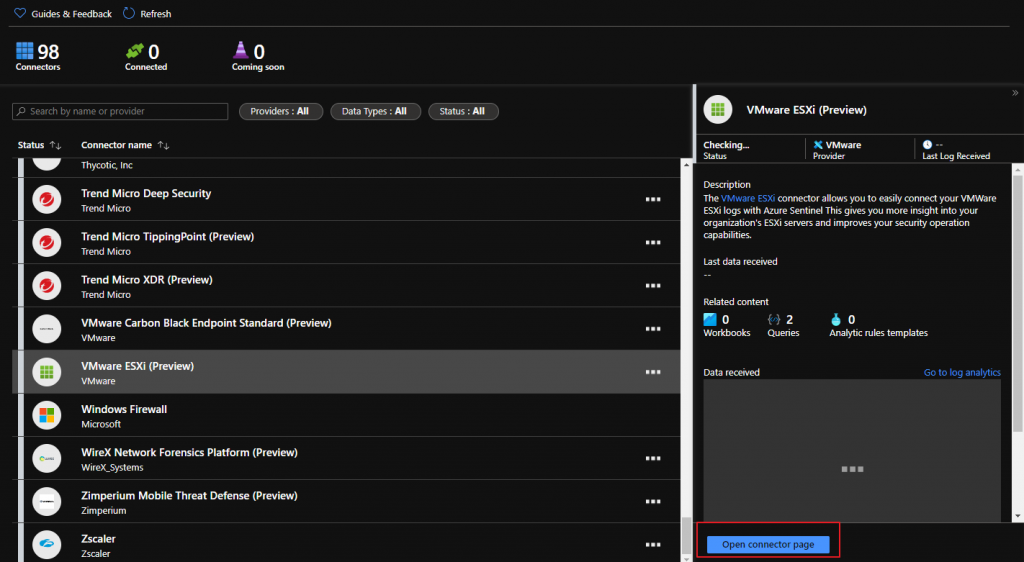
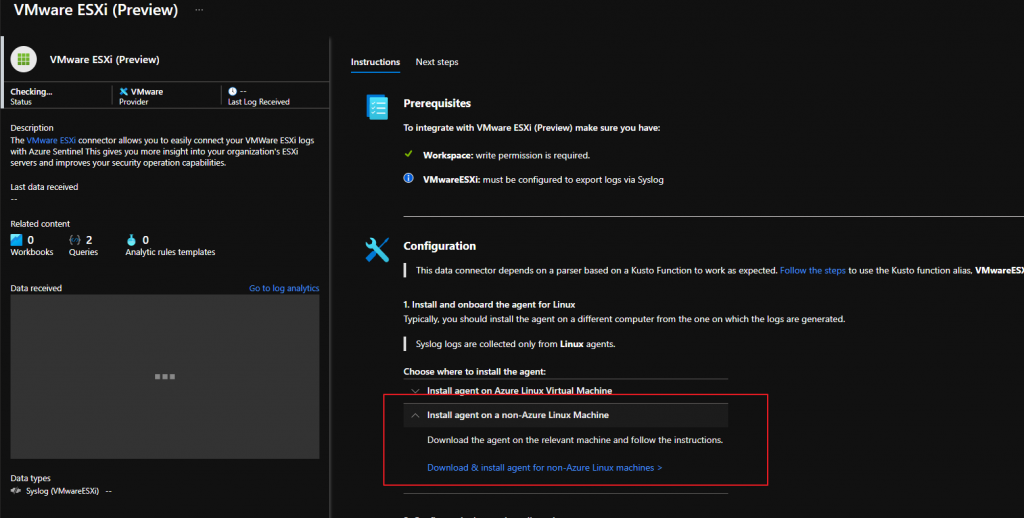
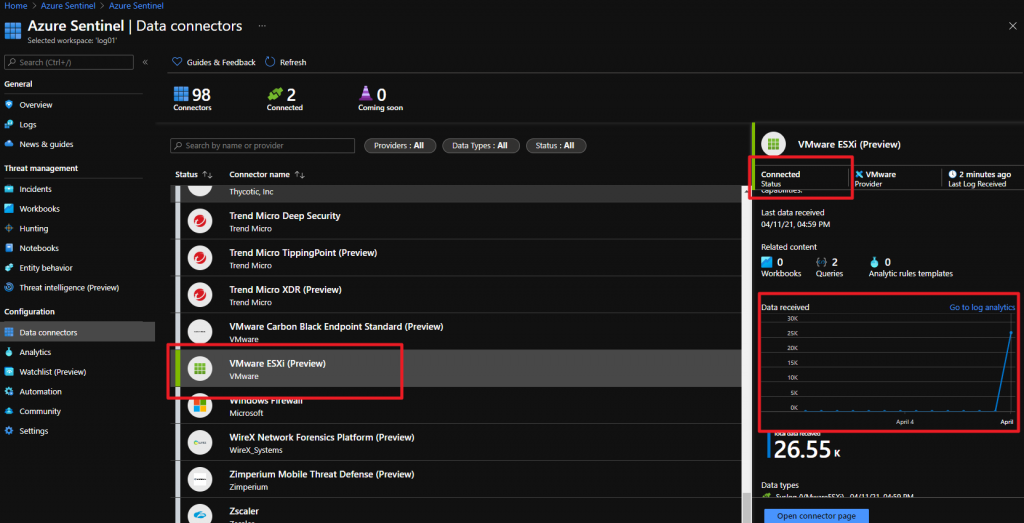
Go to Vmware ESXi Connector on Azure Sentinel
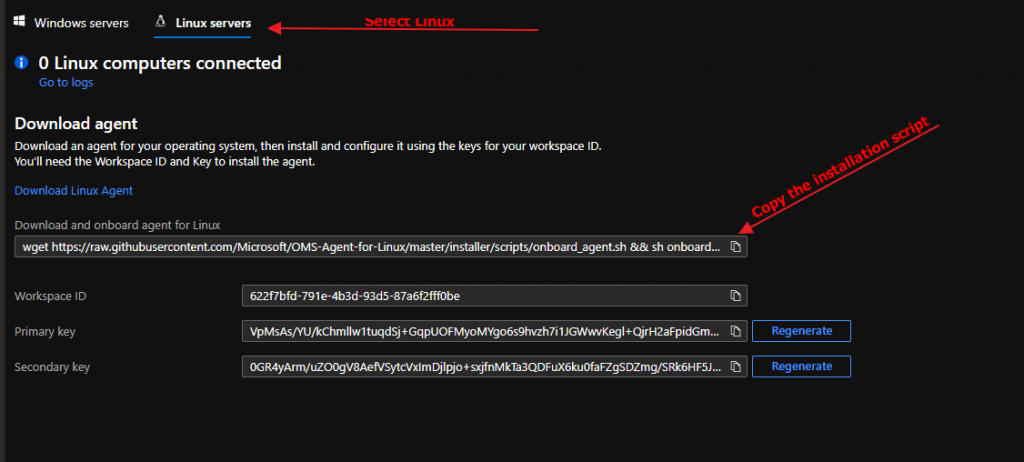
Go to linux syslog server and paste it the code for onboard agent to sentinel
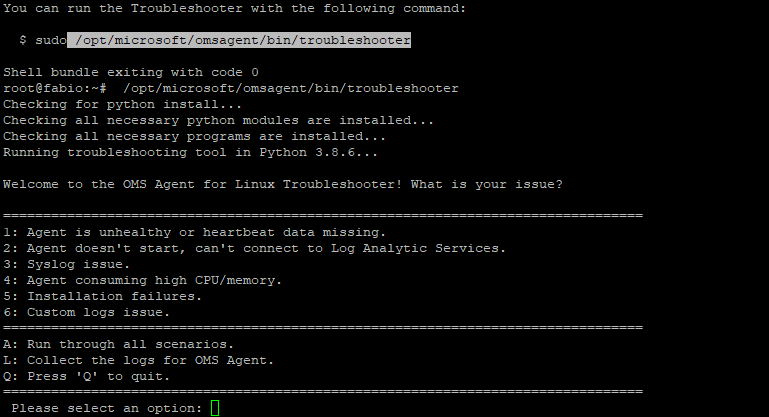
For troubleshooting
/opt/microsoft/omsagent/bin/troubleshooter
In my installation was missing :
And i have installed it
apt-get install gdb
If the installation is ok
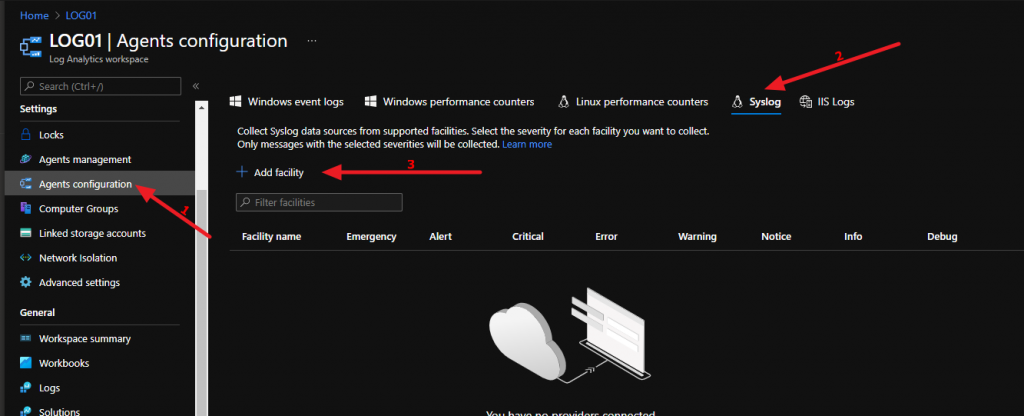
now we set which logs the linux agent must send to our workspace
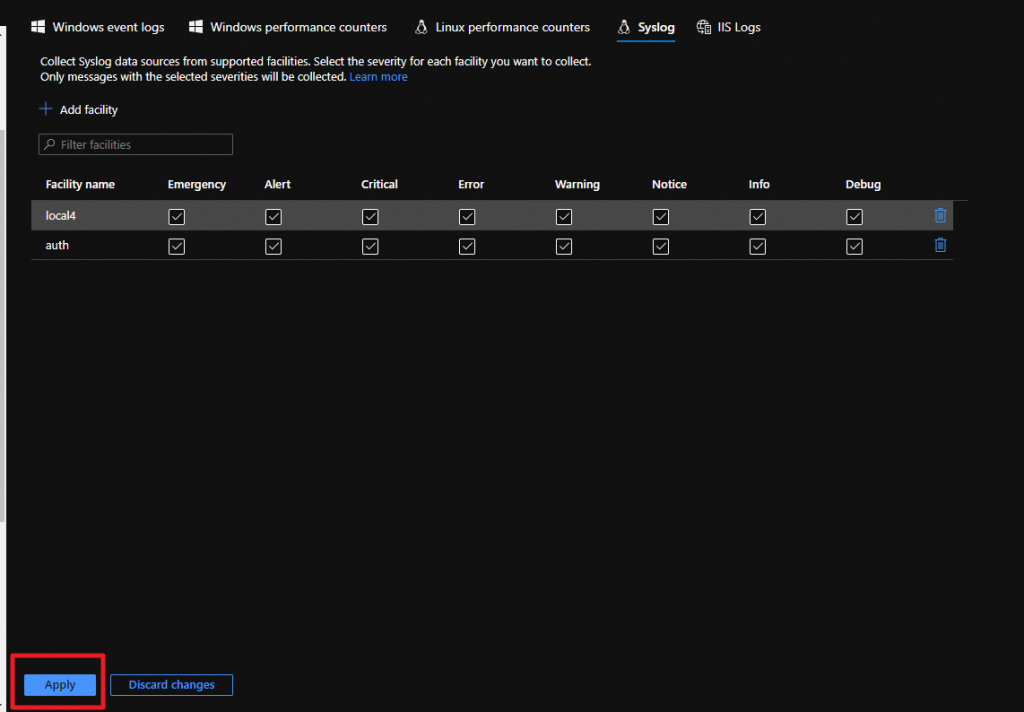
And add local4 e auth
automatically this information will be sent to our agent
Configure ESXi to send data to Linux Syslog Gateway (Where is installed the Log Analytics Agent)
We configure our esxi hosts to send logs to our linux syslog with this powercli script:
Connect-ViServer
$vmHosts = Get-VMHost
$remoteSyslog = 'tcp://<linuxlogserver>'
$syslogport = '514'
# Show current config
$vmHosts | ForEach-Object {
    Write-Host $_.Name
    Get-VMHostSysLogServer -VMHost $_
}
# Set syslog config in hypervisors
$vmHosts | ForEach-Object {
    Write-Host $_.Name
    Set-VMHostSysLogServer -SysLogServer $remoteSyslog":"$syslogPort -VMHost $_
}
# Restart syslog and set the allow rules in the ESXi
$vmHosts | ForEach-Object {
    Write-Host $_.Name
    (Get-Esxcli -v2 -VMHost $_).system.syslog.reload.Invoke()
    (Get-Esxcli -v2 -VMHost $_).network.firewall.ruleset.set.Invoke(@{rulesetid='syslog'; enabled=$true})
    (Get-Esxcli -v2 -VMHost $_).network.firewall.refresh.Invoke()
}
# Show current config
$vmHosts | ForEach-Object {
    Write-Host $_.Name
    Get-VMHostSysLogServer -VMHost $_
}
In the past, I’ve talked about how to customize the Horizon Web Client login page. Normally when you log in you are asked whether to continue with the Web Client or download the Windows client, if required we can omit this page.
To do this you need to change the following value:
enable.download=true
setting it as false
this parameter is found in the file portal-links-html-access.properties in the connection server folder C:\ProgramData\VMware\VDM\portal, if you have a connection server cluster you have to do the switch on all servers
Have you upgraded to at least horizon 7.13?
From March 22nd (this is tomorrow as I am writing to you) versions prior to 7.13 will no longer be in support
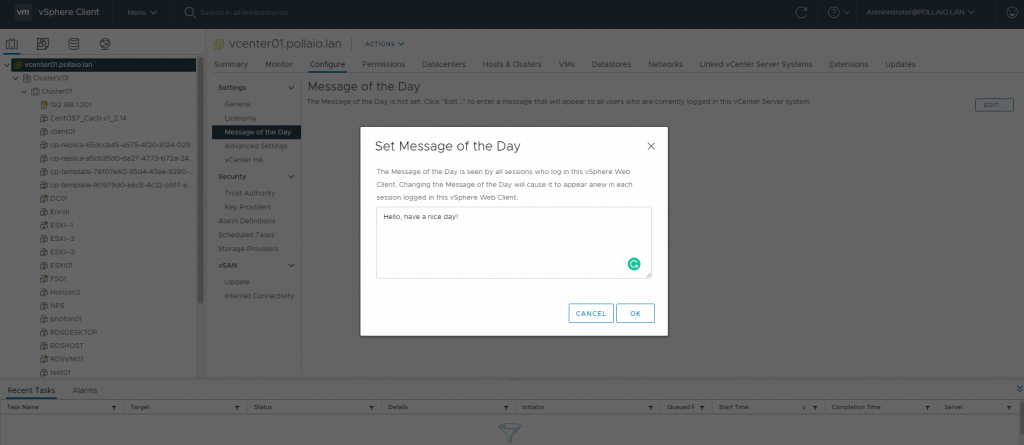
I have always liked the welcome messages that are usually found on Linux systems when logging in with SSH. Well the message of the day can also be set on the vCenter
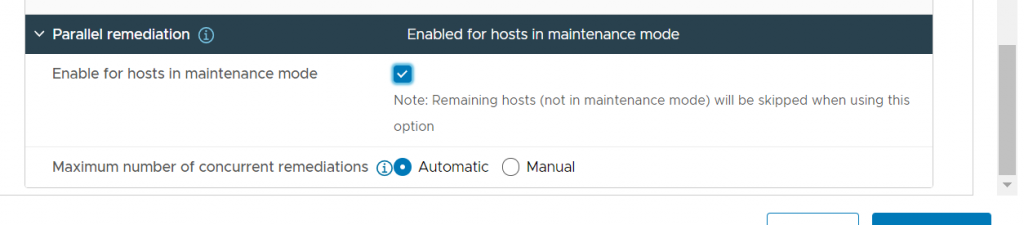
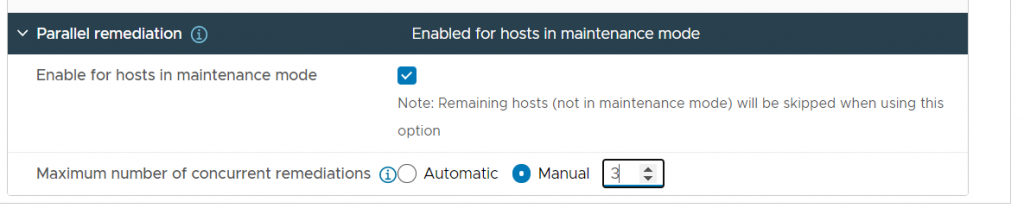
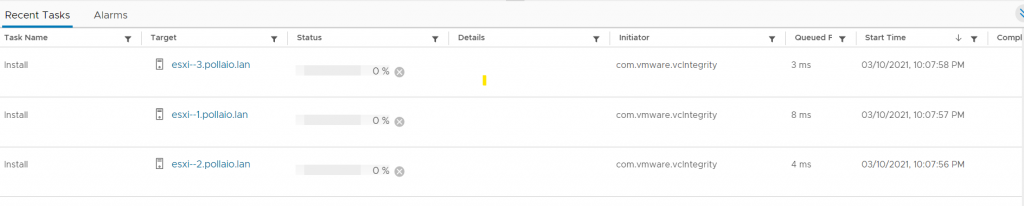
Let’s see one of the new functions of vSphere 7u2 and precisely the possibility of parallelizing the remediation function with LifeCycle Manager
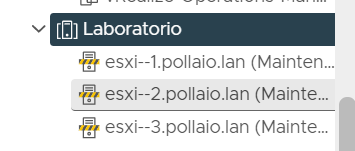
We must use the new version of vCenter 7u2 and once we have performed the stage on all the nodes of a cluster we can proceed to remediate by putting first the nodes we want to update in maintenance mode manually
In my case we put three hosts in maintenance mode
Among the additional options, of the remediate phase, we enable parallelism and we can choose whether the number of contemporary hosts on which the update will be made is managed automatically….