VMware boosts application management and…
In VMware news, SiliconANGLE reported on VMware’s updates to vSphere and vSAN that will simplify the management of cloud and on-premises environments.
In VMware news, SiliconANGLE reported on VMware’s updates to vSphere and vSAN that will simplify the management of cloud and on-premises environments.
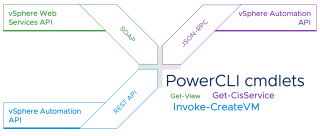
PowerCLI is a command-line interface for managing and automating all aspects of vSphere management, including network, storage, VM, guest OS and more.
One of the conveniences of administering VMware solutions is being able to use code to create scripts to perform repetitive tasks or automate processes
One of the vSphere Web Client features that can help those new to the PowerCli is the Capture Code, it basically allows you to list and save the Powercli commands of the actions you are doing with the vSphere Web Client.
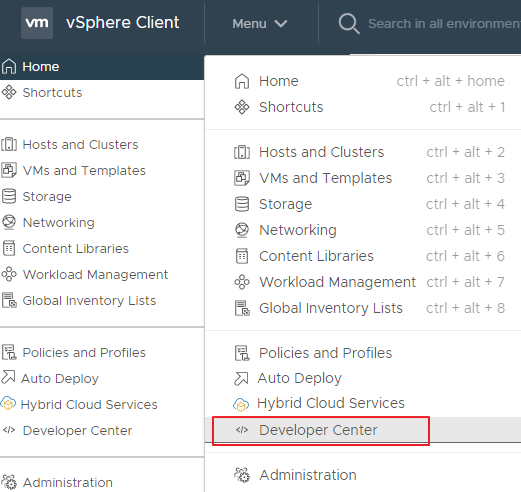
To activate it just access the vSphere Web Client, from the Menu select Developer Center
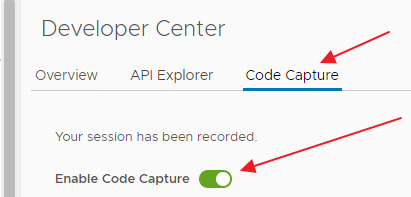
Select Code Capture and enable it by placing the “Enable Code Capture” flag on the right (which turns green)
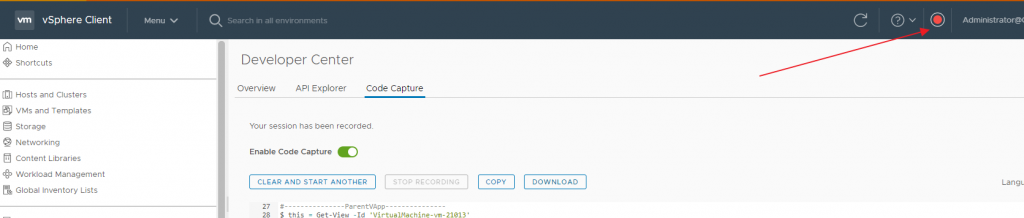
At this point, a space will appear in our frame where the commands will be listed with some operations, such as Clear and start another, Copy and Download
Where the Download option generates you the ps1 file with the Powercli commands of the recorded operations
To start and stop a recording session you can use the buttons:

Or the red button that appears at the top of the WebClient once “Enable Code Capture” is enabled
Bye
Last Year VMware release a Diagnostic Tool for Analyze vCenter, vSAN and ESXi infrastructure.
VMware Skyline Health Diagnostic is a Virtual Appliance (based on Photon OS) for analyzing our vSphere infrastructure.
In this link major info for install:
Introducing VMware Skyline Health Diagnostic Tool
but what can it be useful for?
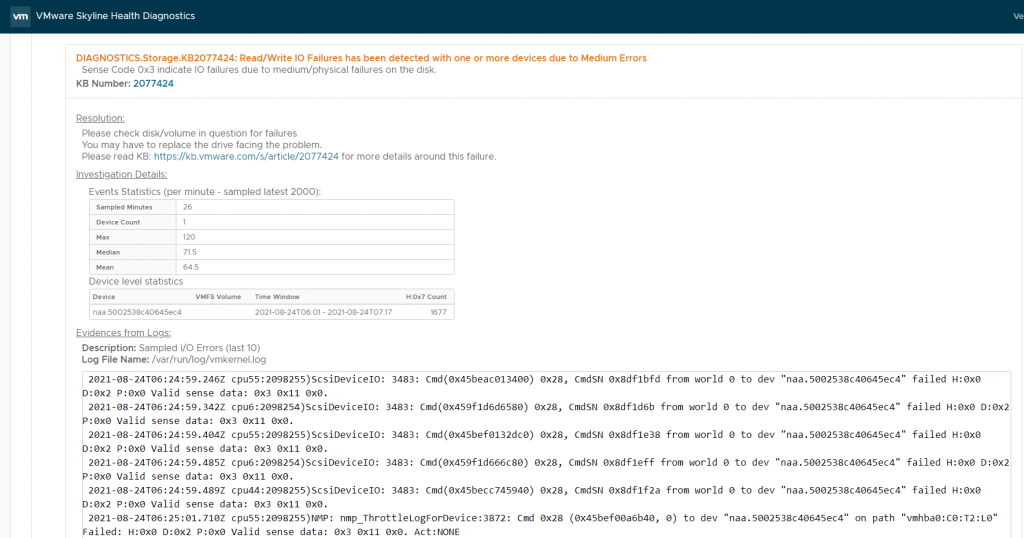
Imagine you have a vSAN infrastructure and at some point, a diskgroup fails but errors are reported on the disks. With this tool, we can analyze the logs exported from the ESXi host on which the diskgroup resides and identify on which physical disks I / O errors have been highlighted
In an old post, I described how to send ESXi logs to Azure Log Analytics to ingest at Azure Sentinel, now I describe Step to Step how to send vCenter logs.
The first step is to do step by step this configuration:
Change to the settings of VCSA Appliance to send the logs to Syslog Gateway Server
For configuring the VCSA you can use this VMware KB
Forward vCenter Server Log Files to Remote Syslog Server (vmware.com)
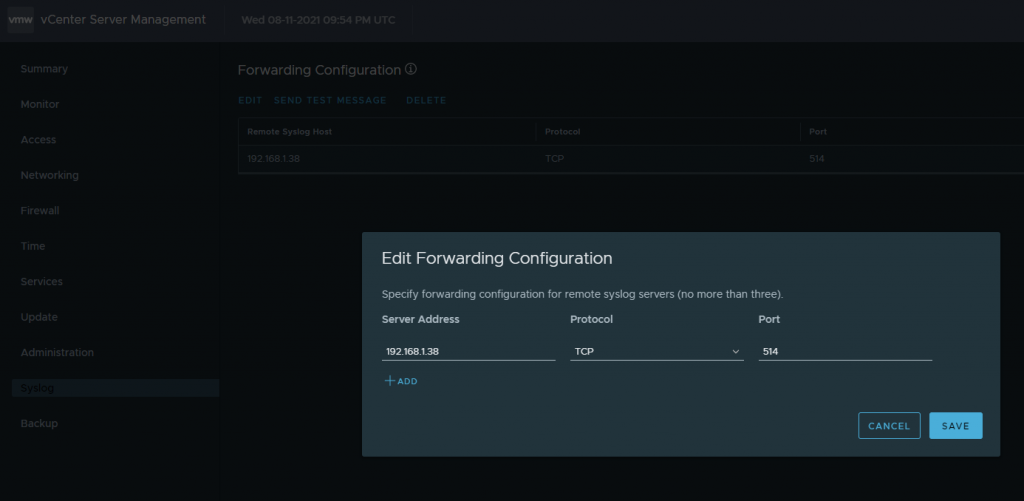
and enable send events (it is enabled by default, but a check is a good idea)
Configure Streaming of Events to a Remote Syslog Server (vmware.com)
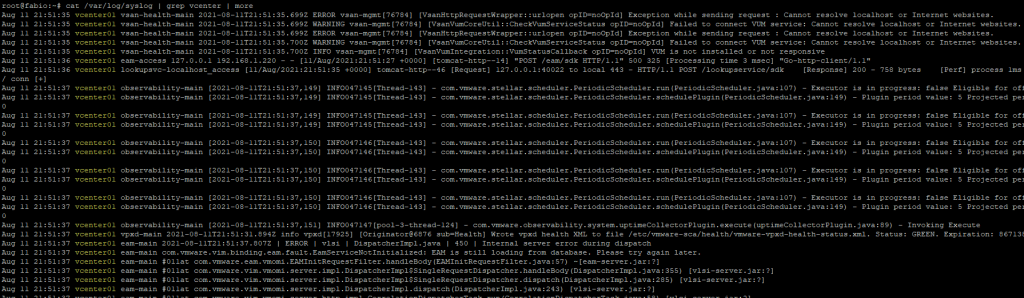
Now you can connect to the Syslog Gateway Server and check if the Syslog server received the logs from the VCSA Appliance
Use SSH to connect at the Syslog Gateway Server and use this command
cat /var/log/syslog | grep <fqdn vCenter> | more
in my situation
cat /var/log/syslog | grep vcenter | more
Configure the Log Analytics Agent, installed on Syslog Gateway Server to process the Facility Local0
Connect to Azure Portal and on Azure Log Analytics Service enable the correct facility (local0)
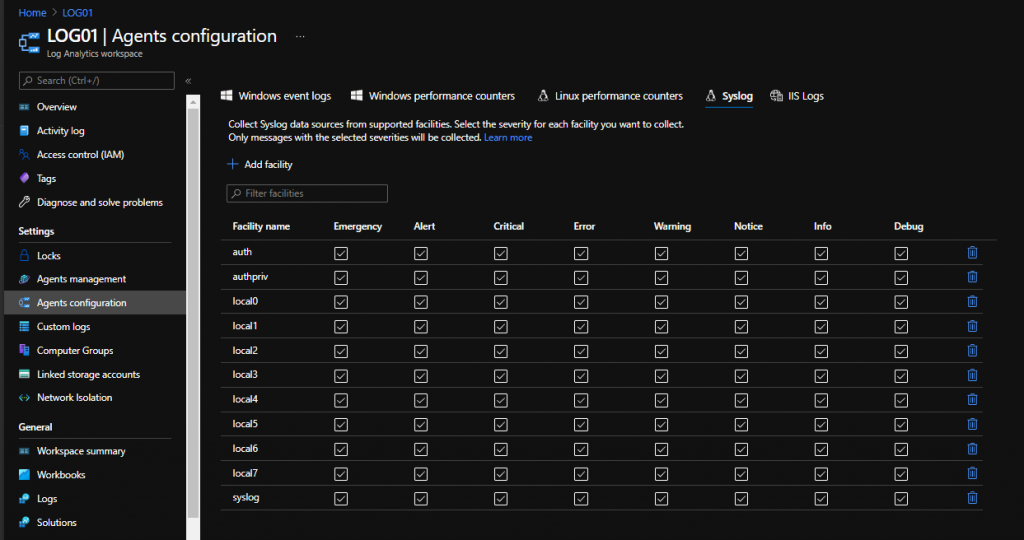
After 10/15 minutes the new configuration will be applied on Syslog Gateway Server (you can check the file /etc/rsyslog.d/95-omsagent.conf on Syslog Gateway)
Change the VMwareESXi function (It was created for ESXi Log check my old post) or create a query custom to parse the log on Azure Log Analytics
Finally, you can query the data on Azure Log Analytics
Syslog | where HostName contains “<FQDN vCenter>”
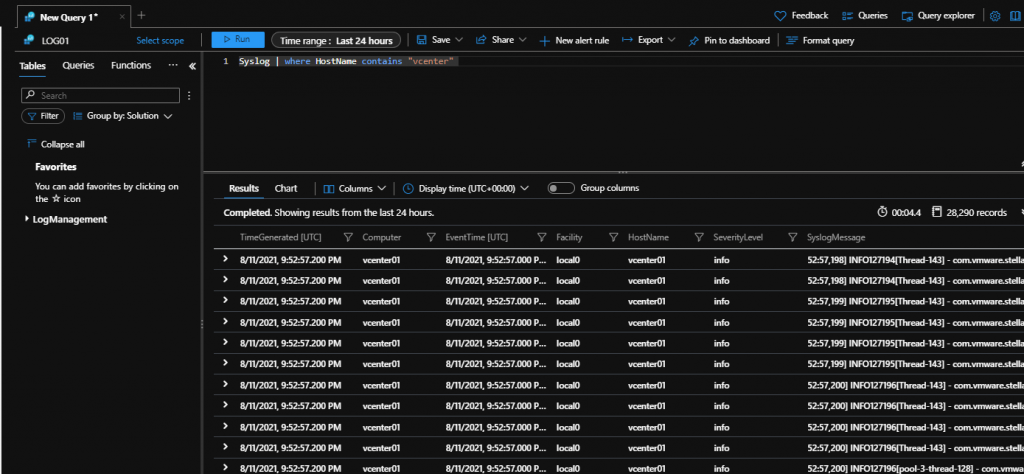
or optionally you can edit the function create for Ingest ESXi log (check my old POST) and insert the vCenter FQDN Name in the same position where there is the ESXi FQDN Name.
Currently, on Azure Sentinel there are no specific Workbooks for VMware, all queries are to be created
Connect-ViServer <vCenter FQDN>
Get-VMHost | Select-Object Name
(get-log -vmhost <ESXi FQDN/IP> -key vmkernel).Entries | Where-object -FilterScript {$_ -like “warning“} | out-gridview
for search on all Host Log
(Get-Datacenter -Name <datacenter name> | get-vmhost | get-log -key vmkernel) | select host,entries | Where-object -FilterScript {$_.Entries -like "*NTPclock*"}
I need to check the Compatibility Matrix for the network IO device of ESXi HOST
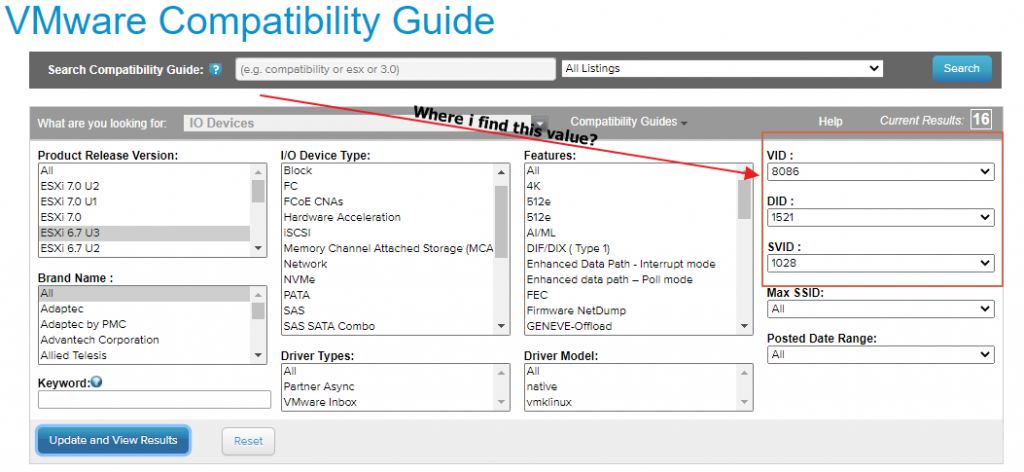
Connect to ESXi with SSH and start this command
vmkchdev -l | grep vmnic
and the value are:

If you want check storage IO device change vmnic to vmhba
Determining Network/Storage firmware and driver version in ESXi (1027206) (vmware.com)
I found myself in the need to carry out some checks on a horizon infrastructure that I could not access the administration console due to the now-famous problems of Adobe FLASH So I found it convenient to use the powercli, I report some scripts used. Running the scripts requires installing the necessary components which I have already discussed in a previous post of mine.
Script to show last user login to VMware Horizon in the last month
$connectionServer=Connect-HVServer -Server $hvserver -User $hvuser -Password $hvPassword -Domain $hvDomain
$Services1=$connectionServer.ExtensionData
$eventdb=Connect-HVEvent -DbPassword $eventDbPassword
$events=Get-HVEvent -HvDbServer $eventdb -TimePeriod month -SeverityFilter AUDIT_SUCCESS
$events.events | Export-Csv C:\temp\VCSMonthLogin.csv
Script to display Horizon Session
Connect-HvServer -server $hvserver -User $hvuser -Password $hvPassword -Domain $hvDomain
$query = New-Object “Vmware.Hv.QueryDefinition”
$query.queryEntityType = ‘SessionLocalSummaryView’
$qSrv = New-Object “Vmware.Hv.QueryServiceService”
$qSRv.QueryService_Query($global:DefaultHVServers[0].ExtensionData,$query) |
Select -ExpandProperty Results |
Select -ExpandProperty NamesData |
Select-Object -Property UserName,DesktopType,DesktopName,MachineOrRDSServerDNS
Script to show user and assigned Computer
Connect-HvServer -server $hvserver -User $hvuser -Password $hvPassword -Domain $hvDomain
$AllVDIInfo = get-hvmachinesummary -PoolName $PoolName
$AllVDIInfo | Format-Table -AutoSize
a special thanks :
VMware a few days ago released a new Horizon Version.
The new build 2106 (8.3) brings with it some very interesting features from some relating to the security of intellectual property to those related to the Teams collaboration tool, here is a list of those that I consider the most interesting:
More details in this video
vSphere use TLS Certificates for protect and security communication from vCenter to ESXi host and when the user access to vCenter WEB GUI.
There are many possible configurations:
The best solution is Hybrid Mode for correct balance of Security and effort for implementation.