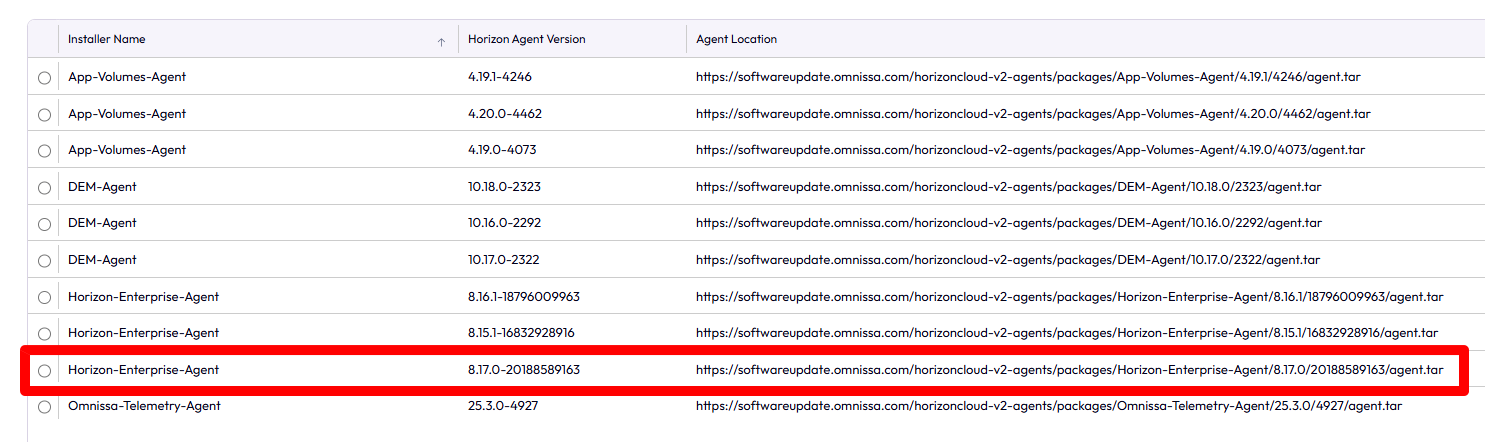
After updating Horizon to version 2512, I noticed that the latest versions (8.17) weren’t being displayed in the Agent Updates section.
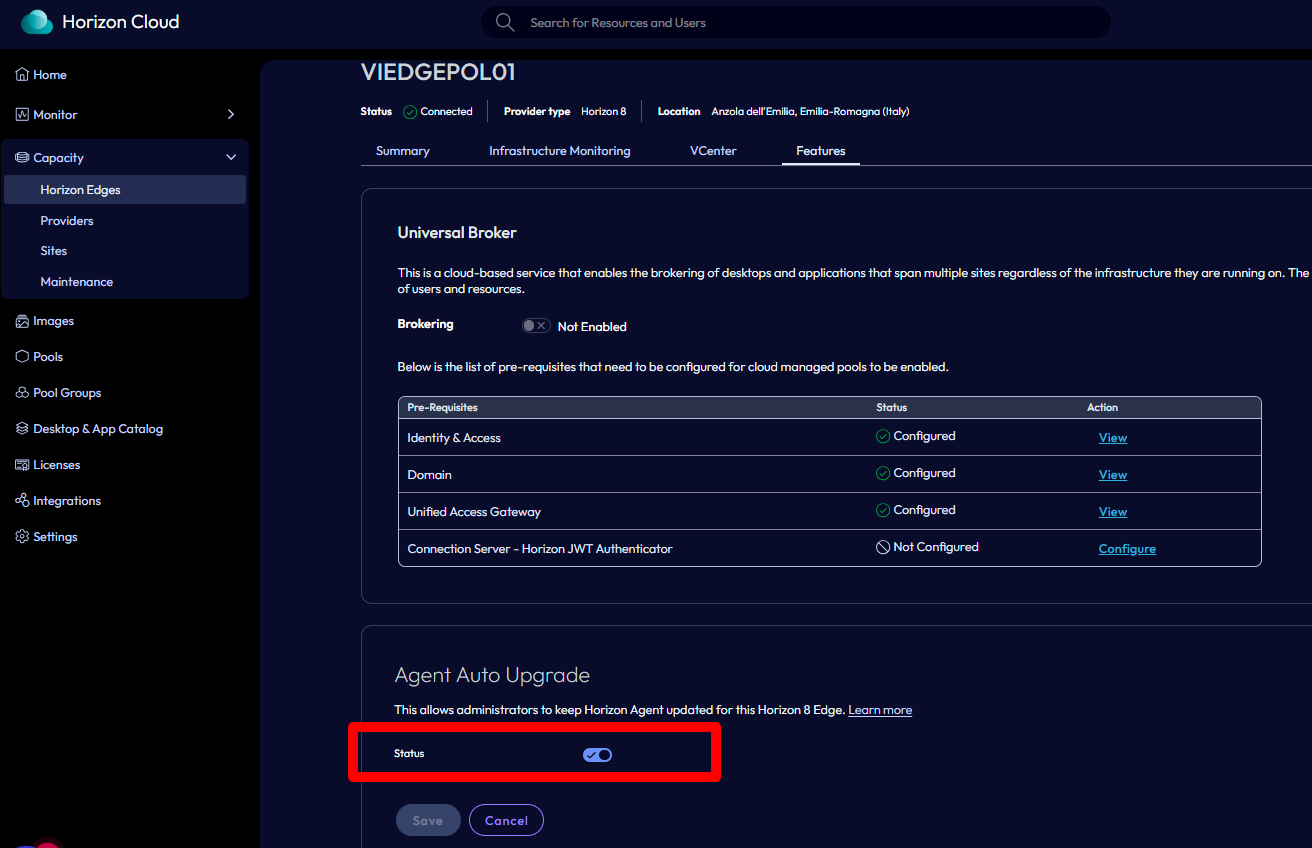
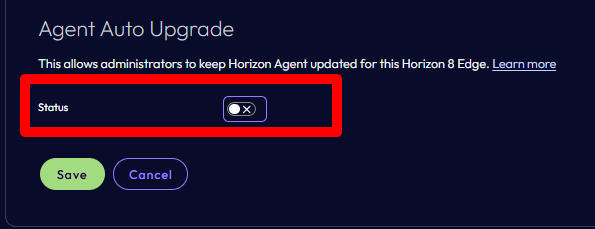
To see the latest versions, I had to disable the Agent Update service on the Omnissa Connect side. Simply go to the Capacity section, select the relevant edge gateway,
and disable the specific option in the Features section.
Re-enable it after a few minutes.
After a few minutes, the latest versions also appeared in the Horizon console.
With the rebranding of VMware Horizon Client to Omnissa Horizon Client, one of the often overlooked aspects is the migration of user settings.
In the context in which I had to operate, the main need was to replicate the Horizon Client settings (from VMware to Omnissa version) in a VDI context. The basic settings to be copied were those of “Drive & Folder Sharing”
In enterprise environments – especially non-persistent VDI managed with Omnissa Dynamic Environment Manager (DEM) – it is critical to ensure that:
• The user’s settings are retained
• The migration takes place only once
• There is no impact on subsequent logons
In this article, we look at how to automatically migrate Horizon client settings:
• by:
%AppData%\VMware\VMware Horizon View Client
•at:
%AppData%\Omnissa\Omnissa Horizon Client
using a PowerShell script that is properly integrated into Omnissa DEM.
Prerequisites
Configuring DEM to export customizations of:
•VMware Horizon Client
•Omnissa Horizon Client
•Audit registry key
Precisely:
.
.
Approach
The solution is based on three key concepts:
1.PowerShell script in user context
2.Logon Task in Flex Configuration (DEM)
3.Condition based on HKCU registry key to ensure one-time execution
The registry key is saved in the user profile and managed by DEM, making the solution compatible with:
• Floating VDI
• Non-persistent desktops
• DEM profiles
.
PowerShell Scripts
The following script:
• Check if the migration has already taken place
• Copy settings, if any
•writes a registry key to block subsequent executions
Con il rebranding di VMware Horizon Client in Omnissa Horizon Client, uno degli aspetti spesso sottovalutati è la migrazione delle impostazioni utente.
Nel contesto in cui ho dovuto operare la necessità principale era replicare le impostazioni dell’Horizon Client (dalla versione VMware a quella Omnissa) in un contesto di VDI. Le impostazioni fondamentale da copiare erano quelle del “Drive & Folder Sharing”
In ambienti enterprise – specialmente VDI non persistenti gestiti con Omnissa Dynamic Environment Manager (DEM) – è fondamentale garantire che:
•le impostazioni dell’utente vengano mantenute
•la migrazione avvenga una sola volta
•non ci siano impatti sui logon successivi
In questo articolo vediamo come migrare automaticamente le impostazioni del client Horizon:
•da:
%AppData%\VMware\VMware Horizon View Client
•a:
%AppData%\Omnissa\Omnissa Horizon Client
utilizzando uno script PowerShell integrato correttamente in Omnissa DEM.
Prerequisiti
Configurazione di DEM per esportare le personalizzazioni di:
VMware Horizon Client
Omnissa Horizon Client
Chiave di registro di controllo
Precisamente:
.
.
Approccio
La soluzione si basa su tre concetti chiave:
1.Script PowerShell in contesto utente
2.Logon Task in Flex Configuration (DEM)
3.Condition basata su chiave di registro HKCU per garantire l’esecuzione una sola volta
La chiave di registro viene salvata nel profilo utente e gestita da DEM, rendendo la soluzione compatibile con:
•VDI floating
•desktop non persistenti
•profili DEM
.
Script PowerShell
Lo script seguente:
•verifica se la migrazione è già avvenuta
•copia le impostazioni se presenti
•scrive una chiave di registro per bloccare le esecuzioni successive