PCoIP Is Gone from Horizon Client 2606/2609: What Really Happens When Your Pool Still Says “PCoIP”

A hands-on look at Omnissa KB 6000812 (PCoIP End of Support Status), with a before/after test on Horizon Connection Server 2603.

Starting with the 2606 client release train, Horizon Client no longer offers PCoIP as a selectable protocol. I tested Horizon Client 2609 against a Connection Server 2603 desktop pool configured with PCoIP as the default protocol: the session silently connected using Blast. If your environment still depends on PCoIP, do not roll out the new client until you have validated Blast or ask to your team to verify

.

Background: the long goodbye to PCoIP

PCoIP has been part of Horizon (and View before it) for more than a decade, and many environments still run on it, often because of zero clients, legacy GPO tuning, or simply because “it has always worked”. The end has been announced for a while:

•2023: VMware EUC (now Omnissa) announced the end of PCoIP support in Horizon.
•End of 2025: the PCoIP code was kept until after the Horizon 8 Extended Service Branch (ESB) release, which continues to receive security and bug fixes for three years.
•Horizon 8 / Client 2606: PCoIP is removed as a selectable display protocol in Horizon Client (desktop and mobile). Blast is now the only supported protocol for client connections.
•Agent side: PCoIP remains available as an option in the Horizon Agent installer, but it is not installed by default, and it remains supported on the agent for zero client connections at this time.

Omnissa tracks the current status in KB 6000812 – PCoIP End of Support Status. I recommend bookmarking it, because it is the reference point for what is still supported and where.

Before the upgrade: PCoIP is still there

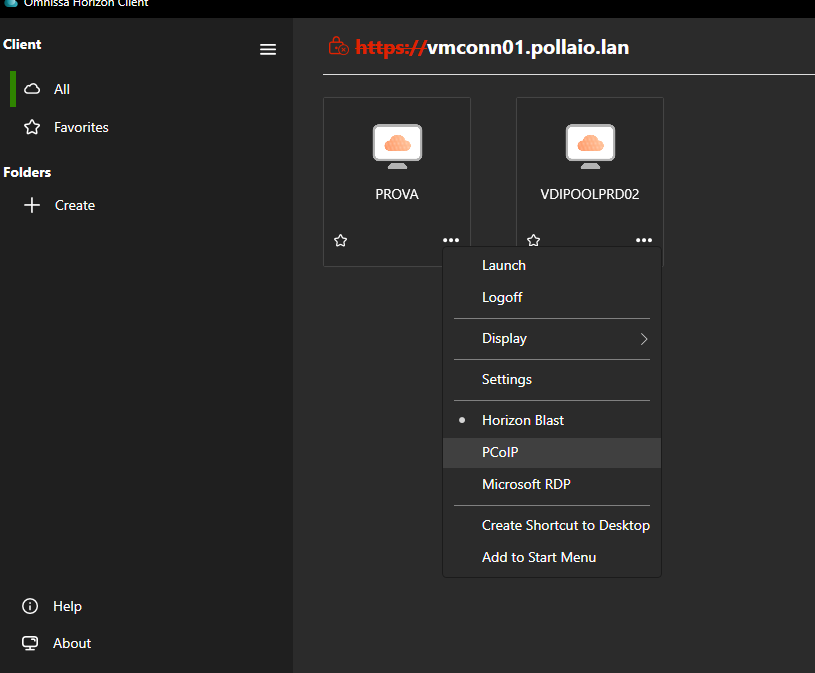
With the previous Horizon Client, right-clicking a desktop entitlement (or opening its settings) shows the familiar protocol choice: users can pick either Blast or PCoIP, as long as the pool allows it.

Figure 1 – Horizon Client before the upgrade: PCoIP is still selectable.

After the upgrade to Horizon Client 2609: Blast only

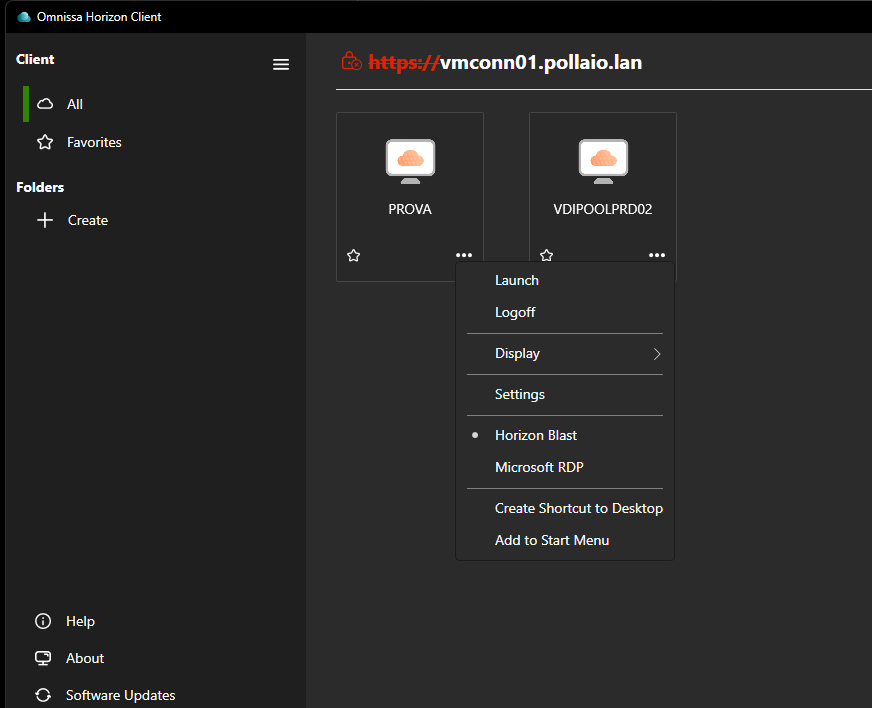
After upgrading the client to 2609, the same menu shows only Blast. The PCoIP option has simply disappeared from the user interface. There is no warning to the user at upgrade time and nothing to configure: the choice is just not there anymore.

Figure 2 – Horizon Client 2609: PCoIP is no longer available.

The test: pool set to PCoIP on Connection Server 2603

The more interesting question is what happens on the server side. Many administrators will assume that if the desktop pool is configured with PCoIP as the default protocol, the connection will either use PCoIP or fail. So I tested it.

Lab setup

•Horizon Connection Server: 2603
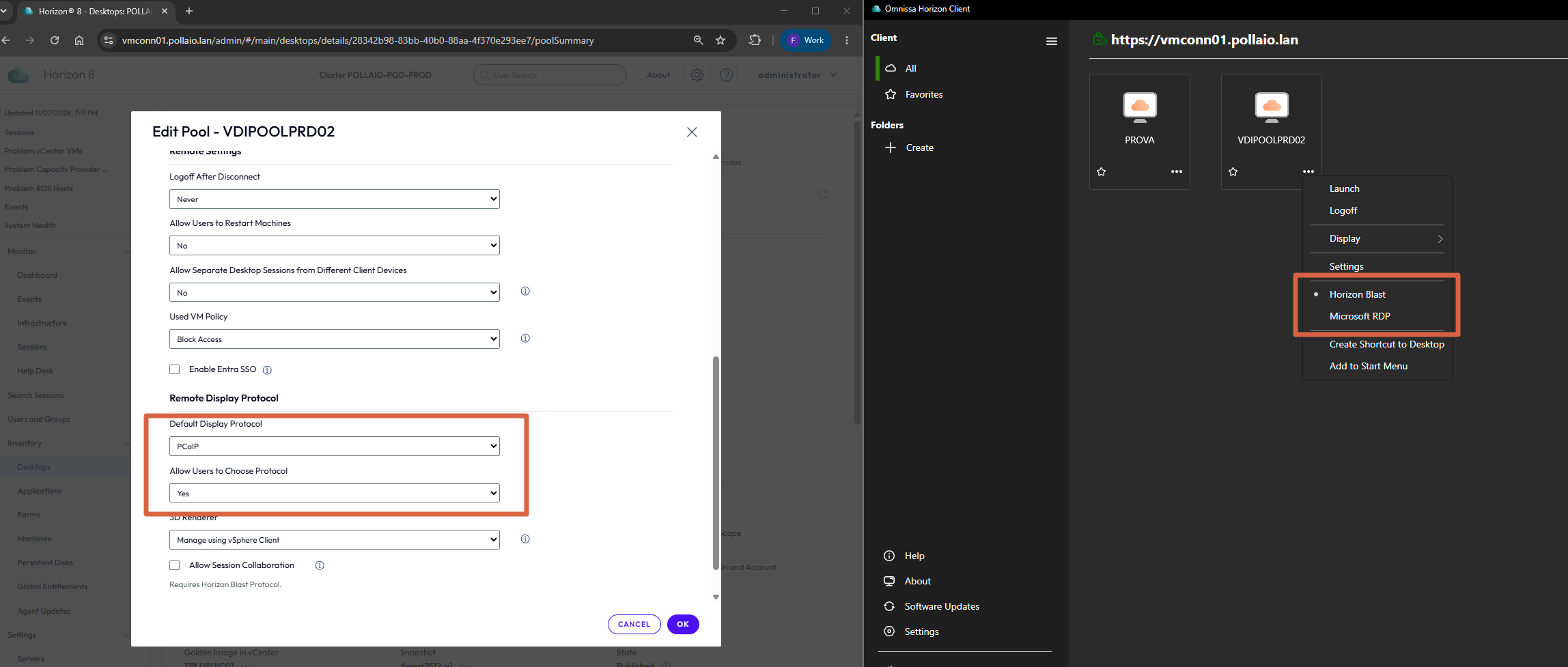
•Desktop pool: default display protocol set to PCoIP
•Endpoint: Horizon Client 2609

Figure 3 – Desktop pool configured with PCoIP as the default display protocol.

Result

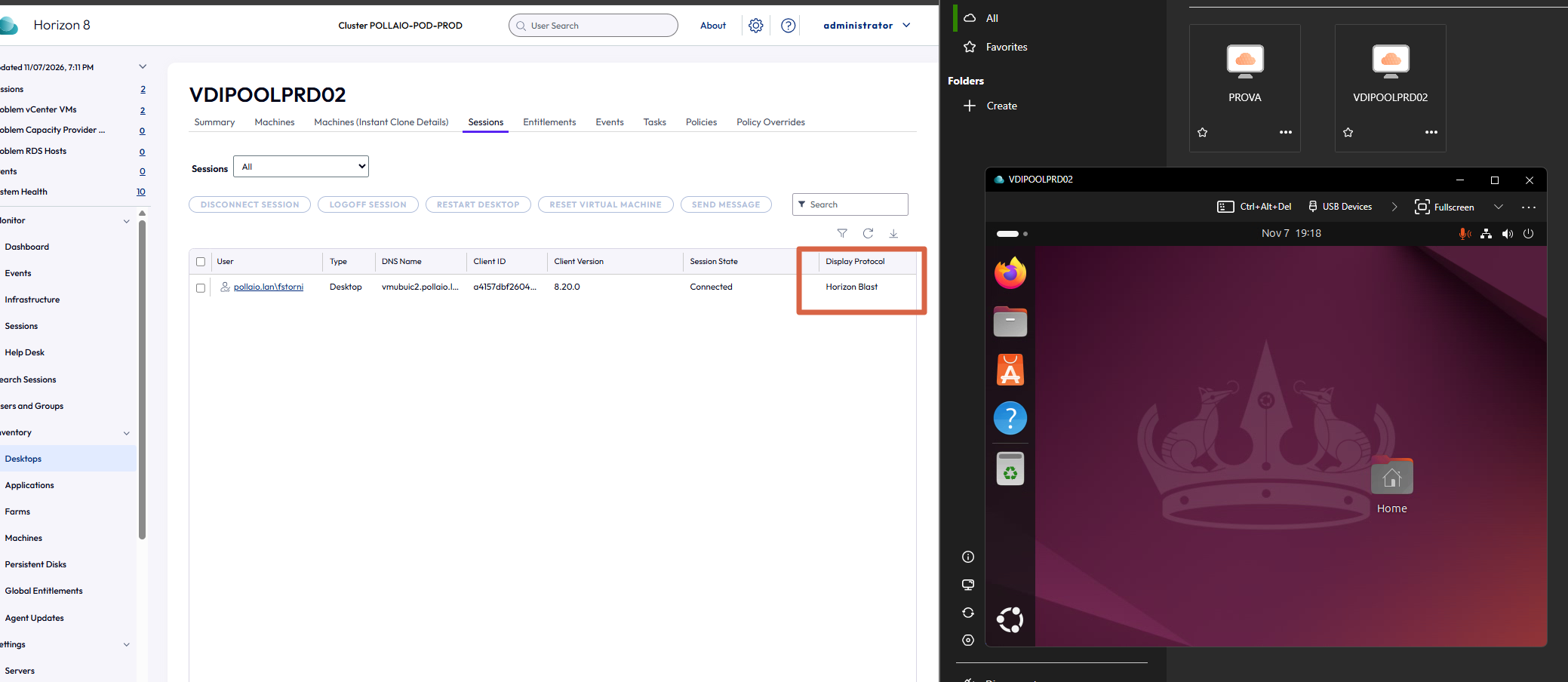
The connection succeeds, but the session does not use PCoIP. Checking the active session (in the client and in the Horizon Console sessions view), the protocol in use is Blast.

Figure 4 – Despite the pool default, the session from Horizon Client 2609 runs on Blast.

Key takeaway: the pool configuration does not protect you. With Horizon Client 2609, the protocol is decided by the client: your “PCoIP” pool will serve Blast sessions.

.

.

Horizon Client 2603 (before)

Horizon Client 2609 (after)

Protocols in the client menu

Blast and PCoIP

Blast only

Pool default = PCoIP

Session runs on PCoIP

Session runs on Blast

PCoIP GPOs / tuning

Applied

Not relevant: Blast policies apply

Network path used

PCoIP (TCP/UDP 4172)

Blast (TCP/UDP 22443 direct, 8443 via gateway)

Table 1 – Summary of the before/after behavior observed in the lab.

Why this matters

A protocol switch that “just works” sounds harmless, but in production it can catch you off guard:

•Network and firewall rules. If only PCoIP ports (4172 TCP/UDP) are open between clients, Unified Access Gateway and agents, Blast traffic (TCP/UDP 22443, or 8443 through the Blast Secure Gateway/UAG) may be blocked or forced onto TCP-only, with poor performance.
•GPO tuning. Years of PCoIP policy tuning (bandwidth caps, image quality, build-to-lossless, session variables) no longer apply. Blast has its own set of policies that need to be reviewed.
•User experience. Blast is generally a strong protocol, but codec choice (H.264/HEVC/Blast Codec), multi-monitor setups, GPU workloads and peripherals should be validated before users notice the difference for you.
•Zero clients. PCoIP zero clients are not affected by the Horizon Client change, as they do not use Horizon Client. But they are tied to the agent-side support status described in the KB, so plan their replacement as well.

Recommendations

1.Inventory your clients. Find out which Horizon Client versions are in use and which users actually connect over PCoIP today (the Horizon Console sessions view shows the protocol per session).
2.Control client updates. If you still rely on PCoIP, hold the client on a version earlier than 2606 on managed devices and review any auto-update settings until the migration is validated.
3.Open the Blast ports. Verify firewall rules end-to-end: client → UAG/Connection Server → agent.
4.Translate your PCoIP GPOs to Blast. Review Blast policies for bandwidth, frame rate, codecs and quality, and test with real users and workloads.
5.Pilot, then roll out. Upgrade a pilot group to the latest client, compare the experience, then move the rest of the users.
6.Update pool defaults. Once everything is validated, set Blast as the default protocol on your pools, so configuration matches reality.
7.Keep an eye on KB 6000812. It is the official source for the PCoIP support status across client, agent and zero clients.

Conclusion

PCoIP’s end of support is no longer a future roadmap item: with Horizon Client 2609, users simply cannot choose it anymore, and a pool set to PCoIP will quietly serve Blast sessions. The switch itself is not the problem; doing it without preparation is. Treat the client upgrade as a protocol migration, plan it, test it, and you will avoid unpleasant surprises on Monday morning.

References

PCoIP Is Gone from Horizon Client 2606/2609: What Really Happens When Your Pool Still Says “PCoIP”

Migrazione delle impostazioni di Horizon Client da VMware a Omnissa con Omnissa DEM

Con il rebranding di VMware Horizon Client in Omnissa Horizon Client, uno degli aspetti spesso sottovalutati è la migrazione delle impostazioni utente.

Nel contesto in cui ho dovuto operare la necessità principale era replicare le impostazioni dell’Horizon Client (dalla versione VMware a quella Omnissa) in un contesto di VDI. Le impostazioni fondamentale da copiare erano quelle del “Drive & Folder Sharing”

In ambienti enterprise – specialmente VDI non persistenti gestiti con Omnissa Dynamic Environment Manager (DEM) – è fondamentale garantire che:

• le impostazioni dell’utente vengano mantenute
• la migrazione avvenga una sola volta
• non ci siano impatti sui logon successivi

In questo articolo vediamo come migrare automaticamente le impostazioni del client Horizon:

• da:

%AppData%\VMware\VMware Horizon View Client

• a:

%AppData%\Omnissa\Omnissa Horizon Client

utilizzando uno script PowerShell integrato correttamente in Omnissa DEM.


Prerequisiti

Configurazione di DEM per esportare le personalizzazioni di:

  • VMware Horizon Client
  • Omnissa Horizon Client
  • Chiave di registro di controllo

Precisamente:

.

.

Approccio

La soluzione si basa su tre concetti chiave:

1.Script PowerShell in contesto utente
2.Logon Task in Flex Configuration (DEM)
3.Condition basata su chiave di registro HKCU per garantire l’esecuzione una sola volta

La chiave di registro viene salvata nel profilo utente e gestita da DEM, rendendo la soluzione compatibile con:

• VDI floating
• desktop non persistenti
• profili DEM

.

Script PowerShell

Lo script seguente:

• verifica se la migrazione è già avvenuta
• copia le impostazioni se presenti
•scrive una chiave di registro per bloccare le esecuzioni successive
# ==============================
# Omnissa Horizon Client Migration
# ==============================

$SourcePath = Join-Path $env:APPDATA "VMware\VMware Horizon View Client"
$DestinationPath = Join-Path $env:APPDATA "Omnissa\Omnissa Horizon Client"

# Registry key (per-utente)
$RegPath = "HKCU:\Software\Omnissa\Migrations"
$RegName = "HorizonClientSettingsMigrated"

# ---- Controllo se già eseguito ----
if (Test-Path $RegPath) {
    $Migrated = Get-ItemProperty -Path $RegPath -Name $RegName -ErrorAction SilentlyContinue
    if ($Migrated.$RegName -eq 1) {
        exit 0
    }
}

# ---- Verifica sorgente ----
if (-not (Test-Path $SourcePath)) {
    # Scriviamo comunque la chiave per evitare retry inutili
    New-Item -Path $RegPath -Force | Out-Null
    New-ItemProperty -Path $RegPath -Name $RegName -Value 1 -PropertyType DWORD -Force | Out-Null
    exit 0
}

# ---- Creazione destinazione ----
New-Item -Path $DestinationPath -ItemType Directory -Force | Out-Null

# ---- Copia contenuto ----
Copy-Item -Path "$SourcePath\*" `
          -Destination $DestinationPath `
          -Recurse `
          -Force `
          -ErrorAction SilentlyContinue

# ---- Scrittura chiave di completamento ----
New-Item -Path $RegPath -Force | Out-Null
New-ItemProperty -Path $RegPath -Name $RegName -Value 1 -PropertyType DWORD -Force | Out-Null

exit 0

Lo script lo posizioniamo nella share Config di DEM creando una cartella chiamandola script. Nel mio caso

C:\DEMConfig\Script 

.

Configurazione in Omnissa DEM

Lo script deve essere configurato come Logon Task per cui dalla console di DEM:

• User Environment→ Logon Tasks
• Name:

Migrate Horizon Client Settings (VMware → Omnissa)

• Command:

powershell.exe  -ExecutionPolicy Bypass -NoProfile -File \\fs02.pollaio.lan\DEMConfig\Scripts\Migrate-HorizonClientSettings.ps1

Condition (fondamentale)

• Hive: HKEY_CURRENT_USER
• Key: Software\Omnissa\Migrations
• Value: HorizonClientSettingsMigrated 
non è uguale a 1 


Qui il video dove replico tutti i passaggi e provo il tutto:

.

Migrazione delle impostazioni di Horizon Client da VMware a Omnissa con Omnissa DEM