Checking Horizon Cloud Services Connectivity from Horizon Edge Gateway

It is important to remember that the Horizon Edge Gateway is not only used for enabling integration with Horizon Cloud Services, but it is also required in many environments for Horizon subscription licensing.

In modern deployments of Omnissa Horizon, subscription licenses are delivered through the Horizon Cloud control plane rather than through traditional license keys. To enable this mechanism, each Horizon pod must be connected to the cloud service using a Horizon Edge Gateway appliance.

When using subscription-based licensing:

• The Horizon Edge Gateway connects the Horizon pod to Horizon Cloud Services.
• The control plane synchronizes and delivers the Horizon license entitlement.
• No manual license key entry is required on the Connection Server.

For this reason, outbound connectivity to the Horizon Cloud endpoints is critical, not only for cloud services but also for maintaining a valid licensing state in subscription-based environments.

If the Edge Gateway cannot reach the required endpoints due to firewall restrictions, proxy configuration, or SSL inspection, administrators may experience issues such as:

• License synchronization failures
• Horizon services reporting licensing errors
• Problems during onboarding or control plane communication

In contrast, environments using term/perpetual license keys entered directly in the Horizon Console do not require a Horizon Edge Gateway, because licensing is handled locally within the pod.


Checking the connectivity

When deploying environments based on Omnissa Horizon integrated with Horizon Cloud Services (HCS), proper outbound connectivity from the Horizon Edge Gateway is critical.

This is the link for Port and Protocol Requirements for Deploying Horizon 8 Edge:

Port and Protocol Requirements for Deploying Horizon 8 Edge

In many enterprise environments, outbound communication toward the internet is tightly controlled through firewalls, proxies, or SSL inspection systems. While this is perfectly reasonable from a security perspective, it often introduces connectivity issues if the required endpoints are not properly allowed.

Even more commonly, the configuration works initially but breaks later because firewall rules are modified, security appliances are upgraded, or SSL inspection policies change over time.

For this reason, whenever issues arise with Horizon Cloud integration, the first thing to verify is whether the Edge Gateway can still reach the required Horizon Cloud Services endpoints.

Fortunately, the Edge Gateway provides a built-in diagnostic tool to help with exactly this scenario.

.

.

.

Using diagnostic.sh to Test Connectivity

The Horizon Edge Gateway includes a script called diagnostic.sh

This script performs a series of connectivity checks toward the Horizon Cloud Services endpoints required for proper operation.

The script validates:

• DNS resolution
• HTTPS connectivity
• Reachability of the required Horizon Cloud endpoints
• TLS handshake validation

This makes it extremely useful when troubleshooting issues caused by:

• Missing firewall rules
• SSL inspection interfering with TLS connections
• DNS resolution problems
• Proxy misconfigurations

.

Running the Diagnostic Script

Log in to the Horizon Edge Gateway via VM Web Console with the root account:

And run this command:

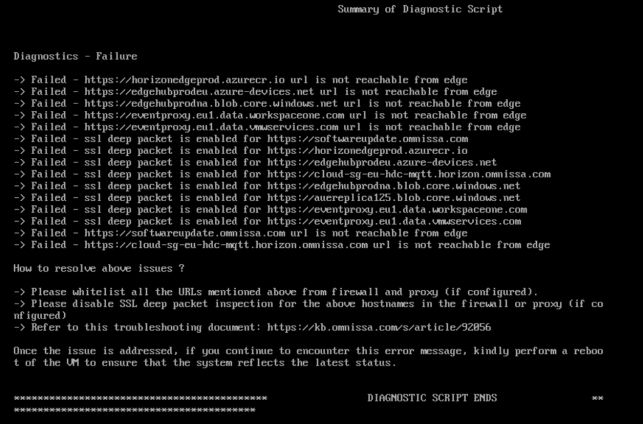
The script will test connectivity against multiple Horizon Cloud endpoints and return the results directly to the console.

A successful test typically shows results like:
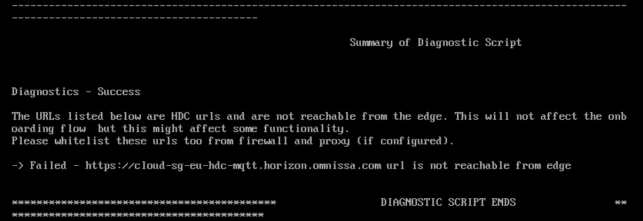
If a problem exists, the script will clearly indicate which test failed.
.

Why This Check Is Important

Connectivity to Horizon Cloud Services is essential for several platform features, including:

• Edge Gateway registration
• Horizon control plane communication
• Monitoring and service updates
• Validate the Horizon License

Because firewall and security policies frequently evolve in enterprise environments, it’s a good practice to periodically validate connectivity using the diagnostic tool.

Running the diagnostic script can quickly confirm whether the issue is related to networking or to another component of the Horizon environment.

.

.

.

.

 Spoiler:

There may be proxy problems. For which proxy it is used, you can read this configuration file:

/opt/horizon/var/data/proxy.conf

.

.

.

Checking Horizon Cloud Services Connectivity from Horizon Edge Gateway

Migrating Horizon from VMware to Omnissa: Why a Parallel Connection Server Deployment Is Often the Safest Approach

The transition from VMware Horizon to Omnissa Horizon introduced more than just a branding change. Starting with Horizon 2412 and continuing with later releases such as 2503 and 2506, several architectural and configuration elements have been modified.

These changes include licensing format updates, ADAM/AD LDS database modifications, registry key renaming, folder restructuring, and updated group policy templates.

While the official upgrade path works, in many environments a parallel deployment strategy can significantly reduce risk and allow end users to validate the new platform before switching production workloads.

This article outlines the key changes introduced by Omnissa and explains why building a new Horizon pod alongside the existing one can be a practical migration strategy.

.

Key Changes Introduced with Omnissa Horizon

1. New Licensing Model

Beginning with Horizon 2412, Omnissa introduced a new licensing mechanism and licensing portal.

During the transition phase, both VMware and Omnissa license keys are temporarily accepted, but this compatibility window is limited. Later releases, such as 2503.1 ESB and 250,6 rely entirely on the Omnissa License Module (OLM).

If a valid Omnissa license key is not installed after upgrading, the Horizon Console may enter a restricted or degraded mode.

Relevant KB and documentation references include:

• KB 6000212 – Horizon licensing transition guidance
• KB 6000745 – Omnissa rebranding changes and affected components

.

2. ADAM / AD LDS Database Changes

One of the most important backend changes affects the Horizon LDAP (ADAM/AD LDS) database.

Historically, Horizon used application partitions referencing the VMware namespace.
With the Omnissa rebranding, new environments now use the
horizon namespace.

Example:

Old partition naming:

dc=vdi,dc=vmware,dc=int

dc=vdiglobal,dc=vmware,dc=int

New partition naming:

dc=vdi,dc=horizon,dc=internal

dc=vdiglobal,dc=horizon,dc=internal

Omnissa provides a migration script to update the partition names after upgrading all pods to newer versions, such as 2503.

Relevant documentation:

• KB 6000797 – ADLDS partition migration for Horizon

.

3. Registry Key and File System Changes

The rebranding also impacted multiple components of the Horizon installation:

Component

Previous Location

New Location

Installation folder

C:\Program Files\VMware\VMware View

C:\Program Files\Omnissa\Horizon

Logs

C:\ProgramData\VMware\VDM\logs

C:\ProgramData\Omnissa\Horizon\logs

Registry keys

HKLM\Software\VMware, Inc.\VMware VDM

HKLM\Software\Omnissa\Horizon

ADAM DB instance

VMwareVDMDS

OmnissaHzeDS

Because registry paths changed, Group Policy templates (ADMX) were also updated and must be replaced during upgrades.

Failure to update the ADMX files can lead to policies silently no longer applying.

.

Why a Parallel Horizon Deployment Can Be a Better Migration Strategy

Although a direct upgrade of the Connection Servers is supported, the number of changes introduced with the Omnissa transition makes a greenfield-style deployment attractive.

Instead of upgrading the existing servers, consider deploying new Connection Servers alongside the current environment.

Advantages include:

1. Opportunity to Upgrade Windows Server

New Connection Servers allow administrators to deploy a modern operating system, such as:

• Windows Server 2022 or later (Windows 2025 is a like option)

This avoids performing multiple upgrades on the same system.

.

2. User Acceptance Testing

With a parallel deployment, you can:

• publish test desktop pools
• provide pilot users access
• validate authentication flows
• verify DEM and App Volumes integration

Users can test the environment before the production switch.

.

3. Reduced Upgrade Risk

Upgrading in place modifies:

• ADAM database
• registry keys
• services
• folder paths

A clean installation avoids potential issues caused by legacy configurations.

.

Example Parallel Migration Architecture

A typical migration architecture might look like this:

Existing Environment

• Horizon Connection Servers
• Unified Access Gateways
• Instant Clone pools
• DEM and App Volumes

New Environment

• New Omnissa Connection Servers
• New Omnissa Unified Access Gateways
• Same vCenter Server
• Same Active Directory
• Same desktop images
• Same DEM*
• Same App Volumes*

*After migration, it will be upgraded.

This allows a staged migration.

Key points:

• vCenter Server can remain unchanged
• Desktop pools can be recreated or migrated
• User profiles continue to work through DEM

.

Migrating Instant Clone Desktop Pools

In environments heavily using Instant Clones, rebuilding pools manually can be time-consuming.

Automation scripts can accelerate the process by exporting and recreating pools through the Horizon APIs.

In my environment, I use a PowerShell-based migration script that reads the configuration of Instant Clone pools and recreates them on the new pod.

This allows administrators to migrate:

• pool configuration
• entitlements
• naming patterns
• provisioning settings

with minimal manual effort.

This is the link to the script

OMNISSA/OMNISSA – Export and Import Desktop and Entitlements v7.ps1 at main · fabio1975/OMNISSA

.

Reusing DEM and App Volumes

Existing deployments of

• Omnissa Dynamic Environment Manager
• Omnissa App Volumes

can usually remain unchanged during migration.

However, compatibility must always be validated using the official interoperability matrix.

Relevant documentation:

• Horizon interoperability matrix
• App Volumes compatibility with Horizon
• DEM compatibility with Horizon

Official documentation:

These matrices confirm supported combinations between:

• Horizon versions
• App Volumes
• Dynamic Environment Manager
• vCenter Server
• ESXi

.

Suggested Migration Workflow

A practical migration process could look like this:

    1. Deploy new Connection Servers with Omnissa Horizon
    2. Deploy new Unified Access Gateways
    3. Connect the new pod to the existing vCenter
    4. Validate App Volumes and DEM compatibility
    5. Recreate or migrate Instant Clone pools
    6. Perform pilot user testing
    7. Switch production access
    8. Decommission legacy Connection Servers
    9. Create the news GPO for Horizon (we need use the new GPO Templates)
    10. Upgrade the Horizon Agent, DEM and App Volumes

    .

    Final Thoughts

    The transition from VMware Horizon to Omnissa Horizon introduces several structural changes that go beyond simple branding.

    Changes in licensing, LDAP partitions, registry paths, and policy templates can complicate traditional upgrade workflows.

    For many environments, especially large VDI deployments, deploying new Connection Servers in parallel offers a safer and more flexible migration strategy.

    It provides an opportunity to modernize the infrastructure, validate compatibility with components such as App Volumes and DEM, and allow users to test the platform before the final cutover.

    .

    .

    Migrating Horizon from VMware to Omnissa: Why a Parallel Connection Server Deployment Is Often the Safest Approach