SaaS License Activation for Omnissa Horizon without EDGE Gateway

In the latest versions of Horizon, it is recommended to use the SaaS subscription, which requires the installation of an EDGE Gateway component generated by the Omnissa Connect portal under Horizon in the customer section.

This involves the need to install a Linux VM on our vSphere environment; not for everyone is this feasible:

–Need not have connections with Cloud services
–Resource savings (CPU, RAM and disk space)
–Test environments and any POCs
–Or, as in my case, I must test the new versions of Horizon

For this last point and since I need to install version 2606 as a test, I decided to explain how to do it… step by step.

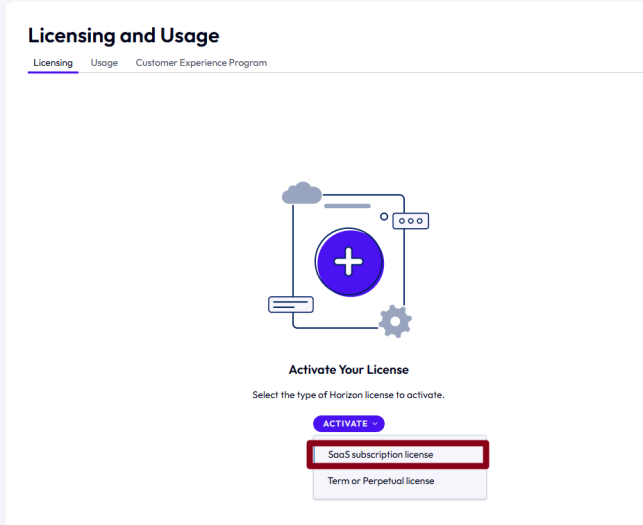
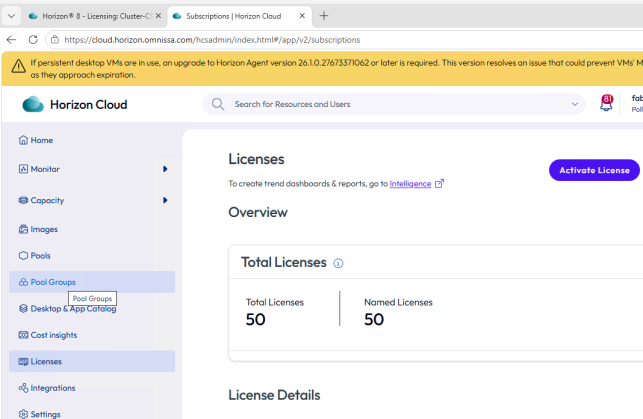
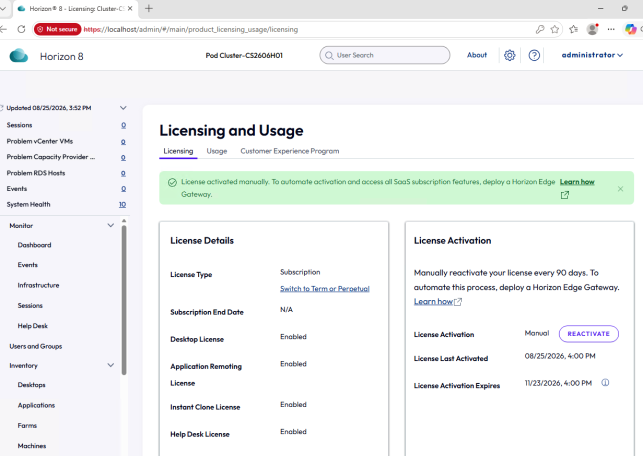
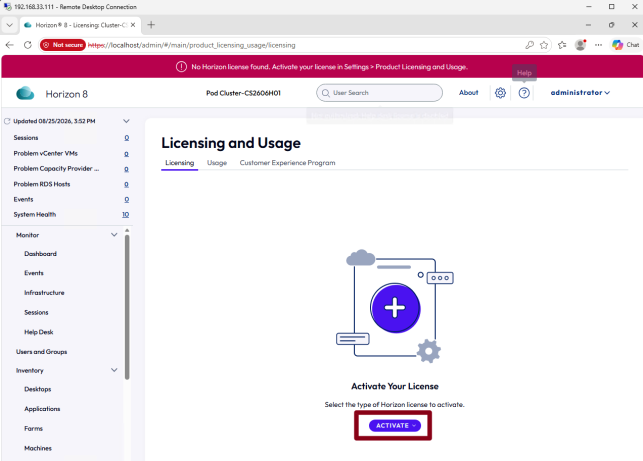
Installed my connection server on a Windows Server 2025. The first thing to do is access the administration console and activate the license:

.

.

.

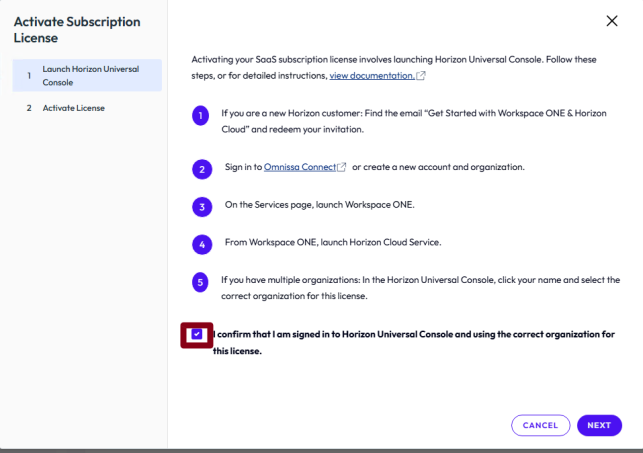
Verify that you have received the activation email or that you have a Horizon SaaS subscription and that you have access to the Connect Omnissa portal

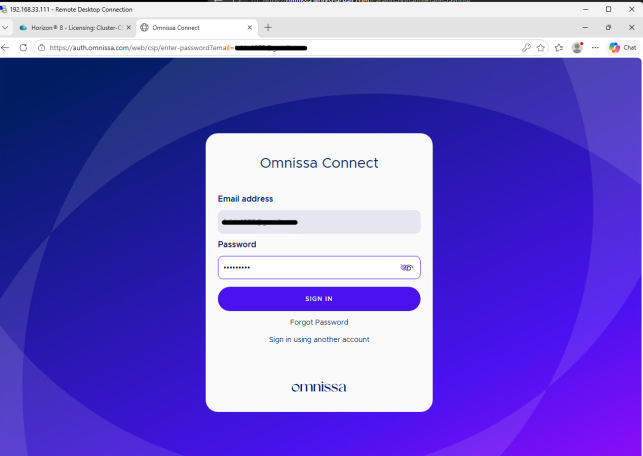
So you must log in to the Omnissa Connect portal (by opening a TAB from the Browser you are using to access the Horizon console) and authenticate on connect.omnissa.com and keep the tab open.

.

.

Enter accounts, passwords and if necessary, do MFA

.

.

A new tab will automatically open with the login already made

.

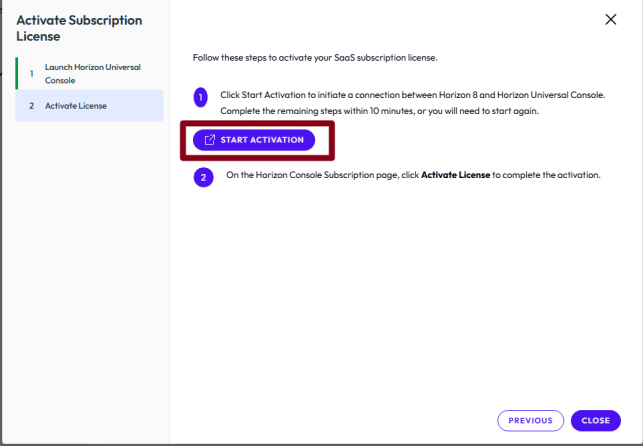
Now run

The following message will appear

.

.

And on the Horizon console, the license status will be as follows

.

.

Two important points

–Mark your calendar to reactivate your license (in the same way) before 90 days have passed
–You can switch to a license via the EDGE Gateway by simply installing the EDGE Gateway (Follow the specific procedure)

.

.

.

.

SaaS License Activation for Omnissa Horizon without EDGE Gateway

Checking Horizon Cloud Services Connectivity from Horizon Edge Gateway

It is important to remember that the Horizon Edge Gateway is not only used for enabling integration with Horizon Cloud Services, but it is also required in many environments for Horizon subscription licensing.

In modern deployments of Omnissa Horizon, subscription licenses are delivered through the Horizon Cloud control plane rather than through traditional license keys. To enable this mechanism, each Horizon pod must be connected to the cloud service using a Horizon Edge Gateway appliance.

When using subscription-based licensing:

• The Horizon Edge Gateway connects the Horizon pod to Horizon Cloud Services.
• The control plane synchronizes and delivers the Horizon license entitlement.
• No manual license key entry is required on the Connection Server.

For this reason, outbound connectivity to the Horizon Cloud endpoints is critical, not only for cloud services but also for maintaining a valid licensing state in subscription-based environments.

If the Edge Gateway cannot reach the required endpoints due to firewall restrictions, proxy configuration, or SSL inspection, administrators may experience issues such as:

• License synchronization failures
• Horizon services reporting licensing errors
• Problems during onboarding or control plane communication

In contrast, environments using term/perpetual license keys entered directly in the Horizon Console do not require a Horizon Edge Gateway, because licensing is handled locally within the pod.


Checking the connectivity

When deploying environments based on Omnissa Horizon integrated with Horizon Cloud Services (HCS), proper outbound connectivity from the Horizon Edge Gateway is critical.

This is the link for Port and Protocol Requirements for Deploying Horizon 8 Edge:

Port and Protocol Requirements for Deploying Horizon 8 Edge

In many enterprise environments, outbound communication toward the internet is tightly controlled through firewalls, proxies, or SSL inspection systems. While this is perfectly reasonable from a security perspective, it often introduces connectivity issues if the required endpoints are not properly allowed.

Even more commonly, the configuration works initially but breaks later because firewall rules are modified, security appliances are upgraded, or SSL inspection policies change over time.

For this reason, whenever issues arise with Horizon Cloud integration, the first thing to verify is whether the Edge Gateway can still reach the required Horizon Cloud Services endpoints.

Fortunately, the Edge Gateway provides a built-in diagnostic tool to help with exactly this scenario.

.

.

.

Using diagnostic.sh to Test Connectivity

The Horizon Edge Gateway includes a script called diagnostic.sh

This script performs a series of connectivity checks toward the Horizon Cloud Services endpoints required for proper operation.

The script validates:

• DNS resolution
• HTTPS connectivity
• Reachability of the required Horizon Cloud endpoints
• TLS handshake validation

This makes it extremely useful when troubleshooting issues caused by:

• Missing firewall rules
• SSL inspection interfering with TLS connections
• DNS resolution problems
• Proxy misconfigurations

.

Running the Diagnostic Script

Log in to the Horizon Edge Gateway via VM Web Console with the root account:

And run this command:

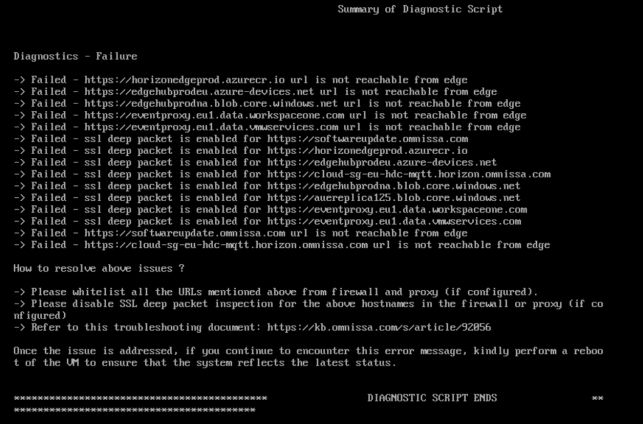
The script will test connectivity against multiple Horizon Cloud endpoints and return the results directly to the console.

A successful test typically shows results like:
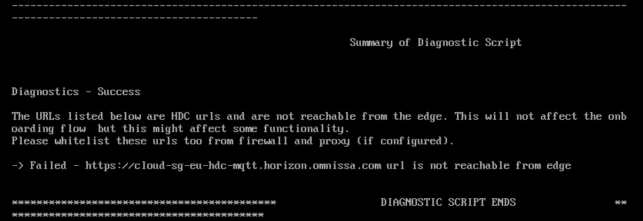
If a problem exists, the script will clearly indicate which test failed.
.

Why This Check Is Important

Connectivity to Horizon Cloud Services is essential for several platform features, including:

• Edge Gateway registration
• Horizon control plane communication
• Monitoring and service updates
• Validate the Horizon License

Because firewall and security policies frequently evolve in enterprise environments, it’s a good practice to periodically validate connectivity using the diagnostic tool.

Running the diagnostic script can quickly confirm whether the issue is related to networking or to another component of the Horizon environment.

.

.

.

.

 Spoiler:

There may be proxy problems. For which proxy it is used, you can read this configuration file:

/opt/horizon/var/data/proxy.conf

.

.

.
Checking Horizon Cloud Services Connectivity from Horizon Edge Gateway

Upgrade/Install Horizon Edge Gateway


The Horizon Edge Gateway allows Omnissa Horizon 8 environments to connect to the Omnissa Horizon® Cloud Service™. Deploying a Horizon Edge Gateway Appliance for Horizon 8 deployments on vSphere is accomplished by accessing the Horizon Universal Console, which is the administrative interface for the Horizon Cloud Service.

Horizon Edge Gateway Appliance is required to entitle your environment to Horizon subscription licenses, services, and management features hosted in the Horizon Control Plane Services. To enable subscription license entitlement, Horizon Edge Gateway Appliance must be deployed in each Horizon Pod.

(https://techzone.omnissa.com/resource/deploying-horizon-edge-gateway)

How any virtual appliance it is necessary to upgrade to a new version.

In my situation, I had a customer with an old version of Horizon Edge Gateway (2.3.4.1) and on the Horizon Cloud portal we saw info that said a new version of Edge

The procedure to upgrade is very simple and is like to the procedure for the first install

After click to view

A screenshot of a computer

Description automatically generated

We are redirected to the maintenance tab where it is displayed some information.

After selecting “Upgrade” we can start with the activity.

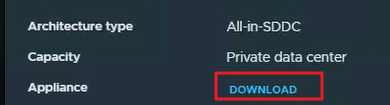
First, we need to download the last Horizon Edge Gateway Appliance.

A screen shot of a computer

Description automatically generated

We had collected the information of actual Edge deploy like

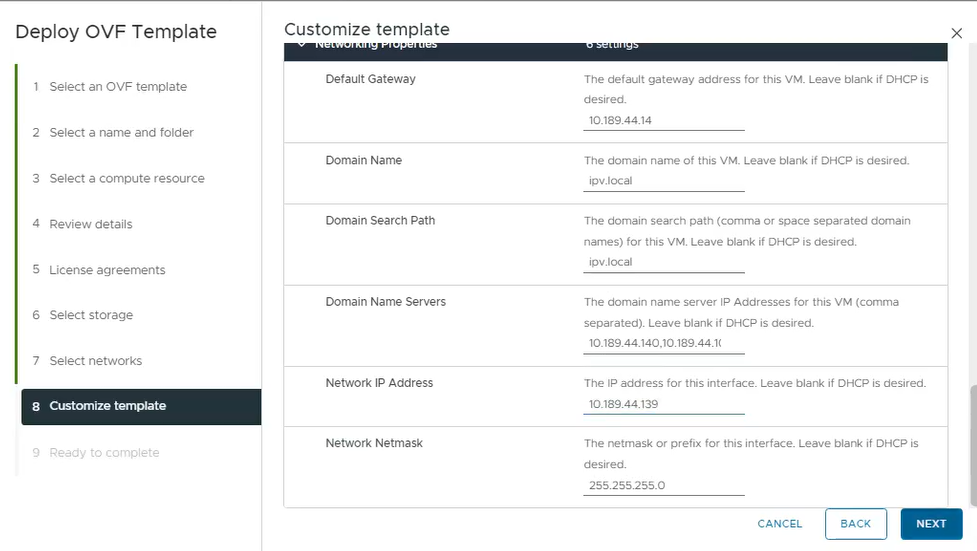
Network Configuration (such as IP Address, Gateway, NetMask and PortGroup)

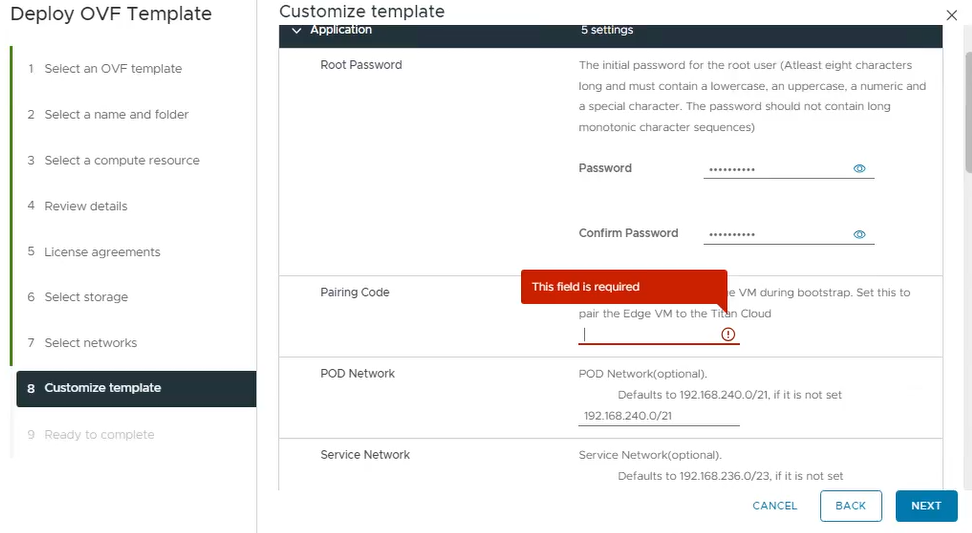
Now we are ready to log in to Virtual Center where we want to deploy the Appliance with insert some information, including the fundamental paring code that we can find on this screen:

A screenshot of a computer

Description automatically generated

Shut down the old Edge Gateway.

Deploy the OVA appliance:

A screenshot of a computer

Description automatically generated

We need to insert the standard information for ova deploy and insert the paring code and the network information

A screenshot of a computer

Description automatically generated

A screenshot of a computer

Description automatically generated

After deploying, on the Horizon Cloud portal under Resources and Capacity, we found that the Horizon Edge is Disconnected.

A screenshot of a computer

Description automatically generated

Now it is only a question of time…. or we can force with re-validate the info by clicking on edit configuration.

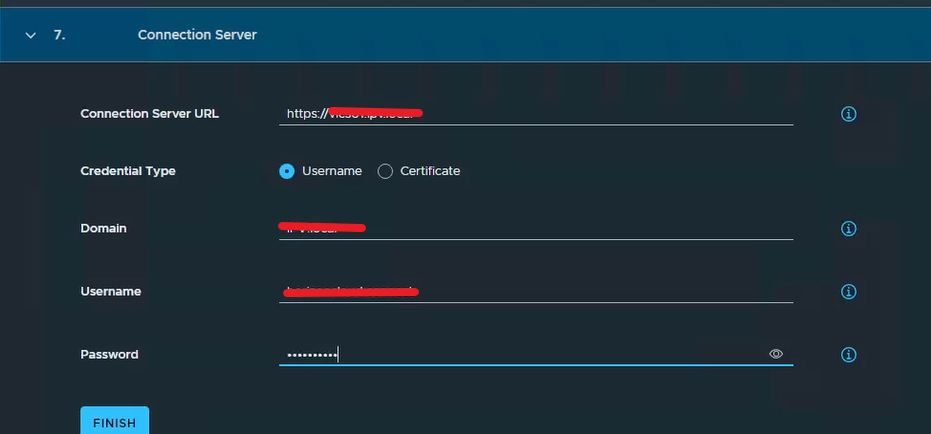
The last step is to insert the information to connect the Horizon Edge to the Connection Server (on-prem deployment)

Enter on the actual Horizon Edge

A screenshot of a computer error

Description automatically generated

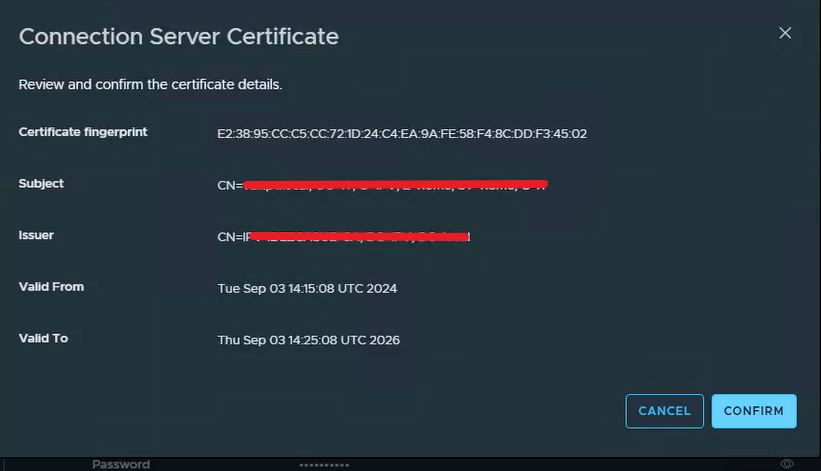
We need to edit the Horizon Connection Server information because it is necessary to validate the trust with the Connection Server SSL certificate and insert the password for the service User.

A screenshot of a computer

Description automatically generated

Confirm the certificate trust

A screenshot of a computer

Description automatically generated

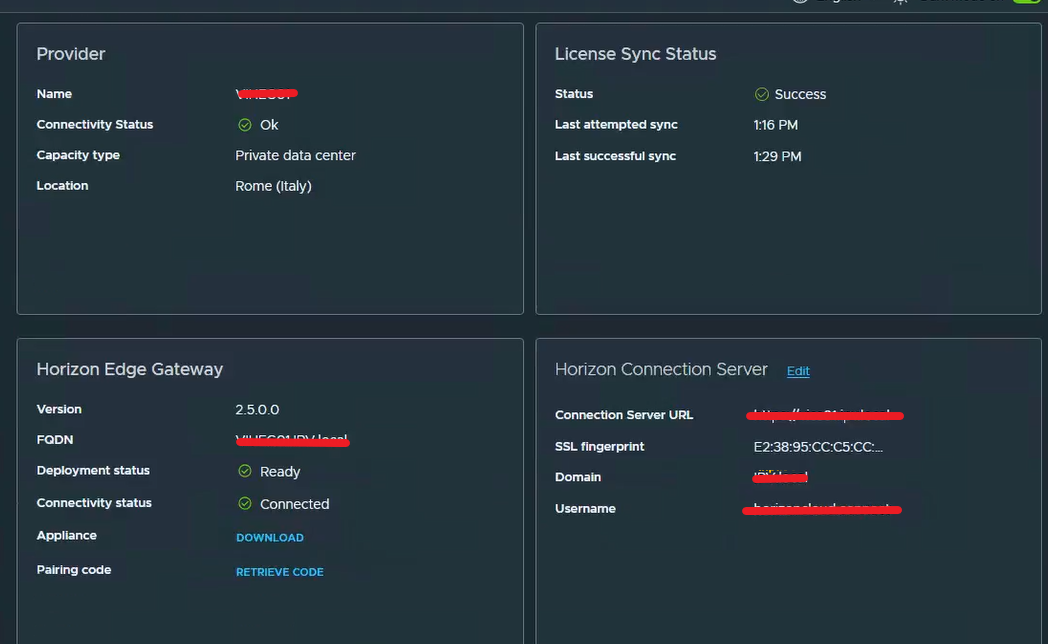
We are waiting or forcing a refresh.

A screenshot of a computer

Description automatically generated

Upgrade/Install Horizon Edge Gateway