
ATTENTION!!
This is a document that was created from a Home Lab.
My Home Lab:
vSphere 8u3i
One vCenter
Two ESXi hosts (Nested)
One NFS datastore (TrueNAS)
Official Documentation
Source Converge a vCenter Instance and ESX Hosts to vSphere Foundation
Verify upgrade path from Product Interoperability Matrix
Requirements
Prepare a temporary IP for vCenter
Prepare five FQDNs and register on DNS (with reverse) for:
1 VCF Operation
3 VCF Management Services
1 VCF License server
And ten IP addresses (minimum) for Management Services
UPGRADE STEP
vCenter Upgrade
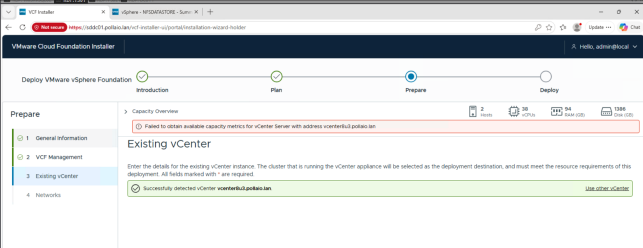
You must deploy the new vCenter in the vSphere Cluster that you need to upgrade at VVF. In my test, I deployed the new vCenter in another vSphere infrastructure, and the VCF Installer reports an error.
The vCenter upgrade process is a classic vCenter upgrade.
Download vCenter 9.1 from the Broadcom Support Portal
Dedicate a temp IP address and FQDN name (need to register in DNS) for deployment
Mount the downloaded ISO on a bridge PC or Virtual Machine

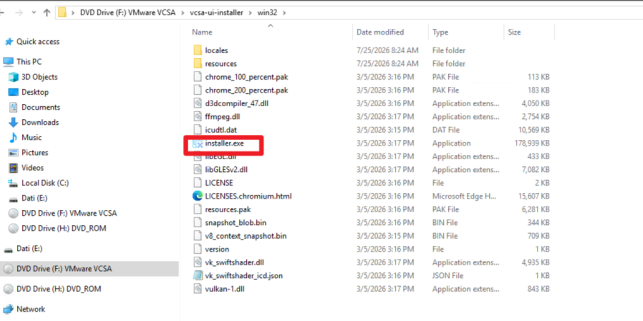
Start the UI installer
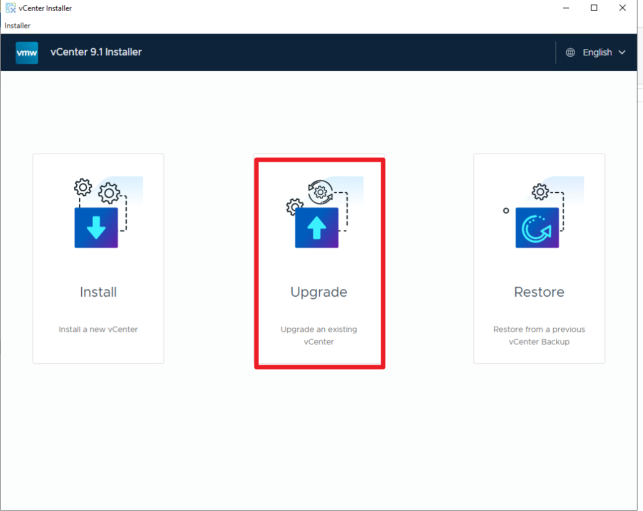
Select upgrade
Start the deployment
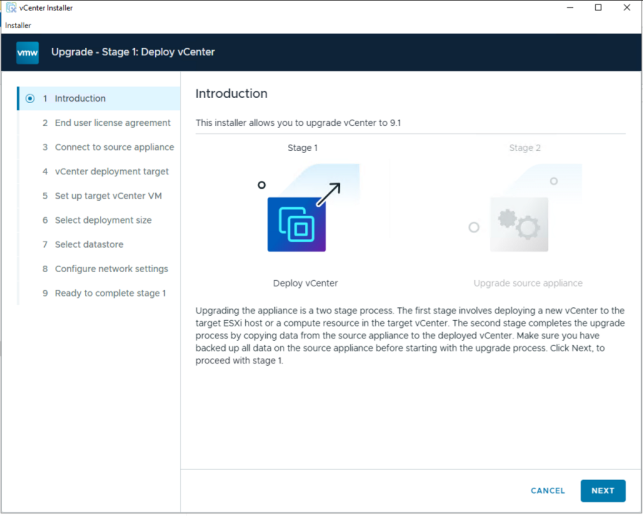
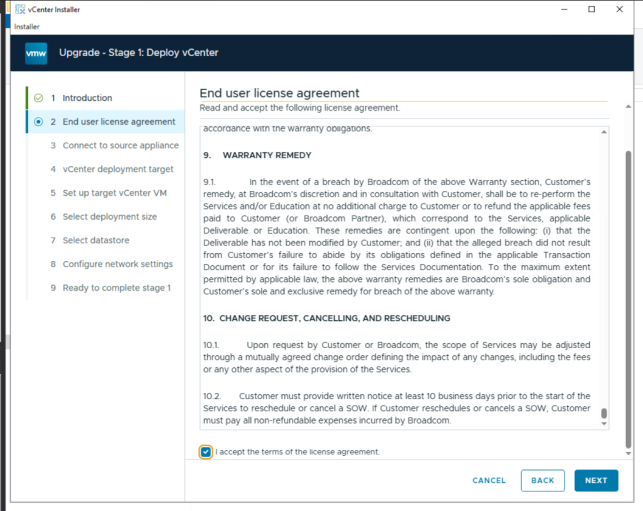
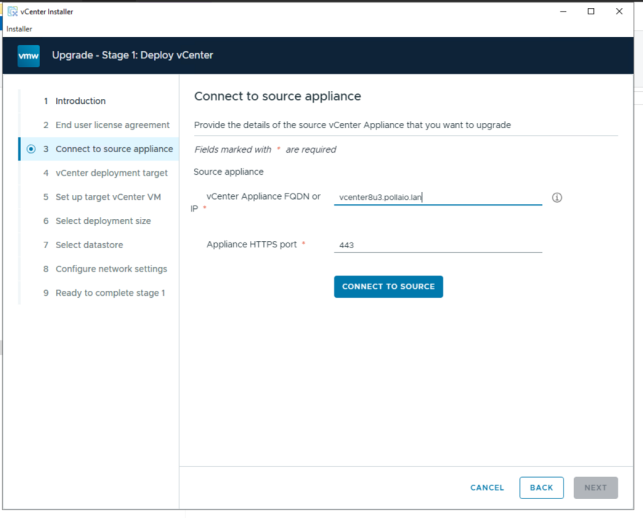
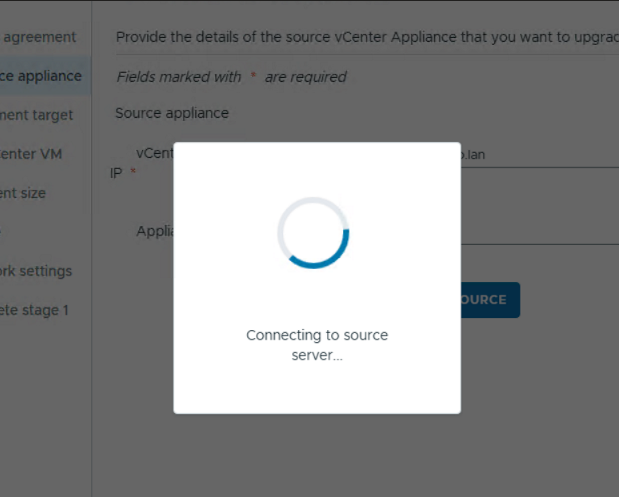
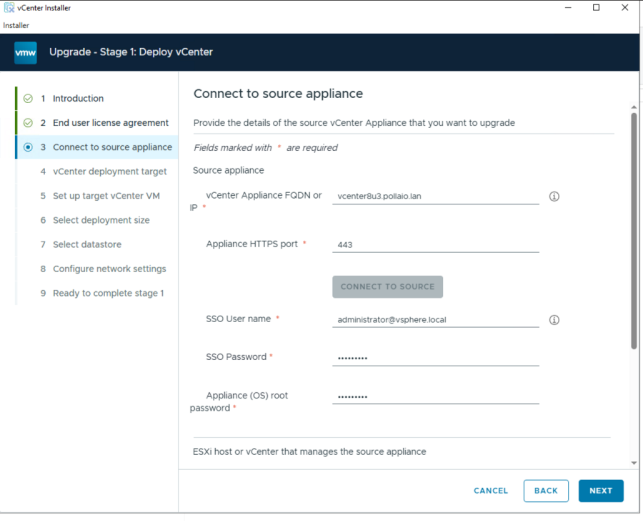
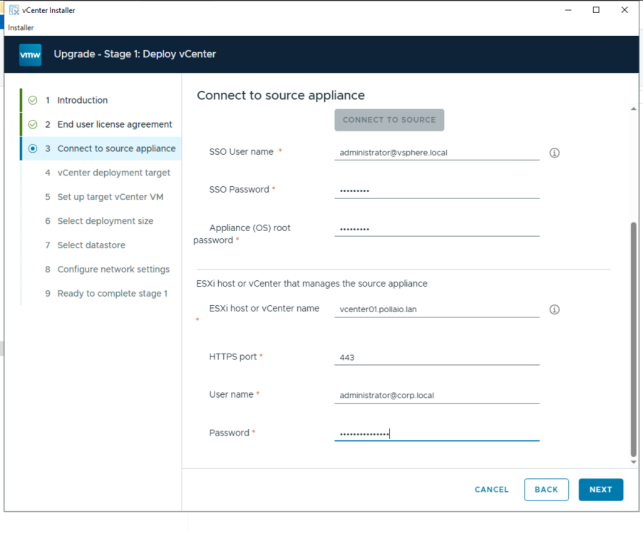
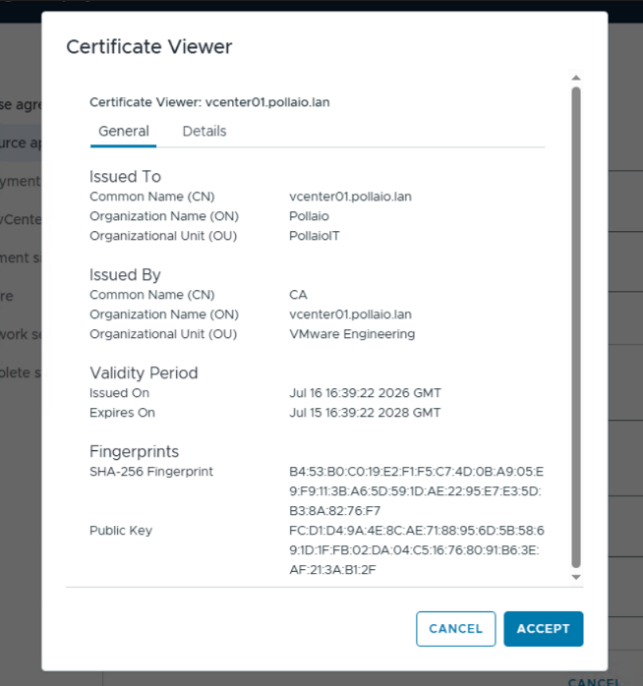
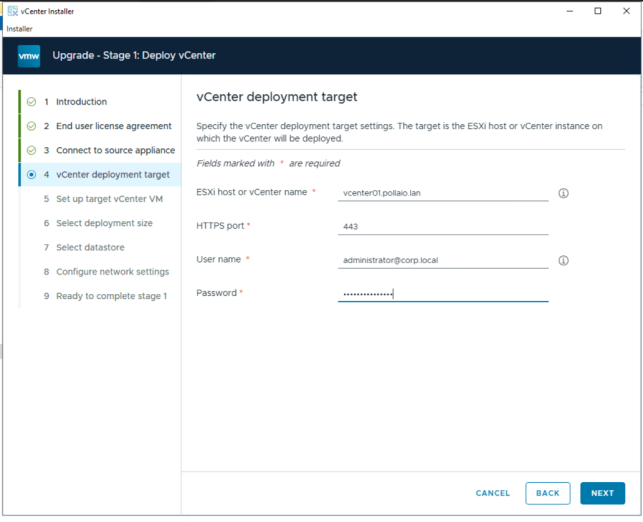
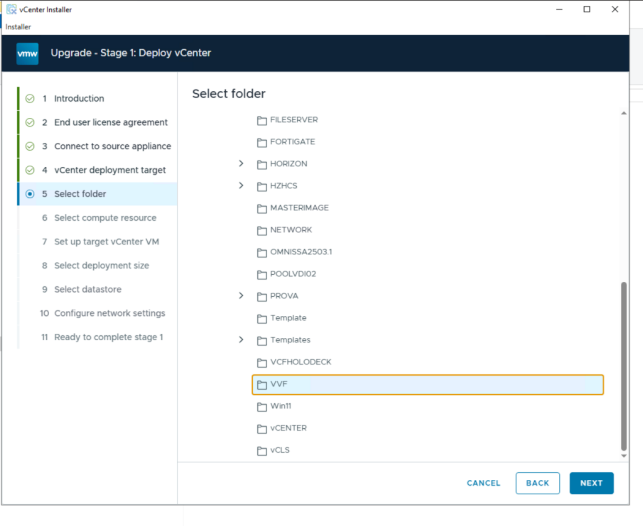
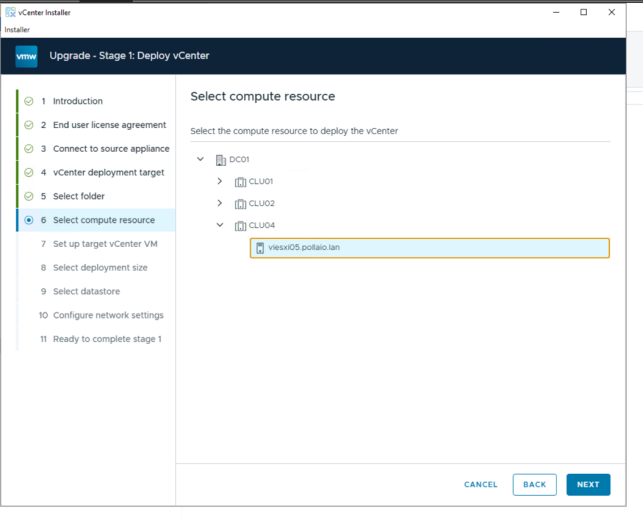
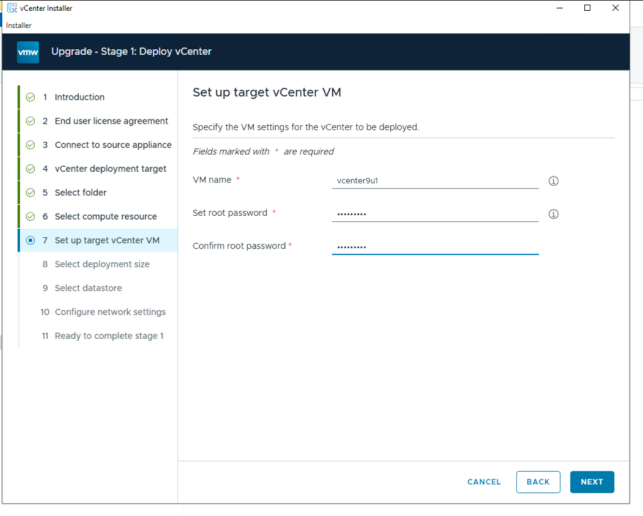
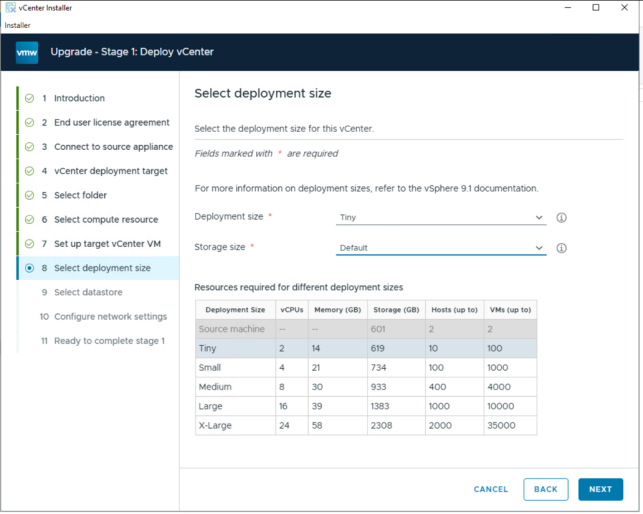
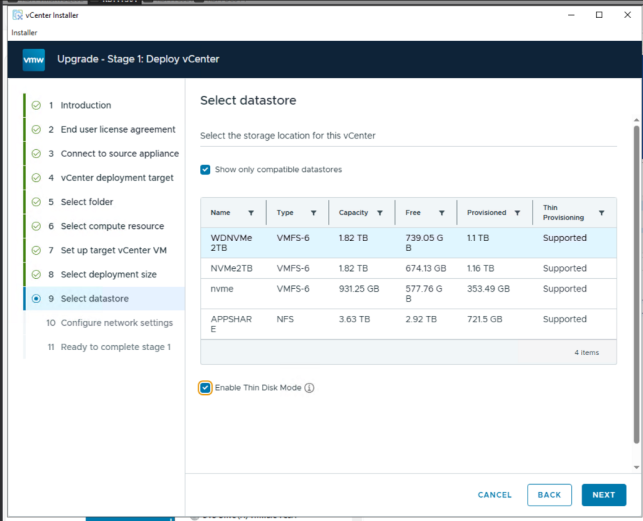
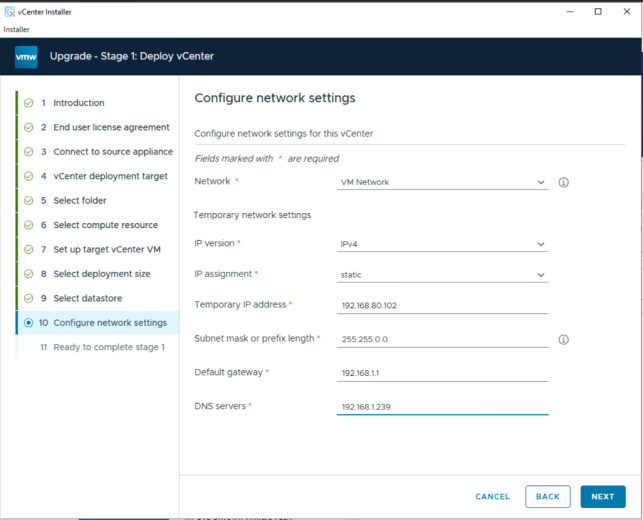
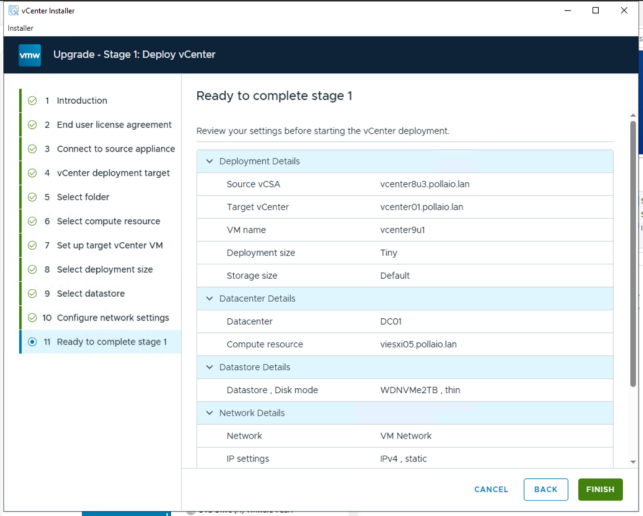
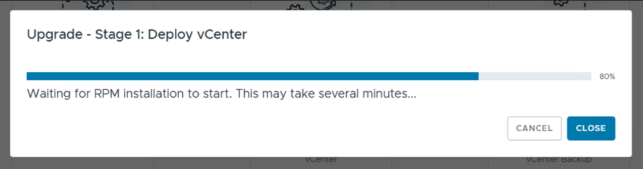
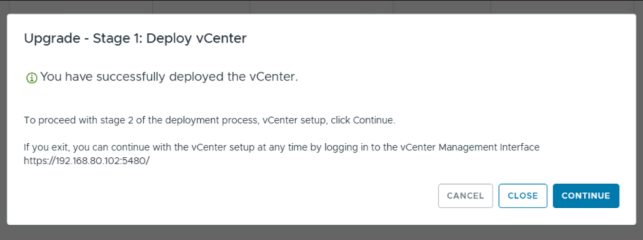
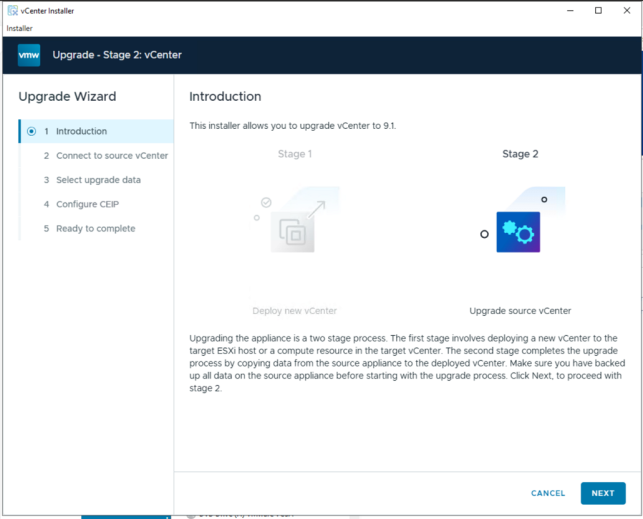
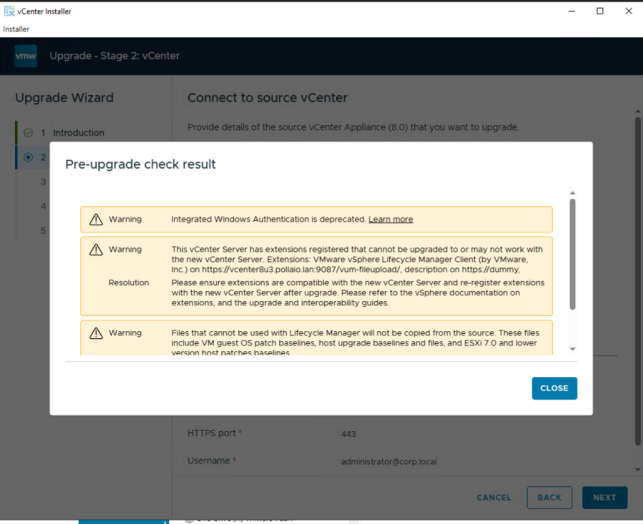
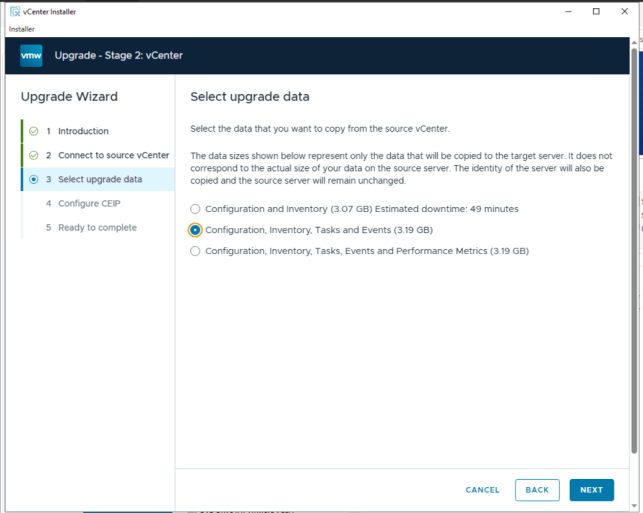
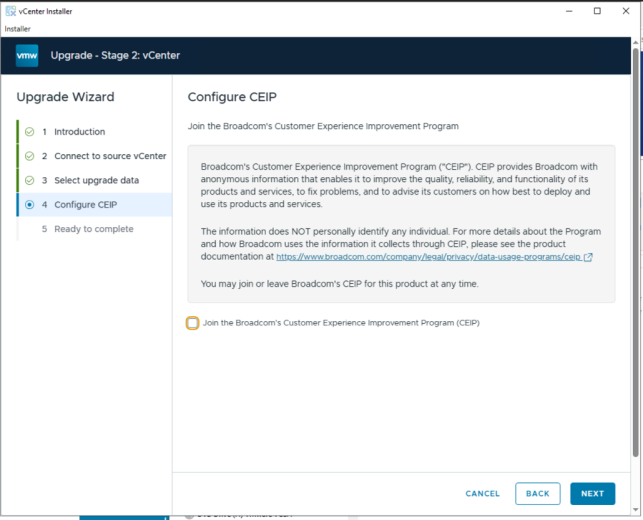
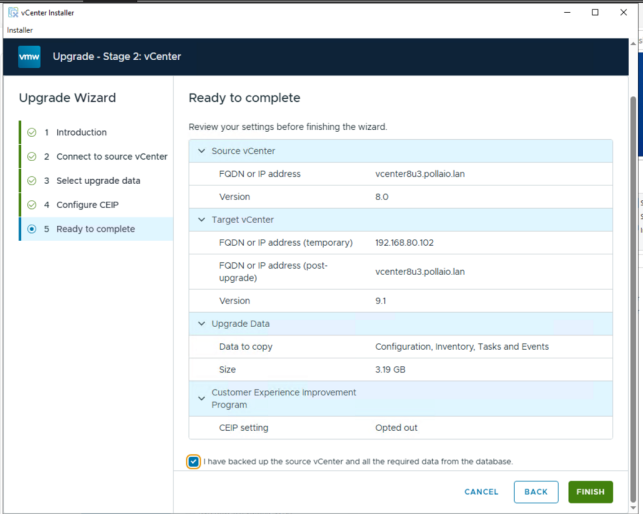
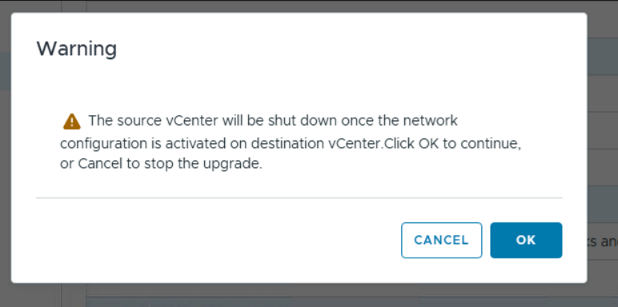
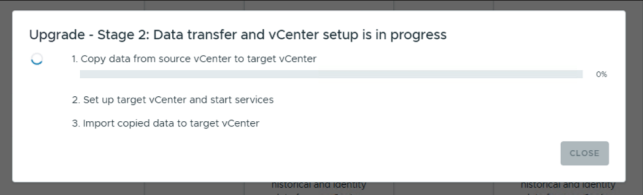
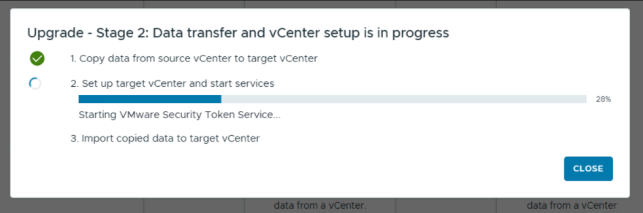
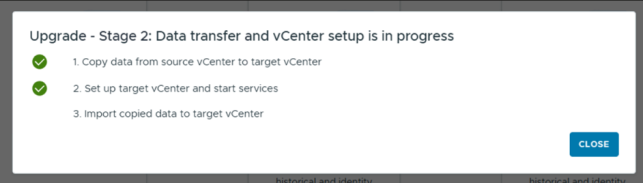
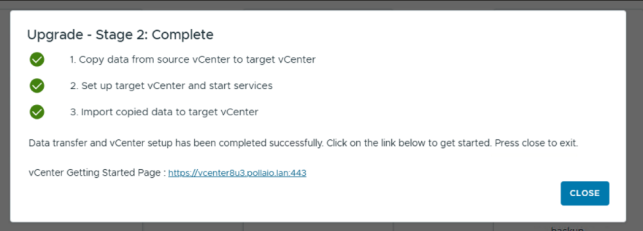
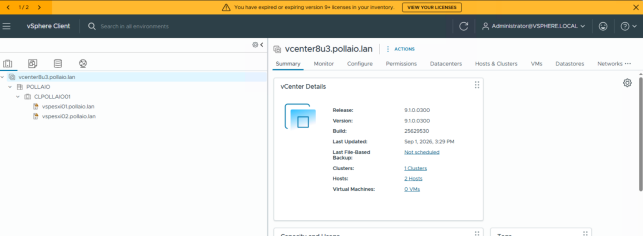
Deploy the VCF Installer appliance.
I covered this installation in another Post; read this post:
Start a New vSphere Foundation Deployment by Using the VCF Installer Deployment Wizard – BIOLNX
Deploy VCF Operations
Log in to VCF Installer
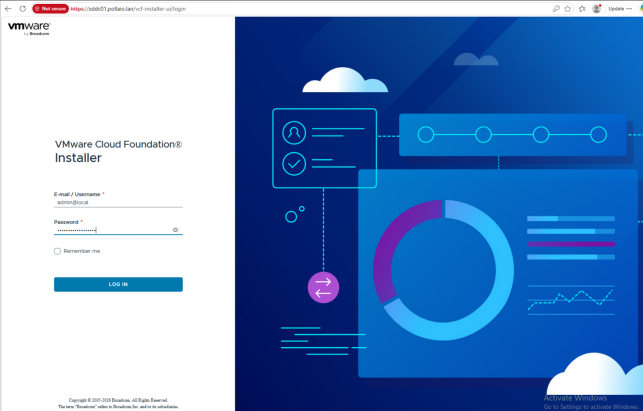
Download bundles for the VCF Installer appliance (Read this post: Start a New vSphere Foundation Deployment by Using the VCF Installer Deployment Wizard – BIOLNX)
Use VCF Installer to deploy your vSphere Foundation platform.
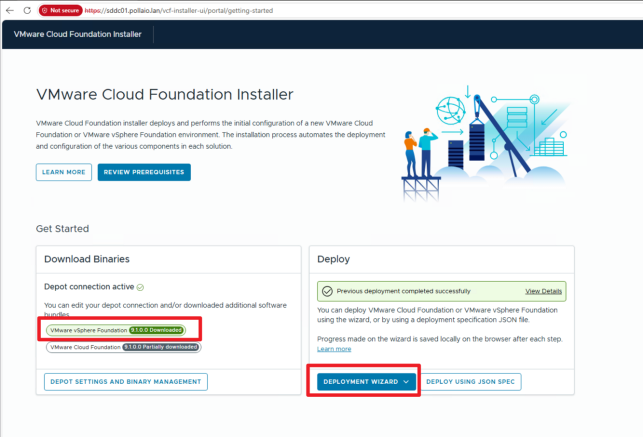
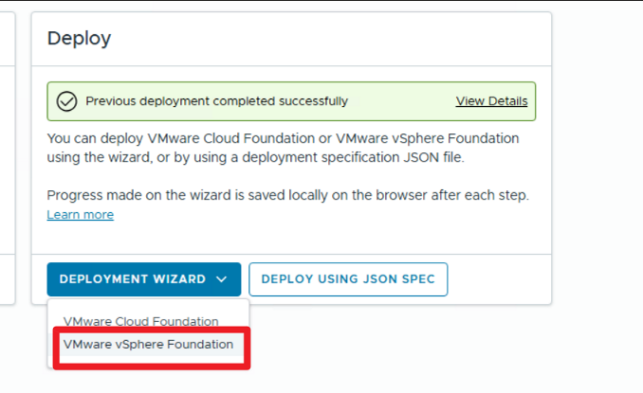
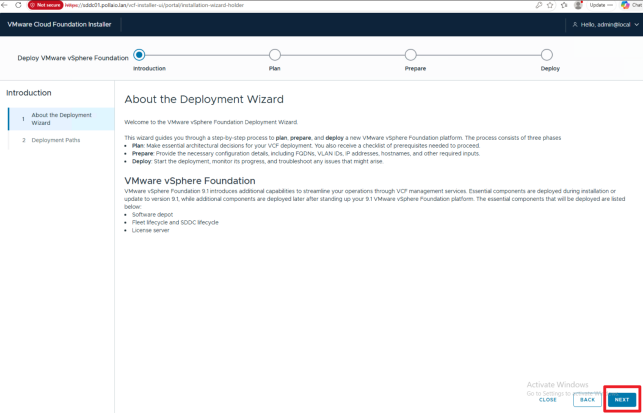
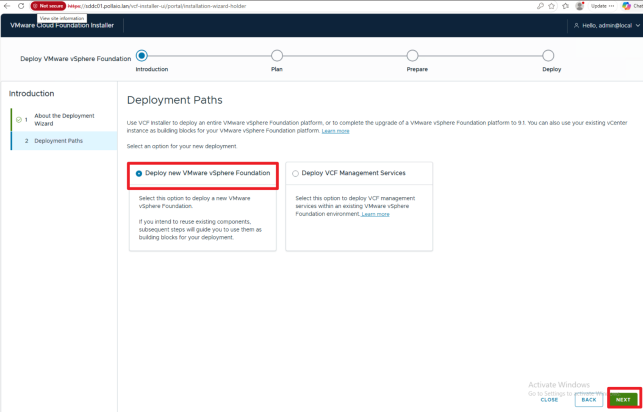
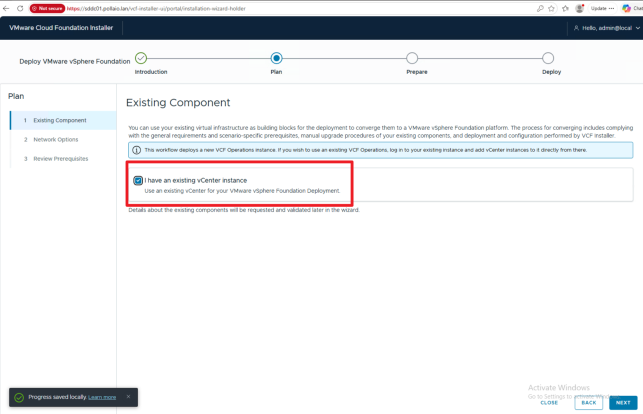
Select I have an existing vCenter
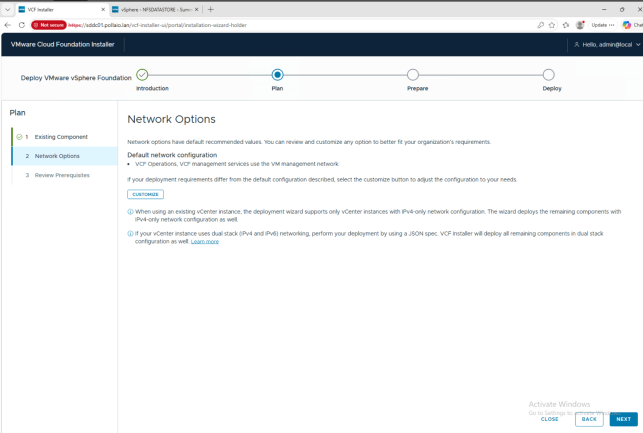
Select the network infrastructure for the Management Services and Operations component in my Home Lab. I choose the network where the VM is deployed (otherwise, create a dedicated network; check the firewall configuration in the official documentation)
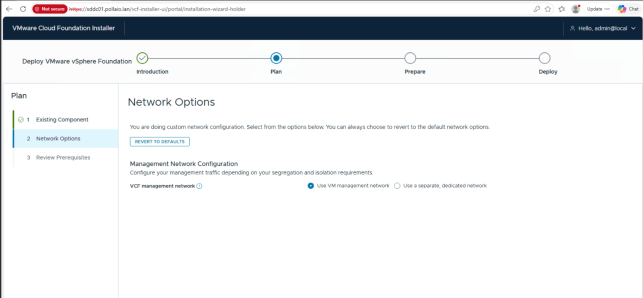
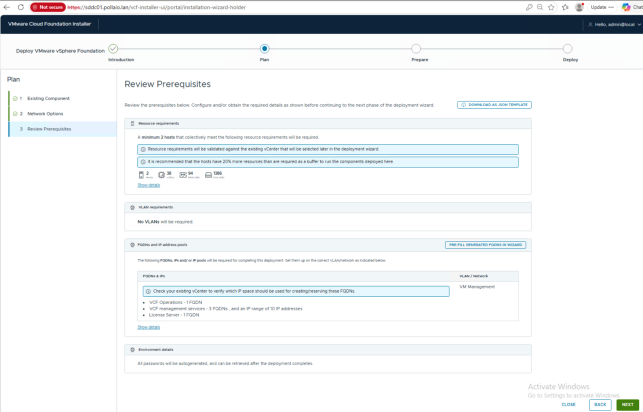
Dedicate IP address and FQDN (with reverse)
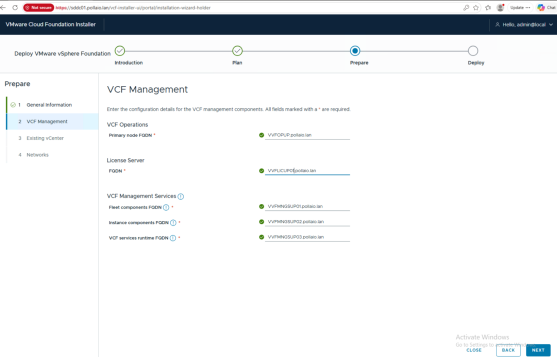
VVFOPUP.pollaio.lan 192.168.80.110
VVFMNGSUP01.pollaio.lan 192.168.80.111
VVFMNGSUP02.pollaio.lan 192.168.80.112
VVFMNGSUP03.pollaio.lan 192.168.80.113
VVFLICUP01 192.168.80.114
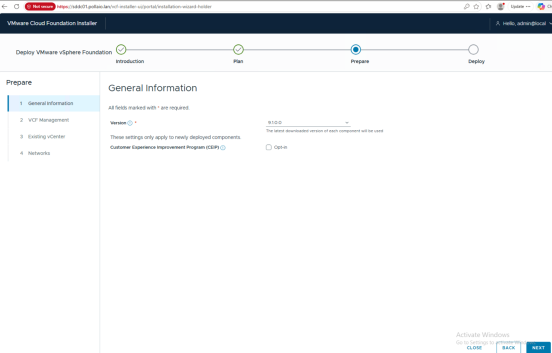
We enter the FQDN names of the objects; if entered correctly in the DNS (with the reverse), they have a green tick
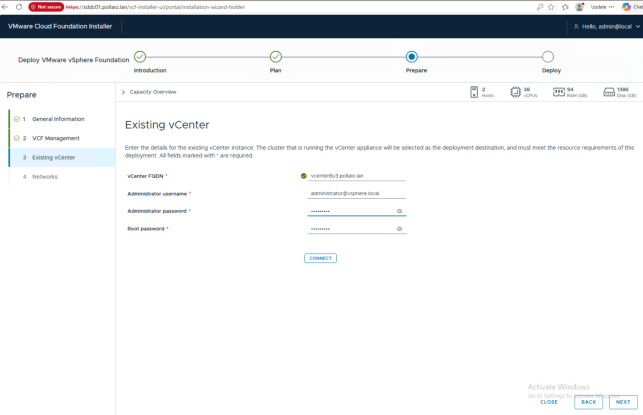
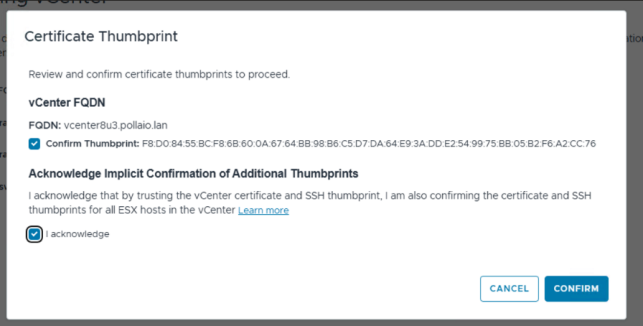
In my case, if the new vCenter is not deployed in the cluster that we want upgrade, we see an error.
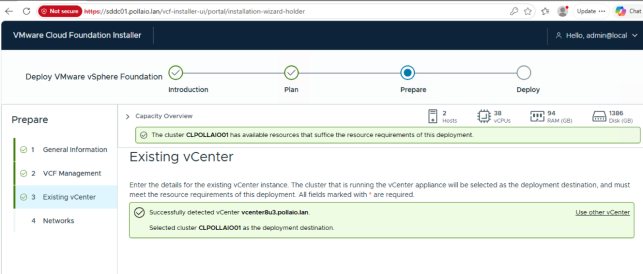
After vCenter migrating to the vSphere cluster object for the upgrade
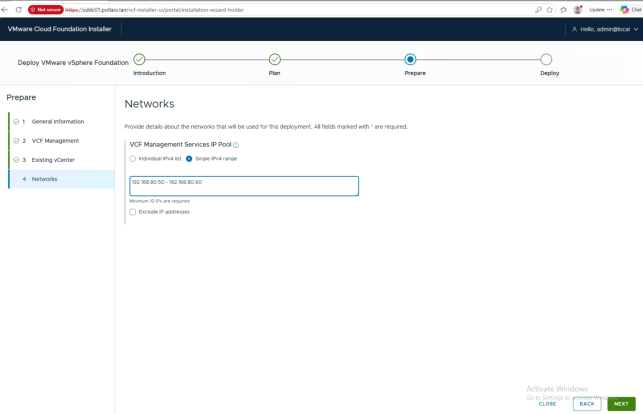
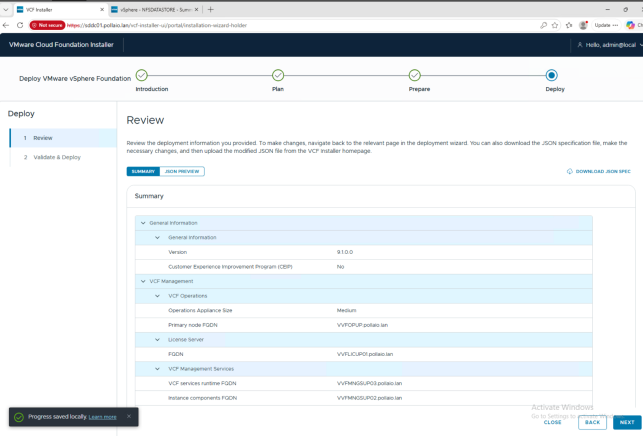
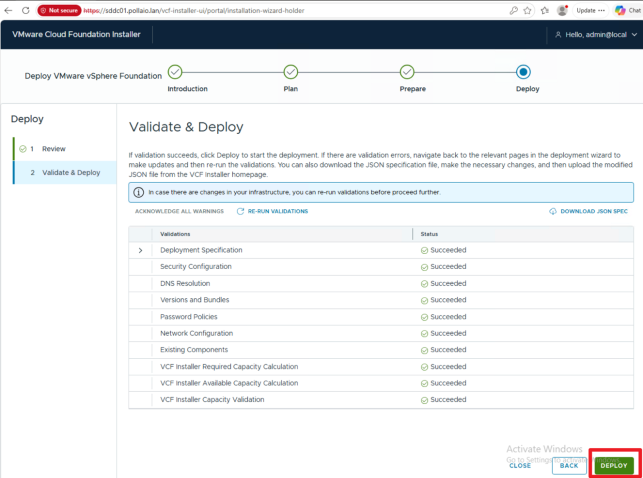
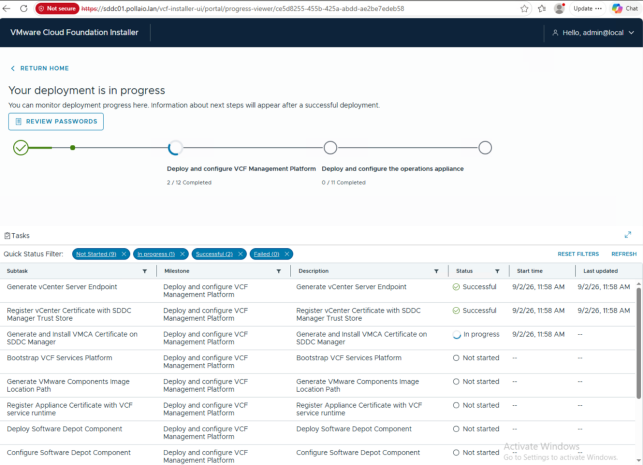
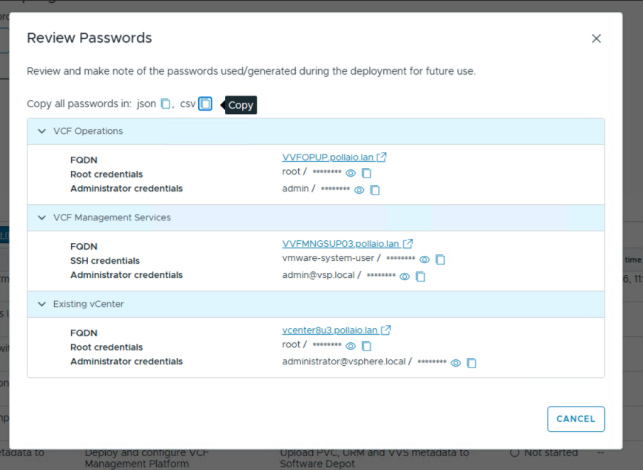
Save the Password!!!!
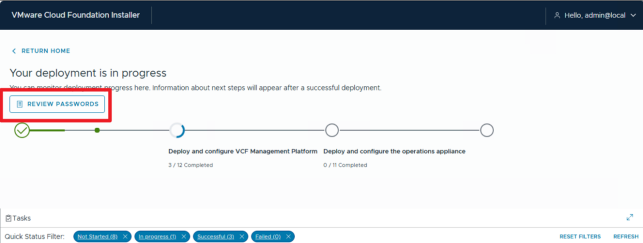
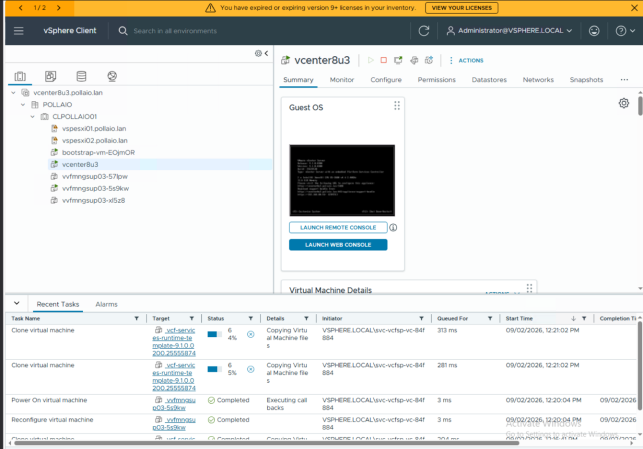
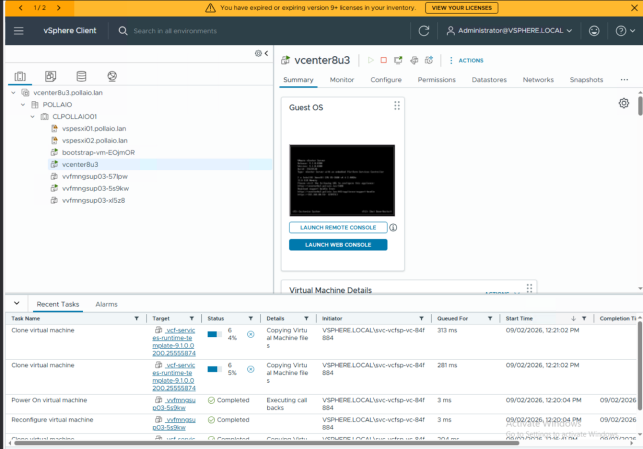
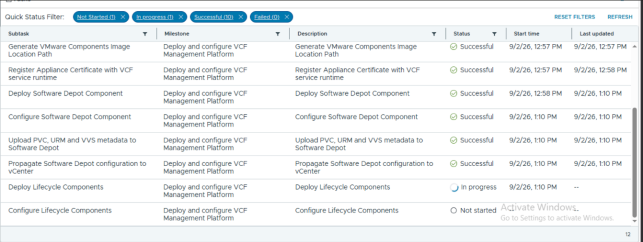
Start the VCF Operation appliance installation
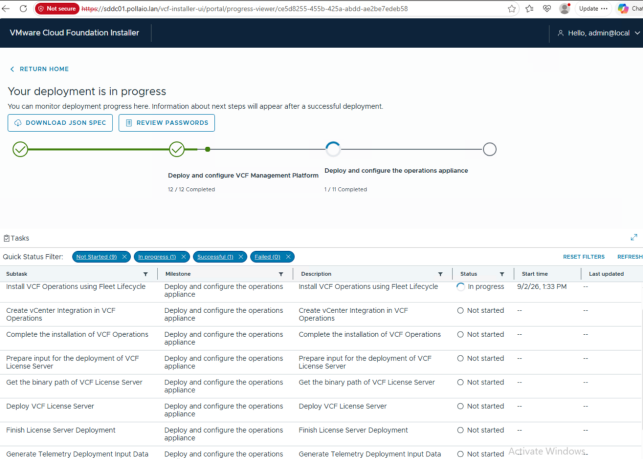
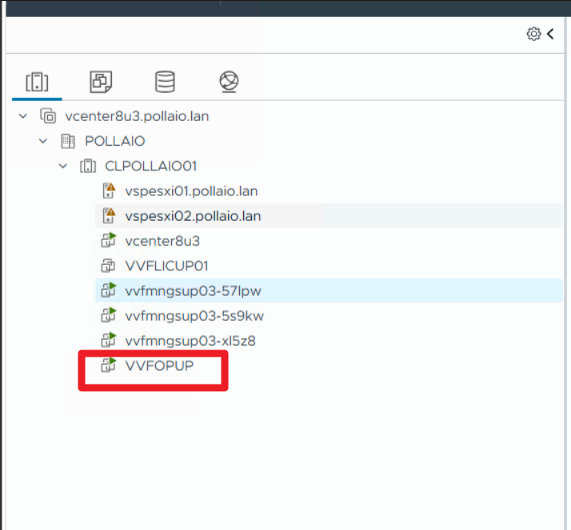
At the end of VCF operation Installation, we can log in to the VCF Operations UI
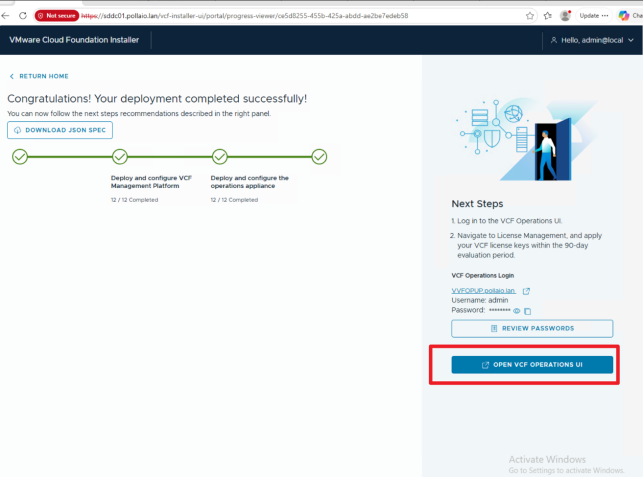
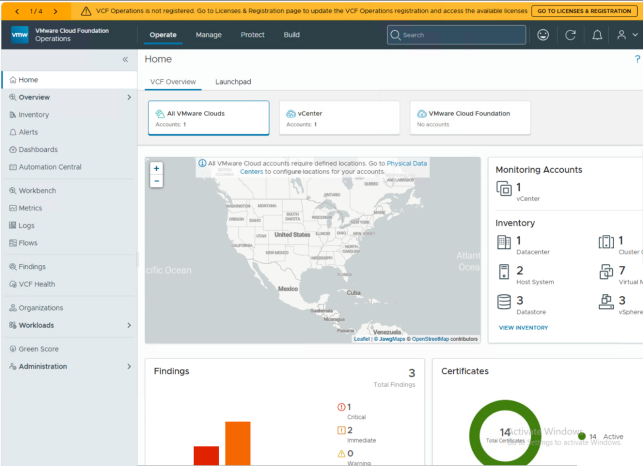
Now we can configure the License (See this post)
Register VCF Operations and Your License Server in Connected Mode – BIOLNX
Upgrade ESXi
Log in to vCenter and select the Lifecycle Manager
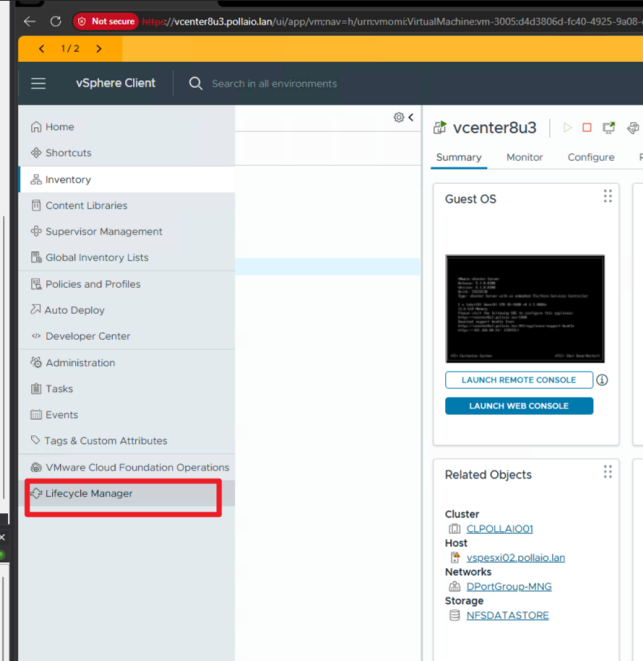
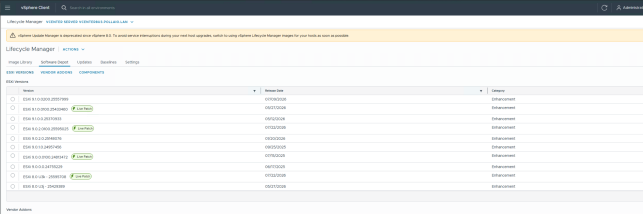
After some time, under Software Depot, the new ESXi version appears
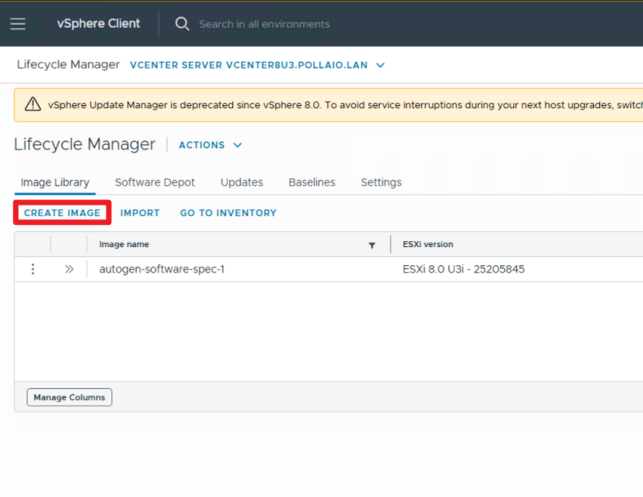
Now we create a new Image; go to Image Library and select Create Image
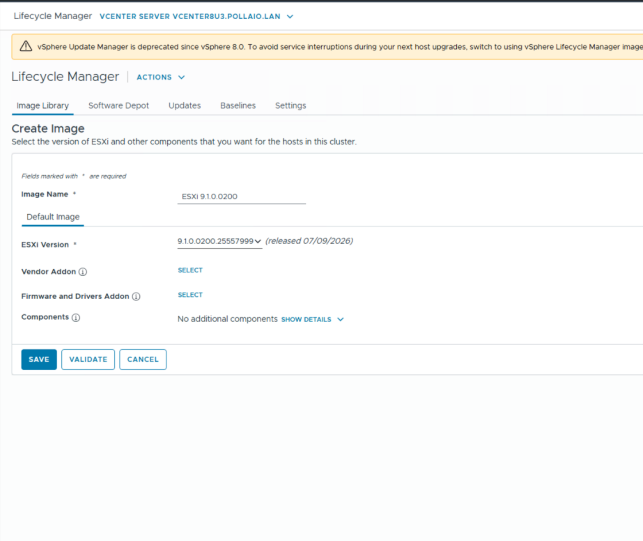
Validate and save
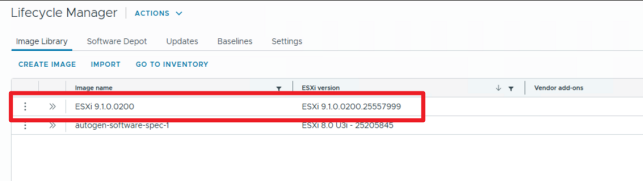
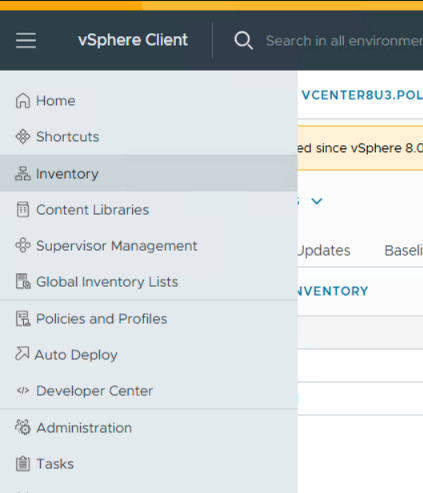
Go to Inventory
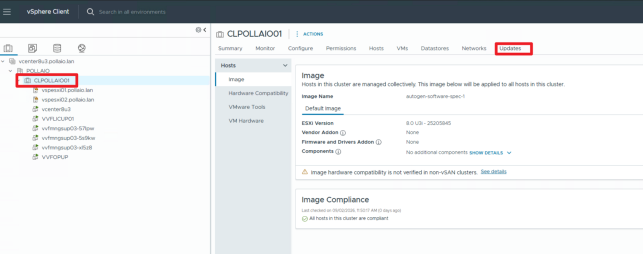
Select the cluster and after updates

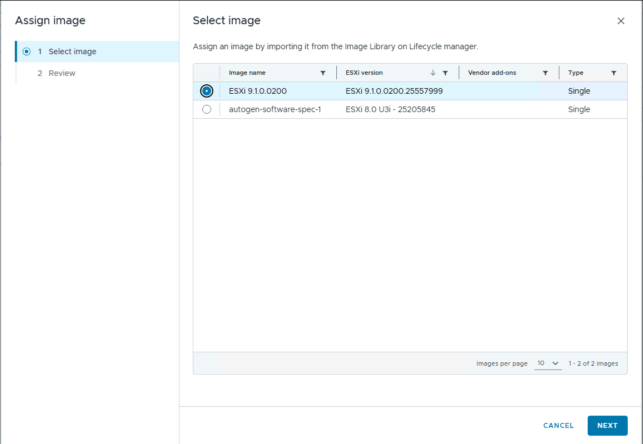
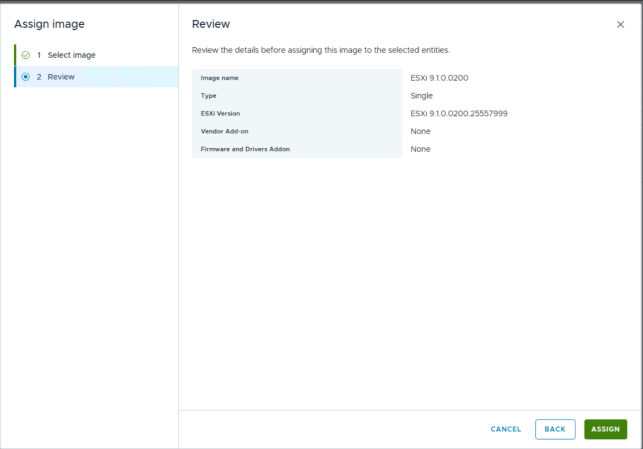

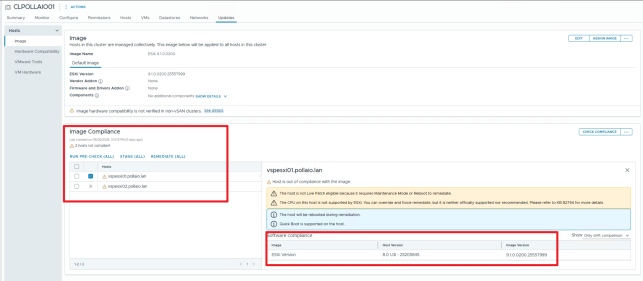
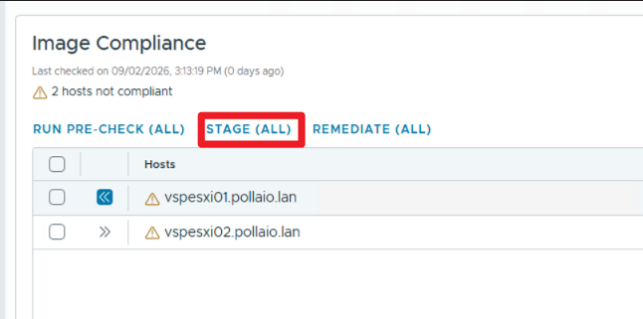
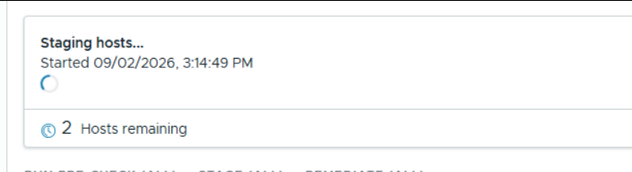

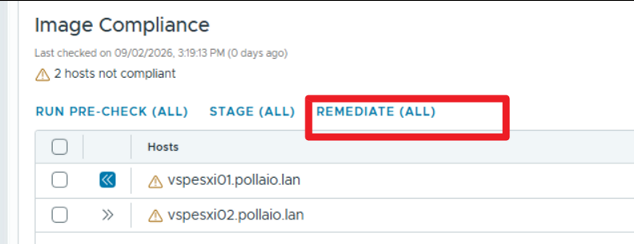
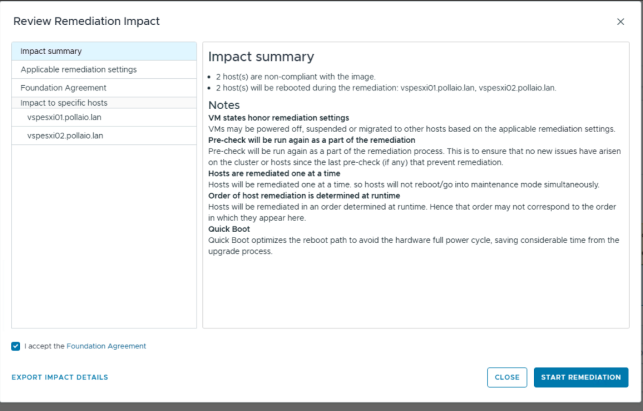
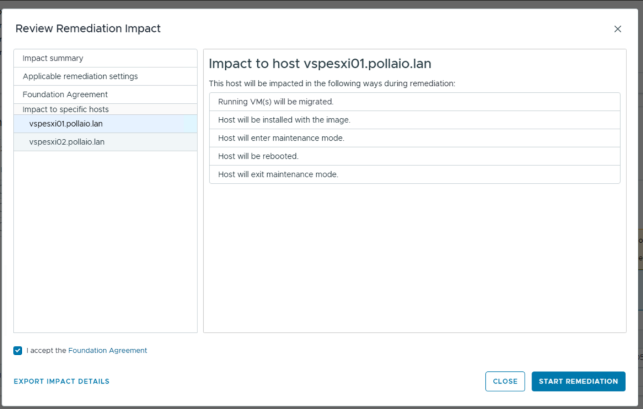
Now the upgrade will start if the cluster is correctly configured

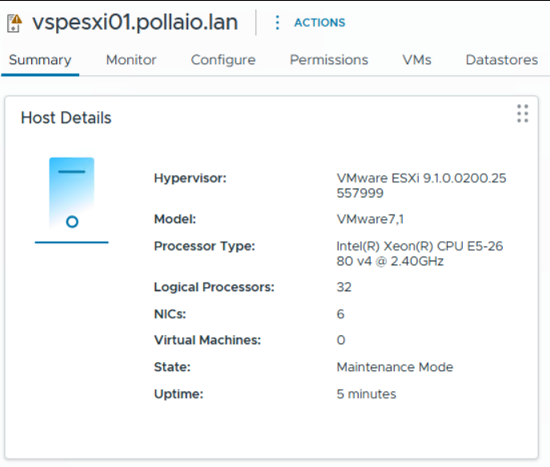
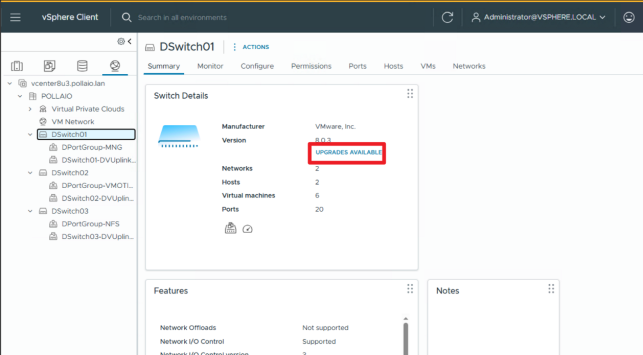
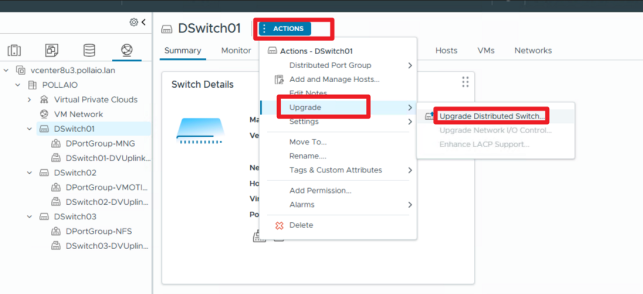
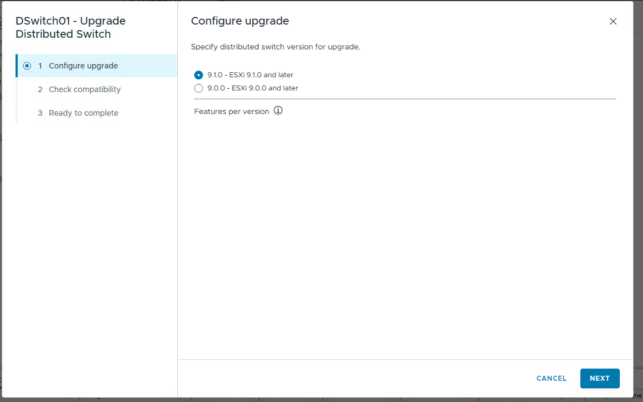
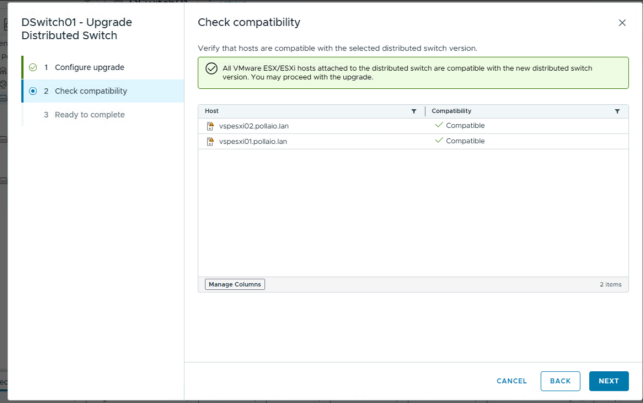
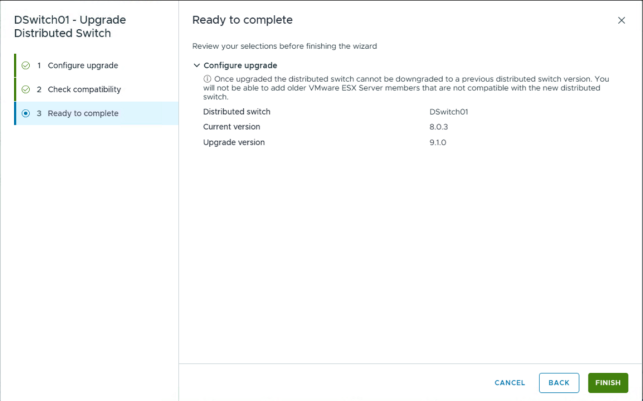
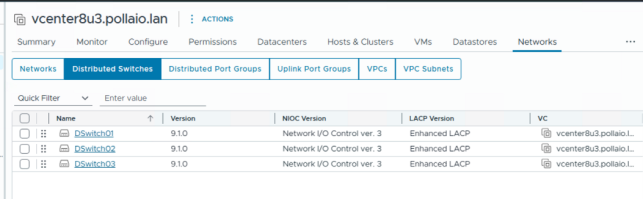
Upgrade Virtual Distributed Switch
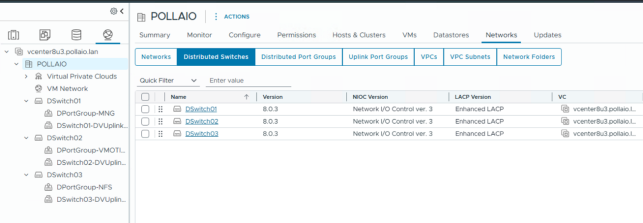
Next step
Upgrade VMware Tools
Upgrade Virtual Hardware