Where are FSMO roles on my Horizon Connection Servers?

When we upgrade the Horizon Connection Servers or install Windows Patches on Guest OS where we have the Connection Server role, there is information that we can “save live”

This information is about the location of FSMO roles.

Normally the FSMO roles are located in the last installed Connection Server with a replica function.

We can check this location with some simple steps, I can try to explain:

  • Create an RDP session with a Connection Server Guest OS
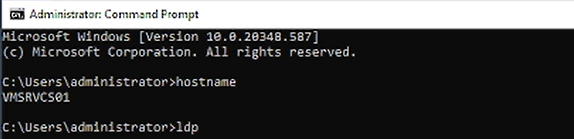
  • Start a Command Prompt
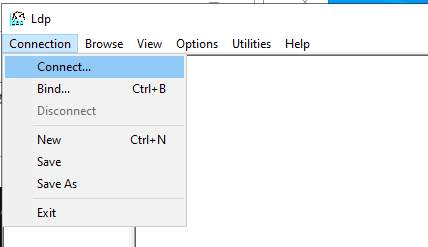
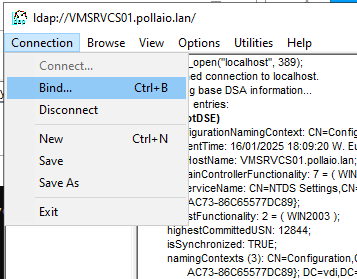
  • Run the LDP command

A screen shot of a computer

Description automatically generated

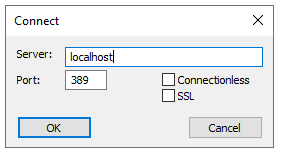
  • We connect to LDAP

A screenshot of a computer

Description automatically generated

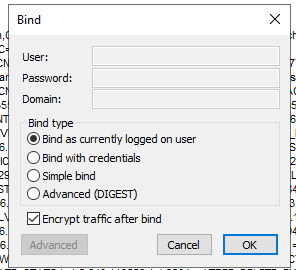
  • We Bind as a currently logged user

A screenshot of a computer

Description automatically generated

A screenshot of a computer

Description automatically generated

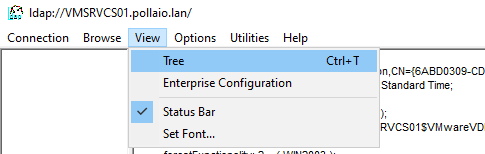
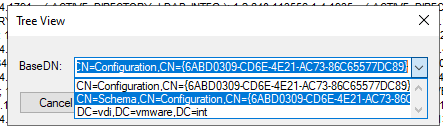
  • Insert the BASE DN to show the tree(CN=Schema,CN=Configuration,CN{ID})

A screenshot of a computer

Description automatically generated

A screenshot of a computer

Description automatically generated

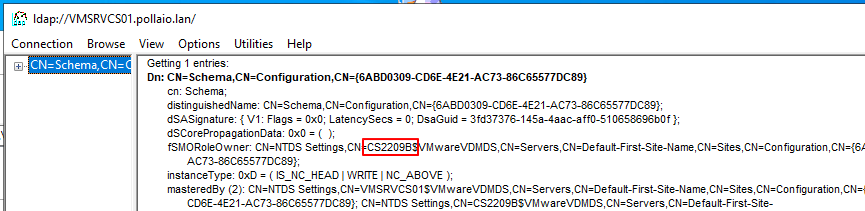
  • Now on the right form of LDP we can see the connection server hostname owner FSMO role.

A screenshot of a computer

Description automatically generated

In this case, the FSMO is located on the CS2209B connection server.

The FSMO role is possible to move to another Connection Server with this simple command:

vdmadmin -X -seizeSchemaMaster

To launch the previous command from the Connection Server we want to take the FSMO role

Where are FSMO roles on my Horizon Connection Servers?

EUC Omnissa components are changing look and design…

Omnissa engineers worked very hard at last end of 2024 year-end in 2025 start year to rebrand the application (Connection Server, Dynamic Environment Manager, App Volumes … ) to remove all VMware logo and info (It is necessary to Broadcom request for Copyright. .)

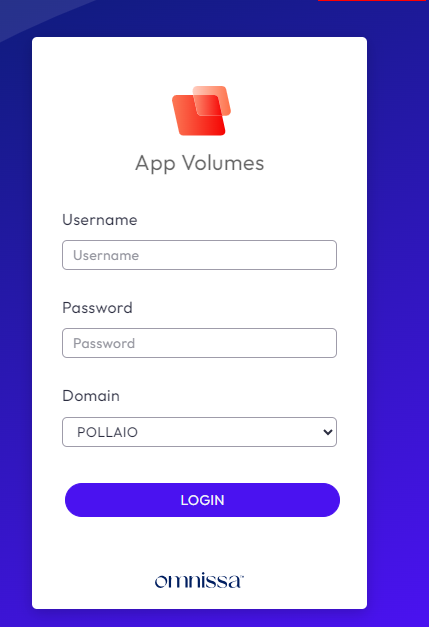
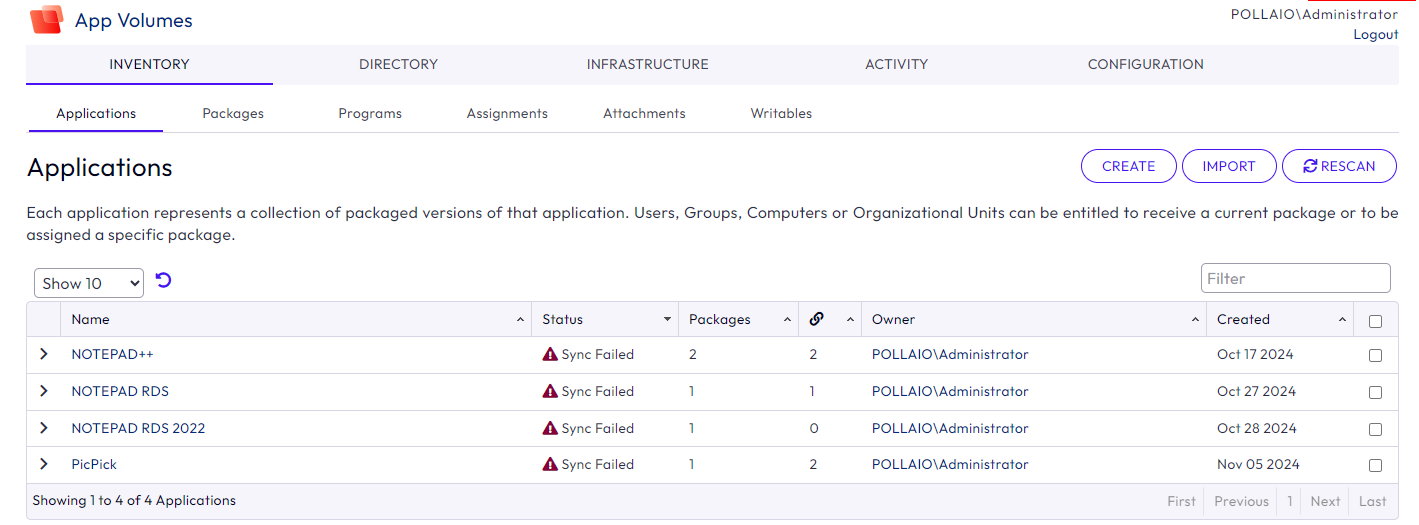
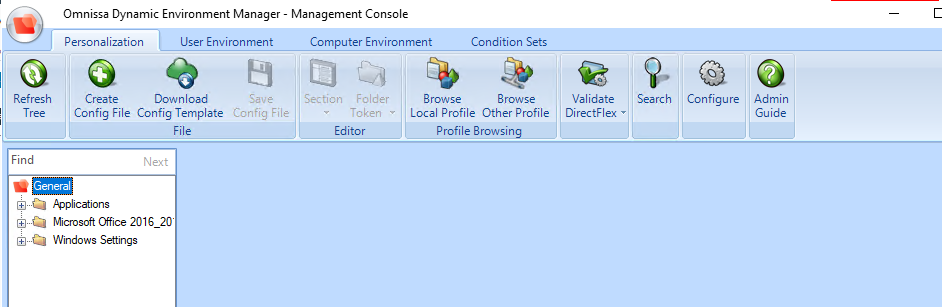
Now we have the first effect with the new look and design for App Volumes Manager (Version 2412) and

Dynamic Environment  Manager (2412)

Immagine che contiene testo, schermata, Sistema operativo, software

Descrizione generata automaticamente

Immagine che contiene testo, numero, Carattere, software

Descrizione generata automaticamente

Immagine che contiene testo, schermata, Blu elettrico, Carattere

Descrizione generata automaticamente

Immagine che contiene testo, software, Icona del computer, Pagina Web

Descrizione generata automaticamente

EUC Omnissa components are changing look and design…

Horizon Edge Gateway Appliance – URL Checker

Horizon Edge Gateway Appliance is required to entitle your environment to Horizon subscription licenses, services and management features hosted in the Horizon Control Plane Services. To enable subscription license entitlement, Horizon Edge Gateway Appliance must be deployed in each Horizon Pod.

The Horizon Edge Gateway Appliance is deployed as a virtual appliance from vSphere® Web Client and paired to one of the Connection Servers in the pod. As part of the pairing process, the Horizon Edge Gateway Appliance virtual appliance connects the Connection Server to the Horizon Cloud Service to manage the subscription license. With a subscription license for Horizon, you do not need to retrieve or manually enter a license key for Horizon product activation.

One of the first checks to do before deploying the Horizon Edge Gateway Appliance is to verify the correct communication with the Omnissa cloud services to which it must connect.

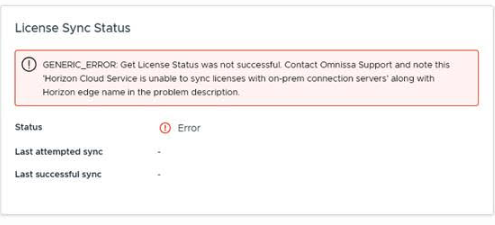
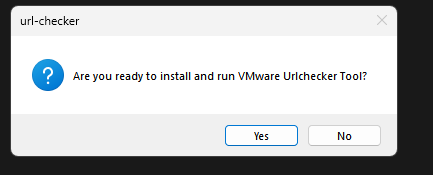
To perform this operation there is a specific tool that “Horizon Cloud Service – next-gen Edge Subnet URL Checker tool”, it can also be used to perform post-installation checks when there are communication problems like this:

A screenshot of a computer error

Description automatically generated

We can download the tool from this link:

Utilities | Omnissa

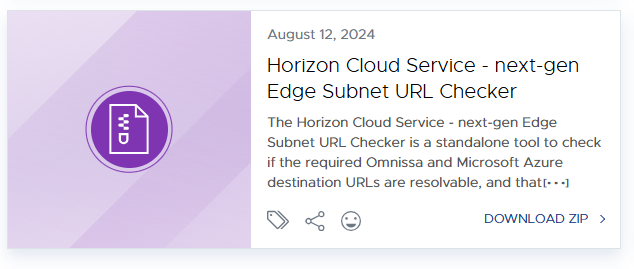
Select the correct tool and download the file zip:

We will copy the file on windows os locate it on the same network subnet where we will locate the Horizon Edge Gateway Appliance

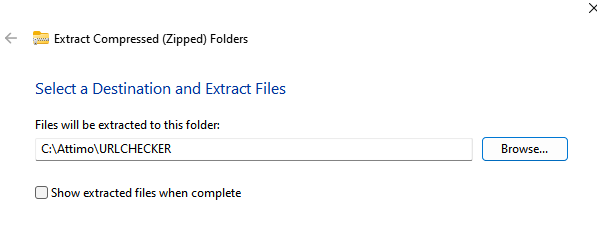
We will extract the compressed file:

A screenshot of a computer

Description automatically generated

We will need lunch the file EXE to start the test

A screenshot of a computer error

Description automatically generated

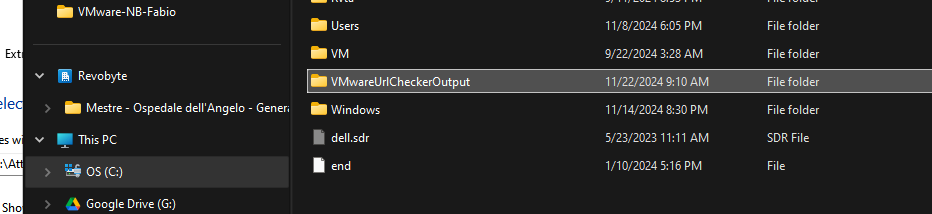
At the end of the execution of the test, the tool will create a folder (c:\WMwareUrlChekerOutput)

A screenshot of a computer

Description automatically generated

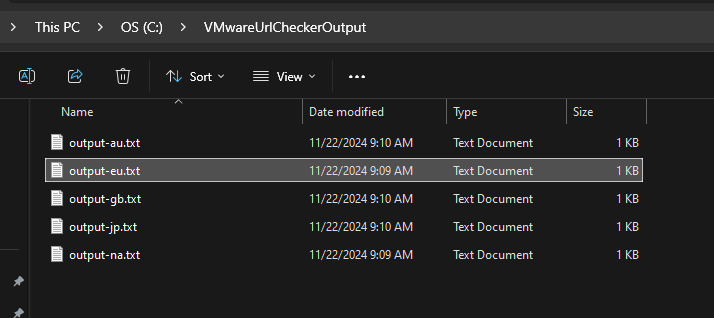
Where we will find the tool output, a file for a region

A screenshot of a computer

Description automatically generated

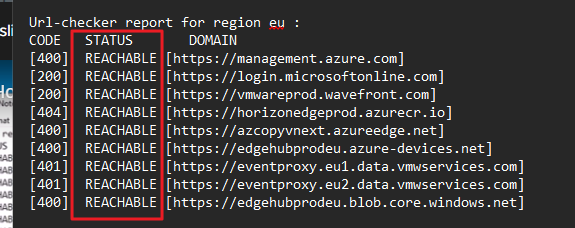
In my case, I checked the EMEA file (EU) and I saw that it is all OK (all URLs are Reachable).

A screen shot of a computer

Description automatically generated

Horizon Edge Gateway Appliance – URL Checker

Upgrade/Install Horizon Edge Gateway


The Horizon Edge Gateway allows Omnissa Horizon 8 environments to connect to the Omnissa Horizon® Cloud Service™. Deploying a Horizon Edge Gateway Appliance for Horizon 8 deployments on vSphere is accomplished by accessing the Horizon Universal Console, which is the administrative interface for the Horizon Cloud Service.

Horizon Edge Gateway Appliance is required to entitle your environment to Horizon subscription licenses, services, and management features hosted in the Horizon Control Plane Services. To enable subscription license entitlement, Horizon Edge Gateway Appliance must be deployed in each Horizon Pod.

(https://techzone.omnissa.com/resource/deploying-horizon-edge-gateway)

How any virtual appliance it is necessary to upgrade to a new version.

In my situation, I had a customer with an old version of Horizon Edge Gateway (2.3.4.1) and on the Horizon Cloud portal we saw info that said a new version of Edge

The procedure to upgrade is very simple and is like to the procedure for the first install

After click to view

A screenshot of a computer

Description automatically generated

We are redirected to the maintenance tab where it is displayed some information.

After selecting “Upgrade” we can start with the activity.

First, we need to download the last Horizon Edge Gateway Appliance.
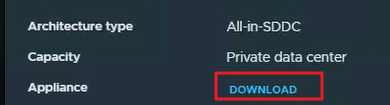
A screen shot of a computer

Description automatically generated

We had collected the information of actual Edge deploy like

Network Configuration (such as IP Address, Gateway, NetMask and PortGroup)

Now we are ready to log in to Virtual Center where we want to deploy the Appliance with insert some information, including the fundamental paring code that we can find on this screen:

A screenshot of a computer

Description automatically generated

Shut down the old Edge Gateway.

Deploy the OVA appliance:

A screenshot of a computer

Description automatically generated

We need to insert the standard information for ova deploy and insert the paring code and the network information
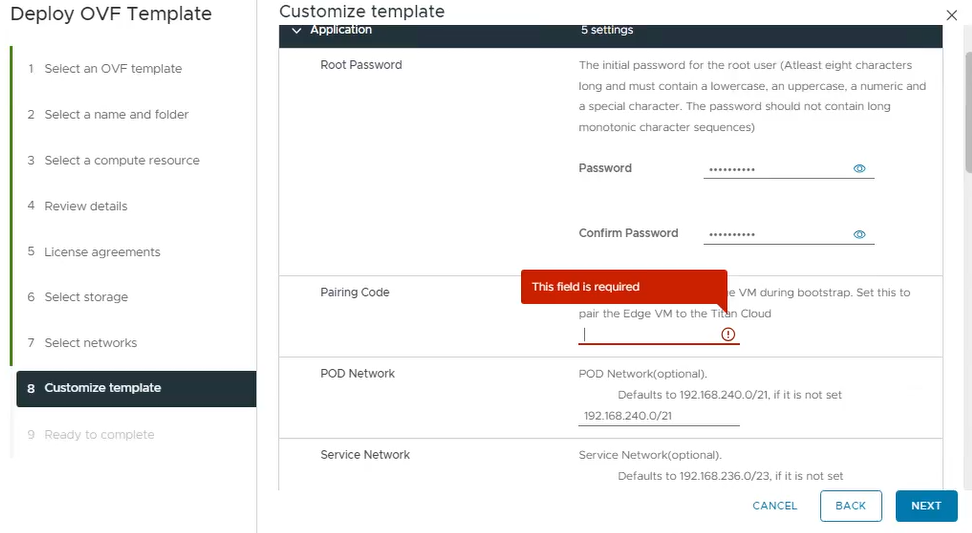
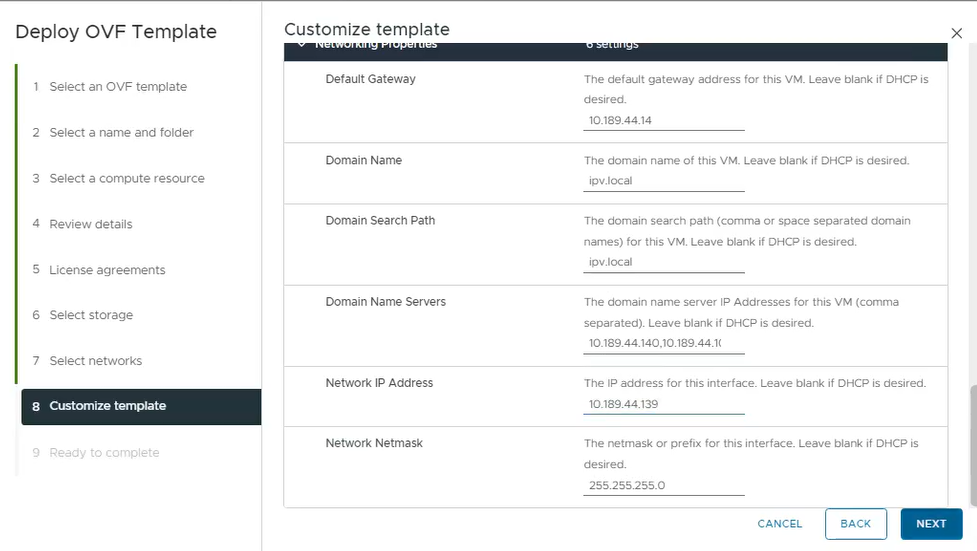
A screenshot of a computer

Description automatically generated

A screenshot of a computer

Description automatically generated

After deploying, on the Horizon Cloud portal under Resources and Capacity, we found that the Horizon Edge is Disconnected.

A screenshot of a computer

Description automatically generated

Now it is only a question of time…. or we can force with re-validate the info by clicking on edit configuration.

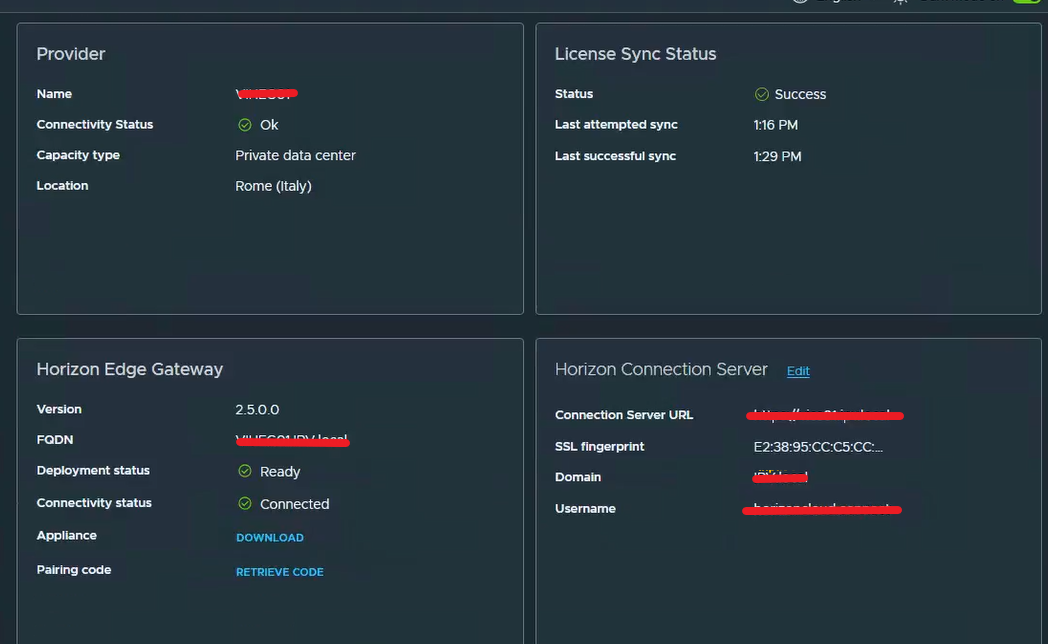
The last step is to insert the information to connect the Horizon Edge to the Connection Server (on-prem deployment)

Enter on the actual Horizon Edge

A screenshot of a computer error

Description automatically generated

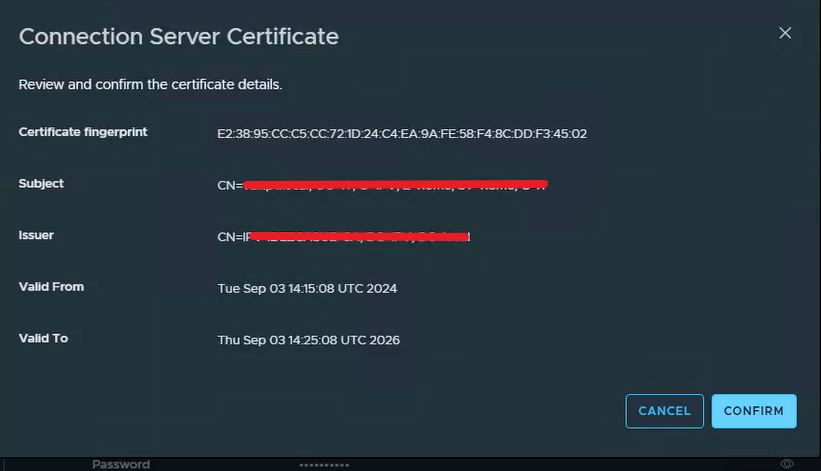
We need to edit the Horizon Connection Server information because it is necessary to validate the trust with the Connection Server SSL certificate and insert the password for the service User.
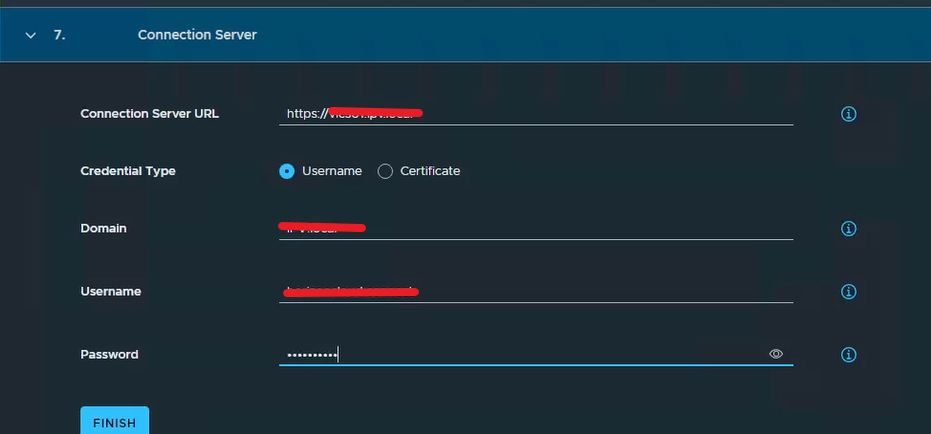
A screenshot of a computer

Description automatically generated

Confirm the certificate trust

A screenshot of a computer

Description automatically generated

We are waiting or forcing a refresh.
A screenshot of a computer

Description automatically generated

Upgrade/Install Horizon Edge Gateway