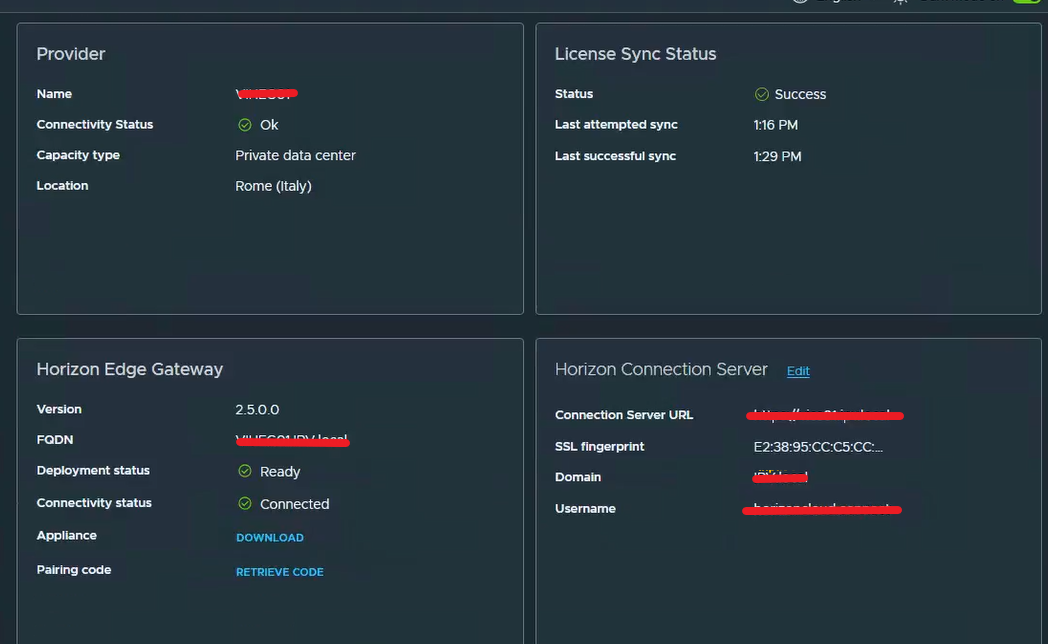
The Horizon Edge Gateway allows Omnissa Horizon 8 environments to connect to the Omnissa Horizon® Cloud Service™. Deploying a Horizon Edge Gateway Appliance for Horizon 8 deployments on vSphere is accomplished by accessing the Horizon Universal Console, which is the administrative interface for the Horizon Cloud Service.
Horizon Edge Gateway Appliance is required to entitle your environment to Horizon subscription licenses, services, and management features hosted in the Horizon Control Plane Services. To enable subscription license entitlement, Horizon Edge Gateway Appliance must be deployed in each Horizon Pod.
(https://techzone.omnissa.com/resource/deploying-horizon-edge-gateway)
How any virtual appliance it is necessary to upgrade to a new version.
In my situation, I had a customer with an old version of Horizon Edge Gateway (2.3.4.1) and on the Horizon Cloud portal we saw info that said a new version of Edge

The procedure to upgrade is very simple and is like to the procedure for the first install
After click to view

We are redirected to the maintenance tab where it is displayed some information.
After selecting “Upgrade” we can start with the activity.
First, we need to download the last Horizon Edge Gateway Appliance.
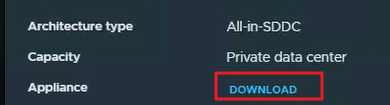
We had collected the information of actual Edge deploy like
Network Configuration (such as IP Address, Gateway, NetMask and PortGroup)
Now we are ready to log in to Virtual Center where we want to deploy the Appliance with insert some information, including the fundamental paring code that we can find on this screen:

Shut down the old Edge Gateway.
Deploy the OVA appliance:

We need to insert the standard information for ova deploy and insert the paring code and the network information
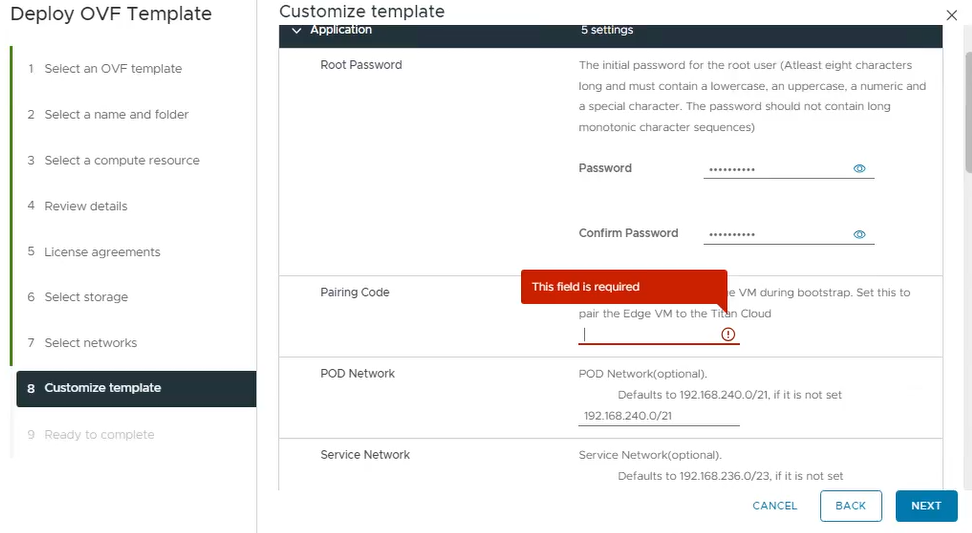
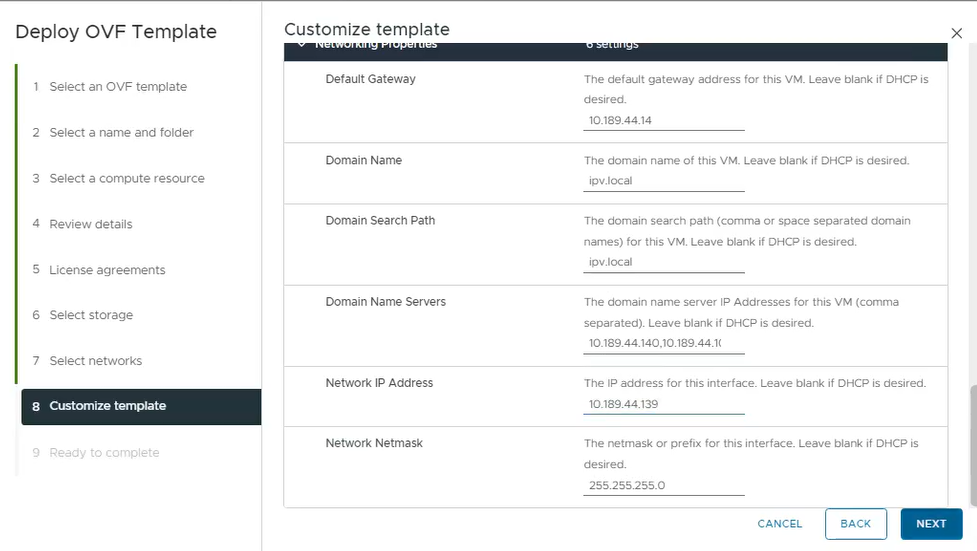
After deploying, on the Horizon Cloud portal under Resources and Capacity, we found that the Horizon Edge is Disconnected.

Now it is only a question of time…. or we can force with re-validate the info by clicking on edit configuration.
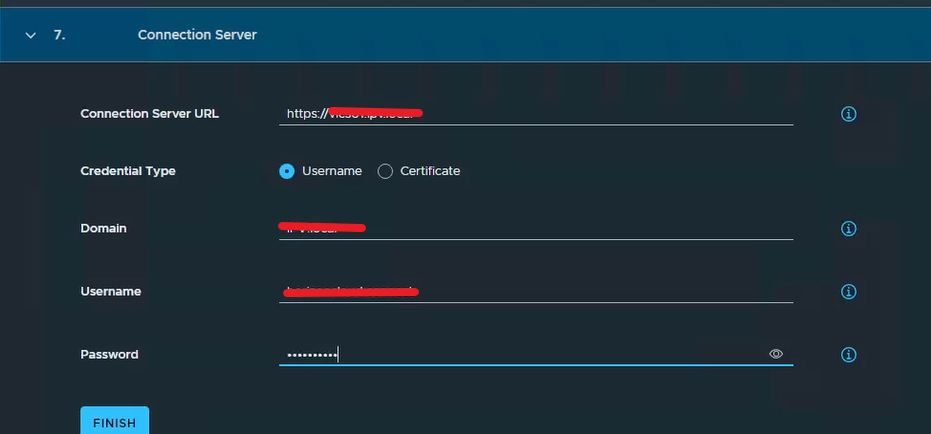
The last step is to insert the information to connect the Horizon Edge to the Connection Server (on-prem deployment)
Enter on the actual Horizon Edge

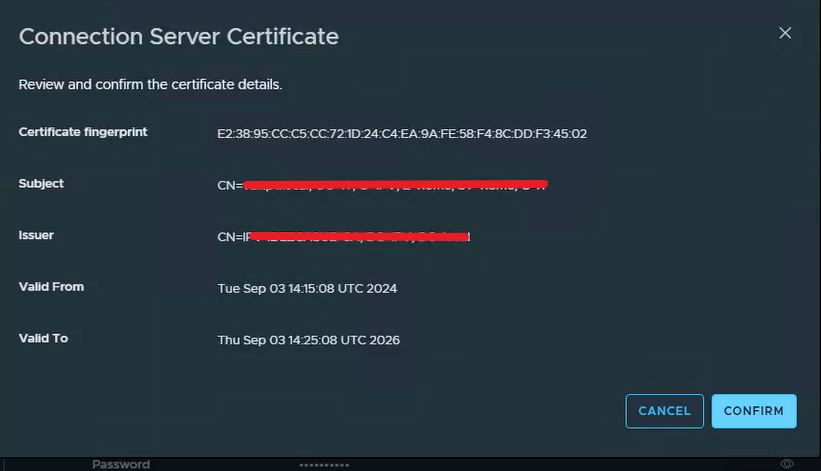
We need to edit the Horizon Connection Server information because it is necessary to validate the trust with the Connection Server SSL certificate and insert the password for the service User.
Confirm the certificate trust
We are waiting or forcing a refresh.