App Volumes: VHD in-Guest vs Standard Mode

Technical comparison and recommended use cases

.

.

INTRODUCTION

Omnissa App Volumes provides two distinct modes for delivering applications to Horizon users: the standard mode (VMDK/VMFS-based) and VHD in-guest mode, introduced to support non-persistent OS scenarios and advanced Instant Clone environments.

The choice between the two modes directly affects performance, scalability, and infrastructure requirements.

MODE COMPARISON

Standard Mode (VMDK)

• VMDK disk attach via vCenter API

• Mandatory needs a vSphere infrastructure as a prerequisite

• Limited support for multi-hypervisor environments

• Dependency on shared vSphere datastores

• Compatible with all Horizon desktop types

VHD in-Guest

• VHD mounted directly inside the guest OS

• Hypervisor-independent

• Compatible with Azure, AVD and physical environments

• VHD exposed via SMB share or UNC path

• Application packages and writable volumes are stored in a high-performance file share

• Compatible with all Horizon desktop types

TAKE NOTE! We can select the mode (VMDK or VHD) when installing the first App Volumes Manager. We can’t switch from VMDK to VHD mode, or from VHD to VMDK mode, after the first configuration.

VHD IN GUEST ARCHITECTURE

In this mode, the App Volumes Agent inside the guest mounts the VHD file from the configured UNC path using native Windows APIs. The AppStack content is then layered onto the filesystem via the App Volumes kernel filter driver, making applications available without extraction.

.

.

Note: In VHD in guest mode, the AppStack .vhd file must be reachable via UNC path from the guest. Network latency to the share directly affects mount times.

WHEN TO CHOOSE VHD IN-GUEST

1

Reducing vCenter dependency

Environments with restrictive policies on vCenter API access or multi-cloud architectures.

.

2

Physical desktops or RDSH

Scenarios where the workload runs on bare metal or RDS servers without vSphere hypervisor.

.

3

Azure Virtual Desktop (AVD) environments

Non-vSphere infrastructure; inability to attach VMDK via vCenter.

.

.

App Volumes: VHD in-Guest vs Standard Mode

Migrating Horizon from VMware to Omnissa: Why a Parallel Connection Server Deployment Is Often the Safest Approach

The transition from VMware Horizon to Omnissa Horizon introduced more than just a branding change. Starting with Horizon 2412 and continuing with later releases such as 2503 and 2506, several architectural and configuration elements have been modified.

These changes include licensing format updates, ADAM/AD LDS database modifications, registry key renaming, folder restructuring, and updated group policy templates.

While the official upgrade path works, in many environments a parallel deployment strategy can significantly reduce risk and allow end users to validate the new platform before switching production workloads.

This article outlines the key changes introduced by Omnissa and explains why building a new Horizon pod alongside the existing one can be a practical migration strategy.

.

Key Changes Introduced with Omnissa Horizon

1. New Licensing Model

Beginning with Horizon 2412, Omnissa introduced a new licensing mechanism and licensing portal.

During the transition phase, both VMware and Omnissa license keys are temporarily accepted, but this compatibility window is limited. Later releases, such as 2503.1 ESB and 250,6 rely entirely on the Omnissa License Module (OLM).

If a valid Omnissa license key is not installed after upgrading, the Horizon Console may enter a restricted or degraded mode.

Relevant KB and documentation references include:

• KB 6000212 – Horizon licensing transition guidance
• KB 6000745 – Omnissa rebranding changes and affected components

.

2. ADAM / AD LDS Database Changes

One of the most important backend changes affects the Horizon LDAP (ADAM/AD LDS) database.

Historically, Horizon used application partitions referencing the VMware namespace.
With the Omnissa rebranding, new environments now use the
horizon namespace.

Example:

Old partition naming:

dc=vdi,dc=vmware,dc=int

dc=vdiglobal,dc=vmware,dc=int

New partition naming:

dc=vdi,dc=horizon,dc=internal

dc=vdiglobal,dc=horizon,dc=internal

Omnissa provides a migration script to update the partition names after upgrading all pods to newer versions, such as 2503.

Relevant documentation:

• KB 6000797 – ADLDS partition migration for Horizon

.

3. Registry Key and File System Changes

The rebranding also impacted multiple components of the Horizon installation:

Component

Previous Location

New Location

Installation folder

C:\Program Files\VMware\VMware View

C:\Program Files\Omnissa\Horizon

Logs

C:\ProgramData\VMware\VDM\logs

C:\ProgramData\Omnissa\Horizon\logs

Registry keys

HKLM\Software\VMware, Inc.\VMware VDM

HKLM\Software\Omnissa\Horizon

ADAM DB instance

VMwareVDMDS

OmnissaHzeDS

Because registry paths changed, Group Policy templates (ADMX) were also updated and must be replaced during upgrades.

Failure to update the ADMX files can lead to policies silently no longer applying.

.

Why a Parallel Horizon Deployment Can Be a Better Migration Strategy

Although a direct upgrade of the Connection Servers is supported, the number of changes introduced with the Omnissa transition makes a greenfield-style deployment attractive.

Instead of upgrading the existing servers, consider deploying new Connection Servers alongside the current environment.

Advantages include:

1. Opportunity to Upgrade Windows Server

New Connection Servers allow administrators to deploy a modern operating system, such as:

• Windows Server 2022 or later (Windows 2025 is a like option)

This avoids performing multiple upgrades on the same system.

.

2. User Acceptance Testing

With a parallel deployment, you can:

• publish test desktop pools
• provide pilot users access
• validate authentication flows
• verify DEM and App Volumes integration

Users can test the environment before the production switch.

.

3. Reduced Upgrade Risk

Upgrading in place modifies:

• ADAM database
• registry keys
• services
• folder paths

A clean installation avoids potential issues caused by legacy configurations.

.

Example Parallel Migration Architecture

A typical migration architecture might look like this:

Existing Environment

• Horizon Connection Servers
• Unified Access Gateways
• Instant Clone pools
• DEM and App Volumes

New Environment

• New Omnissa Connection Servers
• New Omnissa Unified Access Gateways
• Same vCenter Server
• Same Active Directory
• Same desktop images
• Same DEM*
• Same App Volumes*

*After migration, it will be upgraded.

This allows a staged migration.

Key points:

• vCenter Server can remain unchanged
• Desktop pools can be recreated or migrated
• User profiles continue to work through DEM

.

Migrating Instant Clone Desktop Pools

In environments heavily using Instant Clones, rebuilding pools manually can be time-consuming.

Automation scripts can accelerate the process by exporting and recreating pools through the Horizon APIs.

In my environment, I use a PowerShell-based migration script that reads the configuration of Instant Clone pools and recreates them on the new pod.

This allows administrators to migrate:

• pool configuration
• entitlements
• naming patterns
• provisioning settings

with minimal manual effort.

This is the link to the script

OMNISSA/OMNISSA – Export and Import Desktop and Entitlements v7.ps1 at main · fabio1975/OMNISSA

.

Reusing DEM and App Volumes

Existing deployments of

• Omnissa Dynamic Environment Manager
• Omnissa App Volumes

can usually remain unchanged during migration.

However, compatibility must always be validated using the official interoperability matrix.

Relevant documentation:

• Horizon interoperability matrix
• App Volumes compatibility with Horizon
• DEM compatibility with Horizon

Official documentation:

These matrices confirm supported combinations between:

• Horizon versions
• App Volumes
• Dynamic Environment Manager
• vCenter Server
• ESXi

.

Suggested Migration Workflow

A practical migration process could look like this:

    1. Deploy new Connection Servers with Omnissa Horizon
    2. Deploy new Unified Access Gateways
    3. Connect the new pod to the existing vCenter
    4. Validate App Volumes and DEM compatibility
    5. Recreate or migrate Instant Clone pools
    6. Perform pilot user testing
    7. Switch production access
    8. Decommission legacy Connection Servers
    9. Create the news GPO for Horizon (we need use the new GPO Templates)
    10. Upgrade the Horizon Agent, DEM and App Volumes

    .

    Final Thoughts

    The transition from VMware Horizon to Omnissa Horizon introduces several structural changes that go beyond simple branding.

    Changes in licensing, LDAP partitions, registry paths, and policy templates can complicate traditional upgrade workflows.

    For many environments, especially large VDI deployments, deploying new Connection Servers in parallel offers a safer and more flexible migration strategy.

    It provides an opportunity to modernize the infrastructure, validate compatibility with components such as App Volumes and DEM, and allow users to test the platform before the final cutover.

    .

    .
    Migrating Horizon from VMware to Omnissa: Why a Parallel Connection Server Deployment Is Often the Safest Approach

    Horizon – Agent Update – Unable to see the last version

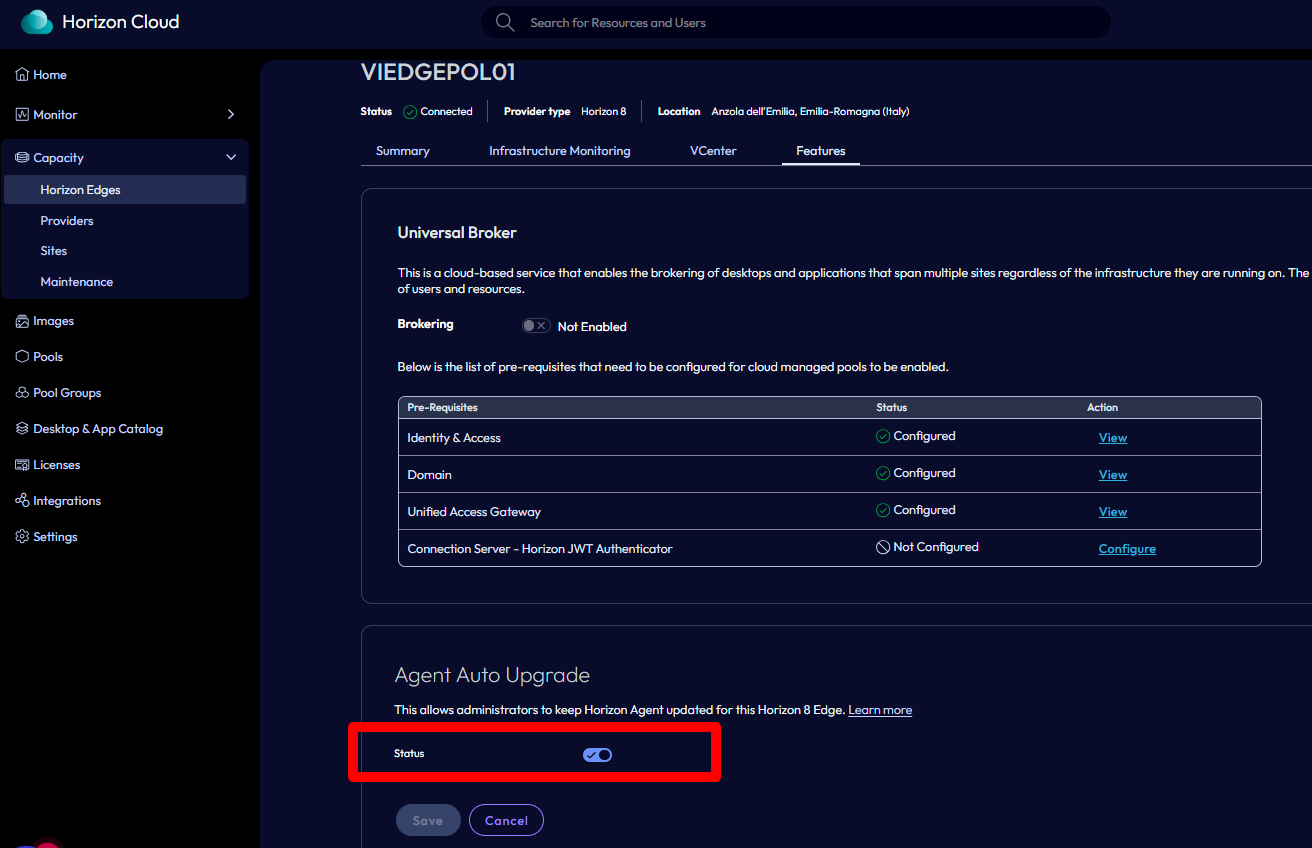
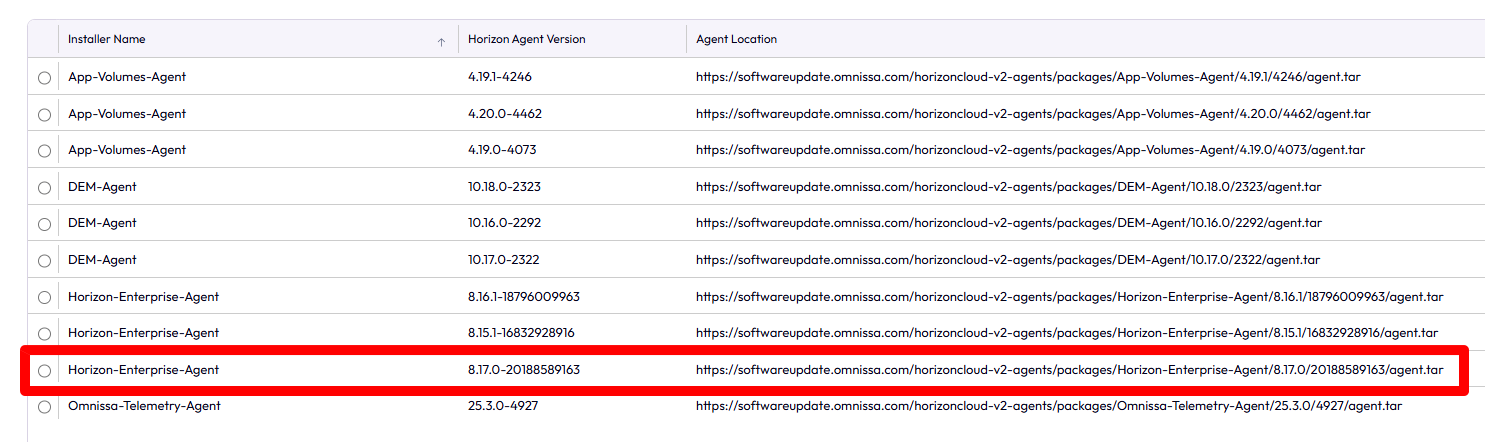
    After updating Horizon to version 2512, I noticed that the latest versions (8.17) weren’t being displayed in the Agent Updates section.


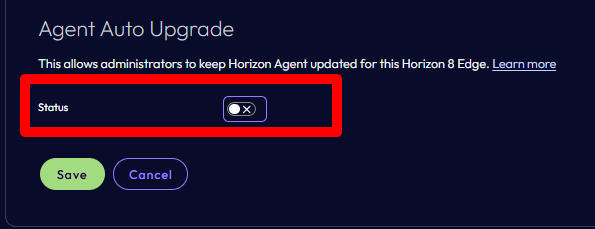
    To see the latest versions, I had to disable the Agent Update service on the Omnissa Connect side. Simply go to the Capacity section, select the relevant edge gateway,

    and disable the specific option in the Features section.


    Re-enable it after a few minutes.

    After a few minutes, the latest versions also appeared in the Horizon console.

    Horizon – Agent Update – Unable to see the last version

    Simplifying App Volumes Management with Recovery Admin in Version 2503

    Introduction
    With the release of App Volumes 2503, Omnissa has introduced a powerful new feature: Recovery Admin. Designed with IT administrators in mind, this addition simplifies troubleshooting and provides a safer, more streamlined way to handle App Volumes environments during critical issues.

    What is Recovery Admin?
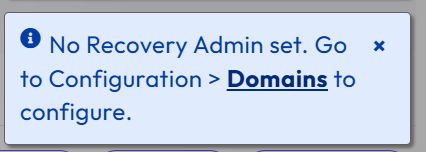
    Recovery Admin is a dedicated role introduced to improve operational resilience. It grants restricted access to App Volumes when standard administrators are locked out—typically in cases where directory services like Active Directory are down or misconfigured.

    Think of it as a “break-glass” account: always available, highly secure, and essential when traditional access paths fail.

    Key Capabilities

    • Read-Only Access: Recovery Admin can inspect configurations, assignment states, and errors—helpful for diagnostics without risking accidental changes.This account is strictly limited to managing domain configuration and administrator roles and is not associated with any domain.

    • No Directory Dependency: This role doesn’t rely on external identity providers. Credentials are defined during the initial setup, so access is always guaranteed.

    • Audit-Ready: All Recovery Admin activity is logged separately to maintain accountability.

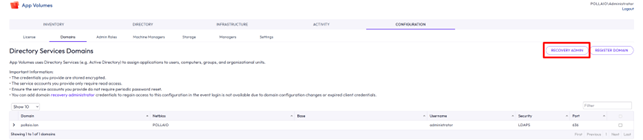
    How to Enable Recovery Admin

    1. Log in to the App Volumes Manager UI.

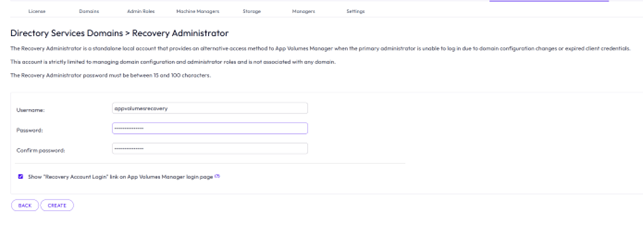
    2. Go to Configuration > Recovery Admin Settings.

    3. Define a strong password and keep it secure.

    Once configured, the Recovery Admin account is ready for use when needed—no domain authentication required.

    Use Case Scenario
    Imagine your domain controller is unreachable and no administrators can log in. With Recovery Admin, you still have access to read logs, inspect app assignments, and validate system health—all without needing to restore full AD services immediately. It’s a crucial safety net.

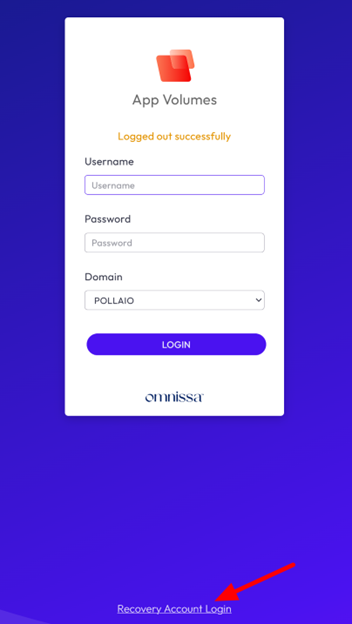
    We can login with Recovery Admin from UI

    Add ?recovery_admin=true at the App Volumes Manager URL

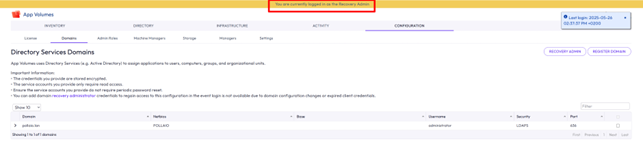
    and we check if we are in recovery mode with the yellow banner on the top of the UI.

    Best Practices

    • Use Recovery Admin strictly for emergencies.

    • Limit access to trusted personnel.

    • Rotate credentials periodically.

    • Monitor audit logs for unusual activity.

    Conclusion
    Recovery Admin in App Volumes 2503 is a small but significant feature that enhances platform reliability and administrator confidence. Whether you’re running a single site or managing a distributed environment, having a backdoor to recover and investigate without risking configurations is a game-changer.

    Image

    EUC Omnissa components are changing look and design…

    Omnissa engineers worked very hard at last end of 2024 year-end in 2025 start year to rebrand the application (Connection Server, Dynamic Environment Manager, App Volumes … ) to remove all VMware logo and info (It is necessary to Broadcom request for Copyright. .)

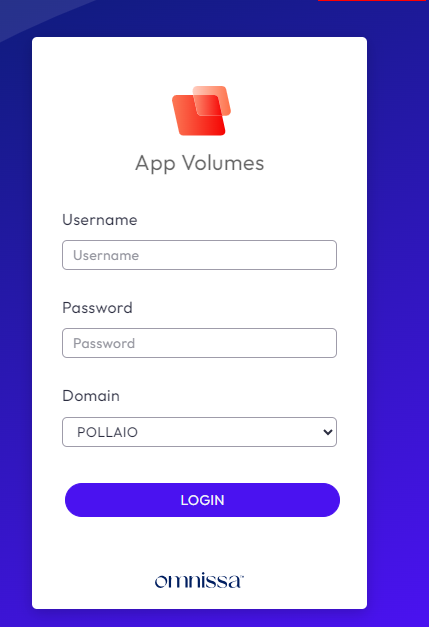
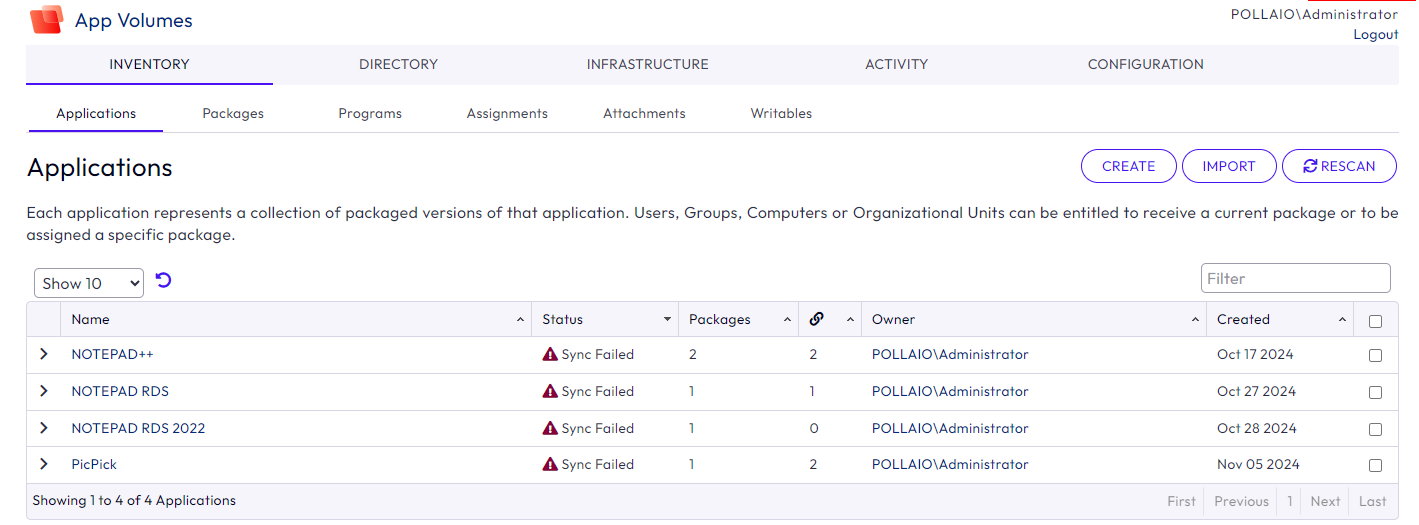
    Now we have the first effect with the new look and design for App Volumes Manager (Version 2412) and

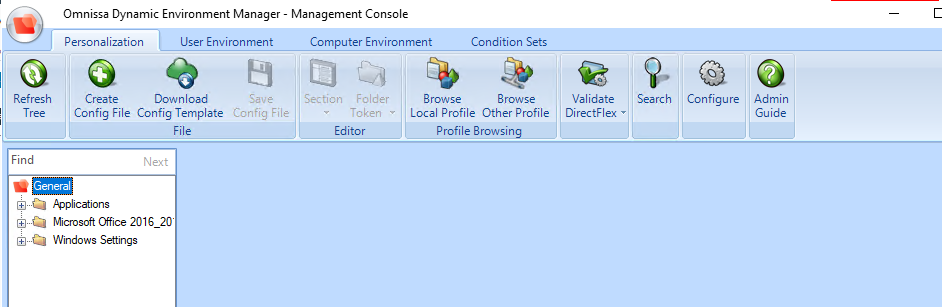
    Dynamic Environment  Manager (2412)

    Immagine che contiene testo, schermata, Sistema operativo, software

Descrizione generata automaticamente

    Immagine che contiene testo, numero, Carattere, software

Descrizione generata automaticamente

    Immagine che contiene testo, schermata, Blu elettrico, Carattere

Descrizione generata automaticamente

    Immagine che contiene testo, software, Icona del computer, Pagina Web

Descrizione generata automaticamente

    EUC Omnissa components are changing look and design…

    Omnissa App Volumes 2406 – Select from multiple packages to launch

    The App Volumes  2406 has many new functions, we can read all the info about this version in the following link:

    Omnissa App Volumes Release Notes

    I want to write about this:

    To use this new function it is necessary to:

    • upgrade App Volumes Managers to 2406

    App Volumes Manager Upgrade

    • upgrade App Volumes Agent to 2406

    App Volumes Agent Upgrade

    Now in the new App volumes Manager version, when I assign to the user a news package, I can select:

    A screenshot of a computer

Description automatically generated

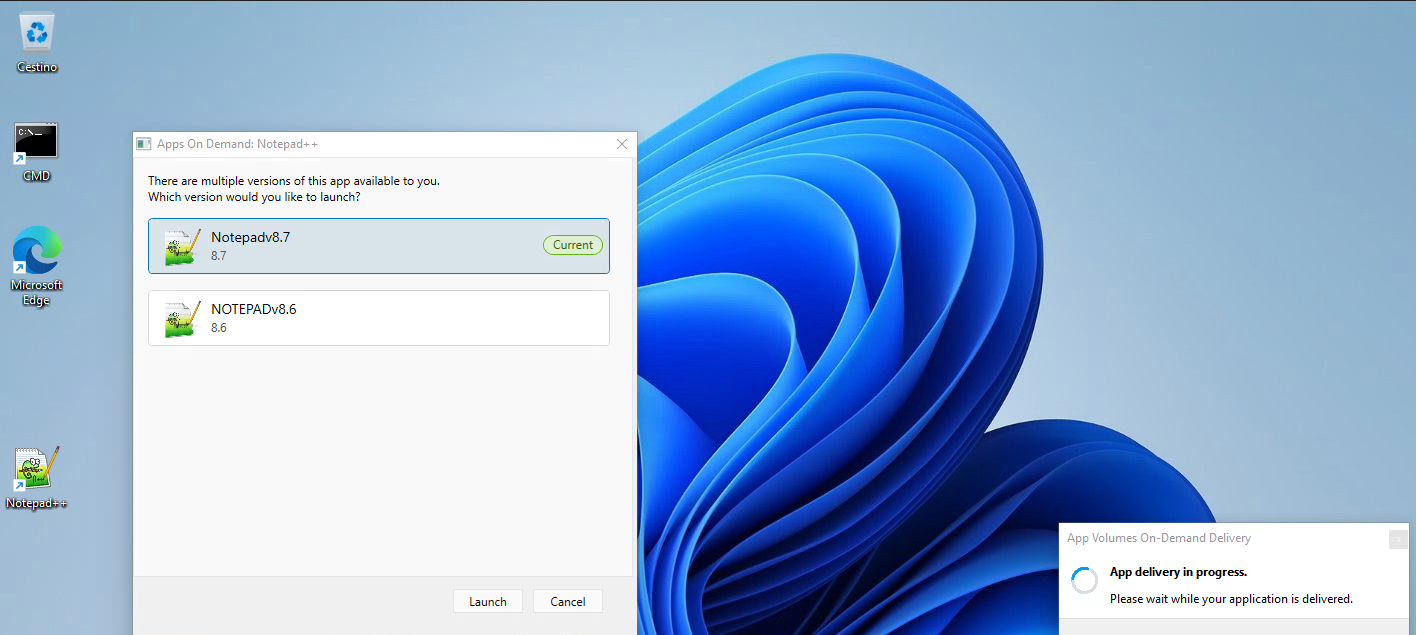
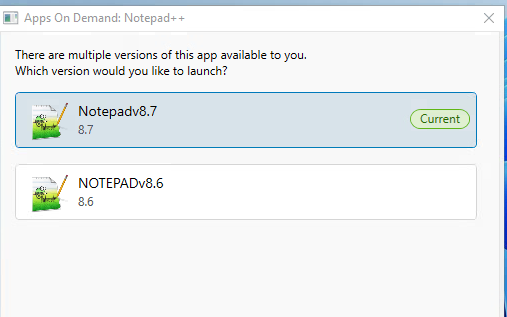
    Now when the user “Fabio Storni” tries to start Notepad appstack from her VDI, he can select which Notepad version wants to start….

    A screenshot of a computer screen

Description automatically generated

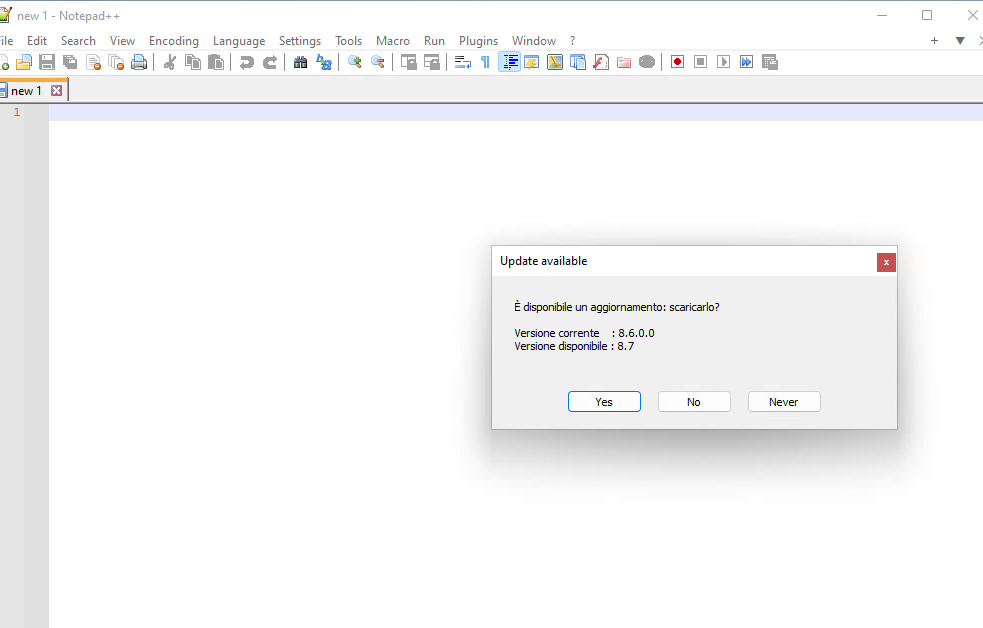
    And I can select the application version to launch, in this case, I select the not current version

    A screenshot of a computer

Description automatically generated

    A screenshot of a computer

Description automatically generated

    Omnissa App Volumes 2406 – Select from multiple packages to launch

    App Volumes 2406

    As anticipated in my previous posts, version 2406 of Omnissa’s EUC products (the company that took over VMware’s EUC products) has been released. New versions of the following are present:

    • App Volumes
    • Horizon
    • Unified Access Gateway
    • Dynamic Environment Manager

    In the next posts I present some of the most interesting new features that are present in these new releases.

    Let’s start with App Volumes and talk about:

    • Volumes App for Persistent Desktop
    • Extending the App Volumes solution to other platforms
    • Assign different versions of the same application to a user

    Volumes App for Persistent Desktop

    • The solution until the version before 2406 was only available for non-persistent desktops (Instant Clone)
    • From the 2406 it is also possible to use it with persistent desktops

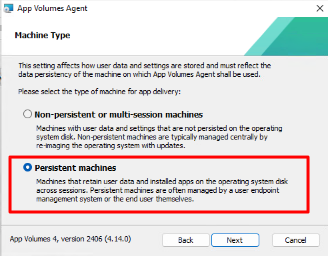
    The main difference is present in the installation of the agent where it is asked on which type of desktop we are installing the App Volumes agent

    A screenshot of a computer

Description automatically generated

    In its nature of profile management, the use of App Volumes on a persistent machine is only possible with App Stacks and not with Writable Volumes

    Extending the App Volumes solution to other platforms

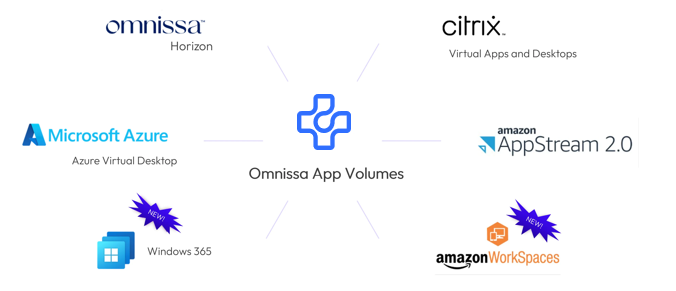
    The ability to use App Volumes with VDI is not only of Horizon infrastructure, from version 2406 it is possible to use with Windows 365 and with Amazon WorkSpaces

    A group of logos on a white background

Description automatically generated

    Assign different versions of the same application to a user

    Leveraging Apps on Demand, end users can now select from multiple packages of an application at launch, providing flexibility to try out new versions or launch specific ones

    Other assignment options: “Marker,” and “Package,”, now we are the “Multiple,” option enhancing application management and deployment flexibility.

    App Volumes 2406

    App Volumes 2406 and Unified Access Gateway 2406

    All of VMware’s EUC products were continuously updated (in recent years almost always every 3 months) to add new features, fix bugs and mitigate security vulnerabilities.

    The move to Broadcom and the subsequent sell of EUC products in Omnissa has brought a few months of stabilization… but I’m happy to announce that versions 2406 of the App Volumes and Unified Access Gateway products are out.

    What do we find new?

    A logo with text on it

Description automatically generated

    App Volumes

    Persistent Desktop Support

    Expanded Use Cases: New support for classic Windows desktop environments, a significant enhancement to our Apps Everywhere strategy. This new feature extends our efficient one-to-many provisioning model, previously available only for non-persistent desktops, to persistent virtual desktop environments.

    And more…

    Replicate Application Packages in Specific Stages

    We are excited to introduce the Replicate Application Packages in Specific Stages feature, designed to enhance the life cycle management of applications across multiple instances of App Volumes Manager

    And more…

    Select a specific Package Version when Launching an App (Technology Preview)

    Writable Volumes Performance Improvements

    Here the Release Notes

    A logo of a cloud security system

Description automatically generated

    Unified Access Gateway

    Added support for Horizon Connection Server’s Home Site Redirection feature (associated with Cloud Pod Architecture)

    Added support for Basic and NTLM authentications in outbound proxy configuration.

    Added support in PowerShell script to enable/disable monitoring of unrecognized sessions using the new field unrecognizedSessionsMonitoringEnabled.

    And more..

    Here the Release Notes 


    The 2406 version of the Connection Server ……..stay tuned!

    App Volumes 2406 and Unified Access Gateway 2406

    EUC, un futuro luminoso per Horizon

    A black and white logo

Description automatically generated A logo of a software company

Description automatically generated A logo for a company

Description automatically generated A close up of a logo

Description automatically generated

    In questi giorni c’è molto fermento nel mondo dell’EUC (‘End-User Computing) in merito alla comparsa sul mercato di un nuovo nome.

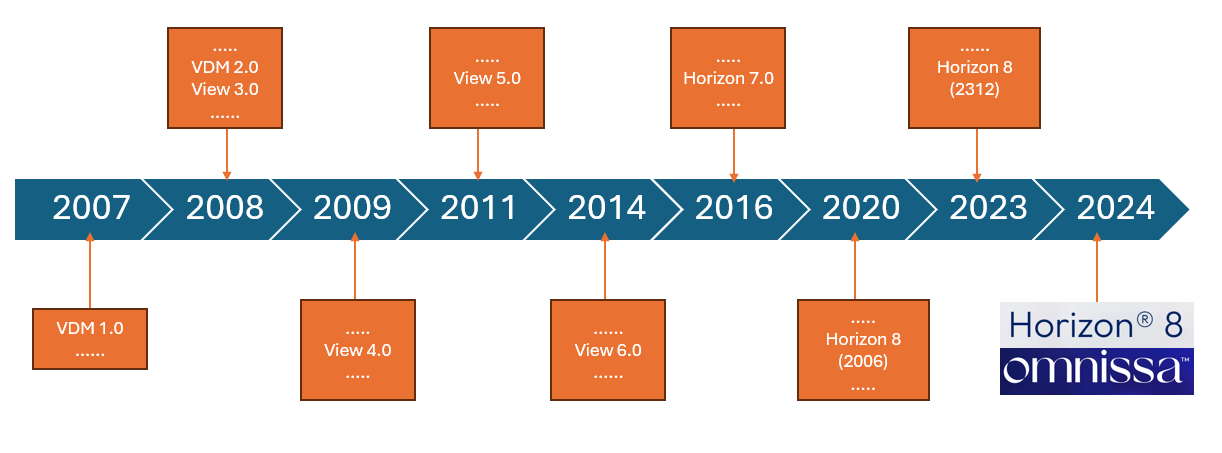
    Ma partiamo con ordine, nel lontano 2008 mi avvicino al modo delle VDI (Virtual Desktop Infrastructure) inizialmente con l’automatizzazione di aule corsi, grazie a VMware e al suo prodotto che allora era stato appena rinominato in Horizon View (se non sbaglio precedentemente si chiama VMware VDM….. ancora oggi, nelle installazioni dei Connection Server, troviamo una cartella VDM sotto c:\ProgramData).

    A diagram of a timeline

Description automatically generated with medium confidence

    Col tempo le soluzione VDI di VMware sono evolute in maniera importante con l’aggiunta prima della tecnologia linked clones e poi con le instant clone (tecnologie che permettono di semplificare notevolmente la vita dell’amministratore delle postazioni di lavoro).

    Abbiamo visto l’affiancare a Horizon soluzioni che permettono di sfruttare al meglio le VDI come App Volumes, DEM (Dynamic Environment Manager), Workspace One ecc.…

    Poi dall’on-premise è stato portato anche sul Cloud con soluzione come Horizon Cloud on Microsoft Azure.

    Anche per la mia carriera lavorativa il mondo delle VDI ha lasciato un solco importante dal 2021 sono vEXPERT (Con specificità nel mondo EUC) e dal 2024 sono EUCExpert e collaboro con VMware/Broadcom nel deploy.

    Mi direte ok sono cose che ormai conosciamo ma quindi che cosa è successo??

    Bene, sappiamo tutti che VMware è stata acquisita da Broadcom e una delle prime dichiarazioni della nuova proprietà è stata quella di non volere investire sull mondo EUC.

    Ma quindi che succede?

    Tutto i prodotti EUC di VMware sono riconosciuti tra i leader del mercato dei prodotti VDI e Desktop as a Service sono stati comprati da KKR (Fondo Americano nato nel 1977) per cui nasce Omnissa

    A blue and white logo

Description automatically generated

    Nata con persone VMware per garantire la stessa qualità e lo stesso sviluppo in innovazione che è stato garantito in questi anni.

    In cui continua o parte una nuova vita (scegliete voi) per tutti i prodotti EUC che molti noi conosciamo e apprezziamo  (Horizon ecc…)

    Ne vedremo sicuramente delle belle e ci aspetta un futuro luminoso!

    EUC, un futuro luminoso per Horizon

    VMware App Volumes 4, version 2312.2

    The 28 March VMware released a new version of App Volumes (it is a minor version) to fix some known Issues of previous versions.

    VMware App Volumes 4, version 2312.2 Release Notes

    In this case, it’s a relief for me because I just happened to find a bug in version 2312 on a customer with vSAN and App Volumes storage group. This version should fix the following issue: In the next few days, I will install the update and possibly update the post.

    VMware App Volumes 4, version 2312.2