It is important to remember that the Horizon Edge Gateway is not only used for enabling integration with Horizon Cloud Services, but it is also required in many environments for Horizon subscription licensing.
In modern deployments of Omnissa Horizon, subscription licenses are delivered through the Horizon Cloud control plane rather than through traditional license keys. To enable this mechanism, each Horizon pod must be connected to the cloud service using a Horizon Edge Gateway appliance.
When using subscription-based licensing:
For this reason, outbound connectivity to the Horizon Cloud endpoints is critical, not only for cloud services but also for maintaining a valid licensing state in subscription-based environments.
If the Edge Gateway cannot reach the required endpoints due to firewall restrictions, proxy configuration, or SSL inspection, administrators may experience issues such as:
In contrast, environments using term/perpetual license keys entered directly in the Horizon Console do not require a Horizon Edge Gateway, because licensing is handled locally within the pod.
Checking the connectivity
When deploying environments based on Omnissa Horizon integrated with Horizon Cloud Services (HCS), proper outbound connectivity from the Horizon Edge Gateway is critical.
This is the link for Port and Protocol Requirements for Deploying Horizon 8 Edge:
Port and Protocol Requirements for Deploying Horizon 8 Edge
In many enterprise environments, outbound communication toward the internet is tightly controlled through firewalls, proxies, or SSL inspection systems. While this is perfectly reasonable from a security perspective, it often introduces connectivity issues if the required endpoints are not properly allowed.
Even more commonly, the configuration works initially but breaks later because firewall rules are modified, security appliances are upgraded, or SSL inspection policies change over time.
For this reason, whenever issues arise with Horizon Cloud integration, the first thing to verify is whether the Edge Gateway can still reach the required Horizon Cloud Services endpoints.
Fortunately, the Edge Gateway provides a built-in diagnostic tool to help with exactly this scenario.
Using diagnostic.sh to Test Connectivity
The Horizon Edge Gateway includes a script called diagnostic.sh

This script performs a series of connectivity checks toward the Horizon Cloud Services endpoints required for proper operation.
The script validates:
This makes it extremely useful when troubleshooting issues caused by:
Running the Diagnostic Script
Log in to the Horizon Edge Gateway via VM Web Console with the root account:

And run this command:

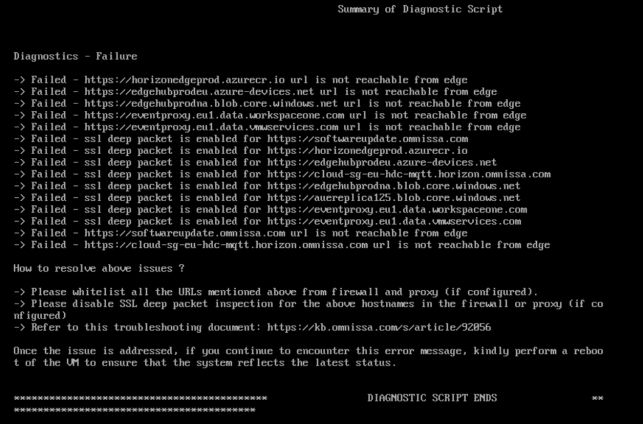
The script will test connectivity against multiple Horizon Cloud endpoints and return the results directly to the console.
A successful test typically shows results like:
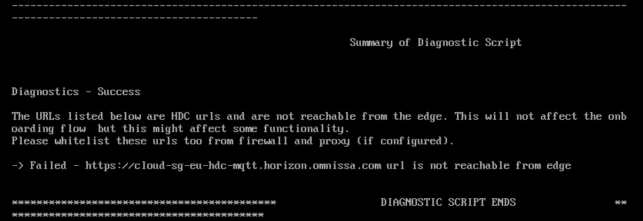
If a problem exists, the script will clearly indicate which test failed.
Why This Check Is Important
Connectivity to Horizon Cloud Services is essential for several platform features, including:
Because firewall and security policies frequently evolve in enterprise environments, it’s a good practice to periodically validate connectivity using the diagnostic tool.
Running the diagnostic script can quickly confirm whether the issue is related to networking or to another component of the Horizon environment.
Spoiler:
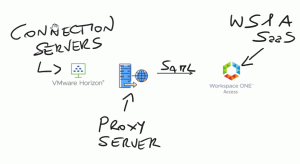
There may be proxy problems. For which proxy it is used, you can read this configuration file:
/opt/horizon/var/data/proxy.conf