Horizon Applications and strange icon – Horizon client

I have encountered an anomaly from a customer regarding the icons displayed for applications published by an RDS farm via Horizon. Specifically SAP LOGON.

The situation was as follows:
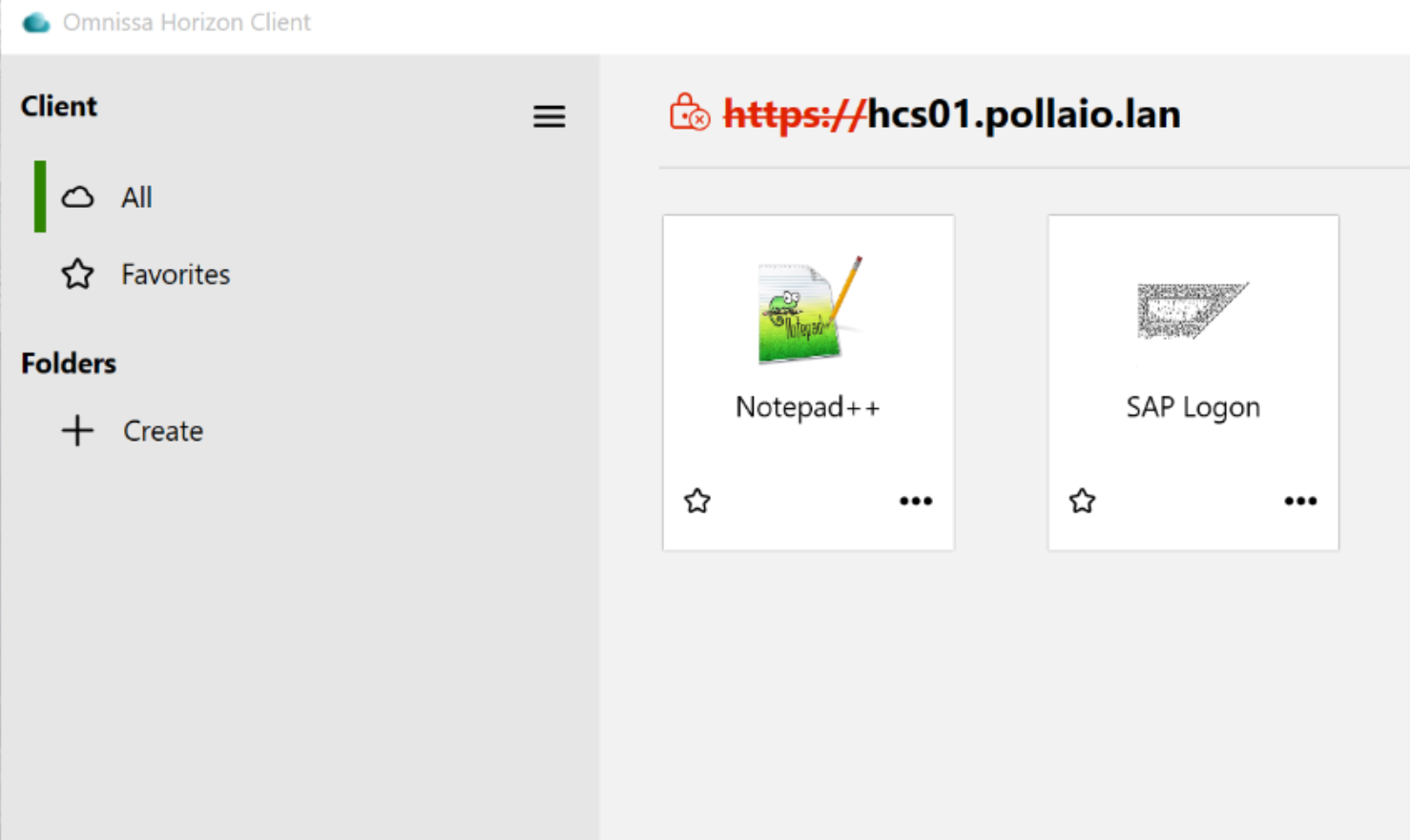
A screenshot of a computer

AI-generated content may be incorrect.

Where the SAP LOGON icon was grayed out and not well defined, the same situation was present with access via WEB.

After various analyses and attempts to solve it, I identified in the Horizon ADAM LDAP DB the presence of a mapping between the published application and the icons used

To access the ADAM LDAP DB, follow the instructions in this KB

Connecting to the Horizon Connection Server Local ADAM Database (2012377)

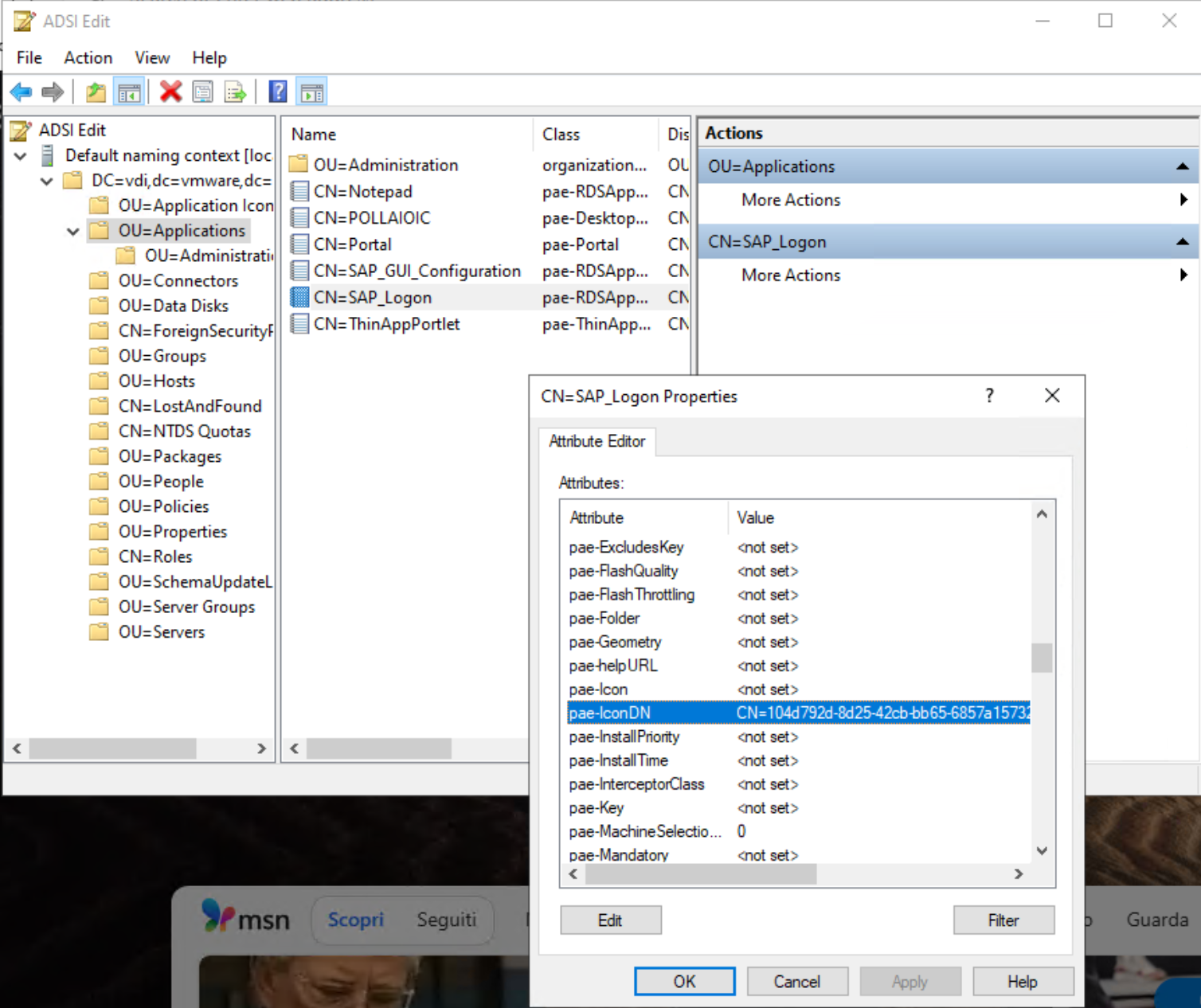
Once connected to the DB, we will be able to find our published application under Applications and check the associated icon or icons in the properties.
A screenshot of a computer

AI-generated content may be incorrect.

In my case, the pae-IconDN field was populated by 10 entries. In the image below, I show the status of the field
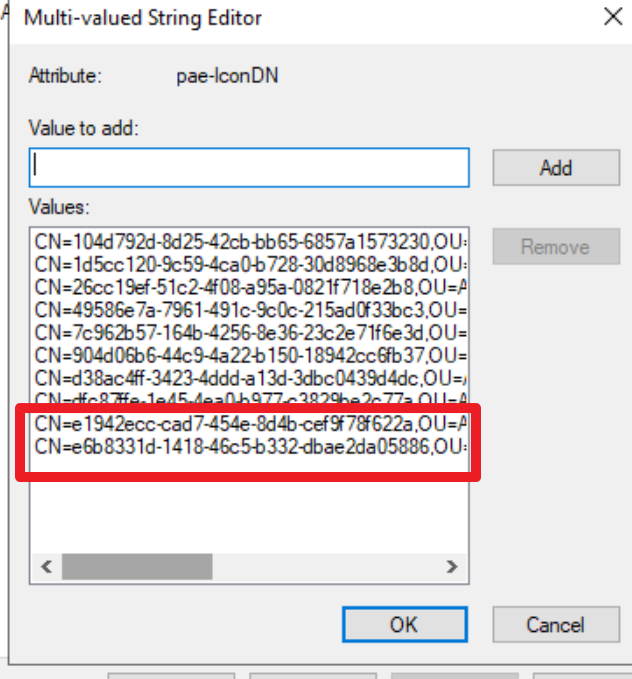
A screenshot of a computer

AI-generated content may be incorrect.

By removing the first 8 Entries (by trial and error), I was able to restore the correct situation
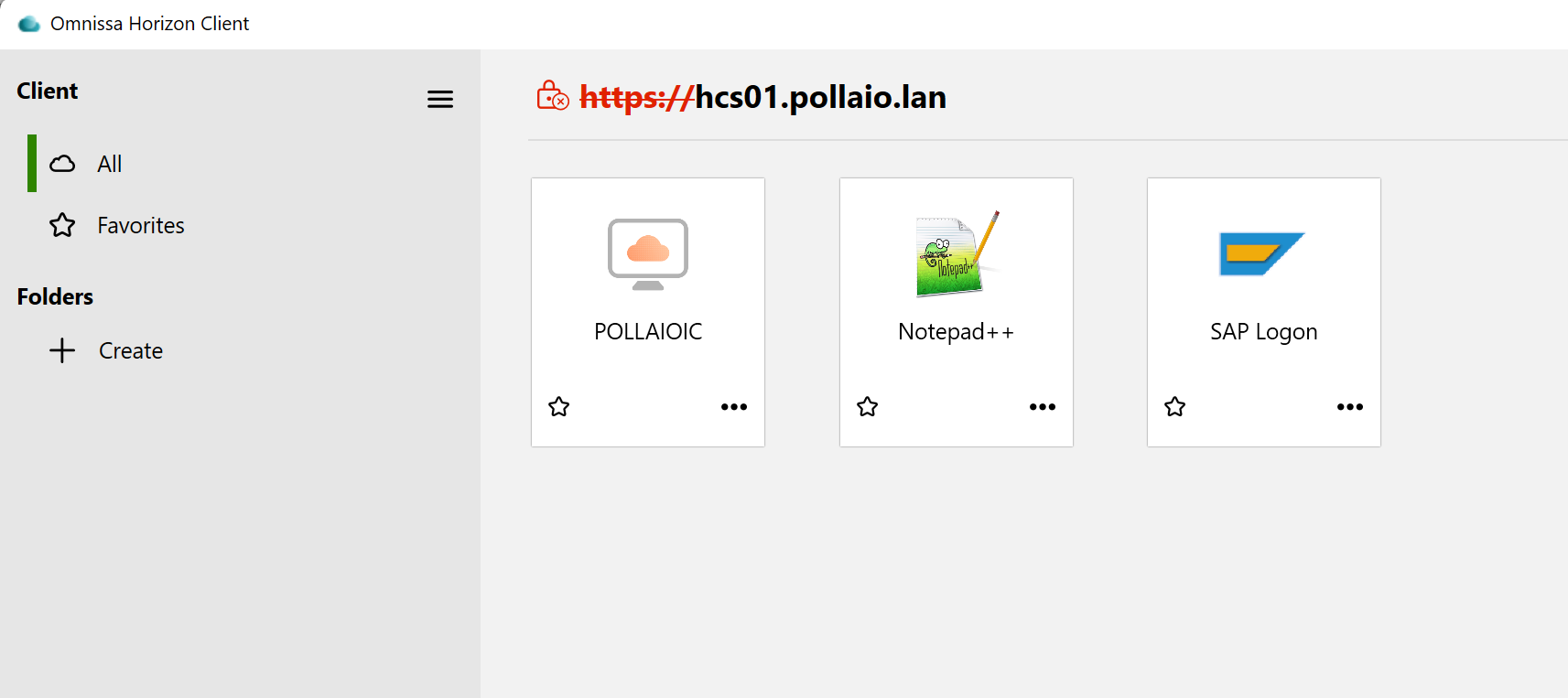
A screenshot of a computer

AI-generated content may be incorrect.

Some points of attention:

  • The icons in question (for example, the 10 of SAP LOGON) are all downloaded to the Horizon client cache located in C:\Users\%USERNAME%\AppData\Local\Omnissa\Omnissa Horizon Client\Icon Cache, but there is no link between the file name with the icon image and the ADAM LDAP DB (at least, I didn’t find it)
  • If we publish another SAP GUI or remove and republish the current one, the problem may recur, and it is necessary to intervene in the same way
Horizon Applications and strange icon – Horizon client

Configure Proxy Server for Horizon for SAML integration

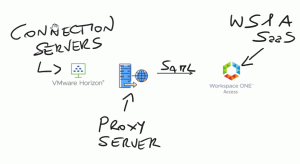
When we need to integrate a Horizon infrastructure to the cloud identity provider (like Workspace One Access SaaS solution) sometimes we need to manage firewall and proxy configuration.

For the Firewall rule, there is much information (KB link) while for the proxy server, we are not able to use Windows server configuration because Horizon ignores it.

To use a proxy server to permit communication to the IdP URL from Horizon Connection servers we need to configure some values on ADAM DB:

pae-SAMLProxyName

pae-SAMLProxyPort

To connect to ADAM DB and where modify the correct value

  • Connect with RDP session to Connection Server OS
  • Start from PowerShell adsedit

A close-up of a computer screen

Description automatically generated

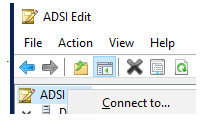
  • In the console tree select Connect to..

A screenshot of a computer

Description automatically generated

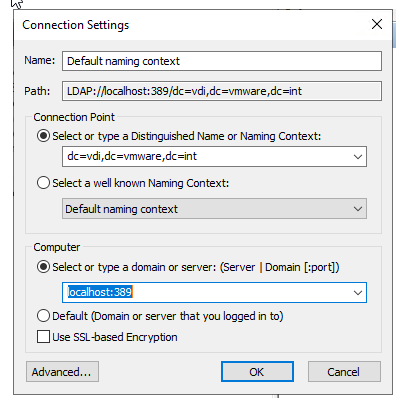
  • Configure the connection with this information.

dc=vdi,dc=vmware,dc=int

localhost:389

A screenshot of a computer

Description automatically generated

  • Expand ADAM ADSI tree under the object path: dc=vdi,dc=vmware,dc=int,ou=Properties,ou=Global
  • Click on value Common and modify the following value

pae-SAMLProxyName -> With Proxy URL

pae-SAMLProxyPort -> With Proxy Port

Now we can configure the SAML integration from Horizon and IdP

Some information about why we need to integrate and use Workspace One Access with Horizon:

Integration between VMware Horizon and VMware Workspace ONE Access (formerly called Workspace ONE) uses the SAML 2.0 standard to establish mutual trust, which is essential for single sign-on (SSO) functionality. When SSO is enabled, users who log in to VMware Workspace ONE Access or Workspace ONE with Active Directory credentials can launch remote desktops and applications without having to go through a second login procedure.

Configure Proxy Server for Horizon for SAML integration