Azure MFA, UAG, Horizon and TRUE SSO – Step 4

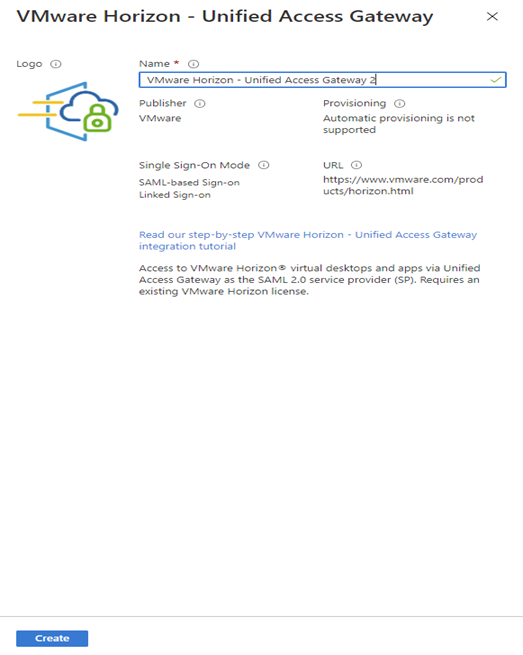
Configure a enterprise application on Azure AD, configure it and export XML

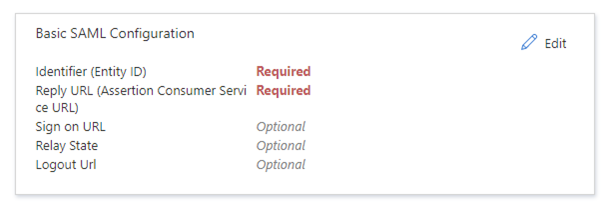
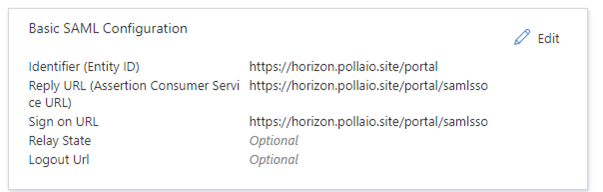
Insert:

 Identifier  -> https://<public-FQDN-UAG>/portal

Reply URL -> https://<public-FQDN-UAG>/portal/samlsso

Sign on URL -> https://<public-FQDN-UAG>/portal/samlsso

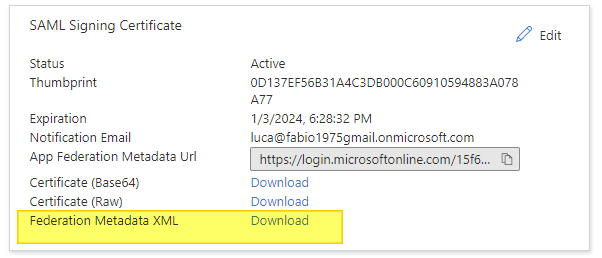
Download the  XML

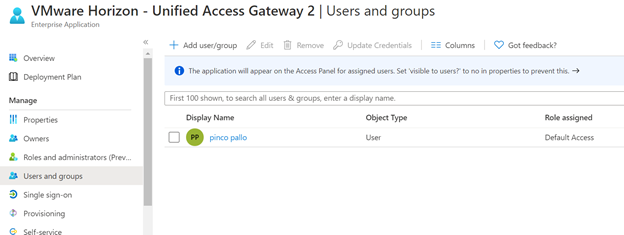
Assign Users or Groups permission to Enterprise application

Import XML on UAG and configure it

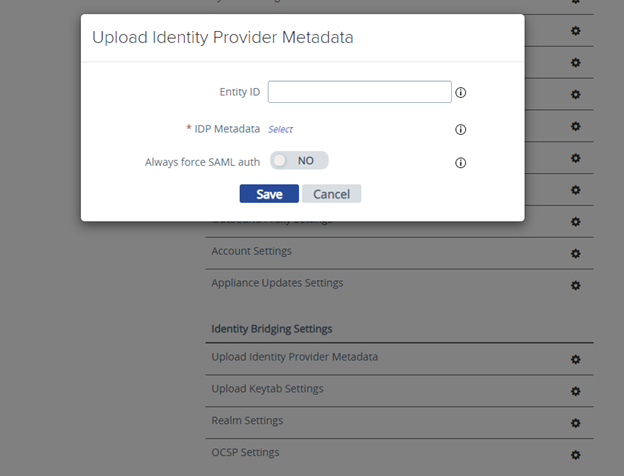
Import Identity Provider Metadata, select the file XML downloaded from the Enterprise Application data

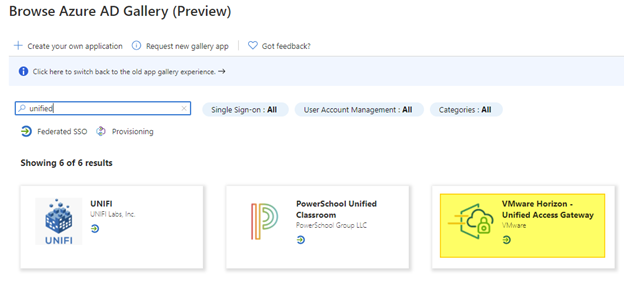
Select the identity provider

 Select More Option

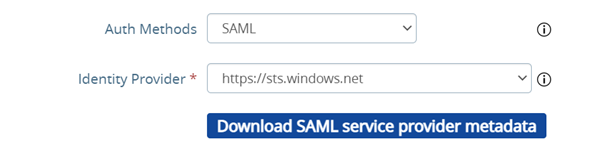
And select SAML e the correct Identity provider (with SAML+PASSTROUGHT the identity token  will not passed to horizon Server and it will required a new autentication)

Azure MFA, UAG, Horizon and TRUE SSO – Step 4

Azure MFA, UAG, Horizon and TRUE SSO – Step 3

Export Horizon Enrollment Certificate from Horizon installation and install it in to Enrollment Horizon Server

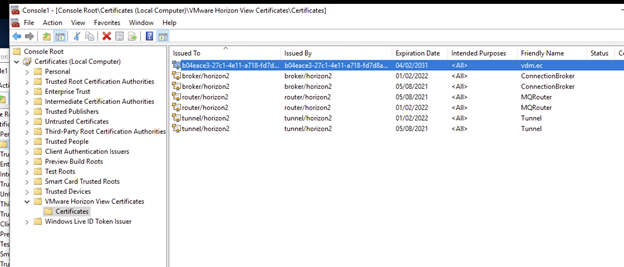
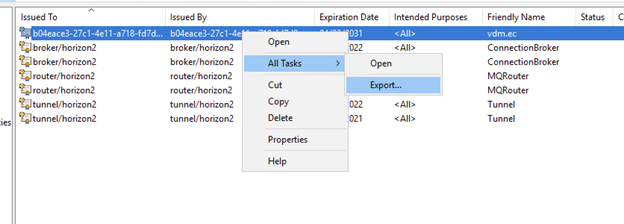
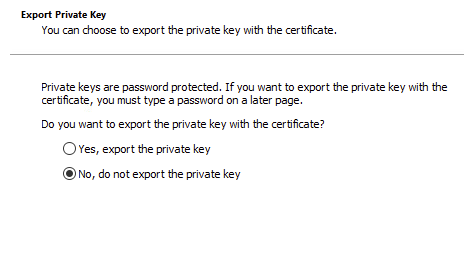
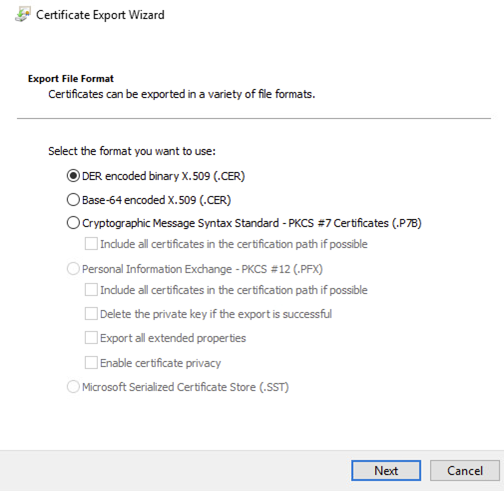
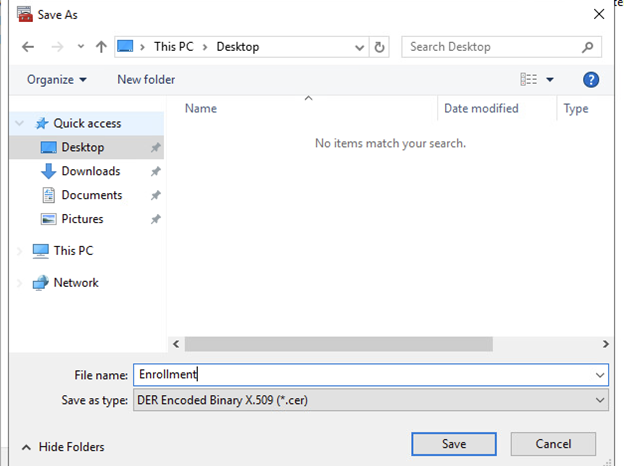
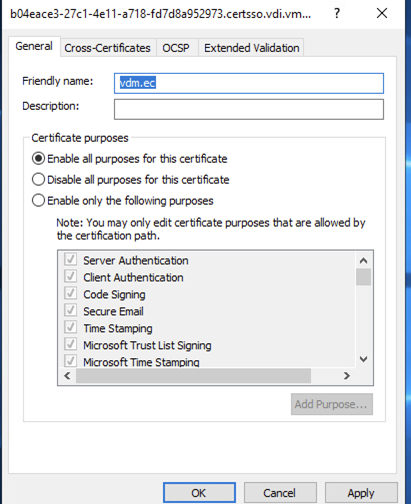
Connect to Horizon Server and export the Horizon View Certificate  (The certificate with  vdm.ec friendly name)

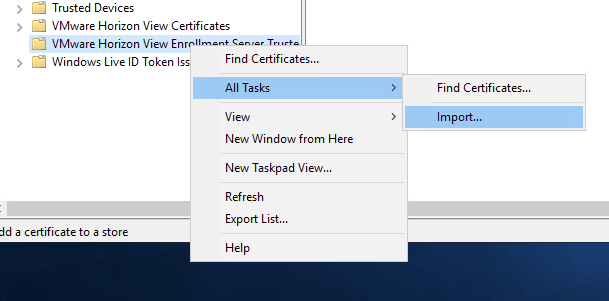
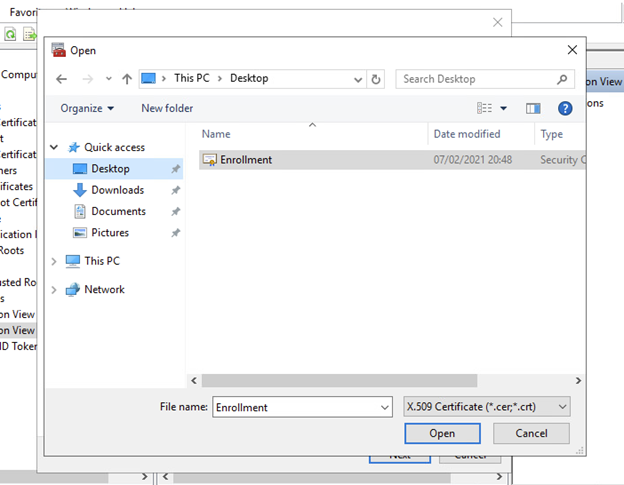
Now we import the enrollment certificate in to Horizon Enrollment server,  we need import in to Certificate Computer store and add the friwndly name vdm.ec

Configure TrueSSO on Horizon Connection Server

Configure Enrollement server

vdmUtil –authAs admin-role-user –authDomain domain-name –authPassword admin-user-password –truesso –environment –add –enrollmentServer enroll-server-fqdn

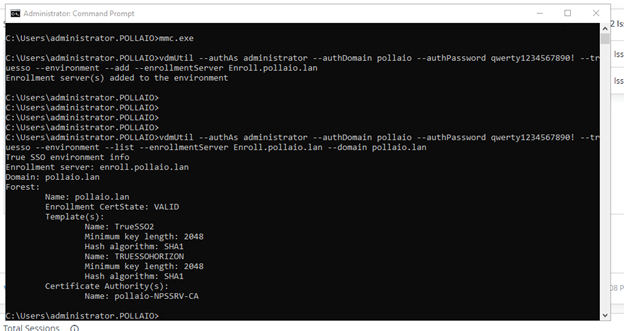
vdmUtil –authAs administrator –authDomain pollaio –authPassword qwerty1234567890! –truesso –environment –add –enrollmentServer Enroll.pollaio.lan

Verifica le informazioni

vdmUtil –authAs admin-role-user –authDomain domain-name –authPassword admin-user-password –truesso –environment –list –enrollmentServer enroll-server-fqdn –domain domain-fqdn

vdmUtil –authAs administrator –authDomain pollaio –authPassword qwerty1234567890! –truesso –environment –list –enrollmentServer Enroll.pollaio.lan –domain pollaio.lan

Creare la connessione per il true sso

vdmUtil –authAs admin-role-user –authDomain domain-name –authPassword admin-user-password –truesso –create –connector –domain domain-fqdn –template TrueSSO-template-name –primaryEnrollmentServer enroll-server-fqdn –certificateServer ca-common-name –mode enabled

vdmUtil –authAs administrator –authDomain pollaio –authPassword qwerty1234567890! –truesso –create –connector –domain pollaio.lan –template TRUESSOHORIZON  –primaryEnrollmentServer enroll.pollaio.lan –certificateServer pollaio-NPSSRV-CA  –mode enabled

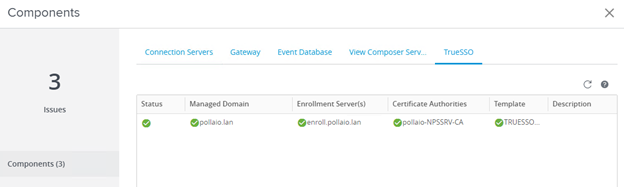
Verify from the Horizon Connection server dashboard thee TrueSSO status, if it is all green the trueSSO is Ready

Azure MFA, UAG, Horizon and TRUE SSO – Step 3

Azure MFA, UAG, Horizon and TRUE SSO – Step 2

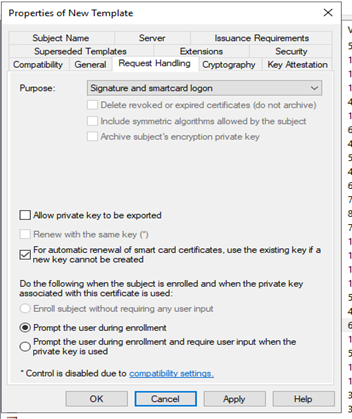
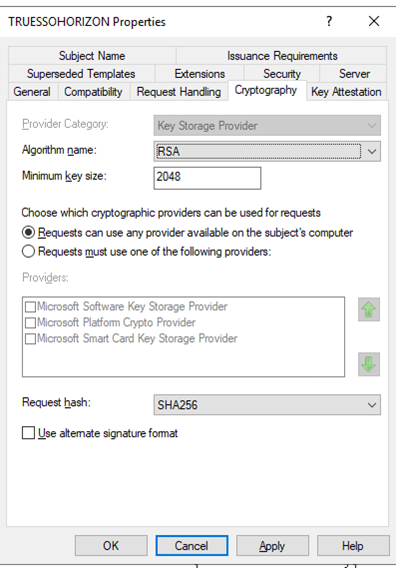
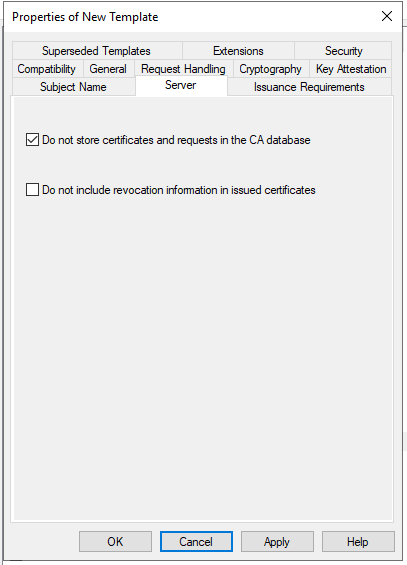
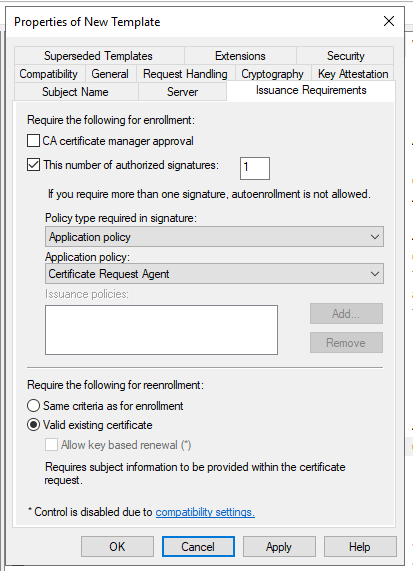
Create a Certificate Template for True SSO

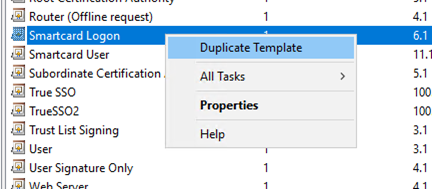
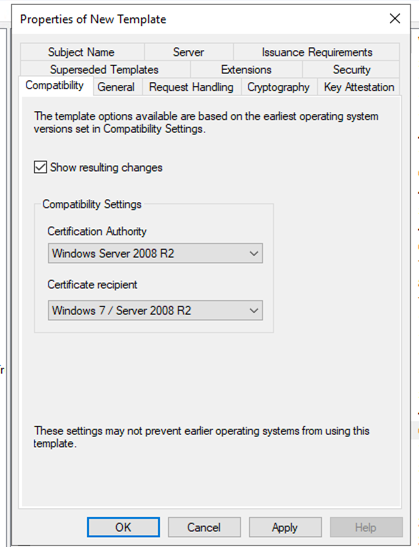
Connect to ROOTCA or SUBCA, from MMC console  and open Certificate Template snap-in

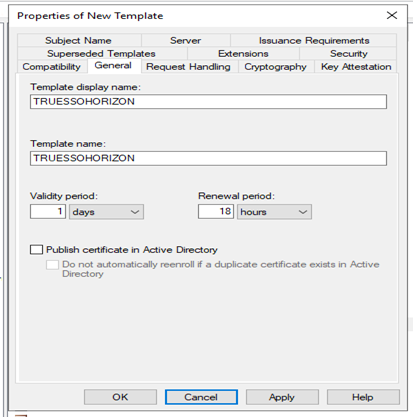
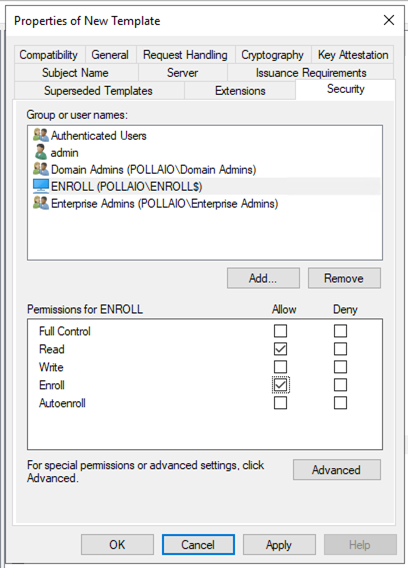
Change the validity period to a period that is as long as a typical working day; that is, as long as the user is likely to remain logged into the system.

Change the renewal period to 50%-75% of the validity period.

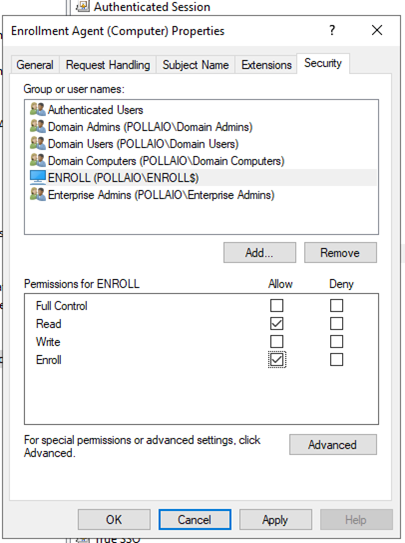
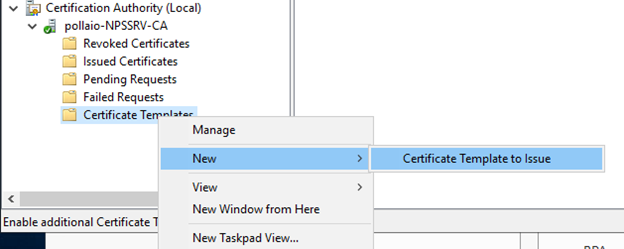
Install Enrollment certificate on Enrollment server

Connect to ROOTCA or SUBCA, from MMC console  and open Certificate Template snap-in

From

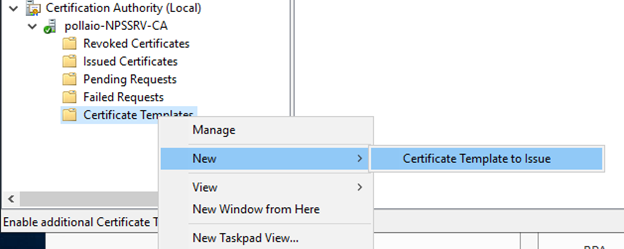
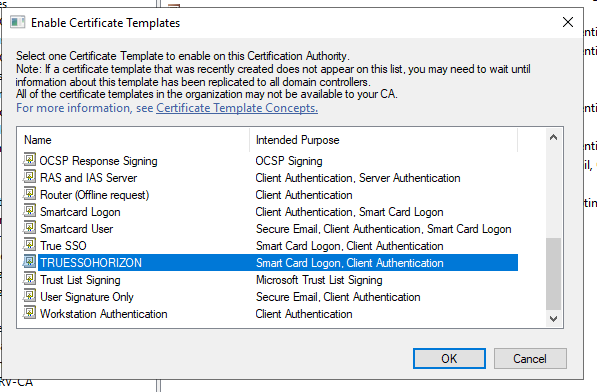
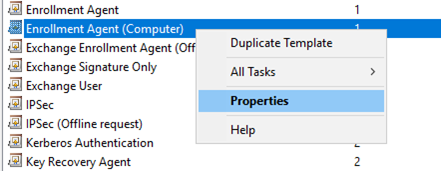
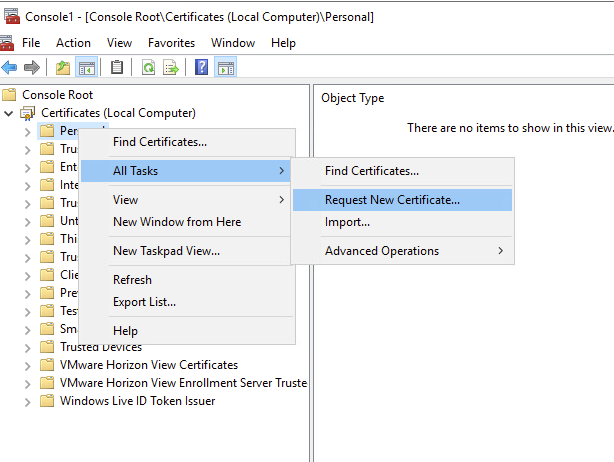
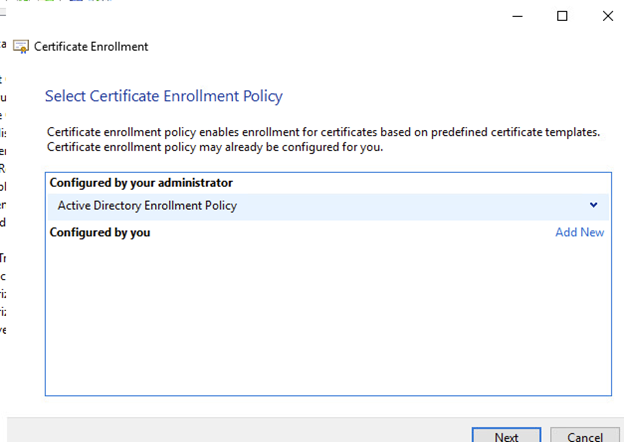
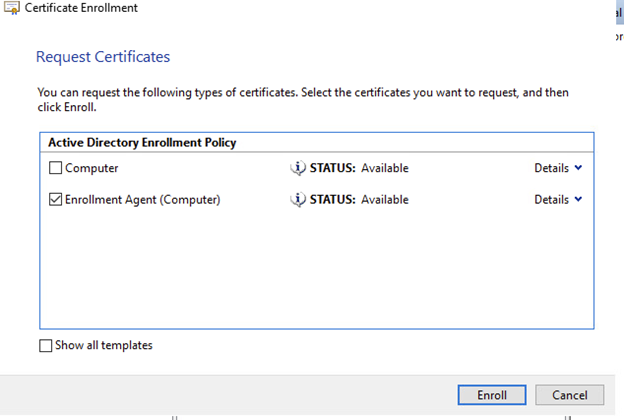
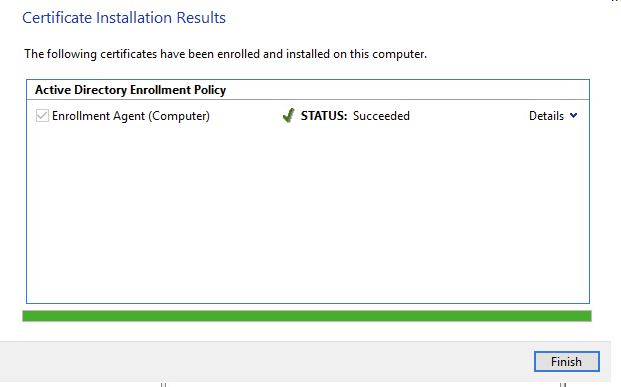
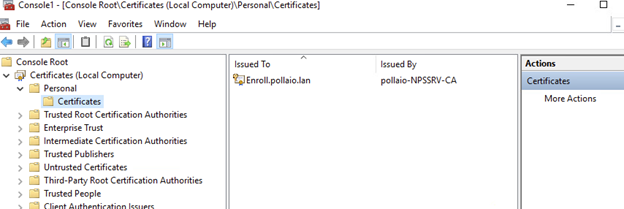
Connect to Horizon enrollment server and install the enrollment Agent (Computer), open snap-in Certificate (select Local Computer)

Azure MFA, UAG, Horizon and TRUE SSO – Step 2

Azure MFA, UAG, Horizon and TRUE SSO – Step 1

What you need?

1 – Vmware Horizon Infrastrutcture and Unified Access Gateway

2 – Azure AD license enabled for MFA

3 – Sync Active Directory User to Azure AD

4 – Private Microsoft CA

What you will doing?

  • Install Enrollment Horizon Server
  • Create a Certificate Template for True SSO
  • Install Enrollment certificate on Enrollment server
  • Export Horizon Enrollment Certificate from Horizon installation and install it into Enrollment Horizon Server
  • Configure TrueSSO on Horizon Connection Server
  • Test TrueSSO with TrueSSO Diagnostic Utility
  • Configure an enterprise application on Azure AD, configure it and export XML
  • Assign Users or Groups permission to Enterprise application
  • Import XML on UAG and configure it
  • Import XML on Horizon Connection Servers and configure it
  • Enable truesso for Horizon Authentication method

REFERENCE

Tutorial: Azure Active Directory single sign-on (SSO) integration with VMware Horizon – Unified Access Gateway | Microsoft Docs

Setting Up True SSO (vmware.com)

Install Enrollment Horizon Server

Install and Set Up an Enrollment Server (vmware.com)

  • Create a Windows Server 2012 R2, Windows server 2016, or Windows Server 2019 virtual machine with at least 4GB of memory, or use the virtual machine that hosts the enterprise CA. Do not use a machine that is a domain controller.
    • Verify that no other Horizon component, including Connection Server, Horizon Client, or Horizon Agent is installed on the virtual machine.
    • Verify that the virtual machine is part of the Active Directory domain for the Horizon deployment.
    • Verify that you are using an IPv4 environment. This feature is currently not supported in an IPv6 environment

VMware recommends that the system must have a static IP address.

  • Verify that you can log in to the operating system as a domain user with Administrator privileges. You must log in as an administrator to run the installer.

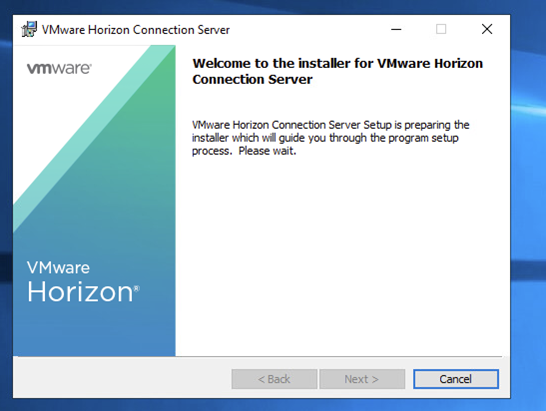
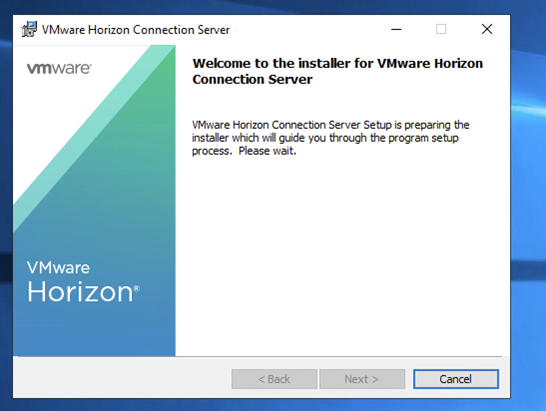
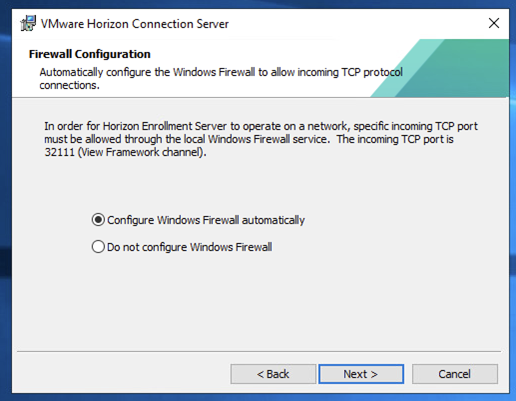
Download Horizon Connection Server installer and start it:

Azure MFA, UAG, Horizon and TRUE SSO – Step 1

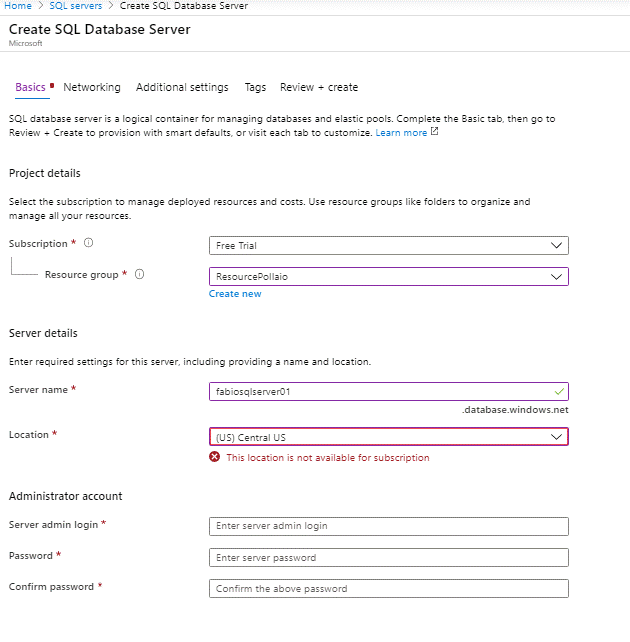
This Location is not available for subscription when i try to create a Azure SQL DB

Oggi da varie sottoscrizioni azure (anche non FREE)  mi ritorna questo errore (ho provato con tutte le location a disponibili x verificare quali utilizzate Get-AzureRmLocation | select displayname  da powershell)

Da alcuni BLOG sembra che sia dovuto a un sovraccarico dei servizi Azure…apriamo un ticket al supporto e vediamo …
This Location is not available for subscription when i try to create a Azure SQL DB

Impostare esclusioni in windows defender su Windows 2016 Core

Add-MpPreference -ExclusionPath “C:Program FilesSystem Center Operations ManagerGatewayHealth Service State”
Add-MpPreference -ExclusionExtension “.edb”
Add-MpPreference -ExclusionExtension “.chk”
Add-MpPreference -ExclusionExtension “.log”
Add-MpPreference -ExclusionProcess “C:Program FilesSystem Center Operations ManagerGatewayMonitoringHost.exe”

Verificare che le esclusion sono state inserite

$EsPath = Get-MpPreference
$EsPath.ExclusionProcess
$EsPath.ExclusionExtension
$EsPath.ExclusionPath

Impostare esclusioni in windows defender su Windows 2016 Core

Command for Storage EqualLogic Dell


Visualizzare il lead di un gruppo di storage


SANPROD> su exec hostname
You are running a support command, which is normally restricted to PS Series Tec
hnical Support personnel. Do not use a support command without instruction from
Technical Support.
SAN05

SANPROD> su exec pm member
You are running a support command, which is normally restricted to PS Series Tec
hnical Support personnel. Do not use a support command without instruction from
Technical Support.
 SAN05           [1.293392196] 8-cb2b76-00041b068-3ff001929de00000  pssId(1) Hazelburn(14)
         total space :  160415 pages   2349.83GB RAID-50
         free space  :   20604 pages    301.82GB (13%)
         snap space  :       0 pages      0.00MB (0%)
         repl space  :       0 pages      0.00MB (0%)
         vol space   :  139811 pages   2048.01GB (87%)
      status:  (Online GL )
 SAN04           [1.716095382] 0-1cb196-0003e8643-48d000b42c000000  pssId(2) Hazelburn(14)
         total space : 3563666 pages   52202.14GB RAID-6
         free space  :  383801 pages   5622.08GB (11%)
         snap space  :       0 pages      0.00MB (0%)
         repl space  :       0 pages      0.00MB (0%)
         vol space   : 3179865 pages   46580.05GB (89%)
      status:  (Online )


Backup delle configurazioni di tutti i membri di un gruppo 

SANPROD> save-config
Genera un file nominato config.cli con le impostazioni dei membri del gruppo nella root dello storage
Per recuperarlo bisogna utilizzare il protocollo FTP.
Configuration saved to config.cli.
You can retrive the file using ftp or scp 
Y
Command for Storage EqualLogic Dell