If you are not using or can not use the official VMware Hardware Compatibility List (HCL) to identify hardware systems and components that are officially supported with a given version of vSphere ESXi, then the experience in finding hardware can be quite daunting for both new and even existing users. Typically, users might start off […]
We are excited that today customers now have VMware vRealize® Network Insight™ Universal available. This new solution will give customers the ability to deploy vRealize Network Insight as a SaaS or provide the customer an option to start on-premises then move to SaaS later when they are ready […]
Introducing VMware Cross-Cloud services—an integrated portfolio of SaaS solutions to build, run, manage, and secure all your apps across clouds. To learn more, visit: https://www.vmware.com/cross-cloud-services
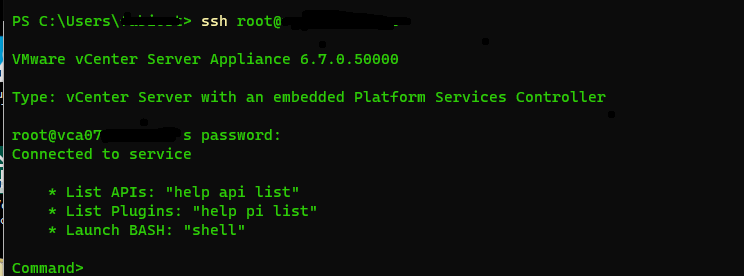
Well, in recent weeks we have often talked about how to heal vCenters from the log4j vulnerability. I guess the first thing we all thought was “What a show VMware support released scripts to run to solve the problem …” and then every one to use WinSCP or similar tools/commands to copy the file …. but many will have found it impossible to copy files using the Root user …. but how SSH works but the SCP command does not work! Well, the problem comes from the shell associated with the Root user. It is not the classic BASH but the APPLIANCESH. Then we proceed as follows:
Let’s connect in SSH to the vCenter Virtual Appliance
We access the Bash SHELL with the command SHELL
We enable BASH as the default shell for the root user
In light of new revelations and the identification of a new vulnerability, I recommend that you periodically consult the following page of the vmware KB
On the 1st day of #12DaysOfK8s, let’s get started with the basics: What is Kubernetes? ☸️ Find out in 5 minutes or less by watching this lightboard video with @vstegeler. More to come tomorrow!
VMware has released the version of Horizon where the LOG4J vulnerability is fixed. (CVE-2021-44228 and CVE-2021-45046) Build 19067873 is not vulnerable (released 12/16/202), while previous build 19052438 and 18964782 (released 12/14/2021 and 11/30/2021) are vulnerable
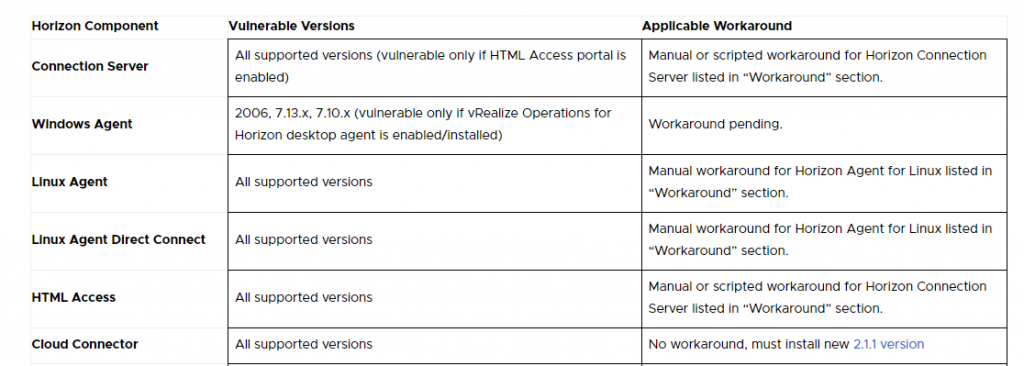
We continue to look at how to mitigate the log4j vulnerability, in this post we look at horizon connection servers in detail. As indicated by the VMware KB
only the connection servers where the HTML Access Portal is active are vulnerable. But all versions are subject to vulnerability. I recommend applying the workaround even if the HTML Access Portal is not active. Again as indicated in the previously cited KB we have two possibilities:
Change the following registry key
1. Edit this registry value: HKLM\Software\VMware, Inc.\VMware VDM\plugins\wsnm\TomcatService\Params\JVMOptions 2. Append a single space character followed by this text: -Dlog4j2.formatMsgNoLookups=true 3. Exit the registry editor and restart the Connection Server service or reboot the machine
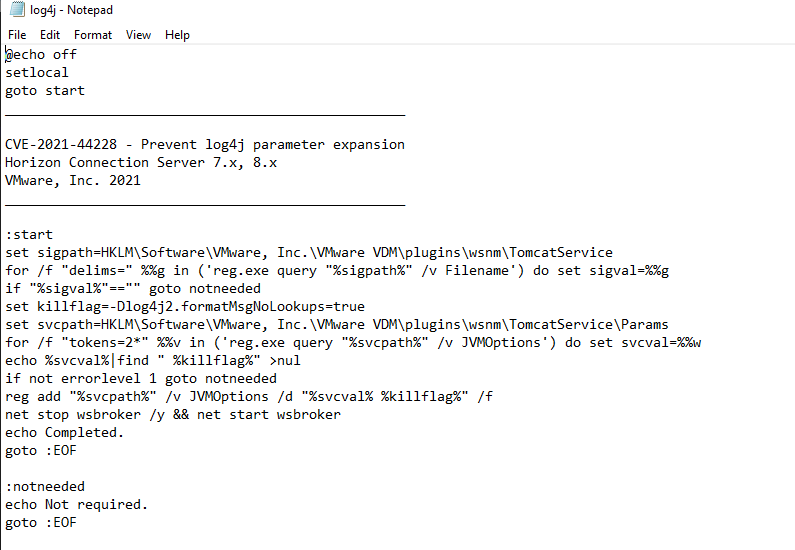
Run the following script as administrator.
@echo off
setlocal
goto start
__________________________________________________

CVE-2021-44228 - Prevent log4j parameter expansion
Horizon Connection Server 7.x, 8.x
VMware, Inc. 2021
__________________________________________________

:start
set sigpath=HKLM\Software\VMware, Inc.\VMware VDM\plugins\wsnm\TomcatService
for /f "delims=" %%g in ('reg.exe query "%sigpath%" /v Filename') do set sigval=%%g
if "%sigval%"=="" goto notneeded
set killflag=-Dlog4j2.formatMsgNoLookups=true
set svcpath=HKLM\Software\VMware, Inc.\VMware VDM\plugins\wsnm\TomcatService\Params
for /f "tokens=2*" %%v in ('reg.exe query "%svcpath%" /v JVMOptions') do set svcval=%%w
echo %svcval%|find " %killflag%" >nul
if not errorlevel 1 goto notneeded
reg add "%svcpath%" /v JVMOptions /d "%svcval% %killflag%" /f
net stop wsbroker /y && net start wsbroker
echo Completed.
goto :EOF

:notneeded
echo Not required.
goto :EOF
I will proceed with the script. I create a fix-log4j.bat file in the c: \ temp folder of my connection server and copy the script text to it.
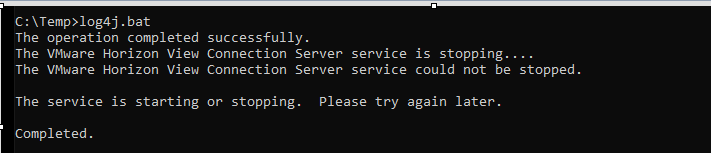
I launch the command from a PowerShell with administrator rights:
I reboot the server
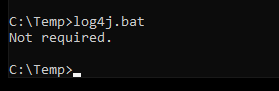
I verify that the workaround is applied by relaunching the bat file.
Obviously, I have to do this on all the Horizon Connection Servers present in the Horizon infrastructure