Azure MFA, UAG, Horizon and TRUE SSO – Step 2

Create a Certificate Template for True SSO

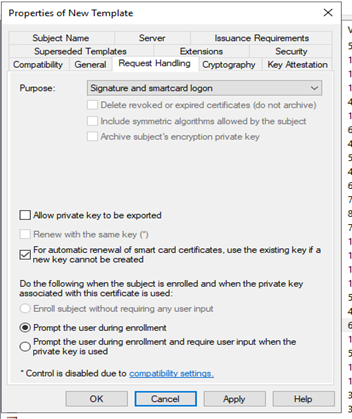
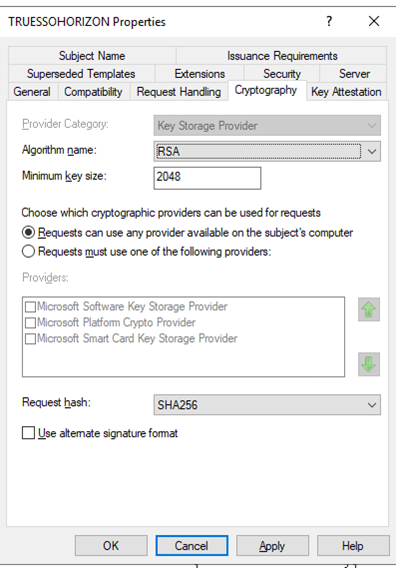
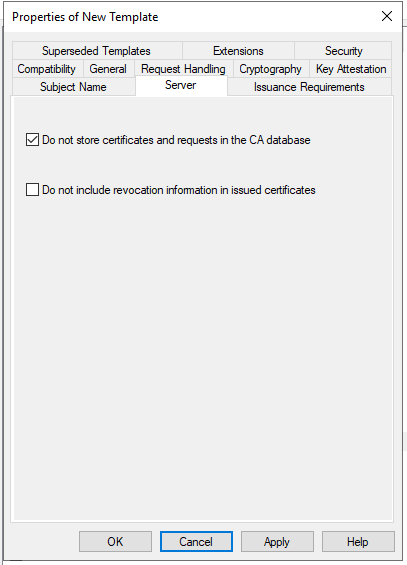
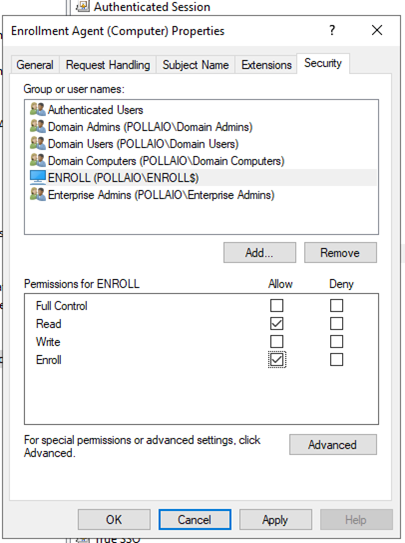
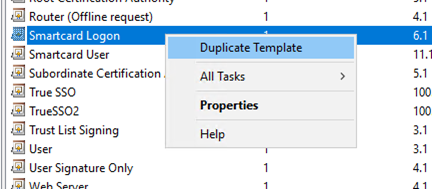
Connect to ROOTCA or SUBCA, from MMC console  and open Certificate Template snap-in
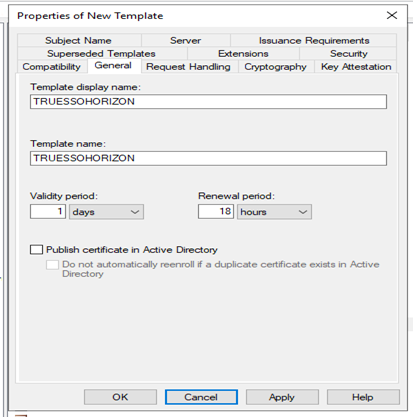
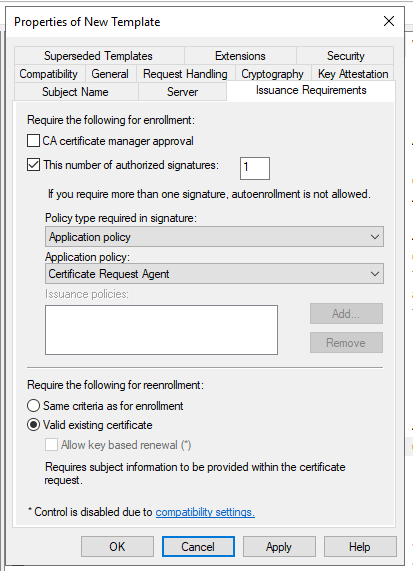
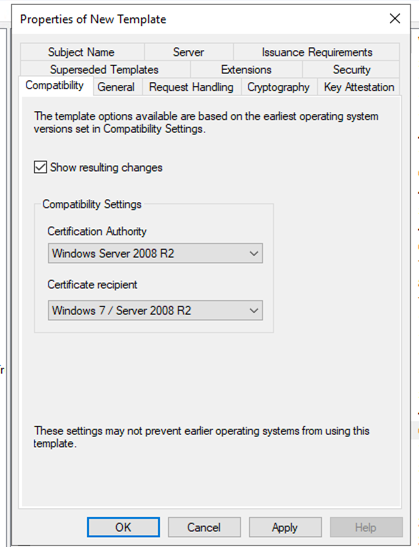
Change the validity period to a period that is as long as a typical working day; that is, as long as the user is likely to remain logged into the system.

Change the renewal period to 50%-75% of the validity period.

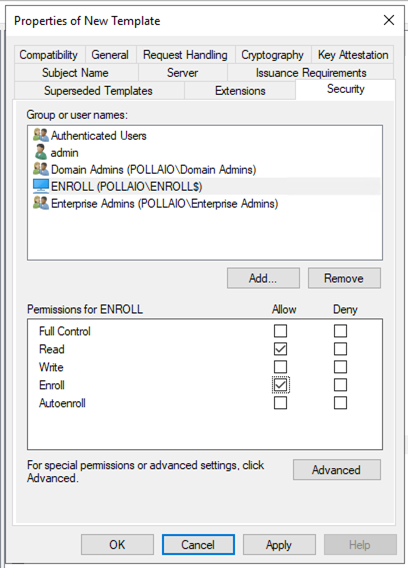
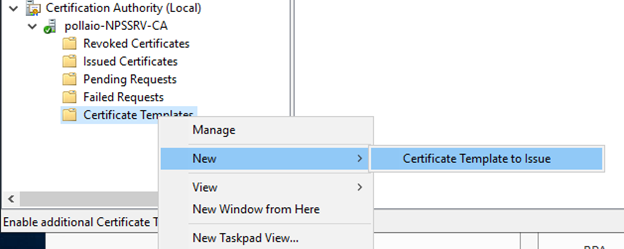
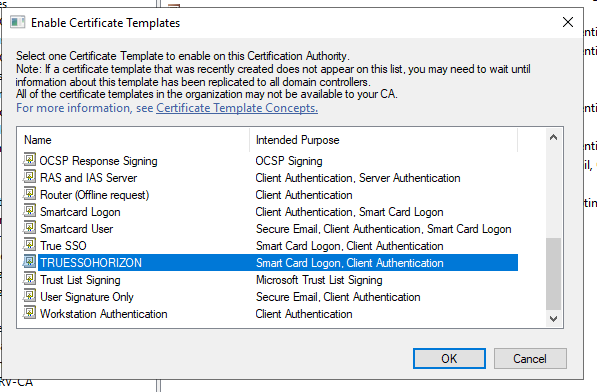
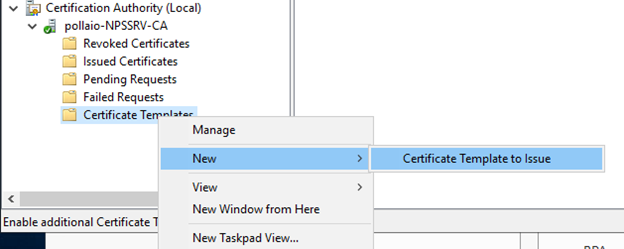
Install Enrollment certificate on Enrollment server

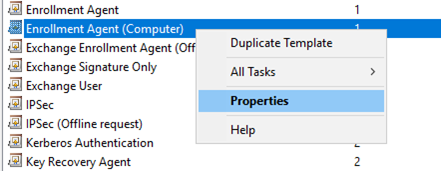
Connect to ROOTCA or SUBCA, from MMC console  and open Certificate Template snap-in
From
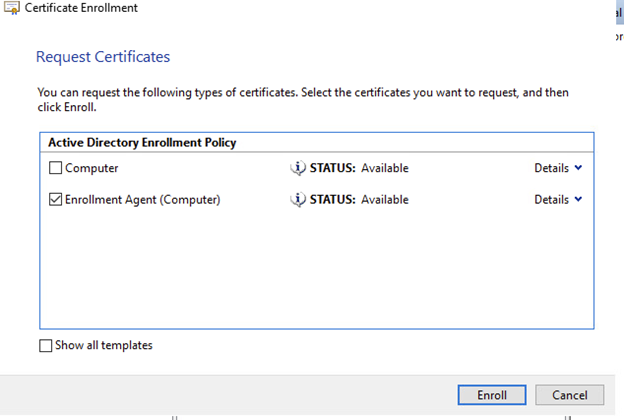
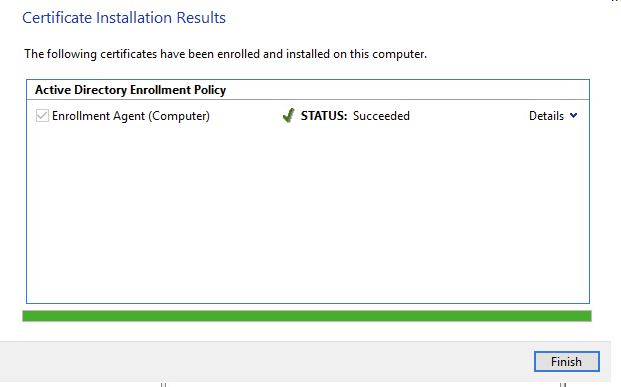
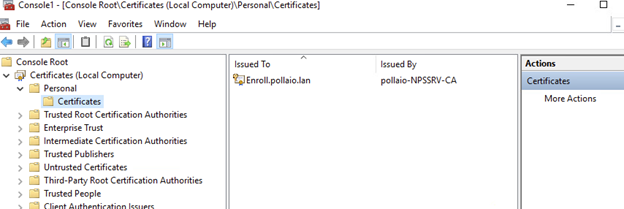
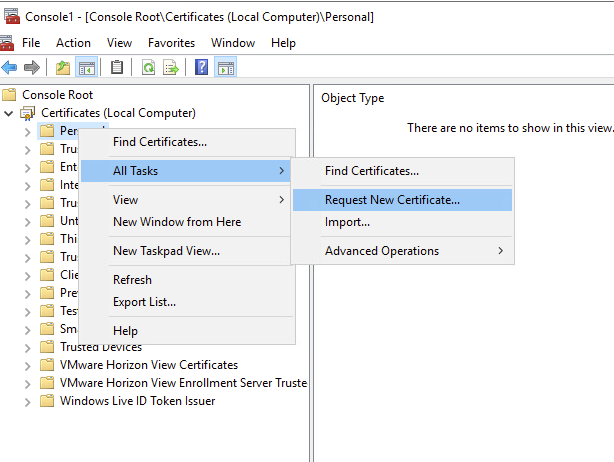
Connect to Horizon enrollment server and install the enrollment Agent (Computer), open snap-in Certificate (select Local Computer)
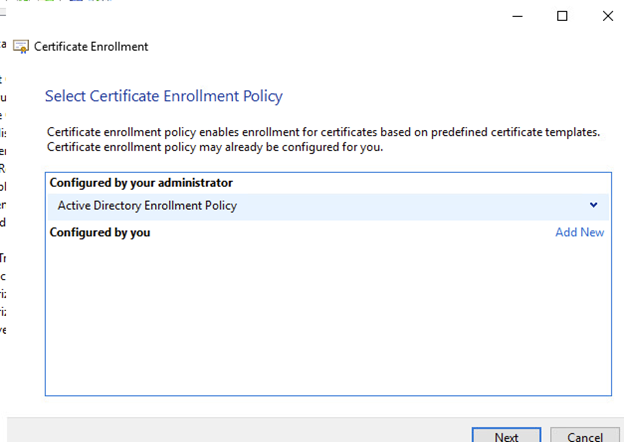
Azure MFA, UAG, Horizon and TRUE SSO – Step 2

Azure MFA, UAG, Horizon and TRUE SSO – Step 1

What you need?

1 – Vmware Horizon Infrastrutcture and Unified Access Gateway

2 – Azure AD license enabled for MFA

3 – Sync Active Directory User to Azure AD

4 – Private Microsoft CA

What you will doing?

  • Install Enrollment Horizon Server
  • Create a Certificate Template for True SSO
  • Install Enrollment certificate on Enrollment server
  • Export Horizon Enrollment Certificate from Horizon installation and install it into Enrollment Horizon Server
  • Configure TrueSSO on Horizon Connection Server
  • Test TrueSSO with TrueSSO Diagnostic Utility
  • Configure an enterprise application on Azure AD, configure it and export XML
  • Assign Users or Groups permission to Enterprise application
  • Import XML on UAG and configure it
  • Import XML on Horizon Connection Servers and configure it
  • Enable truesso for Horizon Authentication method

REFERENCE

Tutorial: Azure Active Directory single sign-on (SSO) integration with VMware Horizon – Unified Access Gateway | Microsoft Docs

Setting Up True SSO (vmware.com)

Install Enrollment Horizon Server

Install and Set Up an Enrollment Server (vmware.com)

  • Create a Windows Server 2012 R2, Windows server 2016, or Windows Server 2019 virtual machine with at least 4GB of memory, or use the virtual machine that hosts the enterprise CA. Do not use a machine that is a domain controller.
    • Verify that no other Horizon component, including Connection Server, Horizon Client, or Horizon Agent is installed on the virtual machine.
    • Verify that the virtual machine is part of the Active Directory domain for the Horizon deployment.
    • Verify that you are using an IPv4 environment. This feature is currently not supported in an IPv6 environment

VMware recommends that the system must have a static IP address.

  • Verify that you can log in to the operating system as a domain user with Administrator privileges. You must log in as an administrator to run the installer.

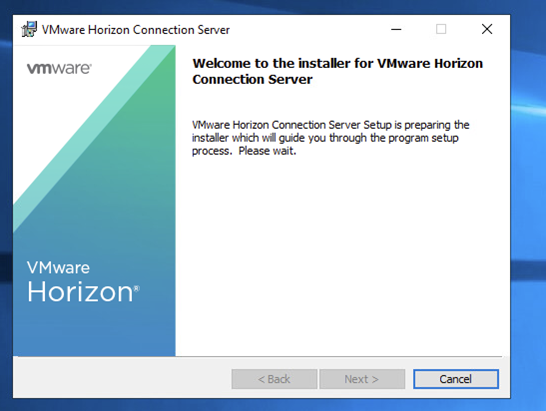
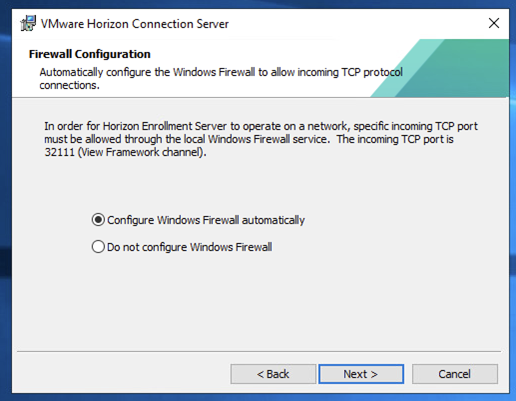
Download Horizon Connection Server installer and start it:

Azure MFA, UAG, Horizon and TRUE SSO – Step 1

Hardening VMware vSphere 7

Non sono certo io a dover spiegare che parlare di security è ormai entrato nel day by day dei consulenti dei manager IT. Anche VMware da alcuni anni sta rilasciando  guide di come rafforzare l’hardening degli ambienti vSphere. Ormai è da diffidare di chi considera l’installazione  di ESXi e vCenter come dei semplici avanti avanti avanti ….

Riporto qui sotto il link alla guida di VMware per l’hardening degli ambienti vSphere 7 comprensivo anche dei dettagli dei parametri da configurare e  dei comandi per modificarli.
Hardening VMware vSphere 7

Error An Invalid Parameter was passed to a service of function” Horizon and TRUE SSO

 When i try to use TrueSSO and Horizon i find this error:


Horizon Windows Desktop or App fails with logon error: ‘an invalid parameter was passed to a service or function’ (79644) (vmware.com)


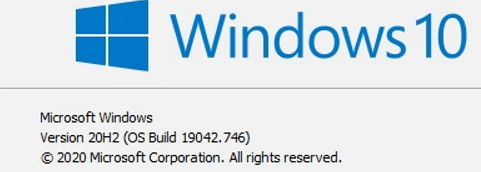
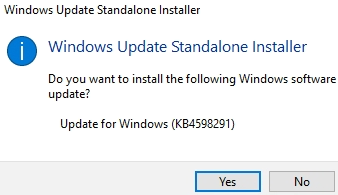
We have install the last windows 10 comulative update 


Fix it
Error An Invalid Parameter was passed to a service of function” Horizon and TRUE SSO

Horizon Personalizzazioni WEB

È possibile eseguire delle personalizzazioni relative alla pagina HTML di accesso ai Connection Broker:


Nel dettaglio:


·         Background  

C:Program FilesVmwareVMware ViewServerbrokerwebappsportalwebclienticons-5622958bg_image.jpg

·         Icona Horizon 

C:Program FilesVmwareVMware ViewServerbrokerwebappsportalwebclienticons-5622958logo.png

·         Testo  VMware

C:Program FilesVmwareViewServerbrokerwebappsportalWEB-INFclassescomvmwarevdiinstalleri18nbundle_en.properties


Horizon Personalizzazioni WEB

Integrazione VMware Unified Access Gateway con autenticazione Azure MFA

 Per procedere all’integrazione  con Azure MFA è necessario eseguire delle configurazioni su Azure Active Directory  (non entrerò nel dettaglio di queste configurazioni) ma per procedere nell’abilitazione dell’autenticazione a più fattori sull’UAG è necessario accedere all’Enterprise Application creata e scarica il file XML con i metadata. Inoltre verificare che nella Basic SAML Configuration ci siano i riferimenti alla mia infrastruttura UAG pubblica.


Scarico il file XML con i metadata da utilizzare per configurare l’UAG

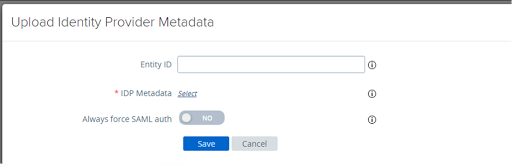
Importo il file XML nella infrastruttura UAG nelle configurazioni manuali in Identity Bridging Settings


Importo il file XML contenente i metadata selezionado Select


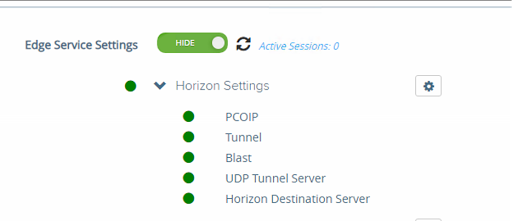
Una volta caricato sull’UAG il file XML con i metadata vado negli edge service settings ed entro nei nelle configurazioni

E configuro l’Auth Methods e l’identity Provider (che mi compare in automatico dopo aver caricato il file XML)


A questo punto posso procedere ad accedere e testare l’accesso con MFA.

Integrazione VMware Unified Access Gateway con autenticazione Azure MFA