vSphere 7u2 – LifeCycle Manager Parallel Remediate

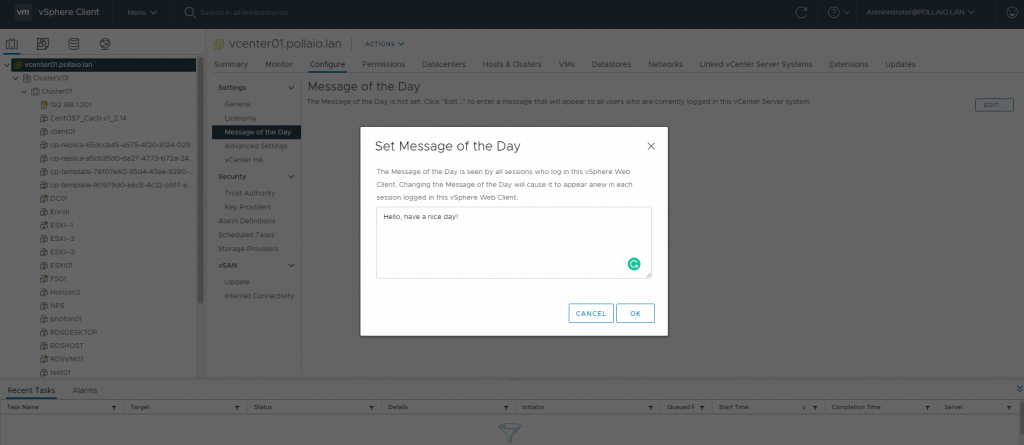
Let’s see one of the new functions of vSphere 7u2 and precisely the possibility of parallelizing the remediation function with LifeCycle Manager

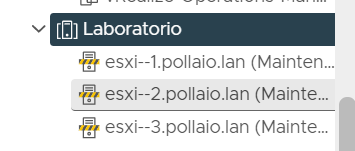
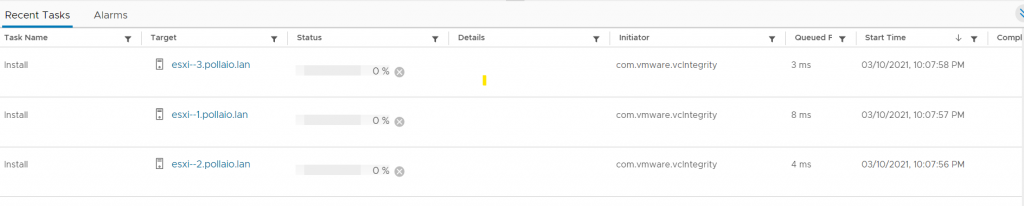
We must use the new version of vCenter 7u2 and once we have performed the stage on all the nodes of a cluster we can proceed to remediate by putting first the nodes we want to update in maintenance mode manually

In my case we put three hosts in maintenance mode

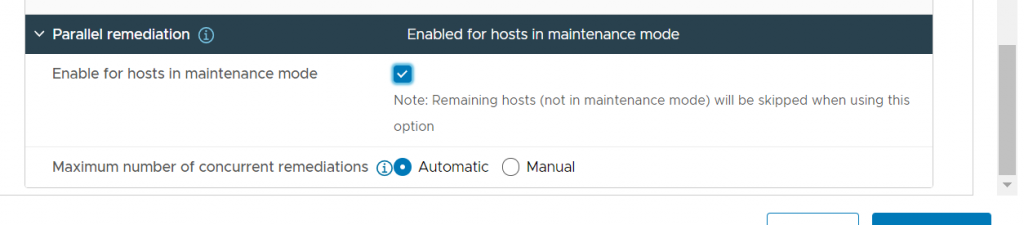
Among the additional options, of the remediate phase, we enable parallelism and we can choose whether the number of contemporary hosts on which the update will be made is managed automatically….

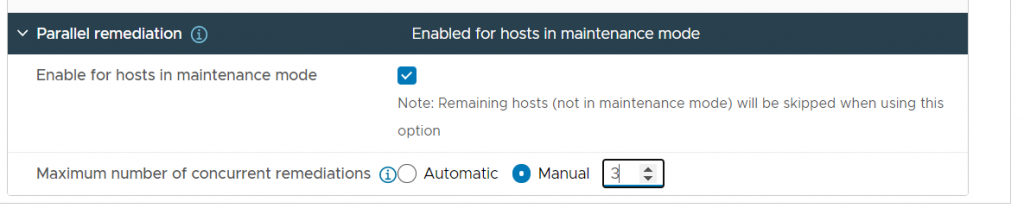
… or we manually specify how many to do

And then off….

vSphere 7u2 – LifeCycle Manager Parallel Remediate

WLS Ubuntu 20.04 – Powercli On Linux and use it for Horizon

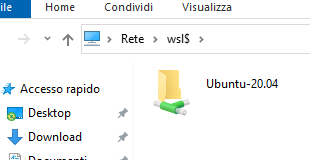
Well I want to use my WSL Ubuntu 20.04 to use powercli command to manage old Horizon Version (Flash ko)

  • Start to install all updates on my Ubuntu 20.04

sudo apt-get update

sudo apt-get upgrade

  • Configure source for downlad ed install powercli 

sudo apt-get install curl

 curl https://packages.microsoft.com/keys/microsoft.asc | sudo apt-key add

sudo curl -o /etc/apt/sources.list.d/microsoft.list https://packages.microsoft.com/config/ubuntu/20.04/prod.list

sudo apt-get update

  • Install powershell 

sudo apt-get install powershell

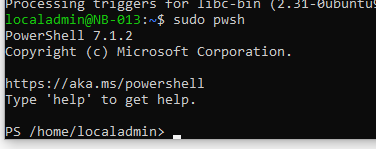
sudo pwsh

Set-PowerCLIConfiguration -InvalidCertificateAction:Ignore

  • Install PowerCli Module

Install-Module -Name VMware.PowerCLI

  • Install the horizon module

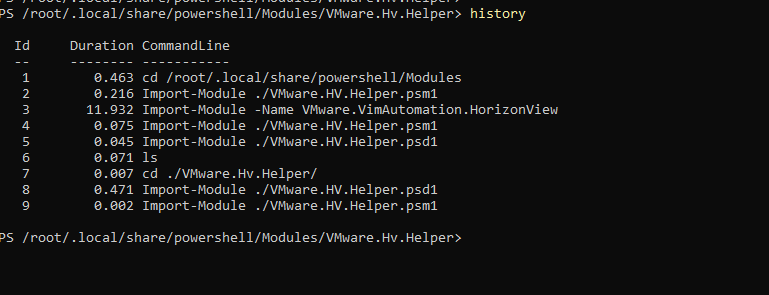
Import-Module -Name VMware.VimAutomation.HorizonView

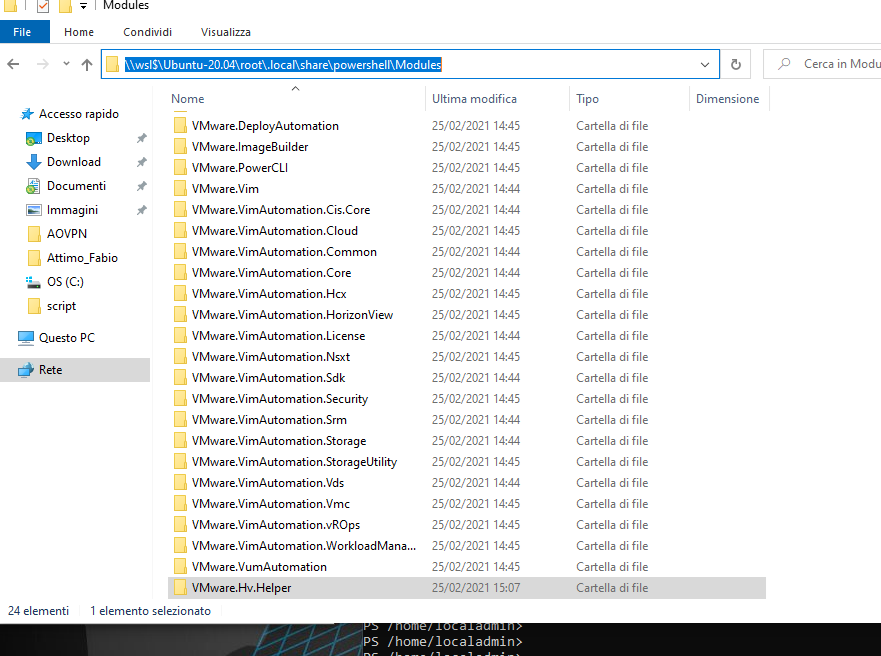
  • Download additional module

For download

Run Example Horizon PowerCLI Scripts (vmware.com)

  • Import Horizon Module

Create Horizon Desktop Pool using PowerCLI – Roderik de Block

PowerCLI-Example-Scripts/New-HVPool.md at master · vmware/PowerCLI-Example-Scripts · GitHub

WLS Ubuntu 20.04 – Powercli On Linux and use it for Horizon

Azure MFA, UAG, Horizon and TRUE SSO – Step 5

Import XML on Horizon Connection Servers and configure it

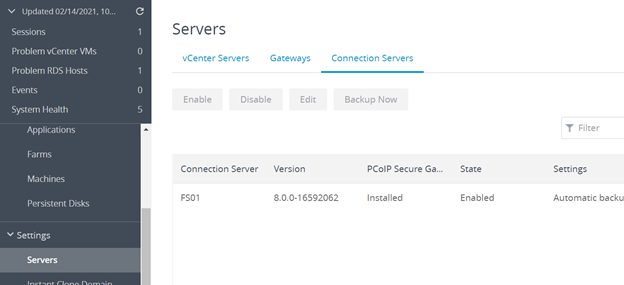
Now we import the XML content in to all Horizon Connection Server, for all server on

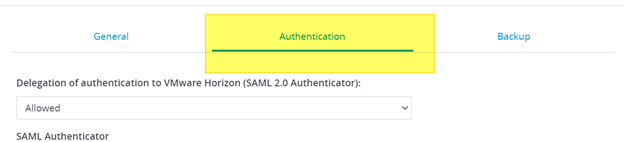
Select Edit and after authentication

Select in delegation of authentication ….. the value ALLOWED open

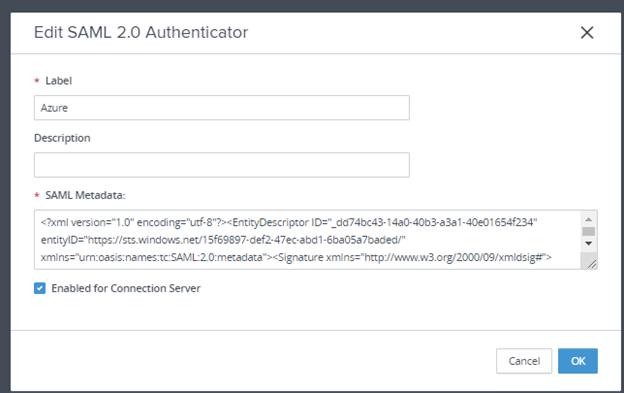
and a new authenticator

Static

Name type Azure

And copy the content of XML file  on the SAML Metadata

Enable truesso for Horizon Authentication method

On a Connection server enable the TRUESSO for a Authentication Method

vdmUtil –authAs admin-role-user –authDomain domain-name –authPassword admin-user-password –truesso –authenticator –edit –name authenticator-fqdn –truessoMode {ENABLED|ALWAYS}

vdmUtil –authAs administrator –authDomain pollaio –authPassword 121212121 –truesso –authenticator –edit –name azure  –truessoMode ENABLED

And now the configuration is done.

Thank You

Fabio Storni fabio1975@gmail.com

REFERENCE

Tutorial: Azure Active Directory single sign-on (SSO) integration with VMware Horizon – Unified Access Gateway | Microsoft Docs

Setting Up True SSO (vmware.com)

Azure MFA, UAG, Horizon and TRUE SSO – Step 5

Azure MFA, UAG, Horizon and TRUE SSO – Step 4

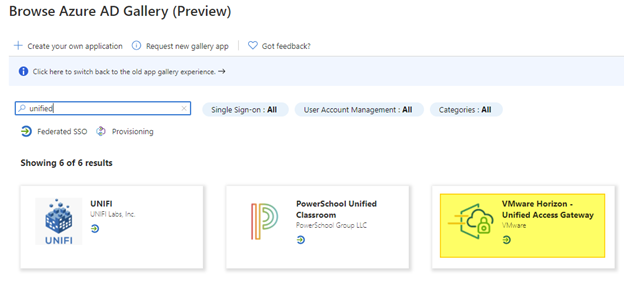
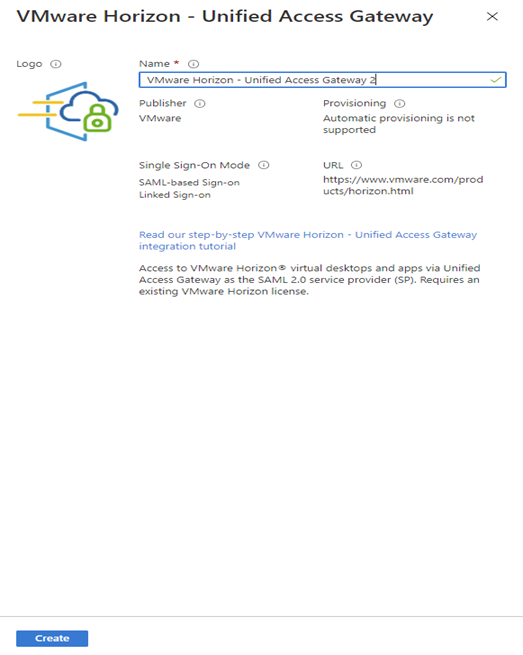
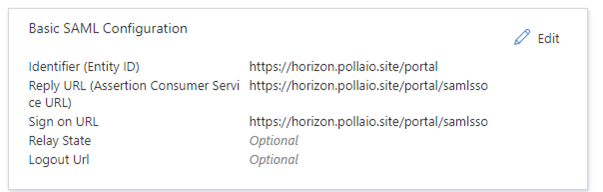
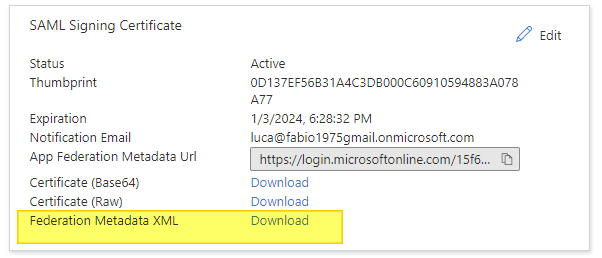
Configure a enterprise application on Azure AD, configure it and export XML

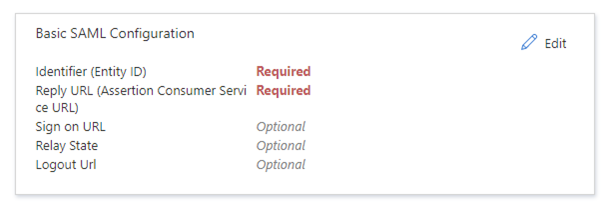
Insert:

 Identifier  -> https://<public-FQDN-UAG>/portal

Reply URL -> https://<public-FQDN-UAG>/portal/samlsso

Sign on URL -> https://<public-FQDN-UAG>/portal/samlsso

Download the  XML

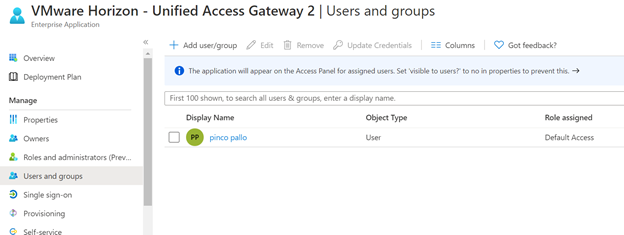
Assign Users or Groups permission to Enterprise application

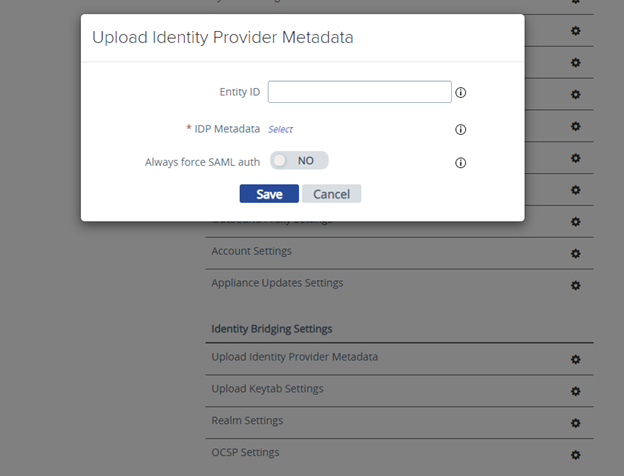
Import XML on UAG and configure it

Import Identity Provider Metadata, select the file XML downloaded from the Enterprise Application data

Select the identity provider

 Select More Option

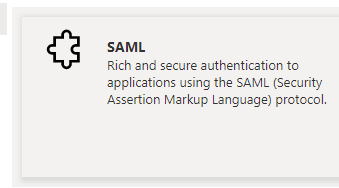
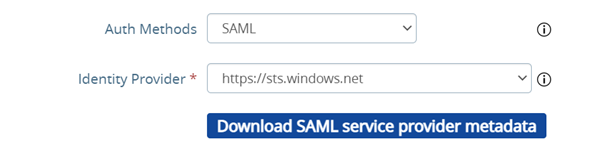
And select SAML e the correct Identity provider (with SAML+PASSTROUGHT the identity token  will not passed to horizon Server and it will required a new autentication)

Azure MFA, UAG, Horizon and TRUE SSO – Step 4

Azure MFA, UAG, Horizon and TRUE SSO – Step 3

Export Horizon Enrollment Certificate from Horizon installation and install it in to Enrollment Horizon Server

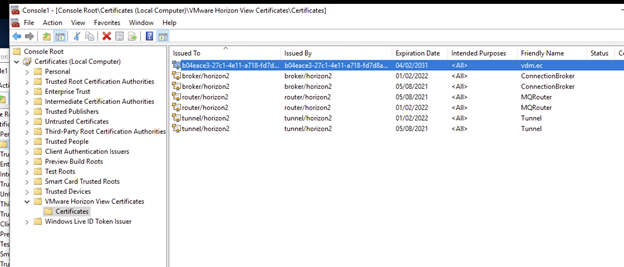
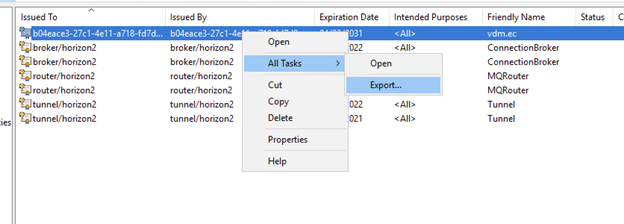
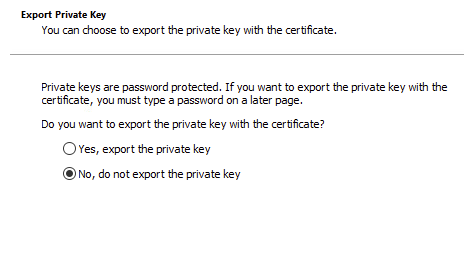
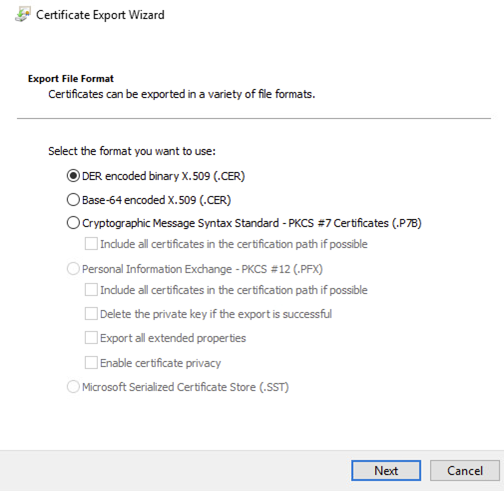
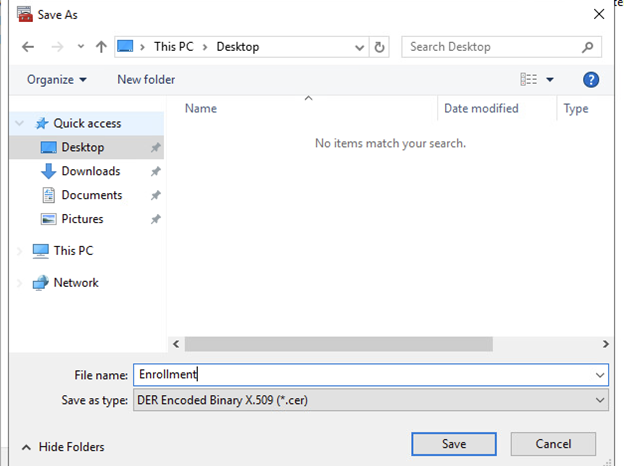
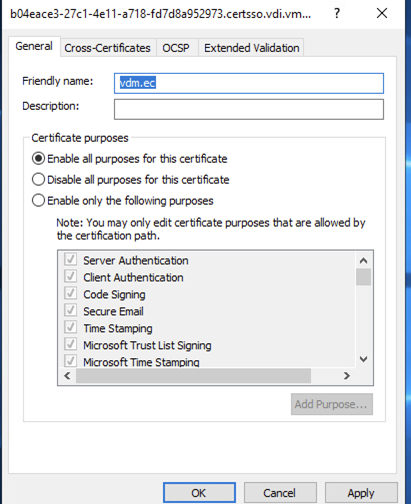
Connect to Horizon Server and export the Horizon View Certificate  (The certificate with  vdm.ec friendly name)

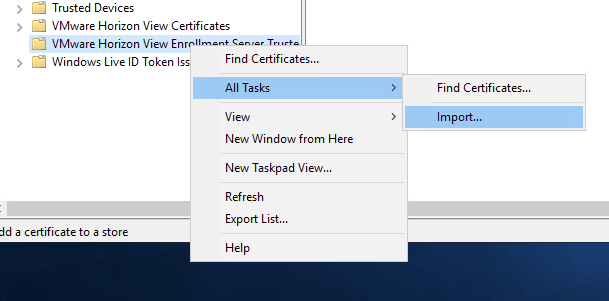
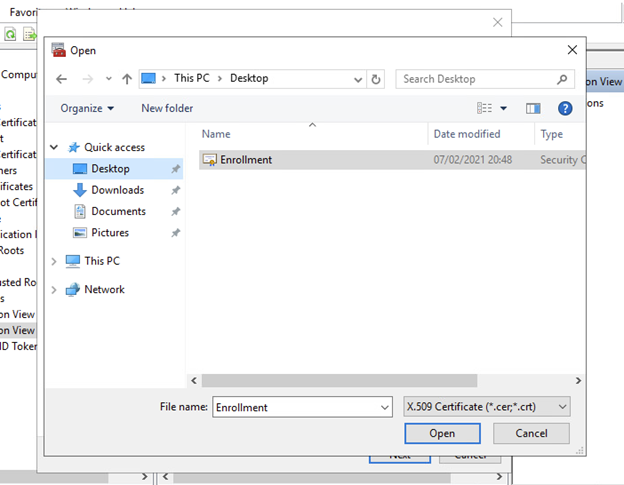
Now we import the enrollment certificate in to Horizon Enrollment server,  we need import in to Certificate Computer store and add the friwndly name vdm.ec

Configure TrueSSO on Horizon Connection Server

Configure Enrollement server

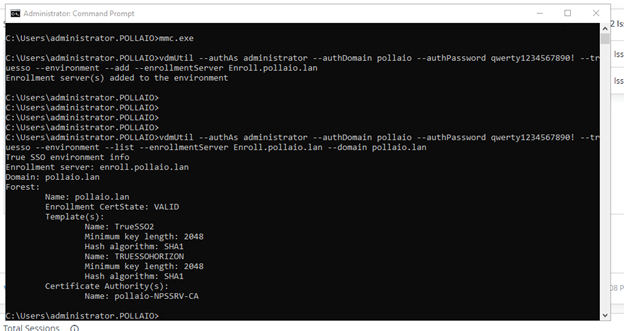
vdmUtil –authAs admin-role-user –authDomain domain-name –authPassword admin-user-password –truesso –environment –add –enrollmentServer enroll-server-fqdn

vdmUtil –authAs administrator –authDomain pollaio –authPassword qwerty1234567890! –truesso –environment –add –enrollmentServer Enroll.pollaio.lan

Verifica le informazioni

vdmUtil –authAs admin-role-user –authDomain domain-name –authPassword admin-user-password –truesso –environment –list –enrollmentServer enroll-server-fqdn –domain domain-fqdn

vdmUtil –authAs administrator –authDomain pollaio –authPassword qwerty1234567890! –truesso –environment –list –enrollmentServer Enroll.pollaio.lan –domain pollaio.lan

Creare la connessione per il true sso

vdmUtil –authAs admin-role-user –authDomain domain-name –authPassword admin-user-password –truesso –create –connector –domain domain-fqdn –template TrueSSO-template-name –primaryEnrollmentServer enroll-server-fqdn –certificateServer ca-common-name –mode enabled

vdmUtil –authAs administrator –authDomain pollaio –authPassword qwerty1234567890! –truesso –create –connector –domain pollaio.lan –template TRUESSOHORIZON  –primaryEnrollmentServer enroll.pollaio.lan –certificateServer pollaio-NPSSRV-CA  –mode enabled

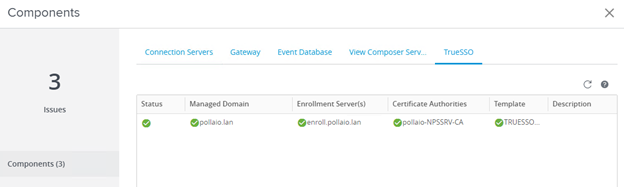
Verify from the Horizon Connection server dashboard thee TrueSSO status, if it is all green the trueSSO is Ready

Azure MFA, UAG, Horizon and TRUE SSO – Step 3

Azure MFA, UAG, Horizon and TRUE SSO – Step 2

Create a Certificate Template for True SSO

Connect to ROOTCA or SUBCA, from MMC console  and open Certificate Template snap-in

Change the validity period to a period that is as long as a typical working day; that is, as long as the user is likely to remain logged into the system.

Change the renewal period to 50%-75% of the validity period.

Install Enrollment certificate on Enrollment server

Connect to ROOTCA or SUBCA, from MMC console  and open Certificate Template snap-in

From

Connect to Horizon enrollment server and install the enrollment Agent (Computer), open snap-in Certificate (select Local Computer)

Azure MFA, UAG, Horizon and TRUE SSO – Step 2

Azure MFA, UAG, Horizon and TRUE SSO – Step 1

What you need?

1 – Vmware Horizon Infrastrutcture and Unified Access Gateway

2 – Azure AD license enabled for MFA

3 – Sync Active Directory User to Azure AD
4 – Private Microsoft CA

What you will doing?

  • Install Enrollment Horizon Server
  • Create a Certificate Template for True SSO
  • Install Enrollment certificate on Enrollment server
  • Export Horizon Enrollment Certificate from Horizon installation and install it into Enrollment Horizon Server
  • Configure TrueSSO on Horizon Connection Server
  • Test TrueSSO with TrueSSO Diagnostic Utility
  • Configure an enterprise application on Azure AD, configure it and export XML
  • Assign Users or Groups permission to Enterprise application
  • Import XML on UAG and configure it
  • Import XML on Horizon Connection Servers and configure it
  • Enable truesso for Horizon Authentication method

REFERENCE

Tutorial: Azure Active Directory single sign-on (SSO) integration with VMware Horizon – Unified Access Gateway | Microsoft Docs

Setting Up True SSO (vmware.com)

Install Enrollment Horizon Server

Install and Set Up an Enrollment Server (vmware.com)

  • Create a Windows Server 2012 R2, Windows server 2016, or Windows Server 2019 virtual machine with at least 4GB of memory, or use the virtual machine that hosts the enterprise CA. Do not use a machine that is a domain controller.
    • Verify that no other Horizon component, including Connection Server, Horizon Client, or Horizon Agent is installed on the virtual machine.
    • Verify that the virtual machine is part of the Active Directory domain for the Horizon deployment.
    • Verify that you are using an IPv4 environment. This feature is currently not supported in an IPv6 environment

VMware recommends that the system must have a static IP address.

  • Verify that you can log in to the operating system as a domain user with Administrator privileges. You must log in as an administrator to run the installer.

Download Horizon Connection Server installer and start it:

Azure MFA, UAG, Horizon and TRUE SSO – Step 1