Horizon Cloud Service Next Gen Apis – Chapter 2

Immagine che contiene testo, Neon, Segnali luminosi, Insegna al neon Il contenuto generato dall'IA potrebbe non essere corretto.

Set Syslog settings across UAG deployments

In this second article on working with APIs in Horizon Cloud Services, we will focus on a practical, security-relevant use case: configuring Syslog on Unified Access Gateways (UAGs) deployed through Horizon Cloud.

Whether you are running Horizon Cloud Service on Microsoft Azure or Horizon Cloud Service on vSphere, centralized logging is a fundamental component of any secure and well-governed environment. Proper Syslog configuration ensures that security events, authentication logs, and operational data generated by UAG appliances are forwarded to your SIEM or log management platform for monitoring, auditing, and incident response.

Instead of performing manual configuration tasks, we will explore how to leverage Horizon Cloud APIs to automate and standardise Syslog settings across UAG deployments, improving consistency, scalability, and operational efficiency.

Now when can explain the API we need to use and how to apply the syslog configuration on UAG (In this case, I used an HCS on vSphere, the new solution where we don’t deploy the Connection Server, but we use the HCS control panel to configure Pools, Entitlements and other…)

The first step is always the authentication process; I explained how to create the API token in my previous post (Horizon Cloud Service Next Gen Apis – Chapter 1), and now I won’t explain it again.

Let’s go…..

How to show UAG information

This command displays the UAG’s information

Invoke-RestMethod -Uri https://cloud-sg.horizon.omnissa.com/admin/v2/uag-deployments Method Get -Headers $Header

 We have two UAG deployments connected to HCS, and the output displays two deployment ids:
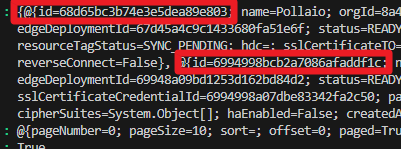
Immagine che contiene testo, schermata, Carattere Il contenuto generato dall'IA potrebbe non essere corretto.

The UAG id for HCS on vSphere is the second id.

Immagine che contiene testo, schermata, Carattere Il contenuto generato dall'IA potrebbe non essere corretto.

Now I need to recover only the UAG IDs and OrgIDs

Invoke-RestMethod -Uri https://cloud-sg.horizon.omnissa.com/admin/v2/uag-deployments -Method Get -Headers $Header | Select-Object -ExpandProperty content | Select-Object id,OrgId

Immagine che contiene testo, schermata, Carattere Il contenuto generato dall'IA potrebbe non essere corretto.

The UAG id that I need to use for identifying the deployment for HCS on vSphere is:

6994998bcb2a7086afaddf1c 

I will use this ID to associate the syslog configuration with the UAG server.


How to set the correct parameters for Syslog configuration

We need to create a Body value like this:

$Body = @{
  orgId  = "8a4931b3-e6ac-44bf-9d25-723f4119e46f"
  projectId = "Pollaio-Project"
  name = "Pollaio-Configuration2"
  syslogEventCategory = "ALL_EVENTS"
  syslogServerProtocolSettingsCreateTO = @{
    sourceToSyslogServerProtocol = "TCP"
  }
  syslogFormat = "TEXT"
  syslogURI = "192.168.111.223:514"
  includeSystemMessages = $true
  sources = @(
    @{
      type = "UAG"
      id   = "6994998bcb2a7086afaddf1c"
    }
  )
}

.

Where:

Value Description Accept value
OrgID It is the OrgId that we recovered with the previous command String
ProjectId ID of theCSP project that owns this data String
Name User defined name of the syslog server configuration String
SyslogEventCategory Events sent from the UAG appliance to the syslog server [ ALL_EVENTS, AUDIT_EVENTS ]
sourceToSyslogServerProtocol The protocol used to send data from the UAG appliance to the syslog server [ UDP, TCP, TLS, MQTT ]
syslogFormat [ JSON_TITAN, TEXT ]
syslogURI Syslog server URI String
includeSystemMessages If true, system messages are sent to the syslog server [ $True]
sources

List of sources associated with the syslog server:

Type = Source for the syslog server. For es: UAG

Id = Id of the source associated with the syslog server (The Id value that we recovered with the previous command


.

.

How to set the configuration for UAG
$Body = @{
  orgId  = "8a4931b3-e6ac-44bf-9d25-723f4119e46f"
  projectId = "Pollaio-Project"
  name = "Pollaio-Configuration2"
  syslogEventCategory = "ALL_EVENTS"
  syslogServerProtocolSettingsCreateTO = @{
    sourceToSyslogServerProtocol = "TCP"
  }
  syslogFormat = "TEXT"
  syslogURI = "192.168.111.223:514"
  includeSystemMessages = $true
  sources = @(
    @{
      type = "UAG"
      id   = "6994998bcb2a7086afaddf1c"
    }
  )
}

#Convert Body to JSON
$JsonBody = $Body | ConvertTo-Json -Depth 5
#Send POST request to create Syslog Server UAG configuration
Invoke-RestMethod -Uri https://cloud-sg.horizon.omnissa.com/admin/v1/syslog-server -Method Post -Headers $Header -Body $JsonBody
HOW to check SYSLOG Configuration on UAG deployment


Invoke-RestMethod -Uri https://cloud-sg.horizon.omnissa.com/admin/v1/syslog-server -Method Get -Headers $Header

The command output is like this:

.

 Now I can see in my SYSLOG server the UAG Log
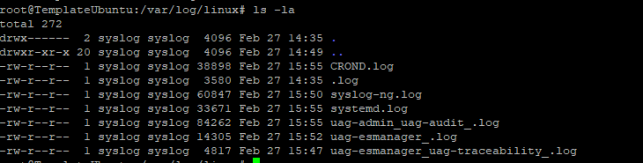
Immagine che contiene testo, schermata, Carattere Il contenuto generato dall'IA potrebbe non essere corretto.

.

.

.

Horizon Cloud Service Next Gen Apis – Chapter 2

Using the Omnissa Horizon Agent Upgrade Feature from the Omnissa Connection Server Console

Horizon Agent Upgrade

If you have a Horizon Enterprise Plus or Horizon Universal subscription license, the last Horizon versions have a function to manage the Horizon Agent Update.

You have two scenarios:

  • Automatic map the upgrade to your Connection server infrastructure
  • Manually add the Agent upgrade package

I tested this feature in my Home Lab

Enable Automatic upgrade to your Connection server infrastructure

Enable Omnissa Horizon Cloud Portal form of Horizon Agent Auto Upgrade feature

https://cloud.horizon.omnissa.com/

With enabling the Agent Auto Upgrade you can see, without any action, the Horizon package to use for upgrade (this new package is directly downloaded from the Omnissa Site)

A screenshot of a computer

Description automatically generated

If you use this method you can skip the next paragraph and go to Schedule Agent upgrade

Manually loaded the JSON and agent file

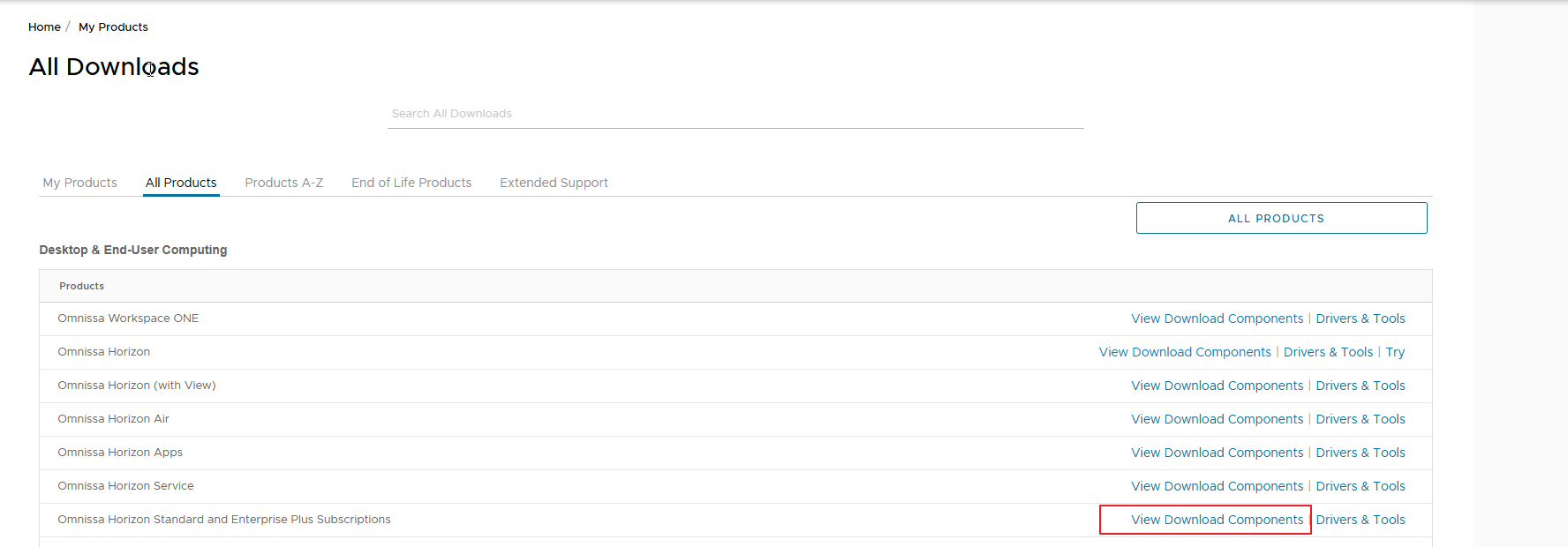
Otherwise, you can manually download the JSON file from the customer portal by Omnissa

Omnissa Horizon Standard and Enterprise Plus Subscriptions

A screenshot of a computer

Description automatically generated

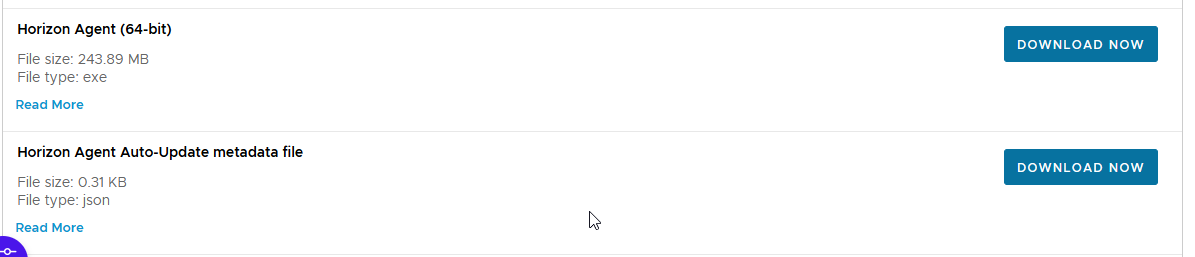
Download the files you need

A white background with a black and white object

Description automatically generated

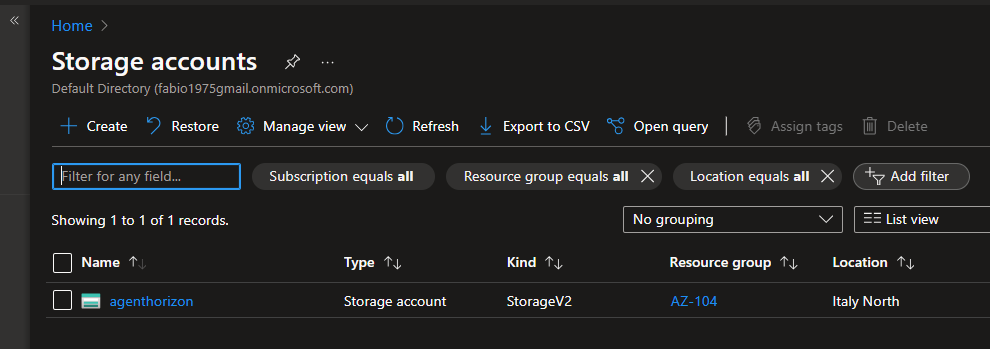
Upload them to a WEB site (Local/Internal or Public), in my case I use an Azure storage account

A screenshot of a computer

Description automatically generated

As blob containers

A screenshot of a computer

Description automatically generated

Which are accessible via WEB (obviously I recommend putting special restrictions)

A screenshot of a computer

Description automatically generated

A screenshot of a computer

Description automatically generated

Let’s configure our POD by entering the appropriate section of the interface via WEB of the connection servers

A screenshot of a computer

Description automatically generated

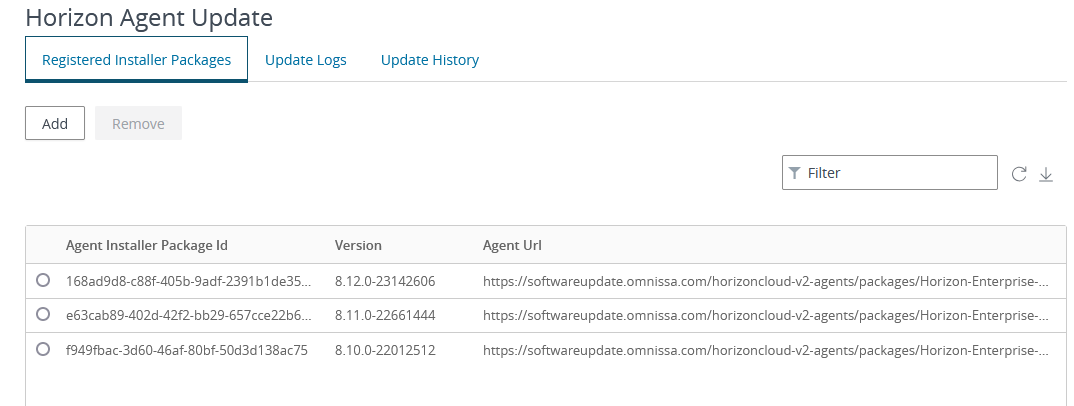
Enter the URL of our storage account with the name of the JSON file indicated

https://agenthorizon.blob.core.windows.net/agent2312/VMware-Horizon-Agent-x86_64-2312.1-8.12.1-23507832.exe-metadata.json

A screenshot of a computer

Description automatically generated

Schedule Agent upgrade

Let’s proceed with updating the Agent of a VDI by going to the list of our VDI.

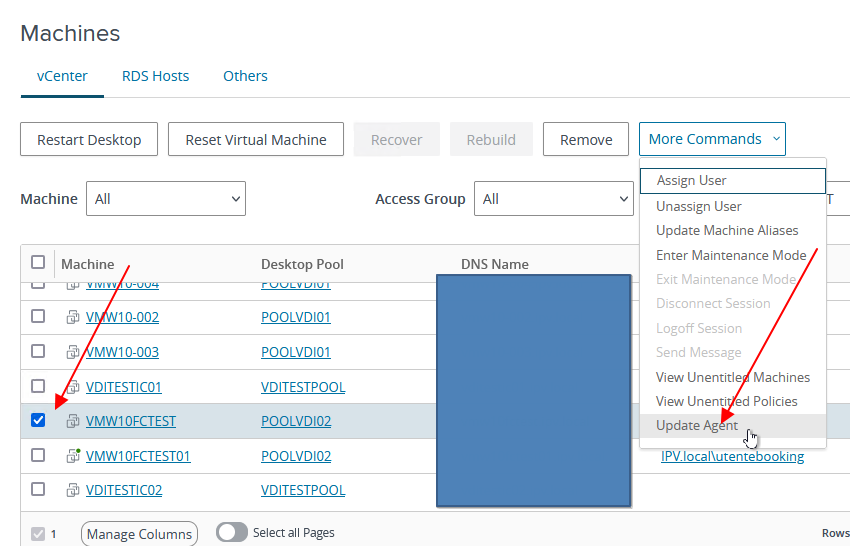
We select the VDI or VDI on which we want to update the agent

A screenshot of a computer

Description automatically generated

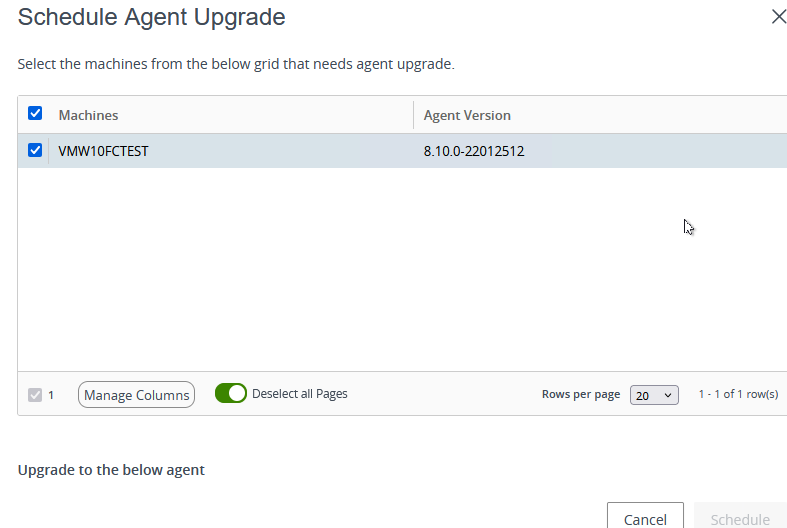
Then select Update Agent

A screenshot of a computer

Description automatically generated

A screenshot of a computer

Description automatically generated

We select the update package (we can also have multiple versions of agents) and proceed with the planning

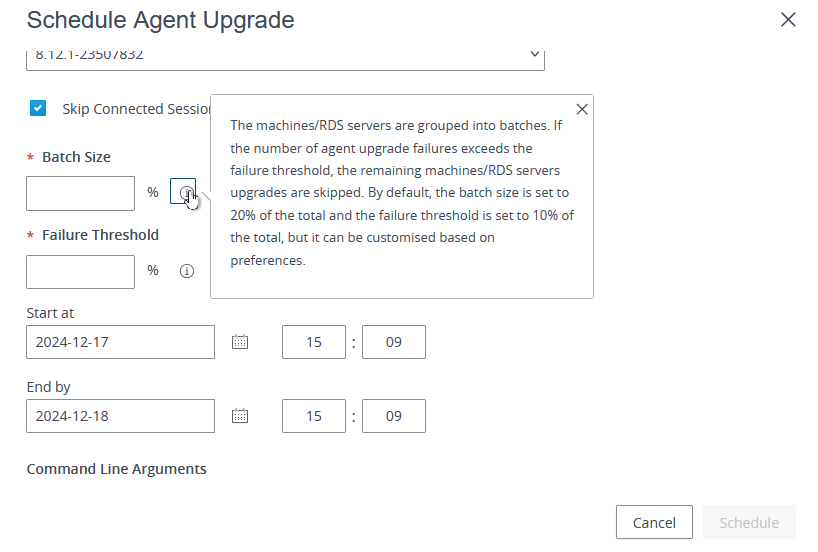
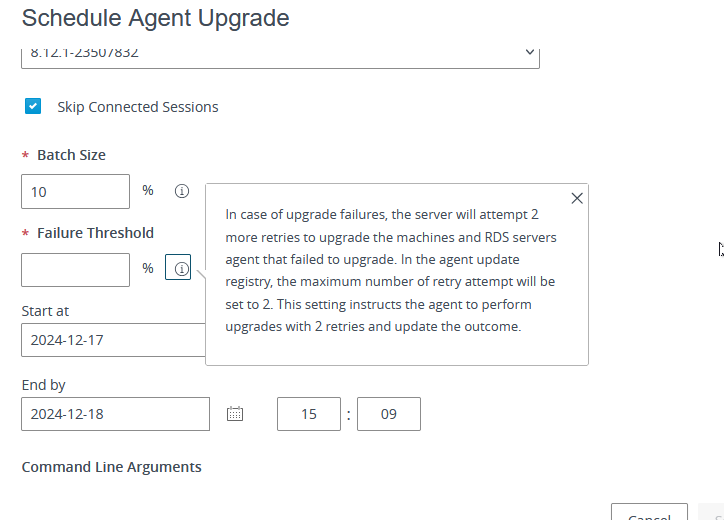
There are some safety rules if you do massive updates

A screenshot of a computer

Description automatically generated

A screenshot of a computer

Description automatically generated

Now schedule when will start the upgrade

A screenshot of a computer

Description automatically generated

From the Horizon agent update section, we see the Scheduled task

A screenshot of a computer

Description automatically generated

When the time is coming the job will start and the task state is “in Progress”

A screenshot of a computer

Description automatically generated

Now from the list of VDI machines, we can check the upgrade process.

The user is currently logged in to the machine and waiting for the user logoff or reboot

A screenshot of a phone

Description automatically generated

Now the VDI machine is ready for the upgrade

A screenshot of a computer

Description automatically generated

A white rectangular object with black text

Description automatically generated

Agent unknown…. Removed and installed the new one

A white rectangular object with a white background

Description automatically generated

Installed the new

The VDI is restarted the process is completed and we have the VDI with the updated agent

A screenshot of a computer

Description automatically generated

And the scheduled update task is completed

Using the Omnissa Horizon Agent Upgrade Feature from the Omnissa Connection Server Console