If you are working with Omnissa Horizon Cloud Services, sooner or later you will want to automate tasks, integrate with external systems, or simply make your daily operations more efficient. (For example, configure SYSLOG server on Unified Access Gateway). This is where REST APIs come into play.
Through the HCS Omnissa REST APIs, administrators and developers can programmatically interact with the platform, retrieve information, trigger actions, and build custom integrations that go beyond the capabilities of the graphical interface. APIs enable consistency, scalability, and repeatability — all essential elements in modern IT environments.
In this post, we will explore how to get started with the HCS Omnissa REST APIs, understand the authentication process, and see practical examples of how they can simplify management and automation.
This is the first post about this topic … here Horizon Cloud Service Next Gen Apis – Chapter 2, the second Chapter where I write about configuring SYSLOG on UAG deployment
Configure an Account for API Token
Before interacting with the HCS Omnissa REST APIs, you need a properly configured account that is authorised to perform API operations. In this section, we will review the prerequisites, required roles and permissions, and how to create or configure a dedicated service account to ensure secure and controlled access to the platform.
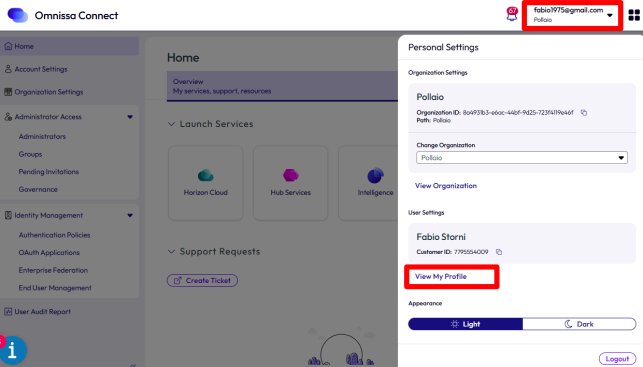
Connect to https://connect.omnissa.com and go to View My Profile under the account info.
Select API Tokens TAB and Generate A New API Token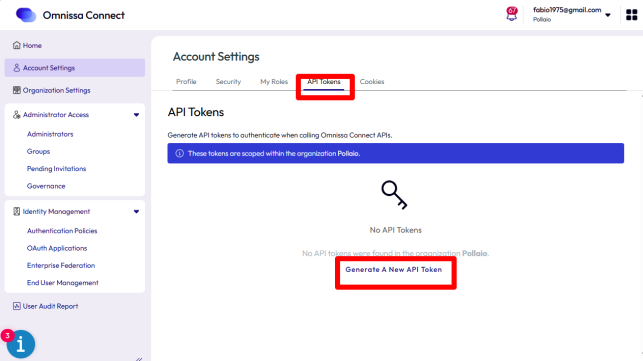
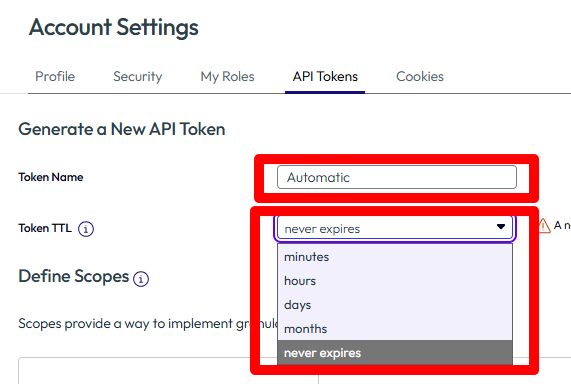
Configure the new token, add Name and Token TTL (I suggest setting an expiration date to increase security)
About the scope of the token use, we need to select the appropriate permissions
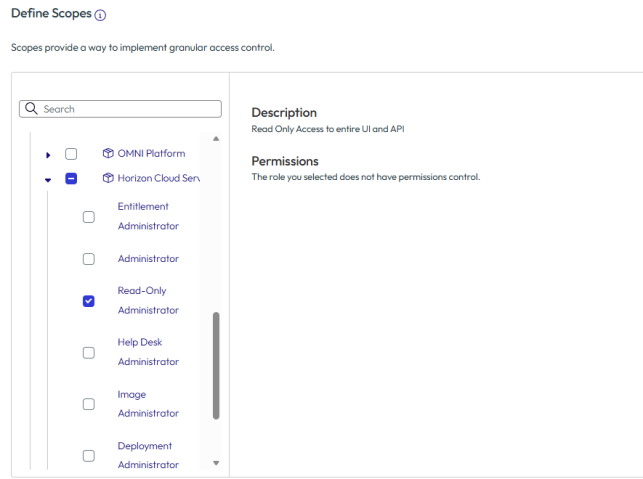
Select the OpenID format

We can select if near the token expiration date, the system will send a mail notification.

And now we can select Generate

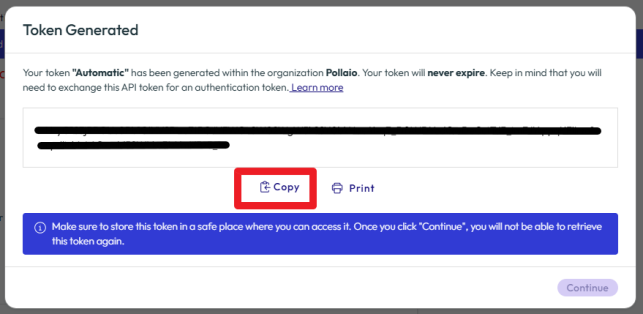
It will take some seconds and will display the Token ID,
It is important to save the token.
Obtain the Authentication Token
Authentication is a fundamental step when working with REST APIs. HCS Omnissa uses token-based authentication, which means you must first request and obtain a valid access token before performing any API calls. Here, we will walk through the authentication flow, explain the required headers and payload, and demonstrate how to retrieve and securely store the token for subsequent requests.
We can use, for example, Postman or PowerShell.
In the first step, I suggest using postman for handle the command, so we start Postman (Desktop or Web).
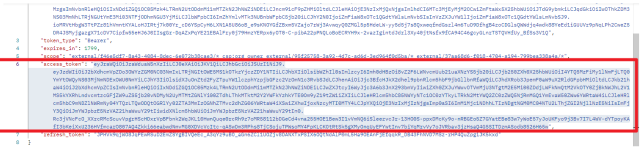
POST https://connect.omnissa.com/csp/gateway/am/api/auth/api-tokens/authorize
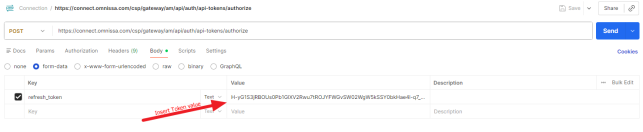
In the command output, we can see the access_token to use for sending other commands.
Test the APIs with Postman
Before moving to automation, it is always a good practice to validate API calls using a tool like Postman. In this section, we will configure a collection, set up authentication headers, and test sample API requests. This approach helps you understand request structure, responses, and potential error handling in a simple and interactive way.
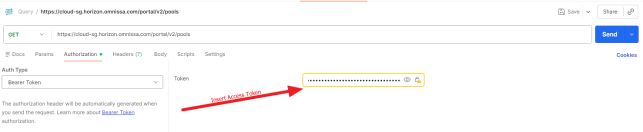
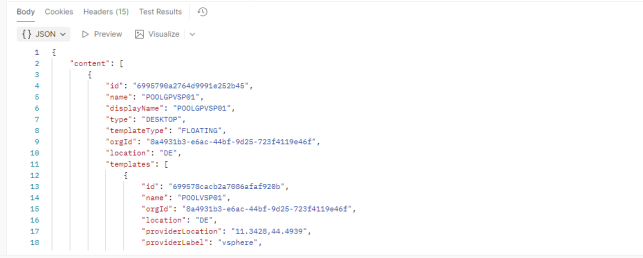
In the next step, I use the RESTapi to list the Pools (in my environment are HCS on vSphere Pools):
GET https://cloud-sg.horizon.omnissa.com/portal/v2/pools
Command output
Automating with PowerShell
Once the API calls have been validated, the next step is automation. In this chapter, we will build a practical PowerShell script to authenticate, retrieve the access token, and execute REST API calls against HCS Omnissa. This will allow you to integrate API operations into your administrative workflows, scheduled tasks, or larger automation frameworks.
PowerShell command for generating an access token
$Header = @{
	    "Content-Type" = "application/x-www-form-urlencoded"
    }
$Body = @{
	    "refresh_token" = "<Token API created from the Connect Omnissa Portal"
    }
$Response = Invoke-RestMethod -Uri  https://connect.omnissa.com/csp/gateway/am/api/auth/api-tokens/authorize -Method Post -Headers $Header -Body $Body
$AccessToken = $Response.access_token
Powershell command to show the Pools
$Header =	@{
			"Content-Type" = "application/json";
			"Authorization" = "Bearer $AccessToken"
	}

Invoke-RestMethod -Uri https://cloud-sg.horizon.omnissa.com/portal/v4/pools -Method Get -Headers $Header