Horizon and Skyline Collector

This is a little guide for connecting the VMware Horizon infrastructure to Skyline service.

The requirement is:

Prerequisites 
The following permissions are required for the account used to add the Horizon Connection Server to the Skyline Collector. These permission are sufficient tor both collecting 
product usage data, and transferring support bundles with Log Assist. 
Administrator (read-only) Role 
Collect Operation Logs

The Administrator (read-only) does not have the Collect Operation Logs Privilege and for this, I need to create a dedicated Role.
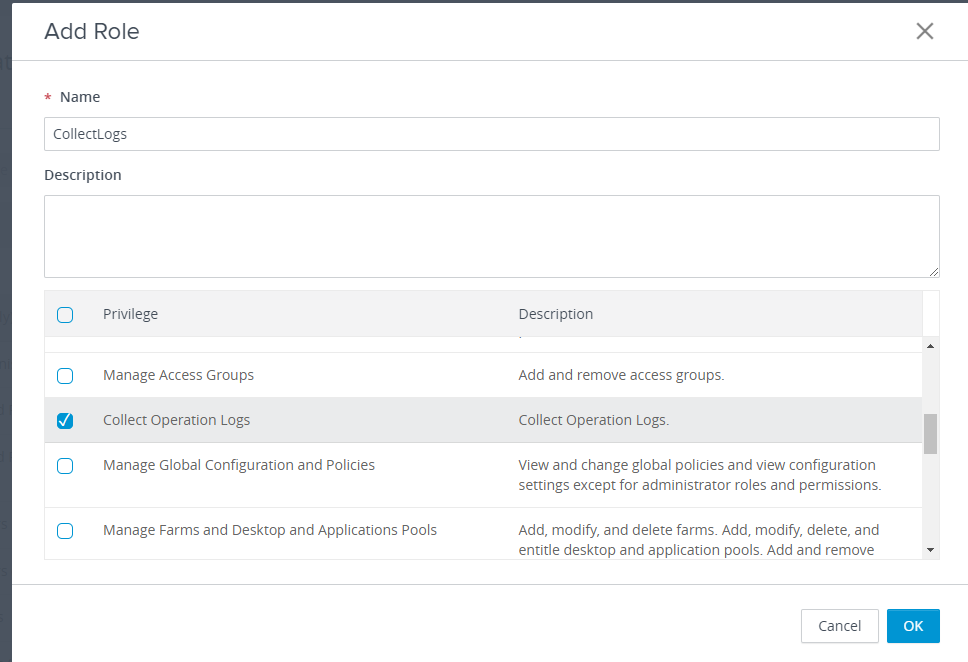
Add Role 
* Name 
CollectLogs 
Description 
C) 
C) 
C) 
C) 
Privilege 
Manage Access Groups 
Collect Operation Logs 
Manage Global Configuration and Policies 
Manage Farms and Desktop and Applications Pools 
x 
Description 
Add and remove access groups. 
Collect Operation Logs. 
View and change global policies and view configuration 
settings except for administrator roles and permissions. 
Add, modify, and delete farms Add, modify, delete, and 
entitle desktop and application pools. Add and remove 
Cancel 
OK

We created a service user svcskyline in our Active Directory and now assign it the correct role
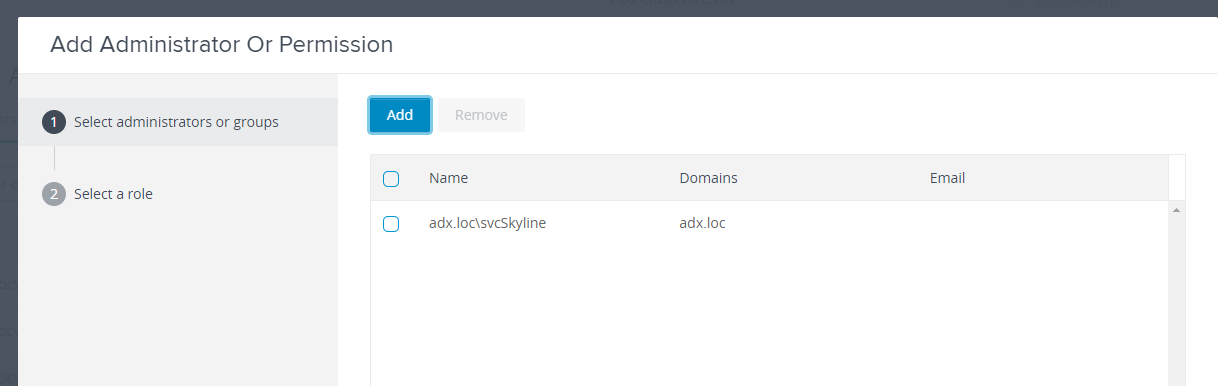
Add Administrator Or Permission 
Add 
O 
Select administrators or groups 
C) 
Select a role 
C) 
Remove 
Name 
adx.loc\svcSkyline 
Domains 
adx_loc 
Email

Add Administrator Or Permission 
Select administrators or groups 
0 
Select a role 
O 
Select the access groups 
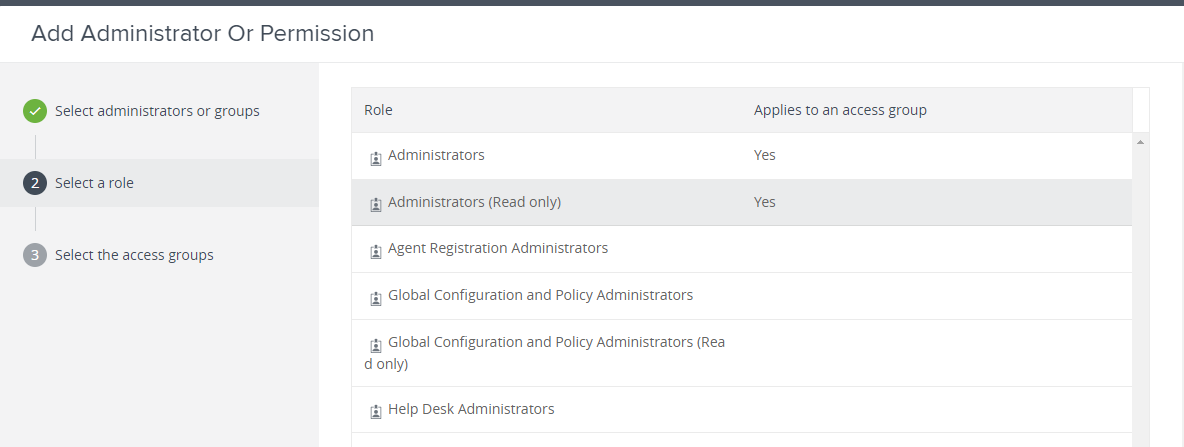
Role 
Administrators 
Administrators (Read only) 
Agent Registration Administrators 
Global Configuration and Policy Administrators 
Global Configuration and Policy Administrators (Rea 
d only) 
Help Desk Administrators 
Applies to an access group 
Yes 
Yes

Add Administrator Or Permission 
Select administrators or groups 
Select a role 
O 
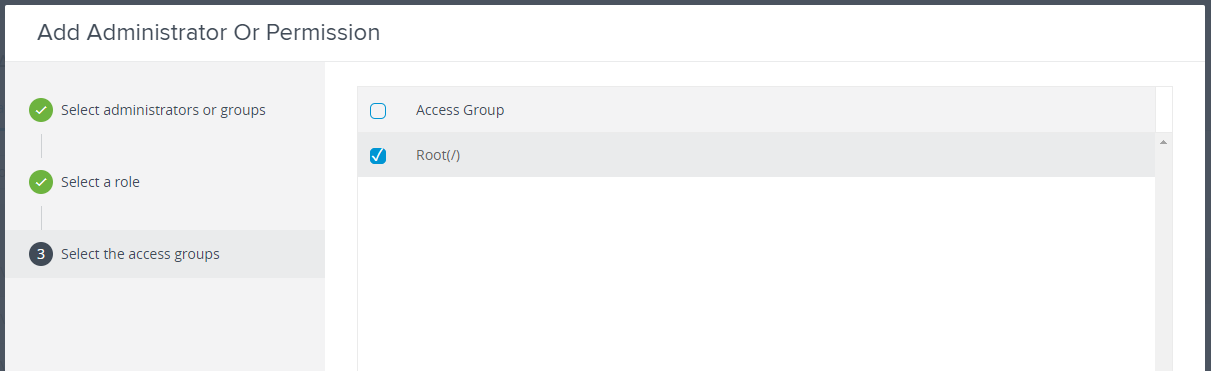
Select the access groups 
C) 
Access Group 
Root(/)

Repeat for CollectLogs Role

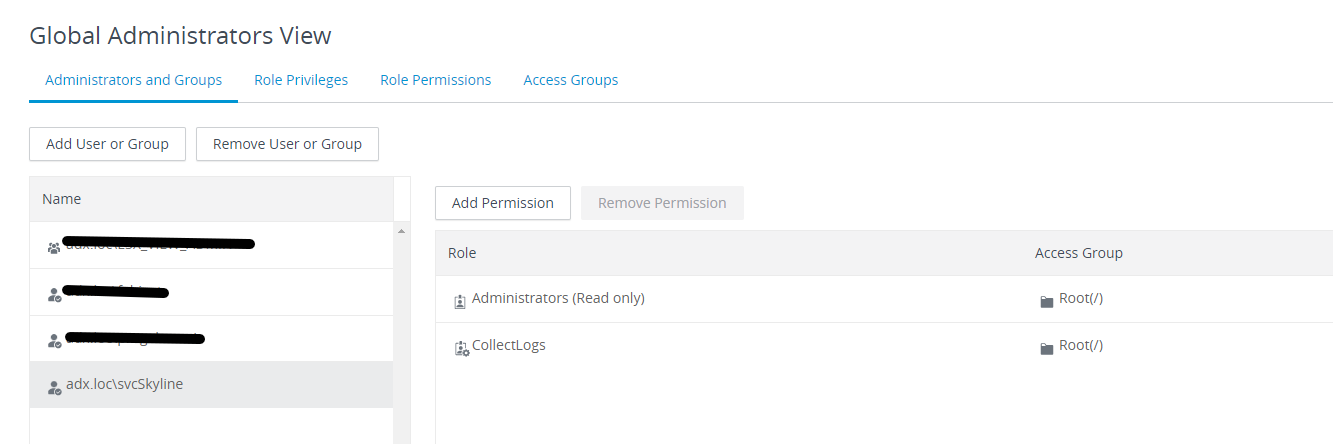
Global Administrators View 
Administrators and Groups 
Role Privileges 
Role Permissions 
Access Groups 
Add user or Group 
Name 
• adx.loc\svcSkyline 
Remove User or Group 
Add Permission 
Role 
Remove Permission 
Administrators (Read only) 
CollectLogs 
Access Group 
Root(/) 
Root(/)

Now add to Skyline Collector the Horizon View

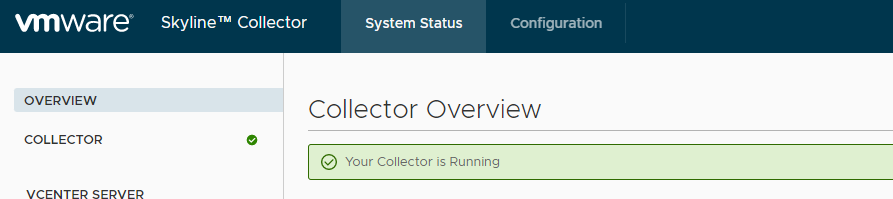
Login to Skyline Collector

https://<fqdnskylinecollector>/

(if you lost the password https://kb.vmware.com/s/article/52652)
vmware 
OVERVIEW 
COLLECTOR 
Skyline"' Collector 
System Status 
Configuration 
Collector Overview 
@ Your Collector is Running

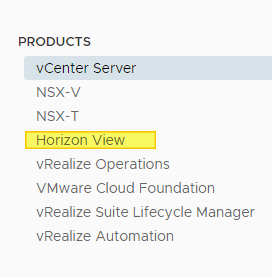
Go to Configuration and select Product Horizon View
PRODUCTS 
vCenter Server 
NSX-V 
NSX-T 
Horizon View 
vRealize Operations 
VMware Cloud Foundation 
vRealize Suite Lifecycle Manager 
vRealize Automation

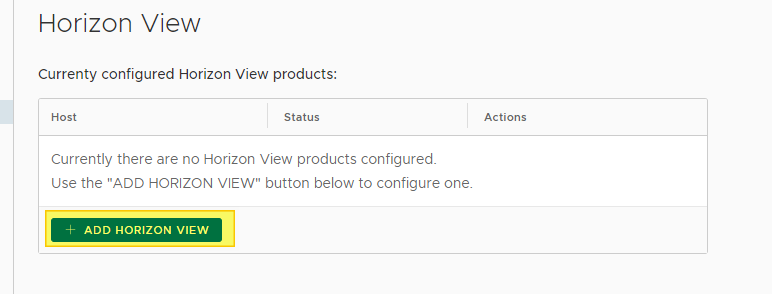
Select +ADD HORIZON VIEW

Horizon View 
Currenty configured Horizon View products: 
Host 
Status 
Actions 
Currently there are no Horizon View products configured 
Use the "'ADD HORIZON VIEW" button below to configure one. 
+ ADD HORIZON VIEW

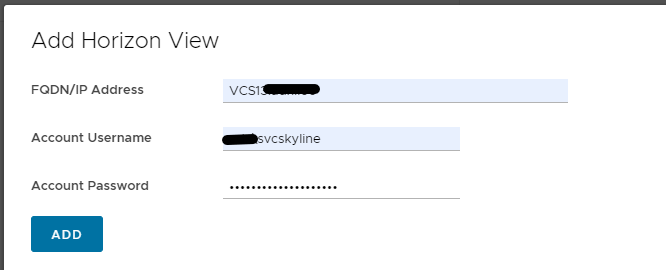
Add Horizon View 
FODN/IP Address 
Account username 
Account Password 
ADD 
VCS 1 
vcskyline

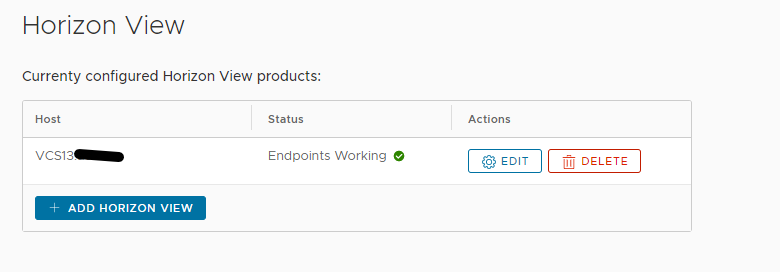
Horizon View 
Currenty configured Horizon View products: 
Host 
VCS13 
+ ADD 
Status 
Endpoints Working 
Actions 
HORIZON VIEW

Now on Skyline Advisor Pro console (https://console.cloud.vmware.com/) we have 2 Horizon Connection Server
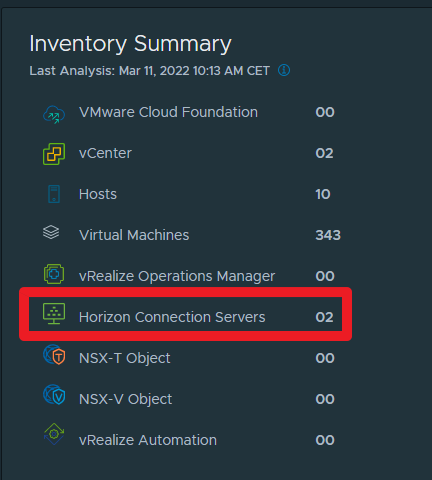
Inventory Summary 
Last Analysis: Mar 11, 2022 10:13 AM CET 
02 
10 
343 
02 
0 
VMware Cloud Foundation 
vCenter 
Hosts 
Virtual Machines 
vRealize Operations Manager 
Horizon Connection Servers 
NSX-T Object 
NSX-V Object 
vRealize Automation

We’ll attend 24 hours to see the information

Product 
Horizon 
Connection Servers 
v Cen ters 
Status 
O Unknown O 
Virtual Machines 
Initial product "Status" value may take up to 24 
hours to display correctly If this state persists for 
more than that and your Collector is not in state 
"Inactive", please open a support request.

And after 24 hours we have the first Active Findings
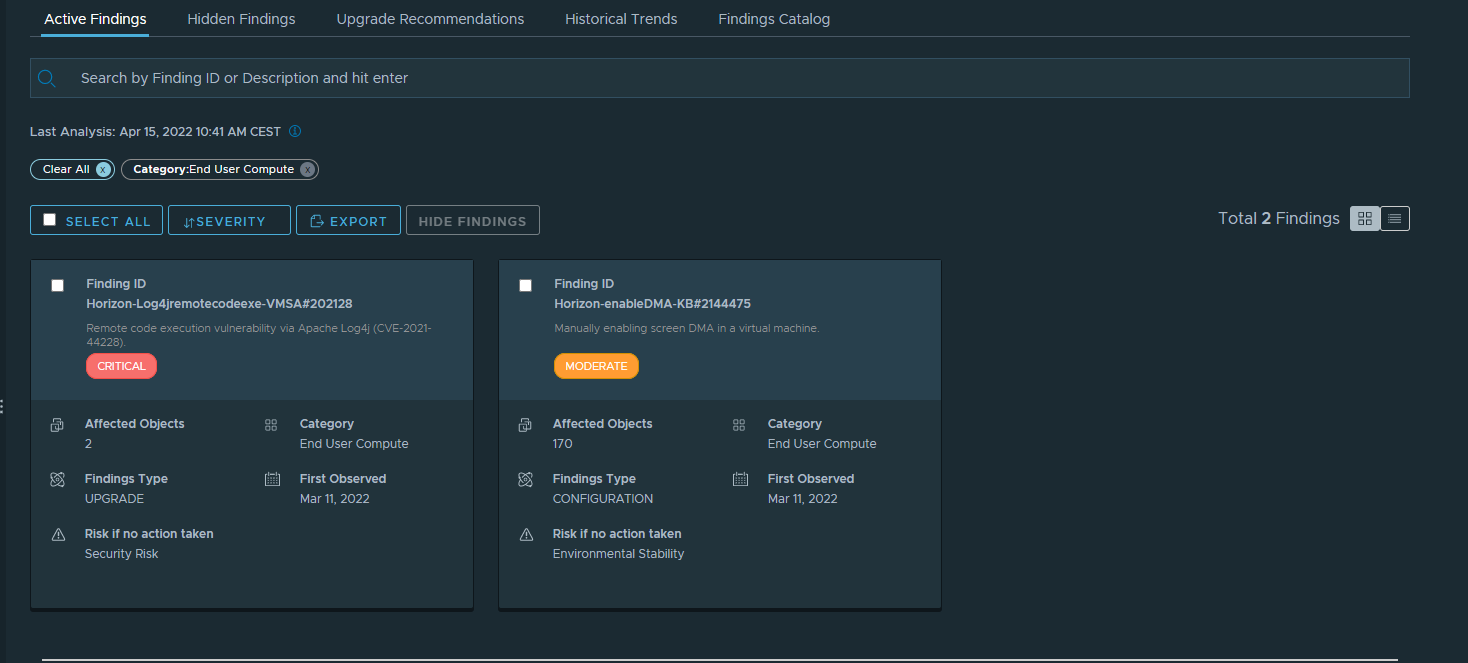
P.S. For the finding ID Horizon-Log4jremotecodeexe-VMSA#202128 I applied the Workaround and Skyline Advisor is unable to check this workaround.

Fonte
Horizon View (vmware.com)

Horizon and Skyline Collector

Quick Tip – How to deploy OVF/OVA to multiple…

Quick Tip – How to deploy OVF/OVA to multiple…

For automation purposes, customers use the handy OVFTool, which is a multi-platform command-line utility for uploading or exporting OVF/OVA images. During an upload, users would typically specify the –network argument which will assign the desired vSphere Network to the deployed VM and if […]


VMware Social Media Advocacy

Quick Tip – How to deploy OVF/OVA to multiple…

New VMware Community HCL

New VMware Community HCL

New VMware Community HCL

If you are not using or can not use the official VMware Hardware Compatibility List (HCL) to identify hardware systems and components that are officially supported with a given version of vSphere ESXi, then the experience in finding hardware can be quite daunting for both new and even existing users. Typically, users might start off […]


VMware Social Media Advocacy

New VMware Community HCL

Announcing VMware vRealize Network Insight…

Announcing VMware vRealize Network Insight…

We are excited that today customers now have VMware vRealize® Network Insight™ Universal available. This new solution will give customers the ability to deploy vRealize Network Insight as a SaaS or provide the customer an option to start on-premises then move to SaaS later when they are ready […]


VMware Social Media Advocacy

Announcing VMware vRealize Network Insight…

vSAN Skyline Health History

VMware with vSAN 7.0u2 introduced an interesting functionality on Skyline for reviewing the state of vSAN in the past time

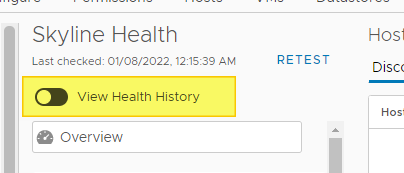
The functionality is disabled by default, if I want to see the Health History I need to only check the correct option.

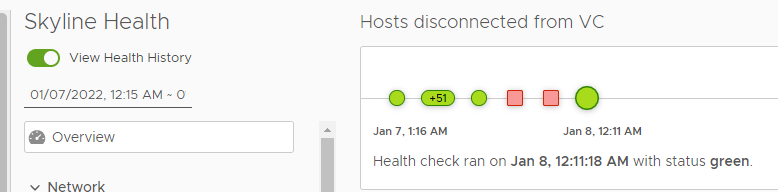
After enable it I can see all history

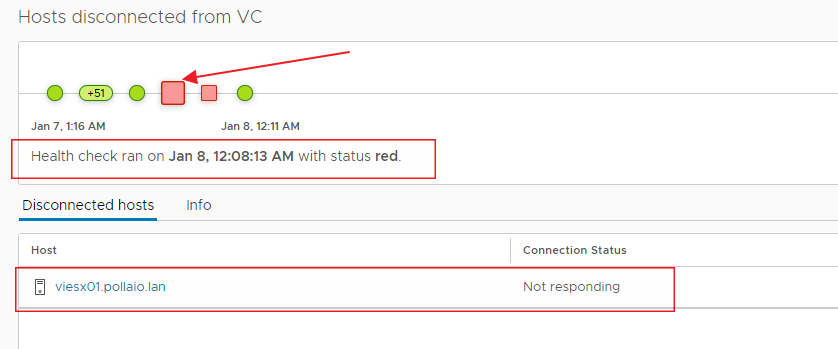
and I can select the red icon for to see what happened

On Jan 8, 12:08 we encountered a problem on a vSAN cluster HOST

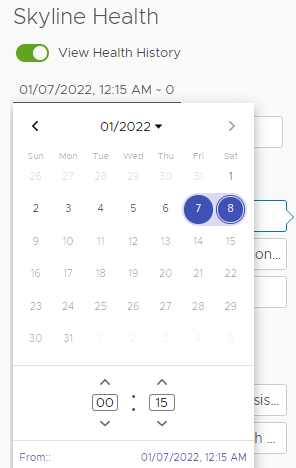
It is possible to select the day to check the vSAN status, just select the correct date and time

vSAN Skyline Health History

Copy file to VCSA with SCP

Well, in recent weeks we have often talked about how to heal vCenters from the log4j vulnerability.
I guess the first thing we all thought was “What a show VMware support released scripts to run to solve the problem …” and then every one to use WinSCP or similar tools/commands to copy the file …. but many will have found it impossible to copy files using the Root user …. but how SSH works but the SCP command does not work!
Well, the problem comes from the shell associated with the Root user. It is not the classic BASH but the APPLIANCESH.
Then we proceed as follows:

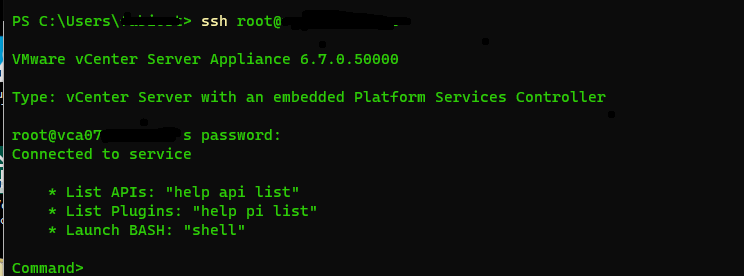
  • Let’s connect in SSH to the vCenter Virtual Appliance
  • We access the Bash SHELL with the command SHELL
  • We enable BASH as the default shell for the root user
  • We run our SCP
  • We re-enable APPLIANCESH for the root user

Copy file to VCSA with SCP