For a long time, I wanted to get my hands on VMware vSphere Foundation (VVF) and understand closely how the deployment process has changed with the introduction of the VCF Installer. Thanks to a few days off and a desire to experiment, I decided to dedicate my Home Lab to this project, retracing the entire installation process step by step, from preparing the infrastructure to the first boot of the environment.
In this post, I tell you how I set up the deployment, what hardware and network resources I used, the configuration choices made along the way and, of course, the difficulties encountered (and how I solved them) during the installation via VCF Installer. The goal is to share a practical experience useful to those who want to approach VVF starting from a laboratory environment, without the complexity (and costs) of an enterprise deployment.
In this first post, we will see the installation; in the next posts, we will install/activate the licenses and install the Log component
Being a home lab, my environment will consist of nested ESXi Hosts; here are some details:
Physical HW
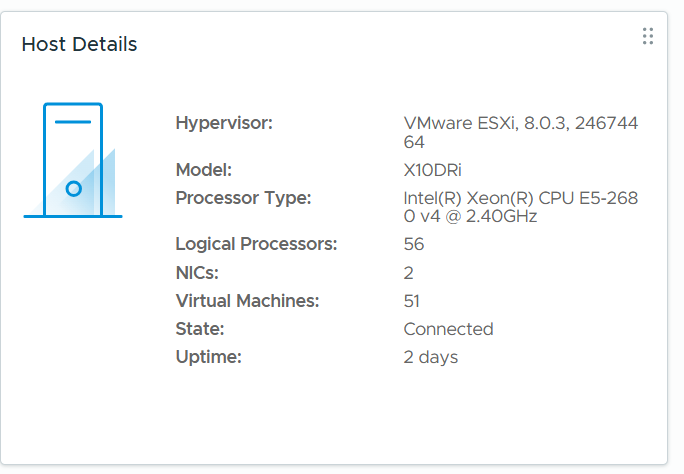
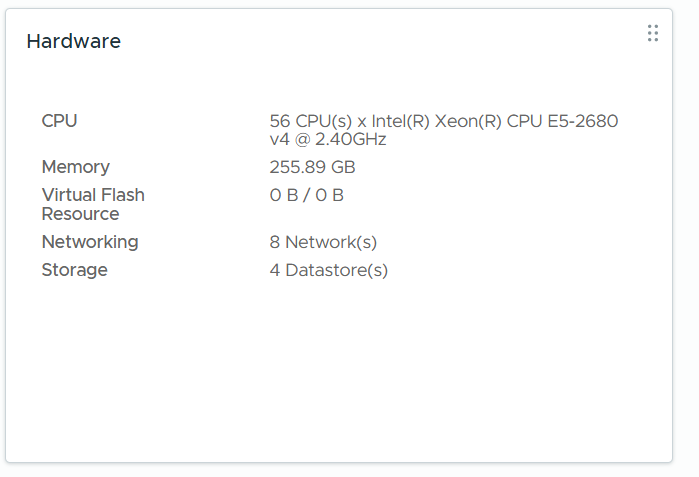
ESXi Nested
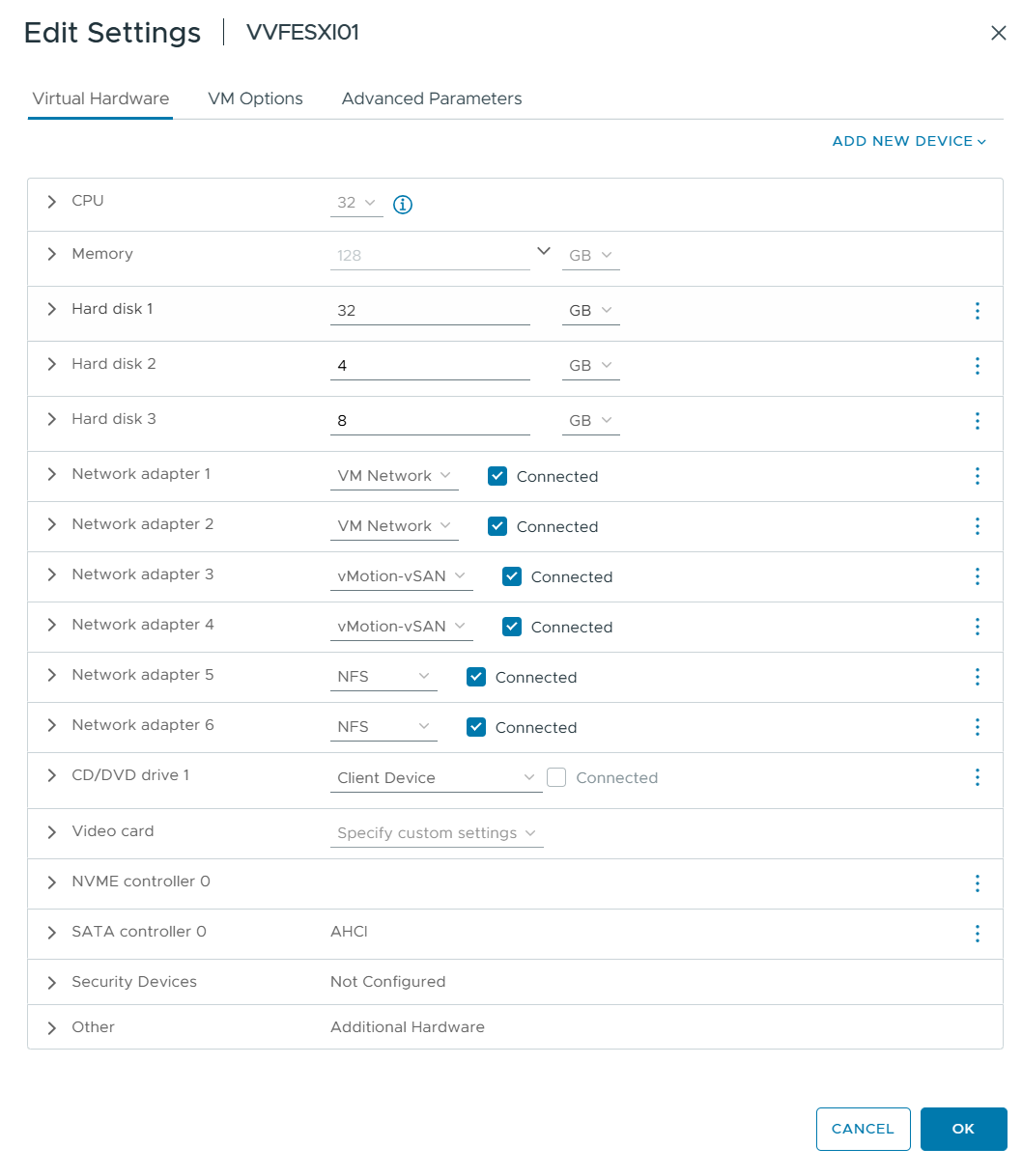
Two VMs where I install my ESXi to 9.1
Check the Machine Certificate for each ESXi; the certificate needs to trust the ESXi FQDN name.
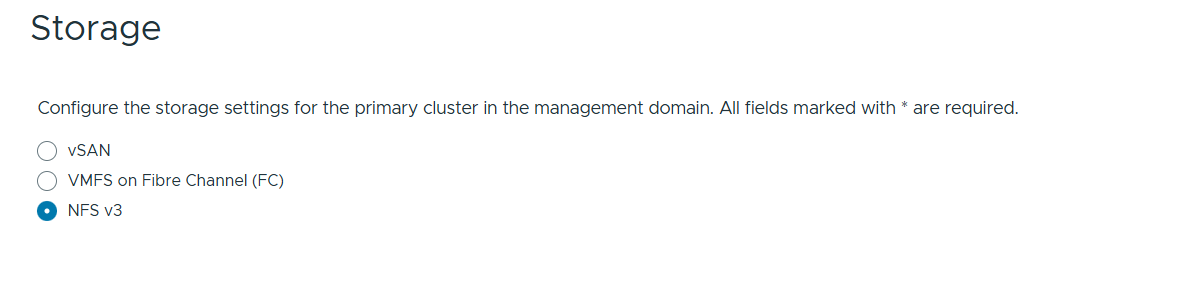
Storage
As NFS, I created a TrueNAS VM that resides on SSD disks
Network of ESXI nested:
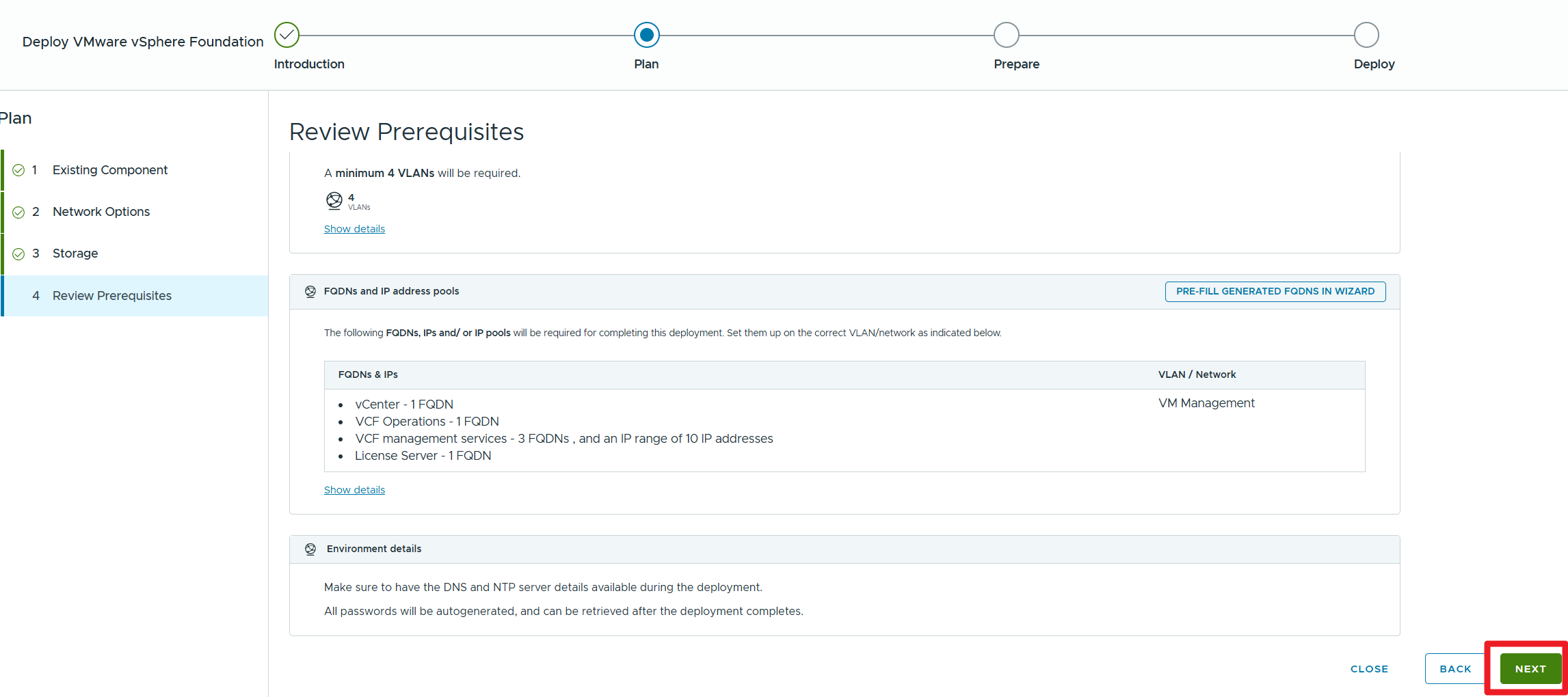
Required resources
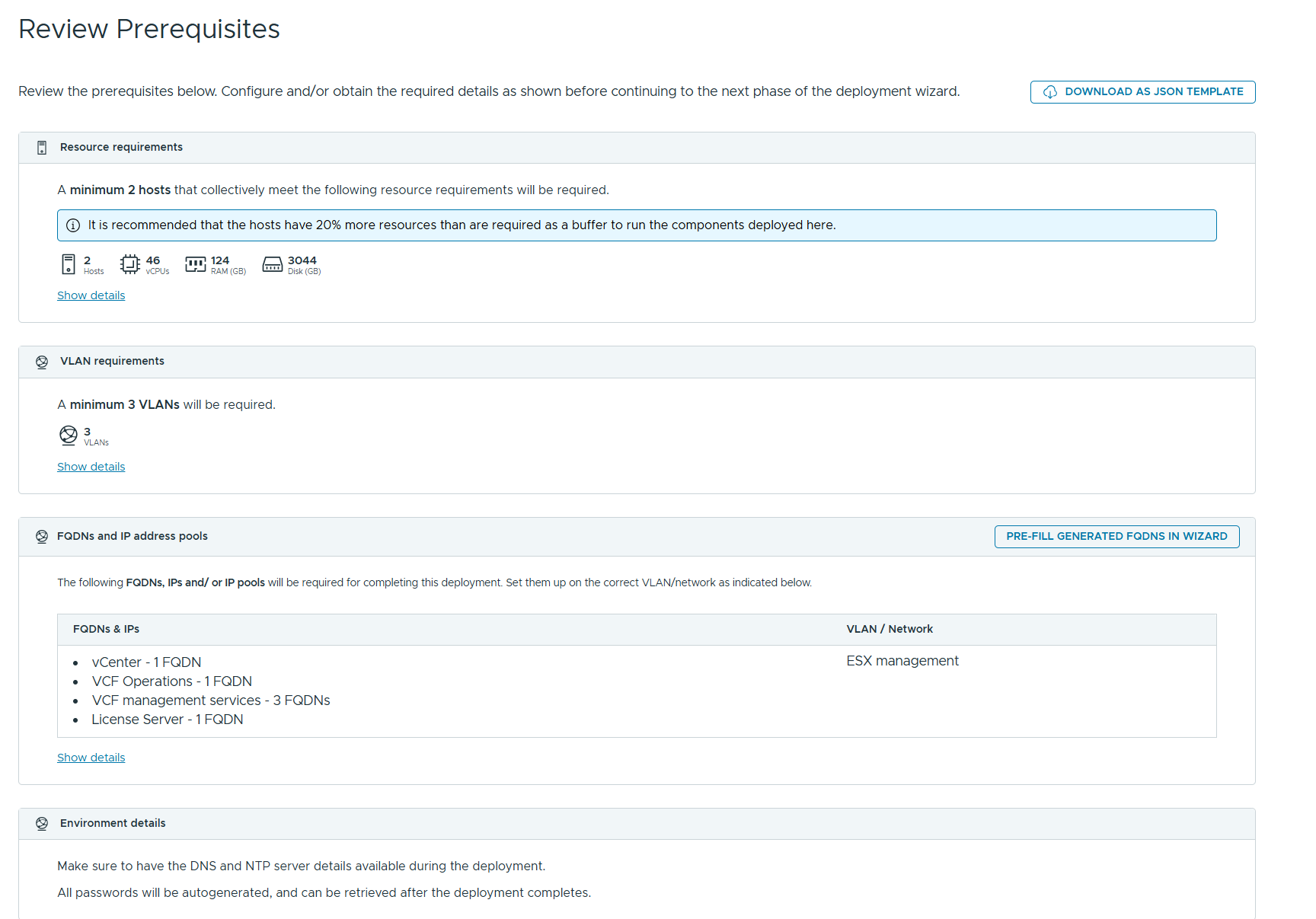
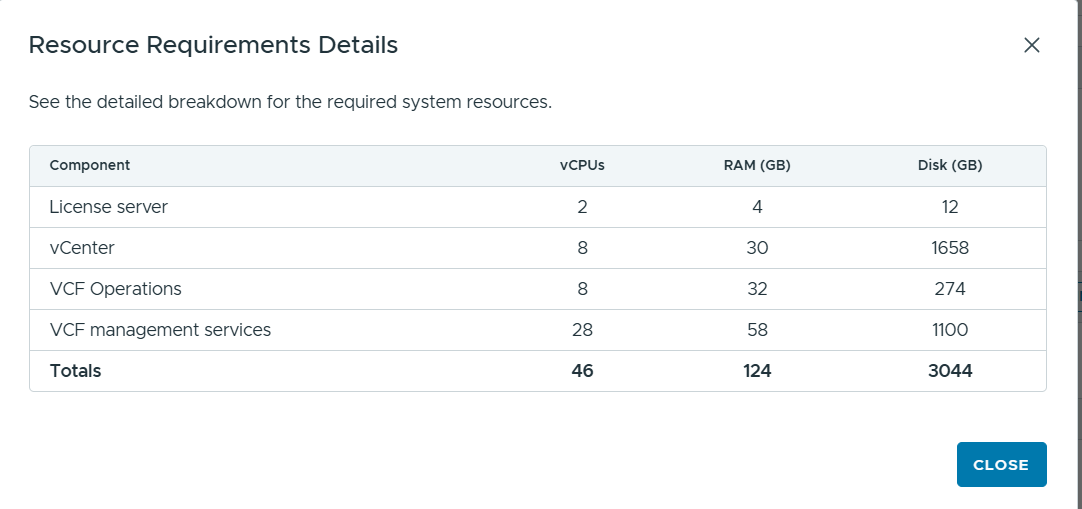
As you can see, we have, in addition to the vCenter add-ons, which are:
License Server
A part of VCF Operations. Provides secure and integrated license management for your platform.
vCenter
To say that we all know him well
VCF Operation
VMware Cloud Foundation Operations® (formerly VMware Aria Operations) or VCF Operations helps your organisation build, manage, operate, and secure your private cloud infrastructure by deploying and maintaining its fleet-level components, providing visibility and enhanced performance across the workload and infrastructure stack, and helping your organisation stay compliant with regulatory standards and organisational guidelines.
VCF Management Services
VCF 9.1 introduces VCF management services to provide a unified architecture for centralised lifecycle and operational functionalities. The VCF services runtime instance of the first VCF Instance hosts the fleet-level VCF management services components that perform global operations and the instance-level components for that VCF Instance. Every VCF Instance has a VCF services runtime instance that hosts the instance-level VCF management services that run local tasks. This foundation allows for a unified architecture, simplified lifecycle management, and streamlined backup and recovery of all hosted components.
For the VVF in management servers, we have:
Fleet lifecycle
Log management (to be installed in DAY+1)
SDDC lifecycle
Software depot
Telemetry
VCF services runtime
More details: Components in VCF and vSphere Foundation
The steps we’ll take are:
1-Installing ESXi (we won’t cover it in this post)
2-Deploying the VCF installer
3-Configuring the DEPOT
4-Deploying VVF
VCF installer installation
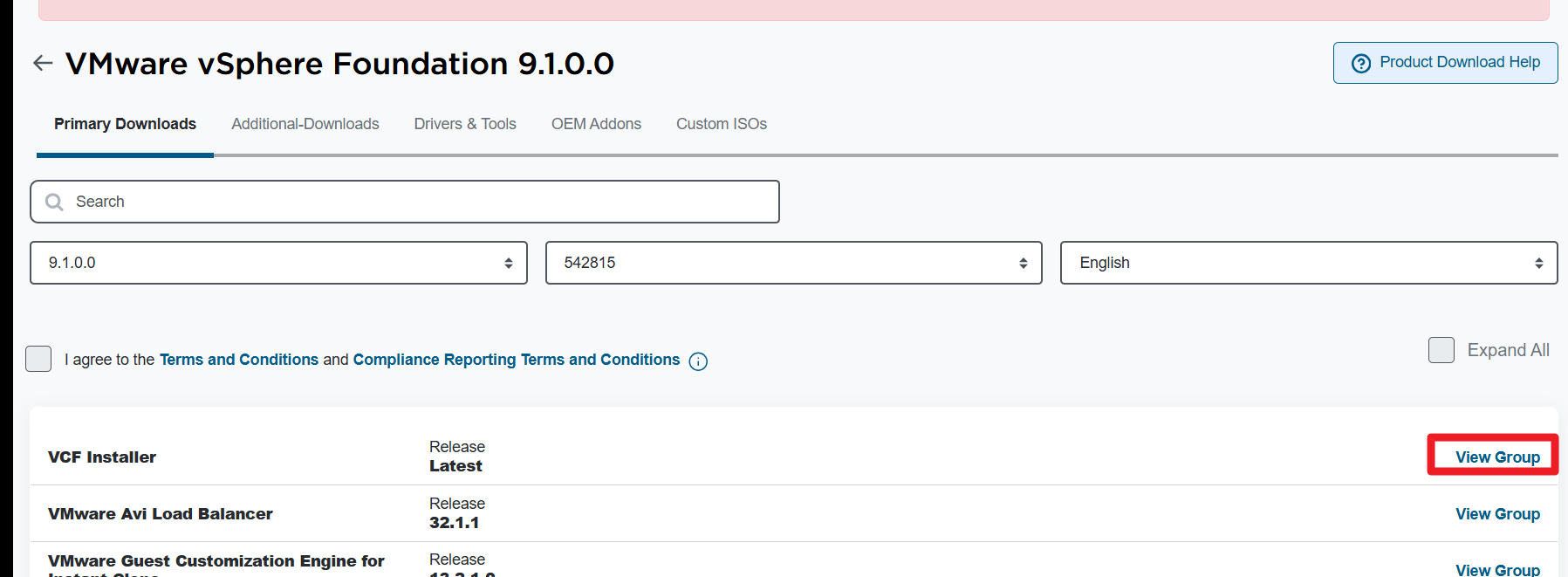
Log in to Broadcom Support Portal https://support.broadcom.com/ and Download VCF Installer
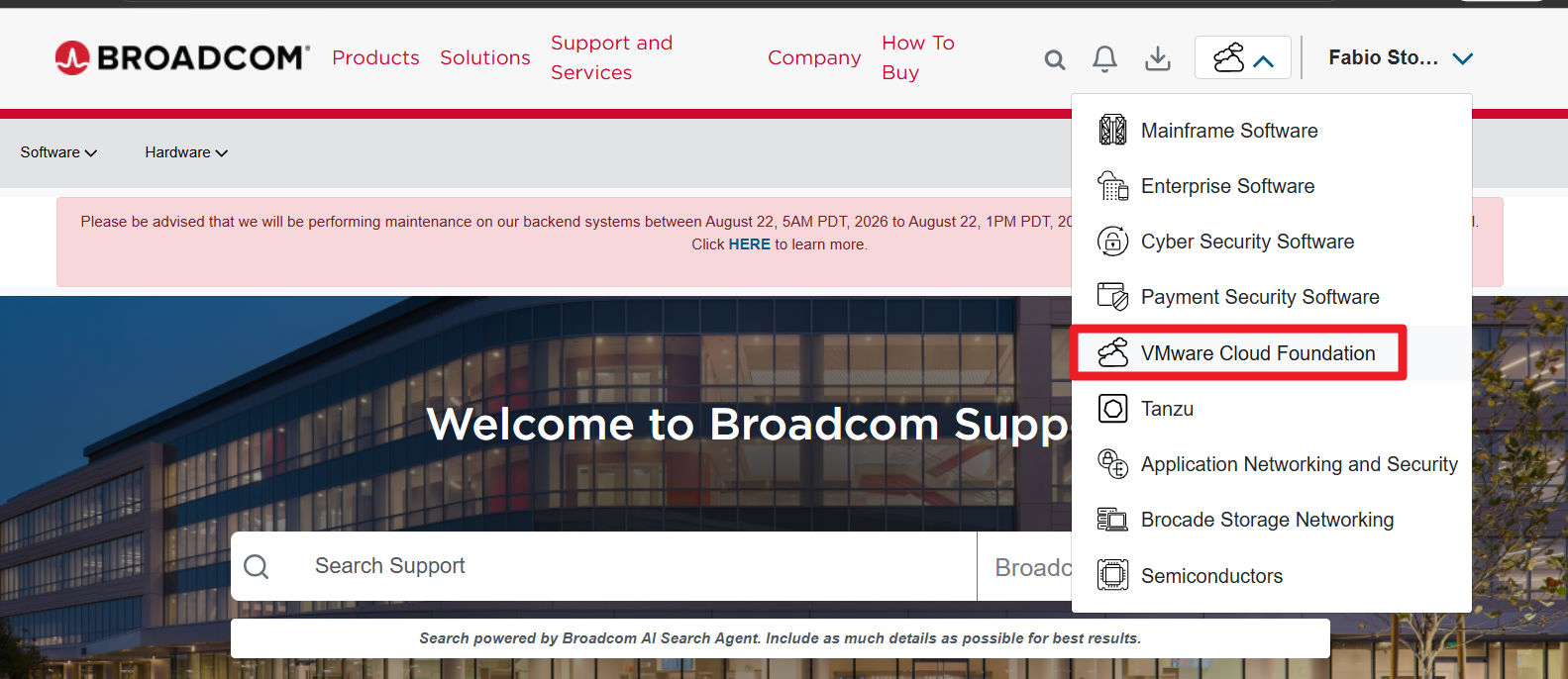
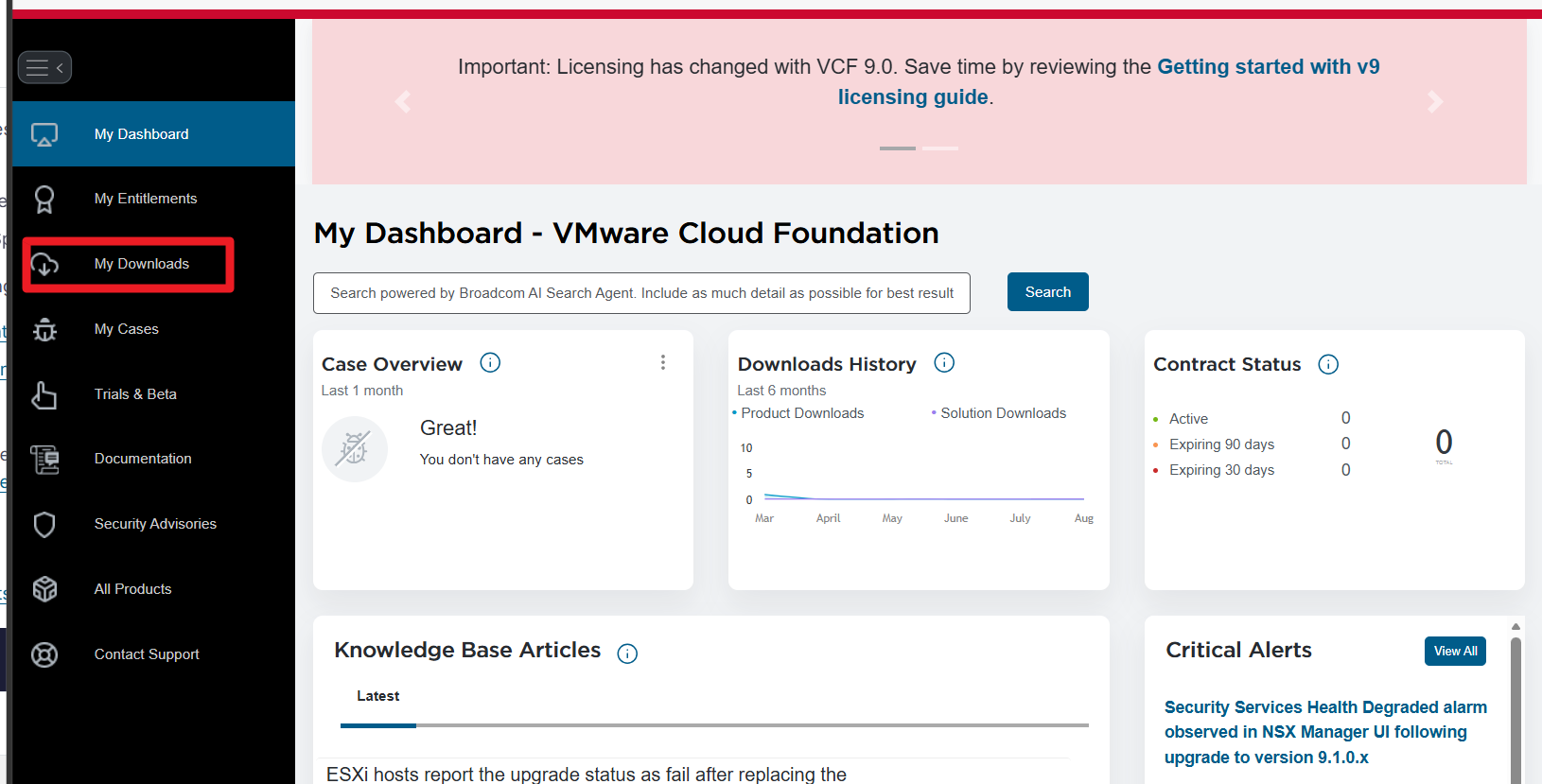
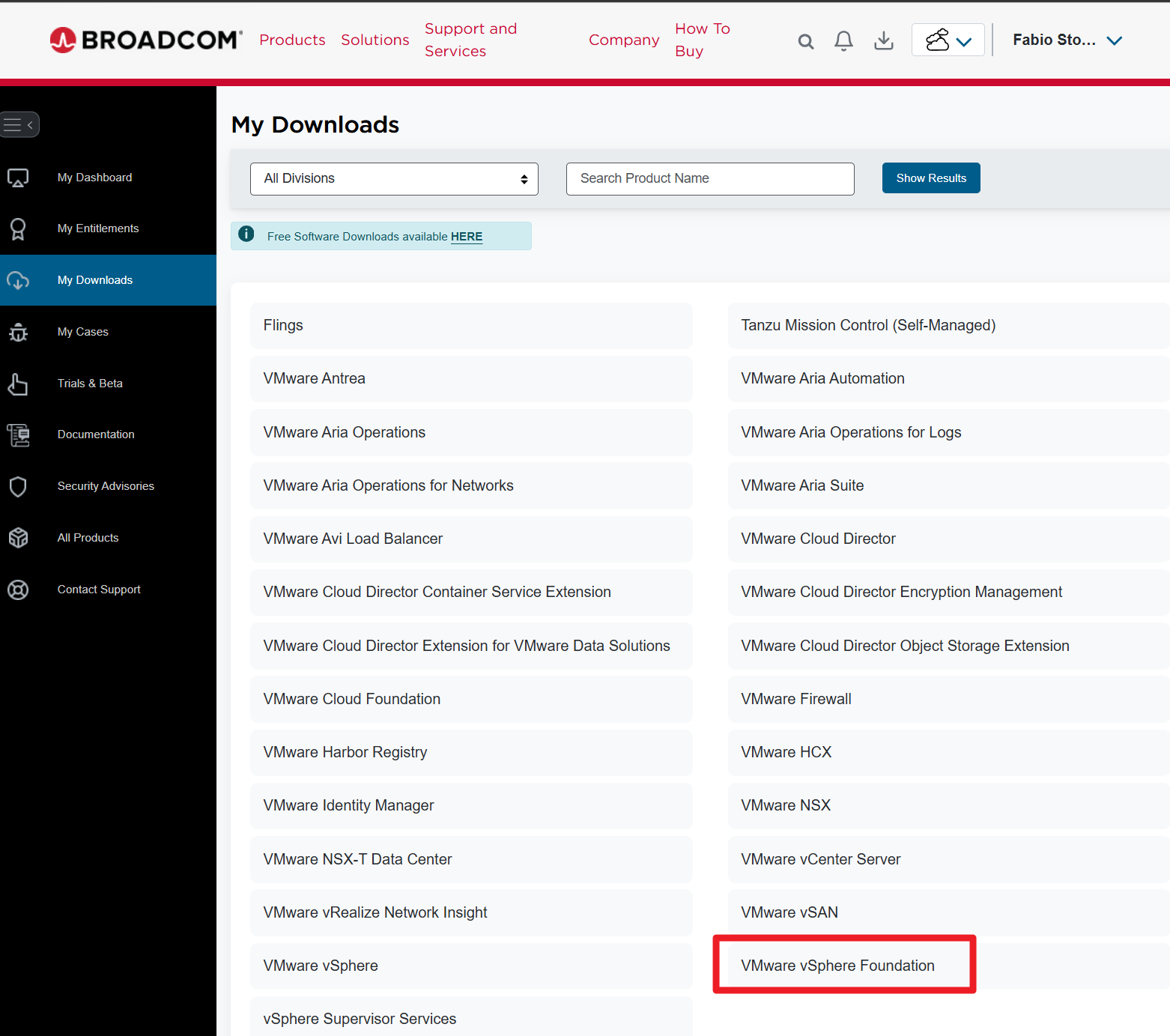
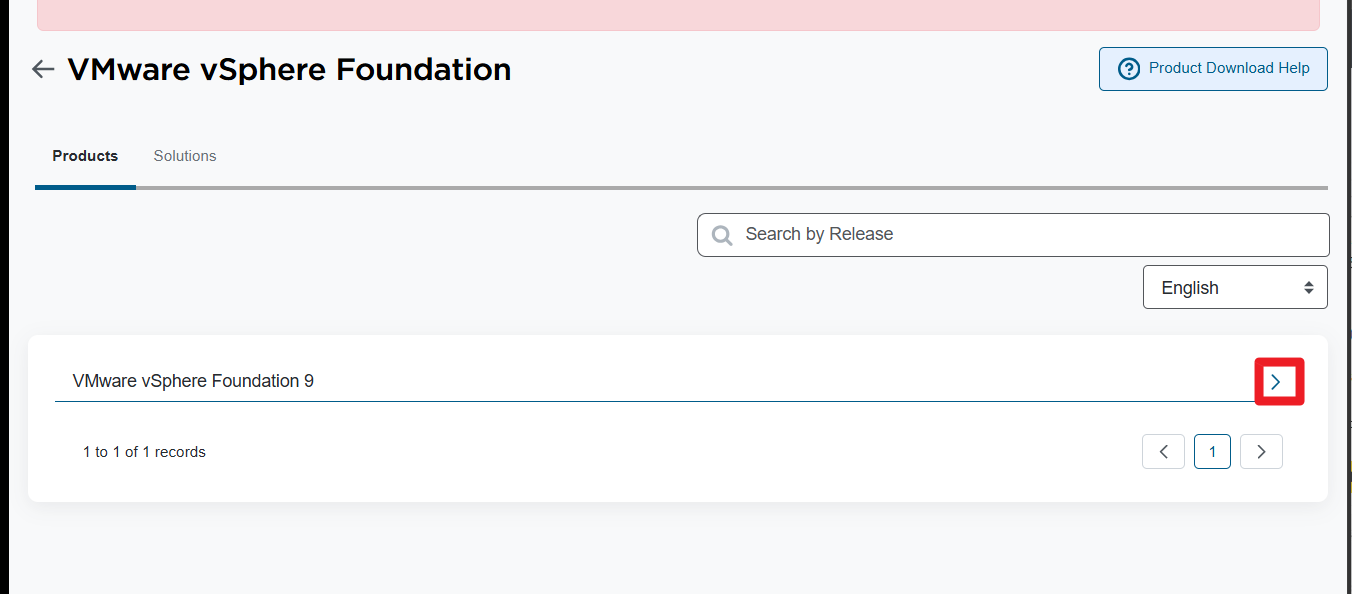
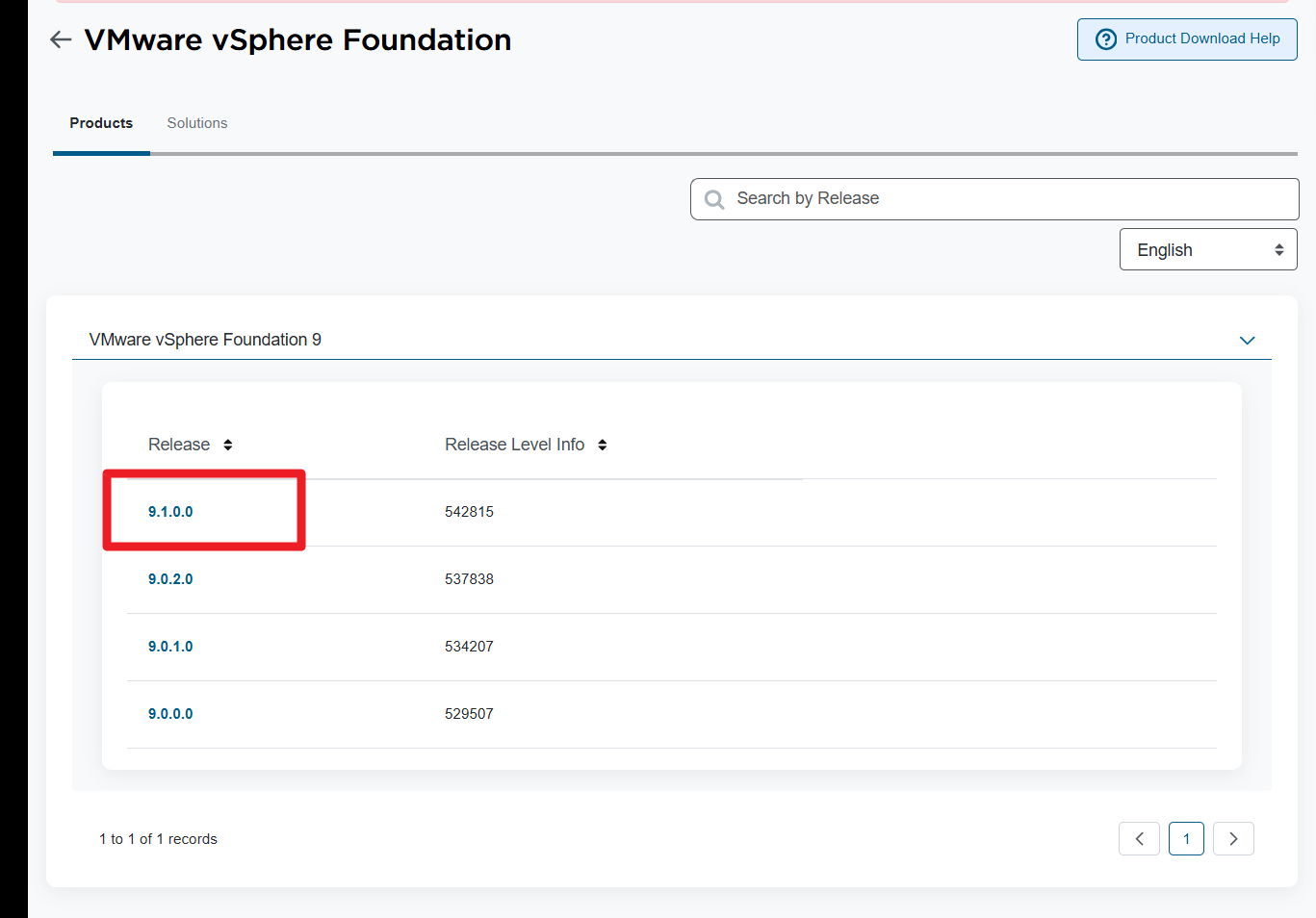
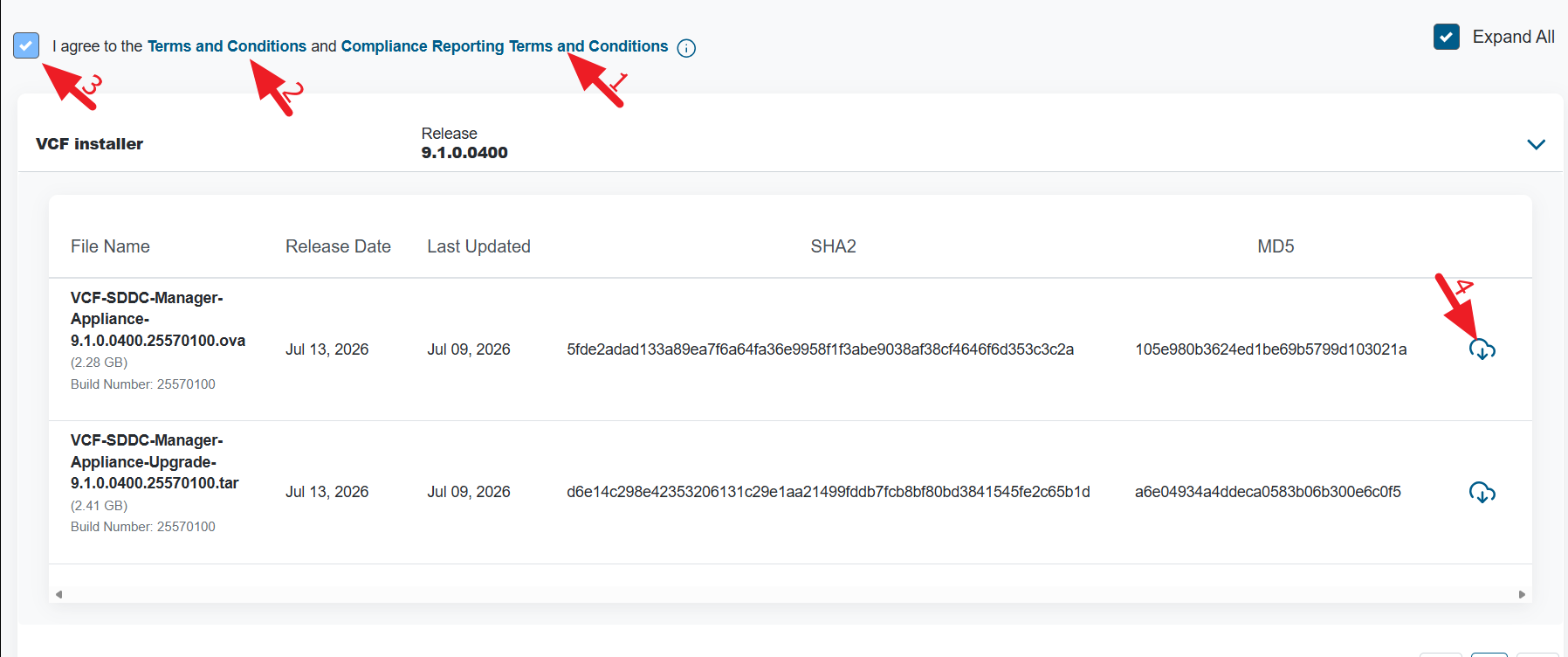
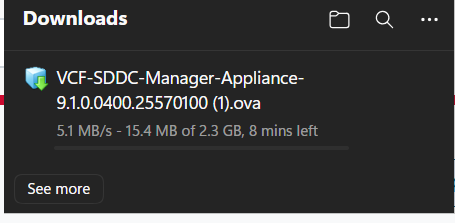
The next step is to deploy the OVA to ESXi or VMware Workstation
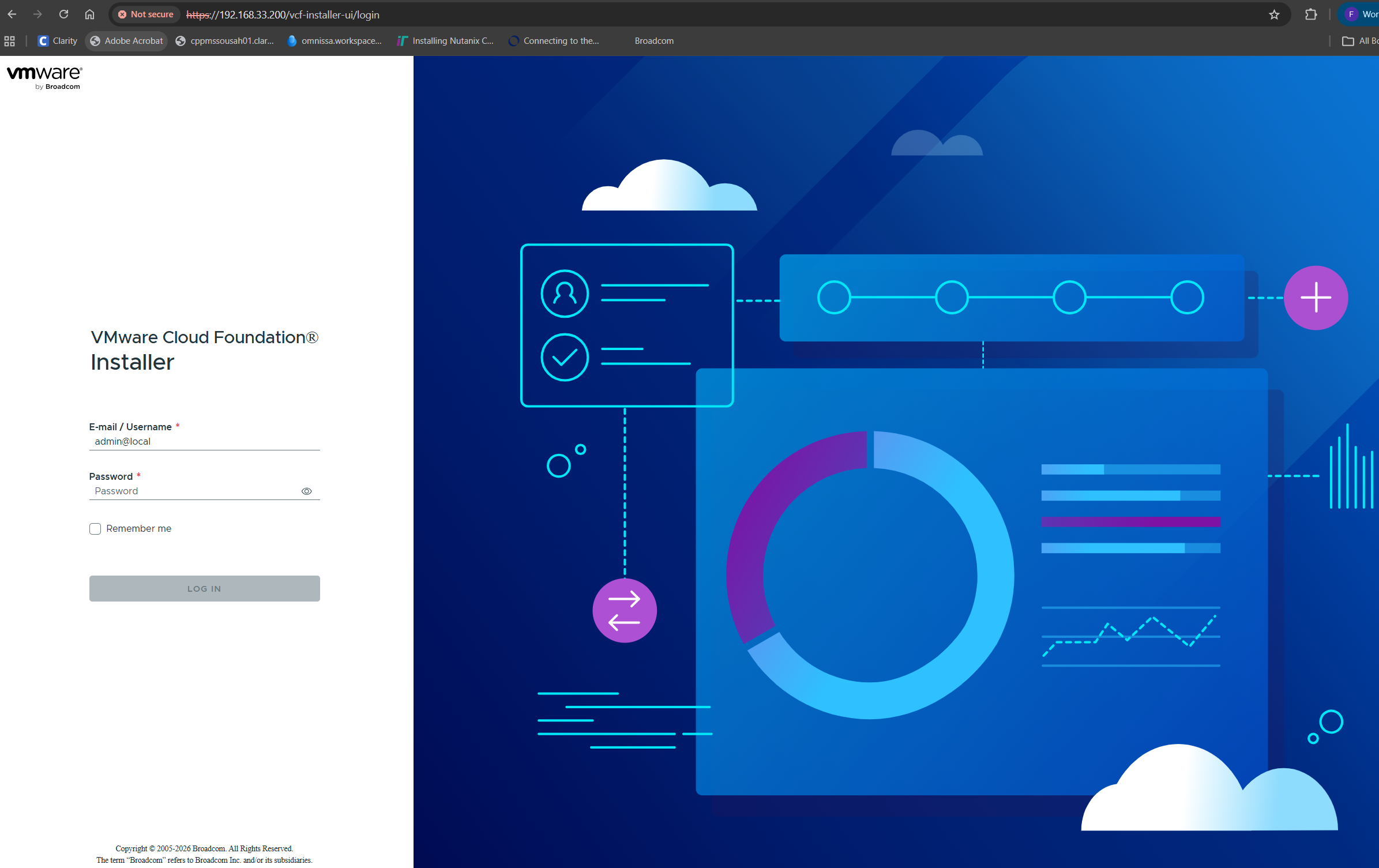
Once the installation of the OVA is finished, access the URL with the IP or FQDN and log in with the admin@local account and password you set during the deployment
Configure Depot Connection and download the installation Binaries
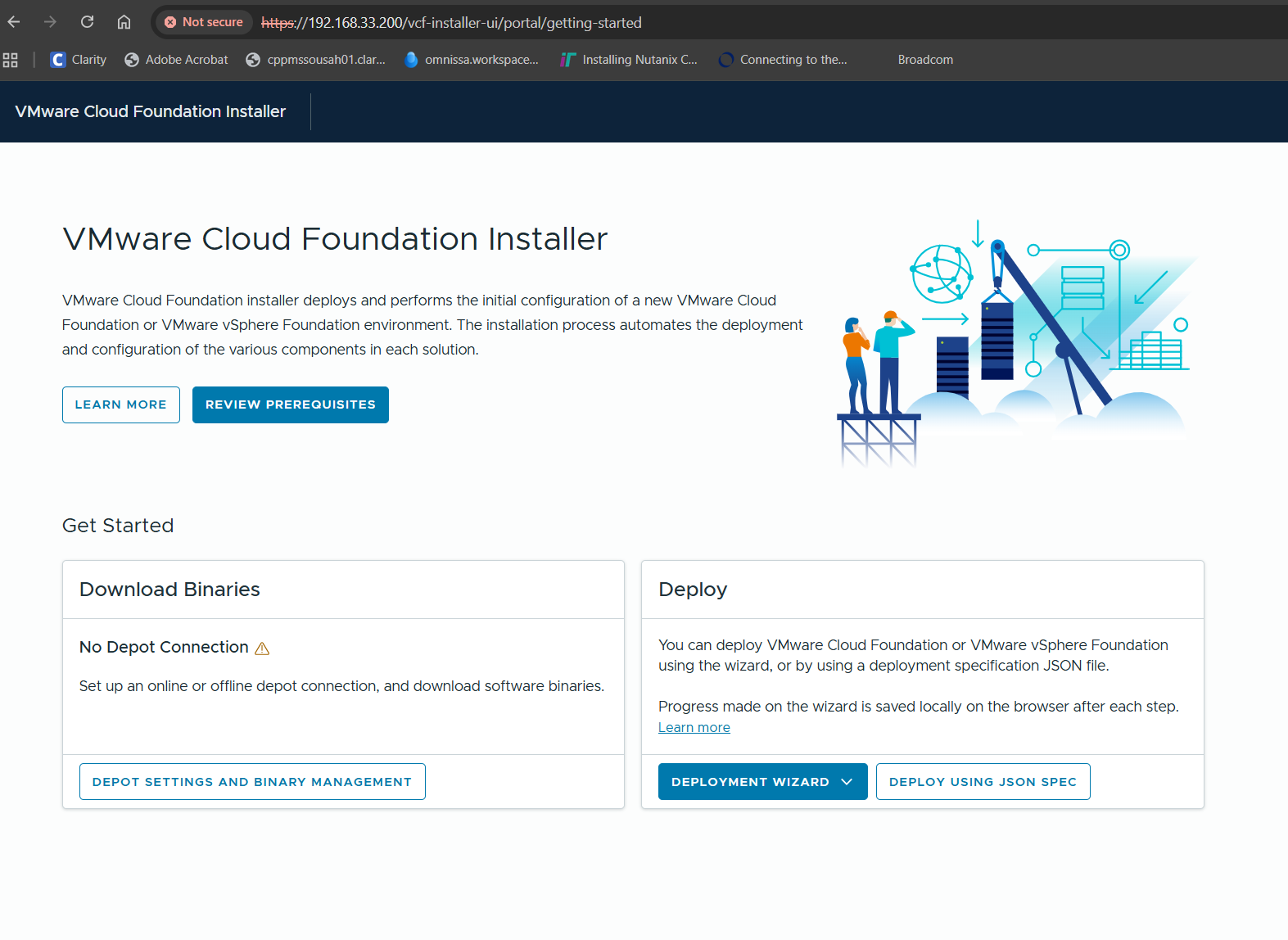
Configuration of the repository for downloading the software for installation (vCenter, ESXi, etc.)
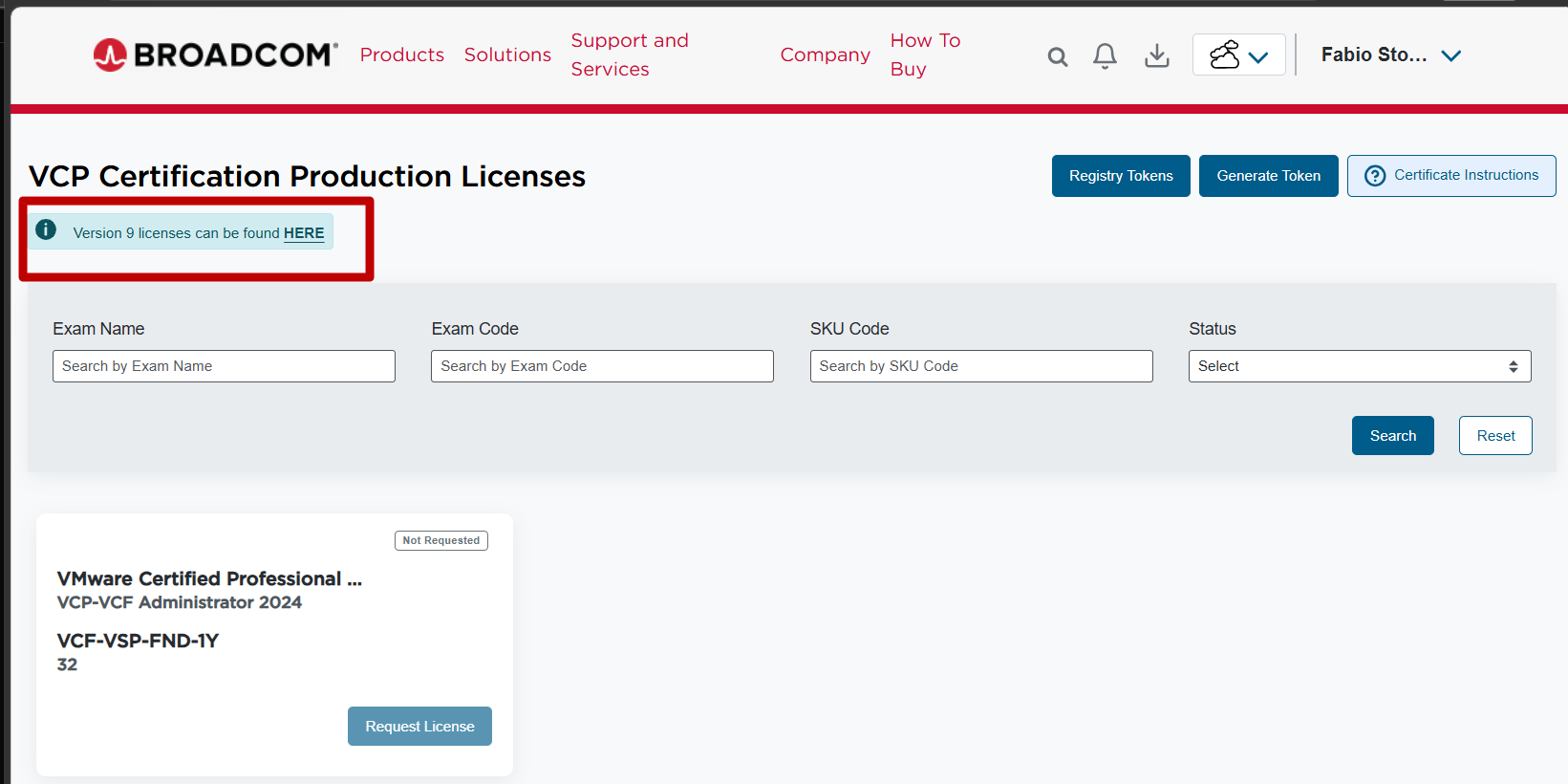
A token must be generated from the portal vcf.broadcom.com
To log in from the Support Portal, select Version 9. Licenses can be found
1.Log in to the VCF Business Services console (vcf.broadcom.com)
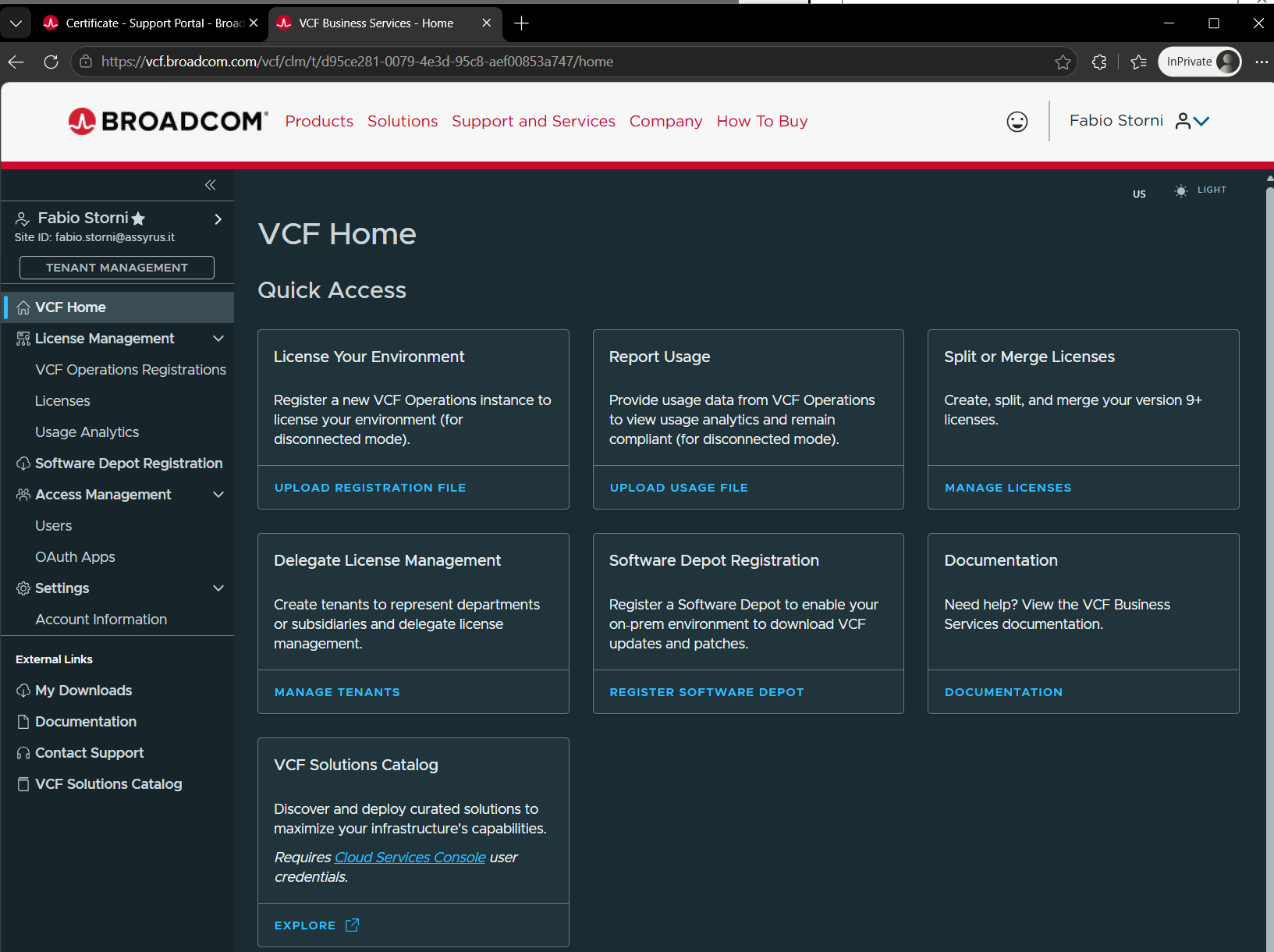
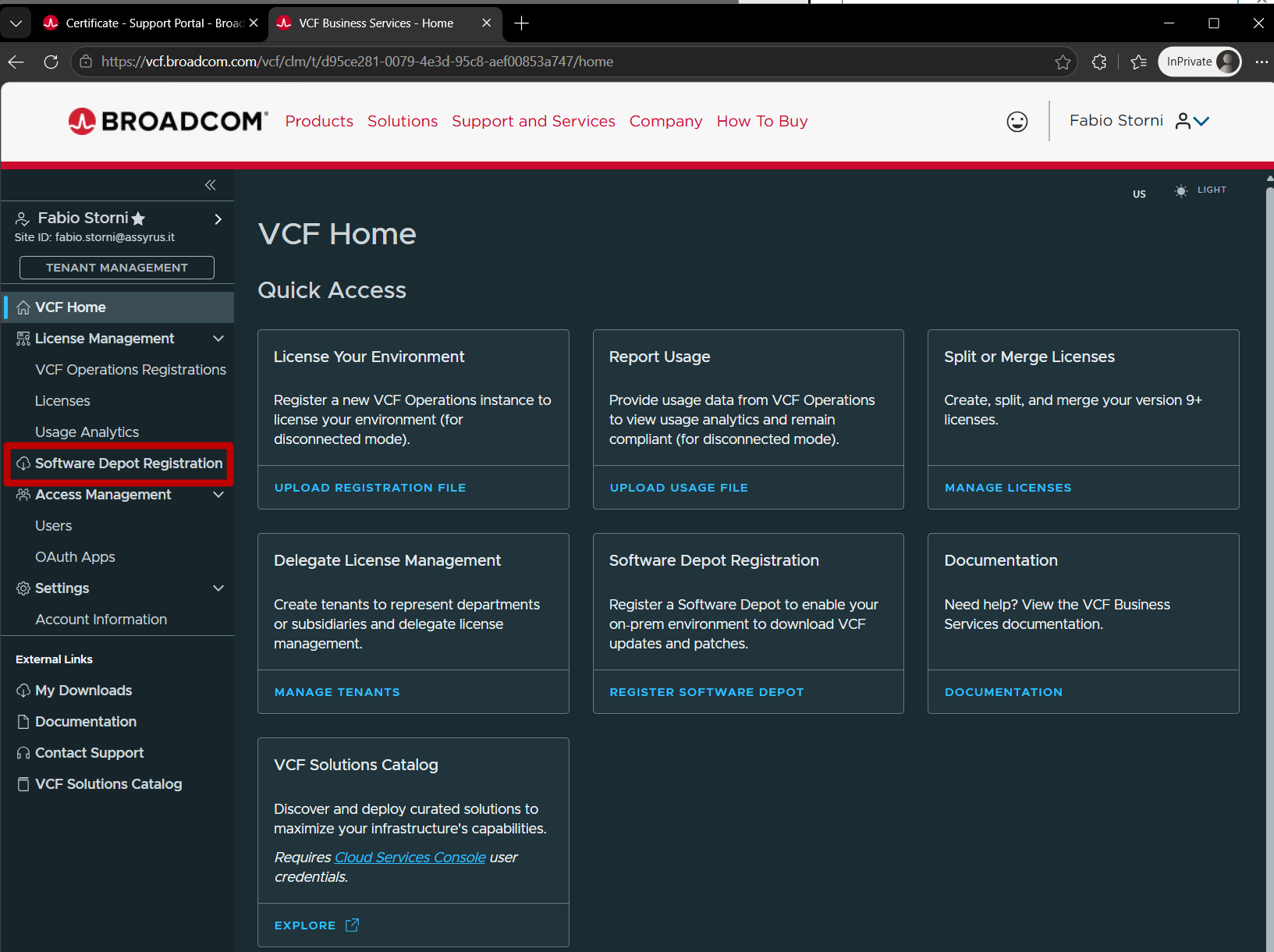
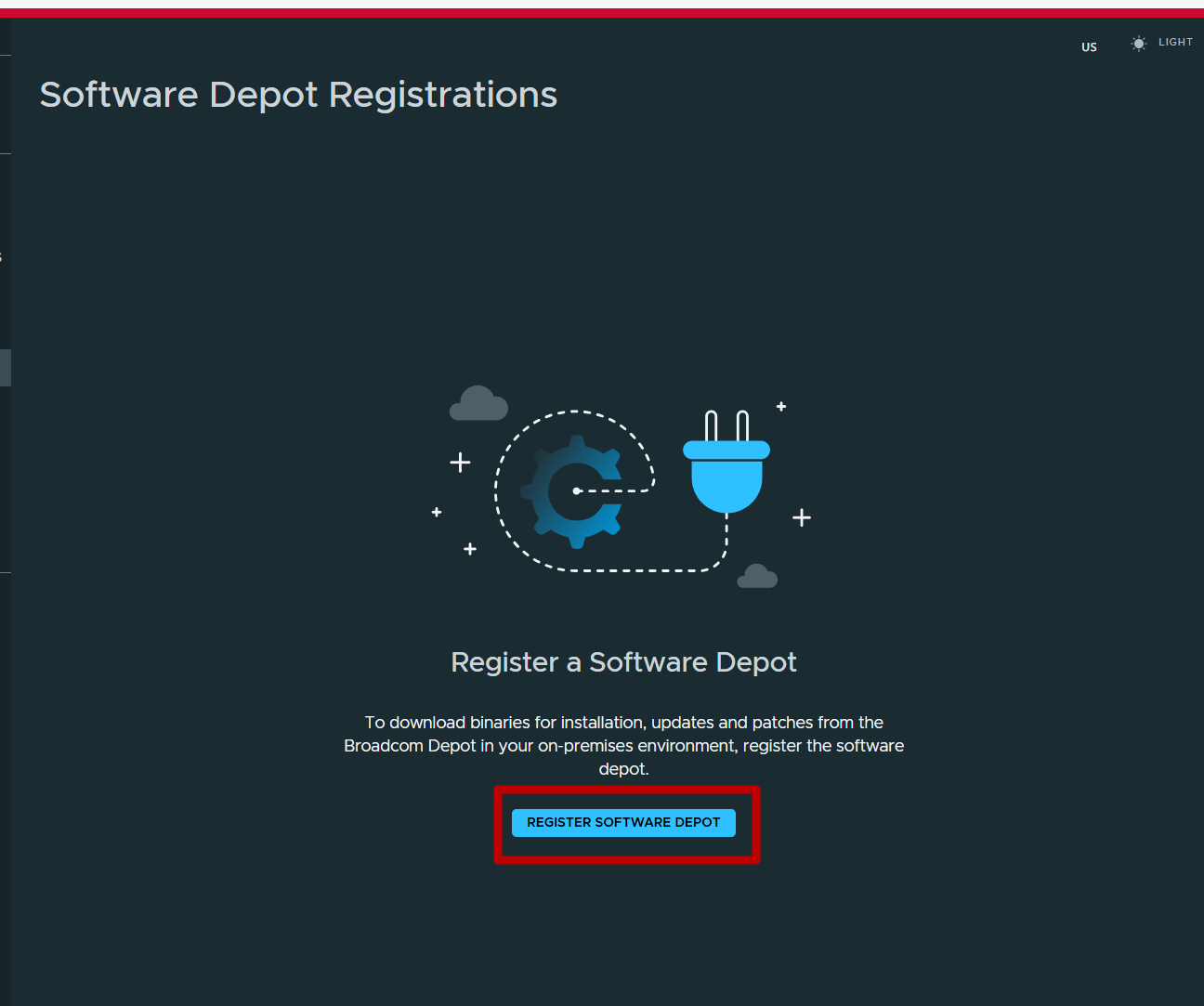
Go to the VCF Installer and create the ID of the depot to upload to the portal
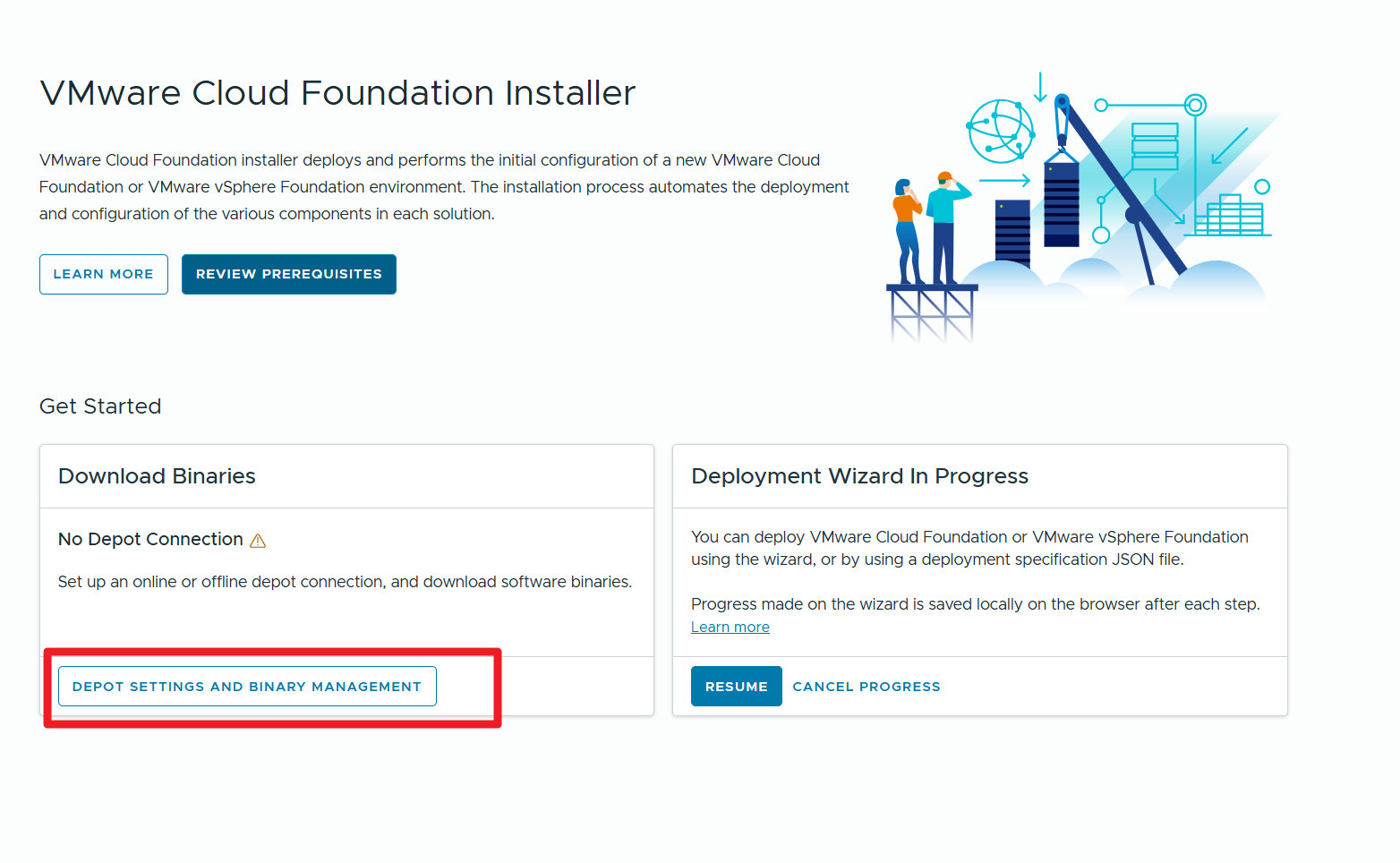
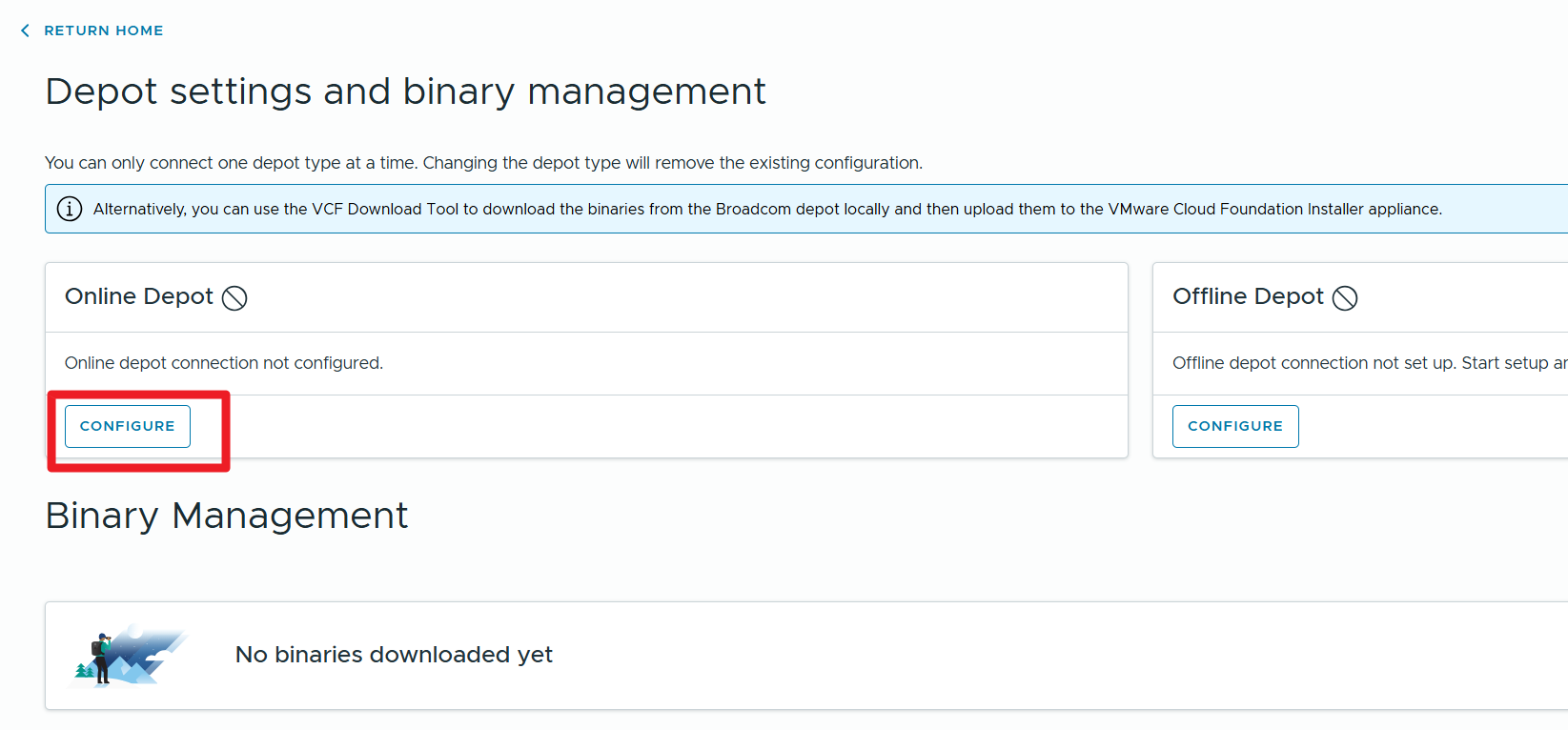
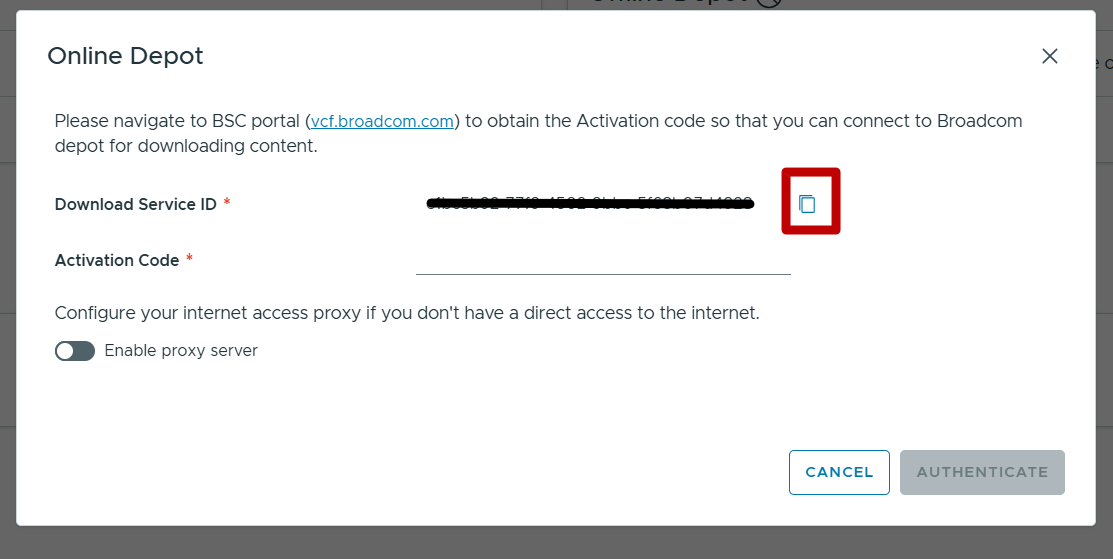
Return to the portal and upload the depot ID to the page that opened
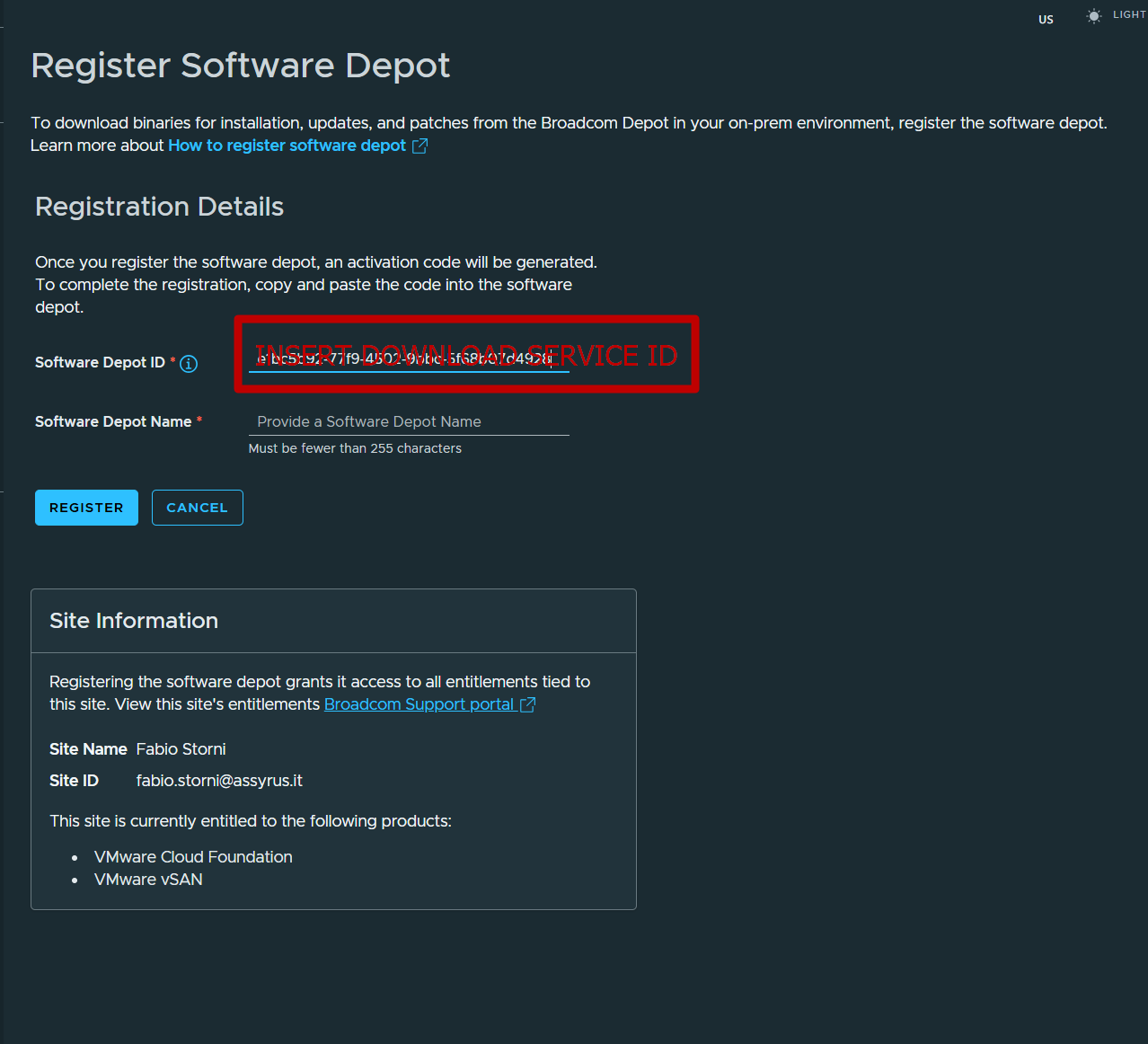
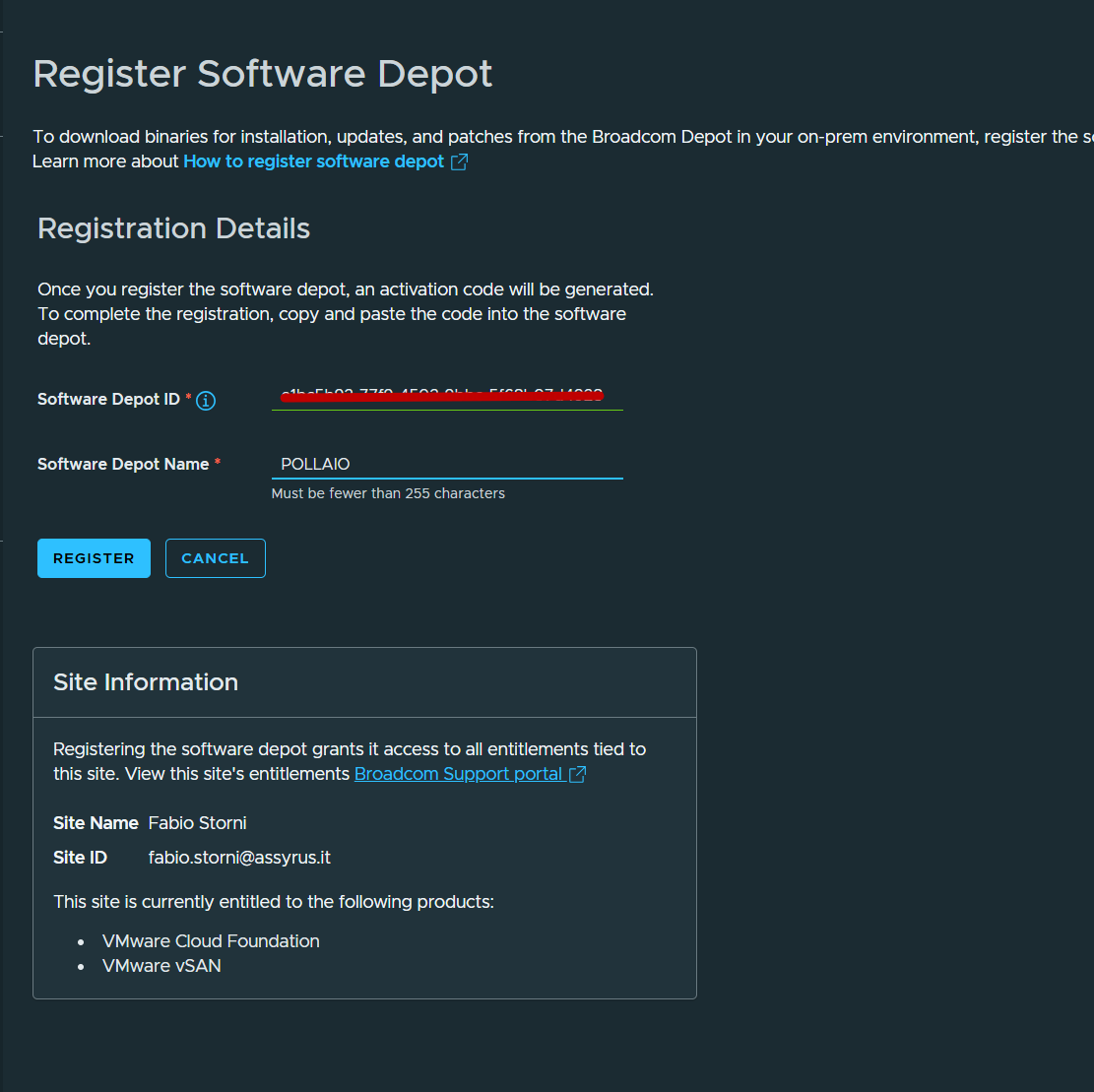
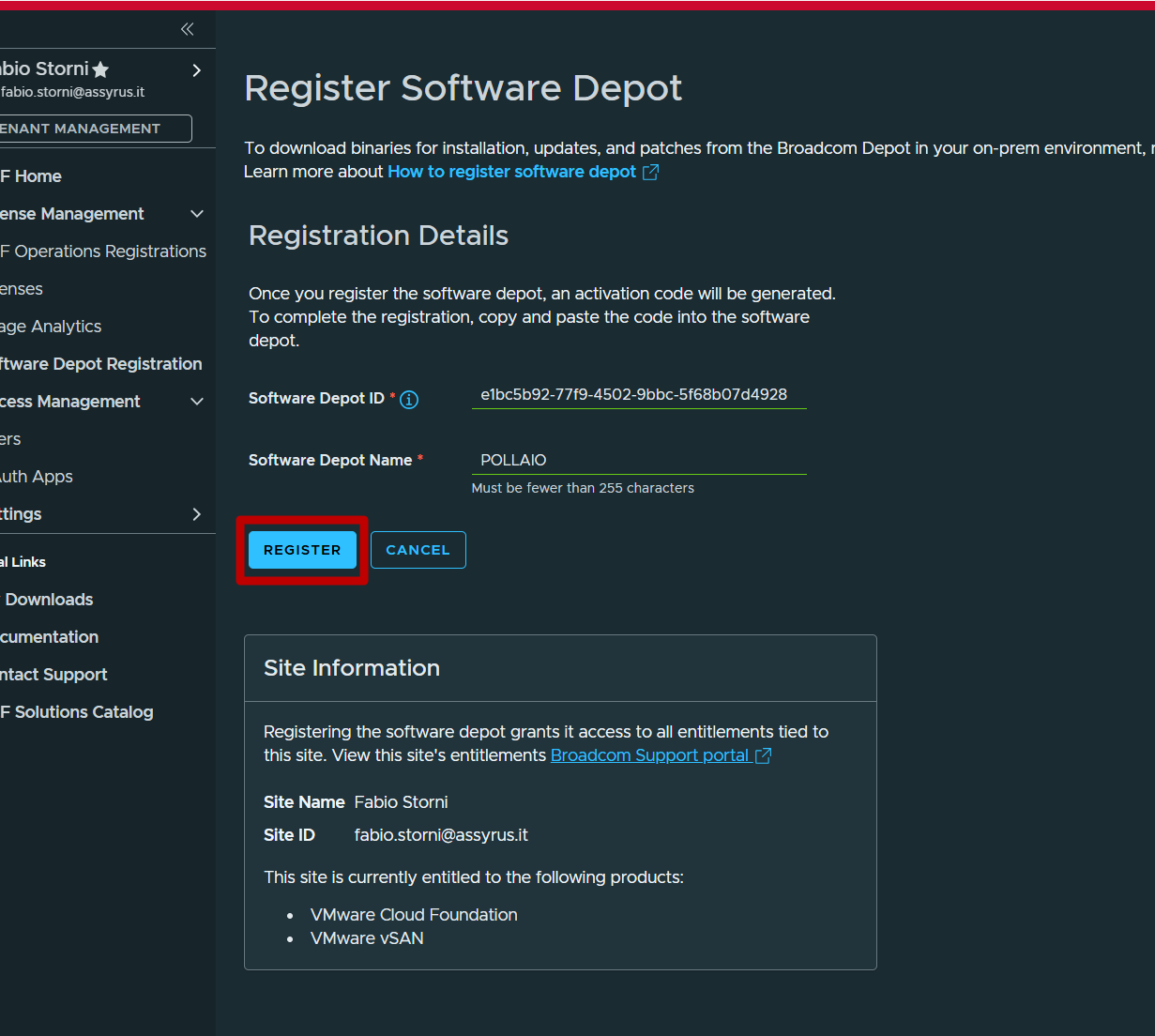
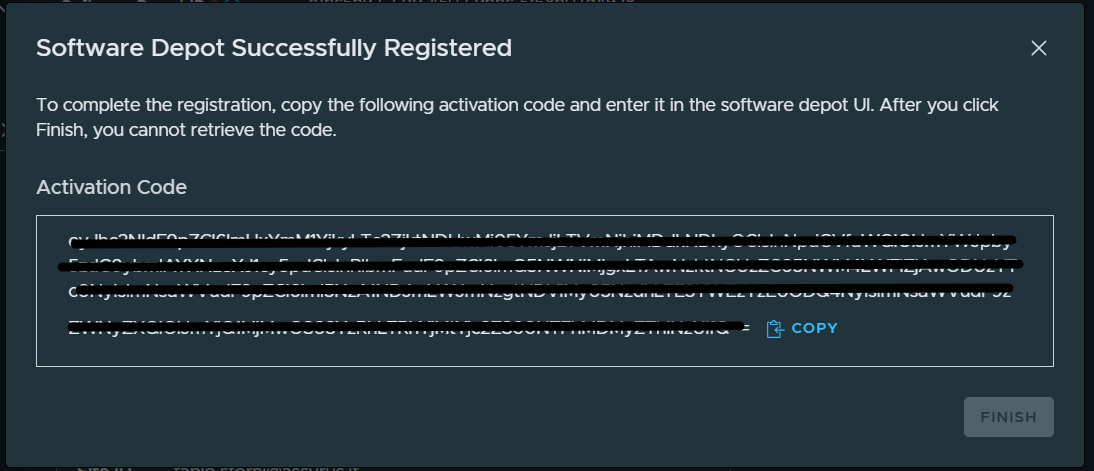
Copy the Activation code and enter it on the vcf installer screen
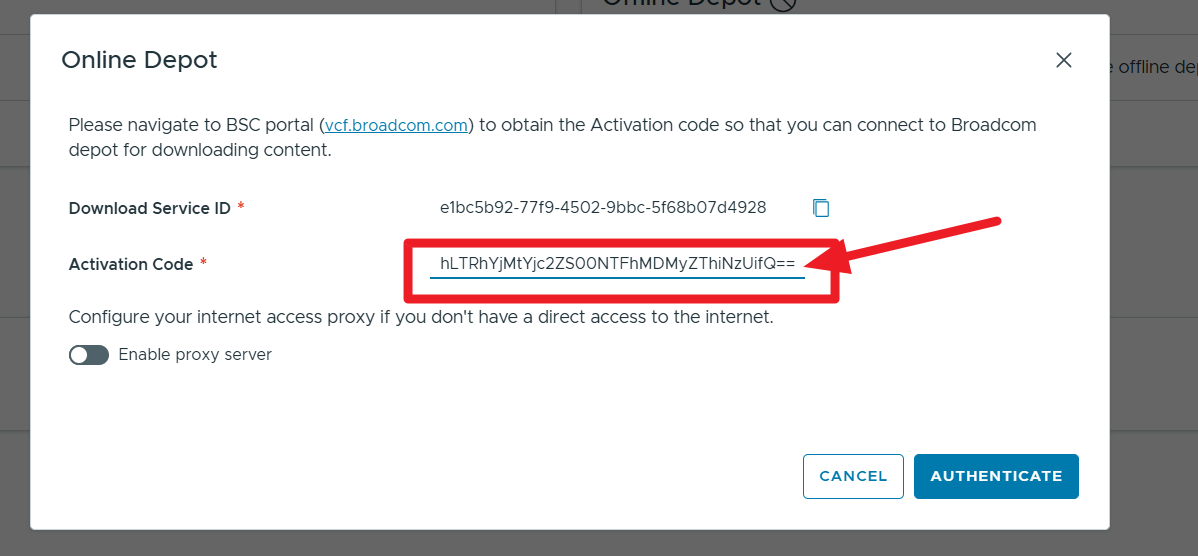
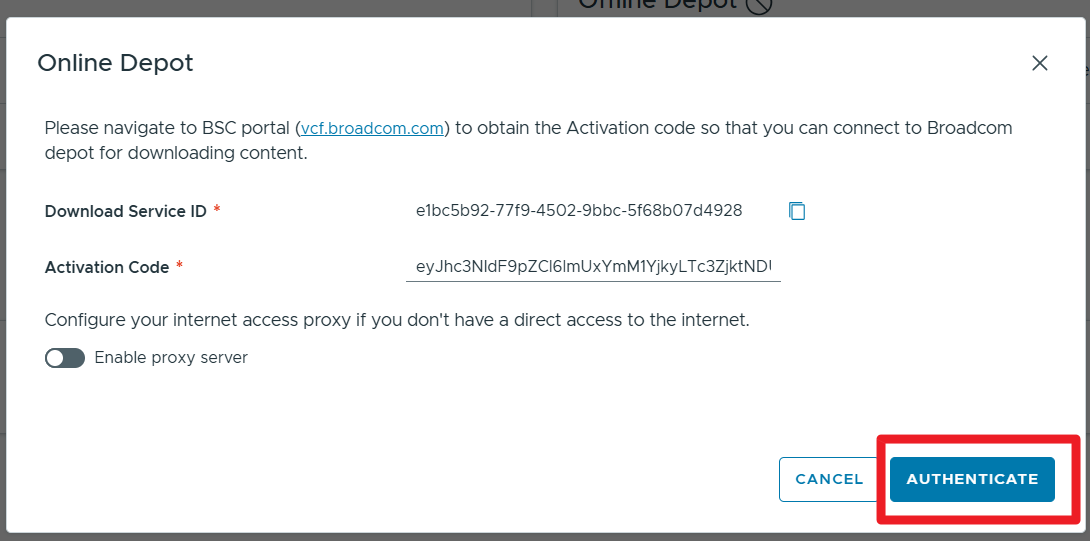
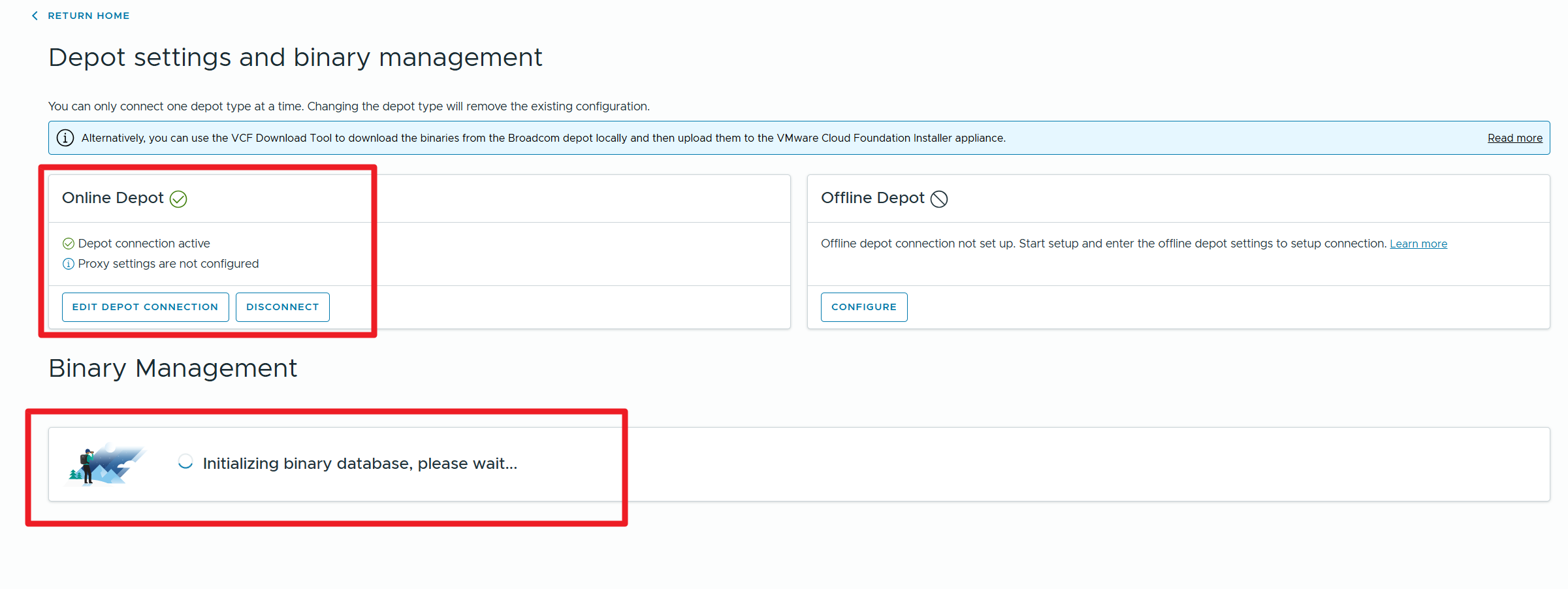
Let’s download the binaries of the VMware vSphere fountadion
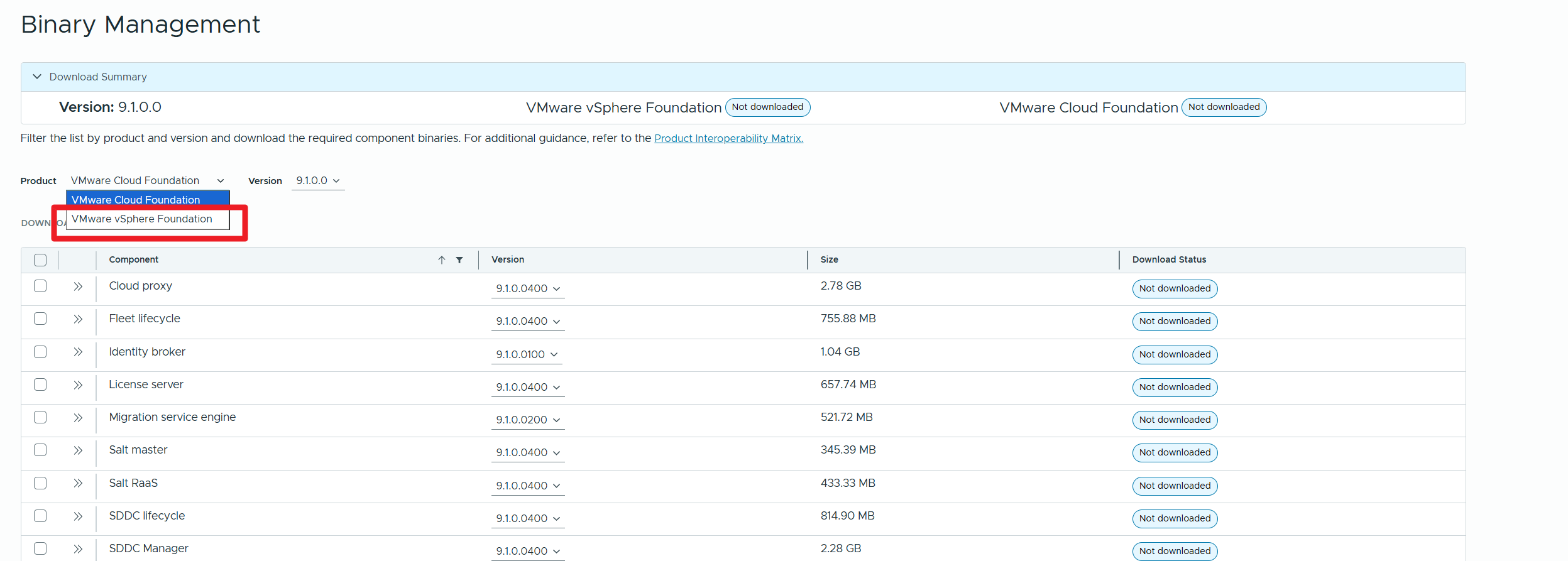
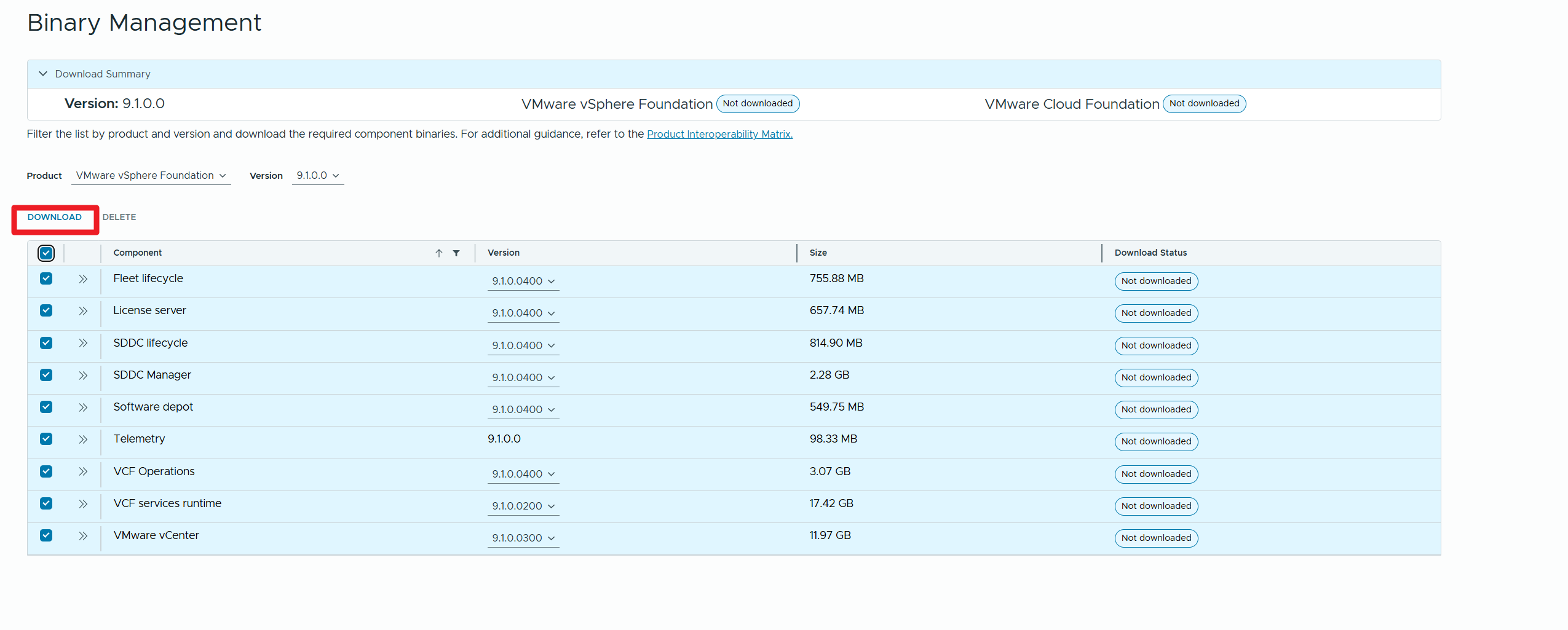
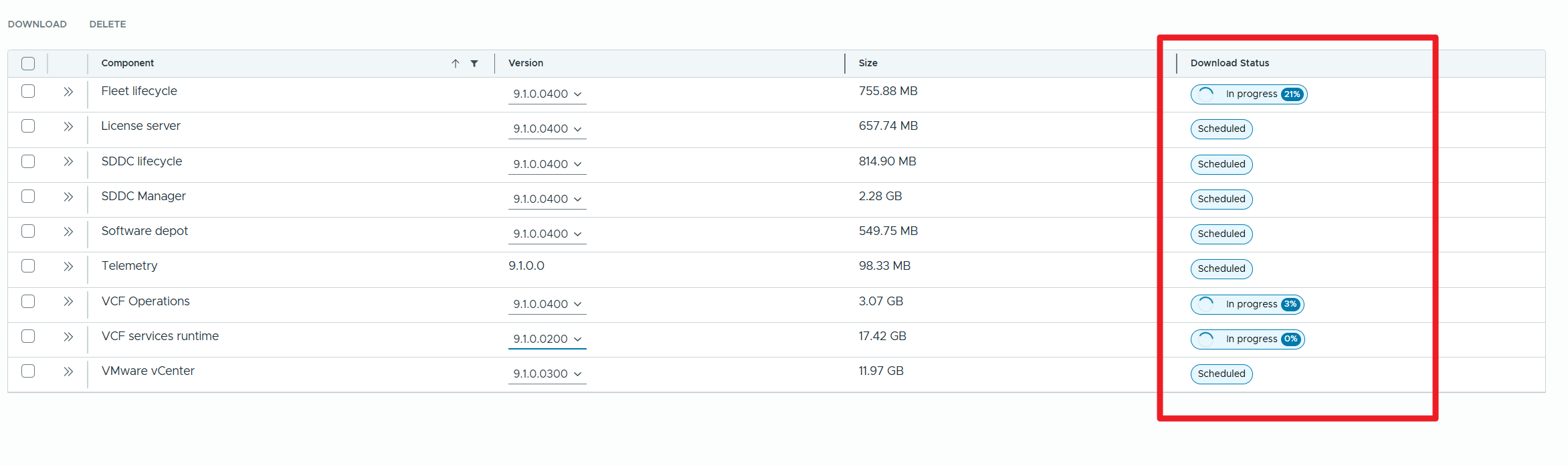
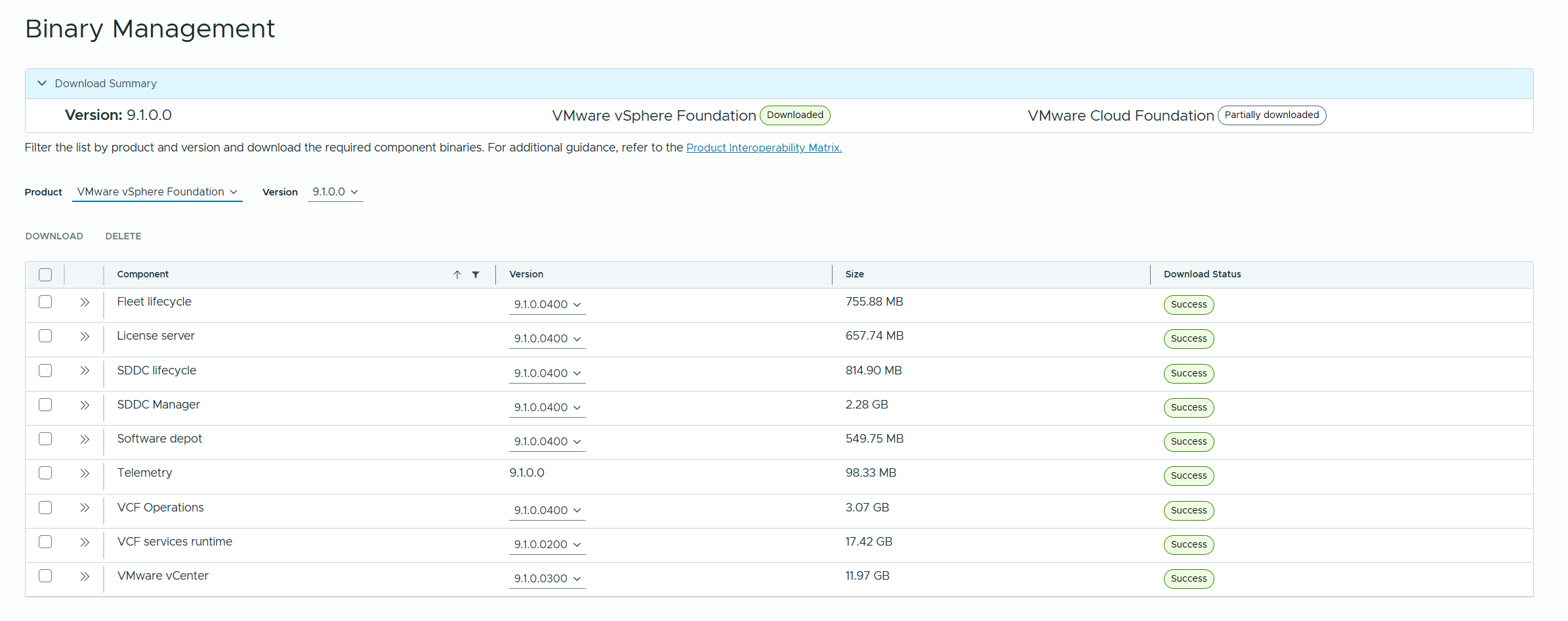
Once the download is complete, we will see everything “Success”
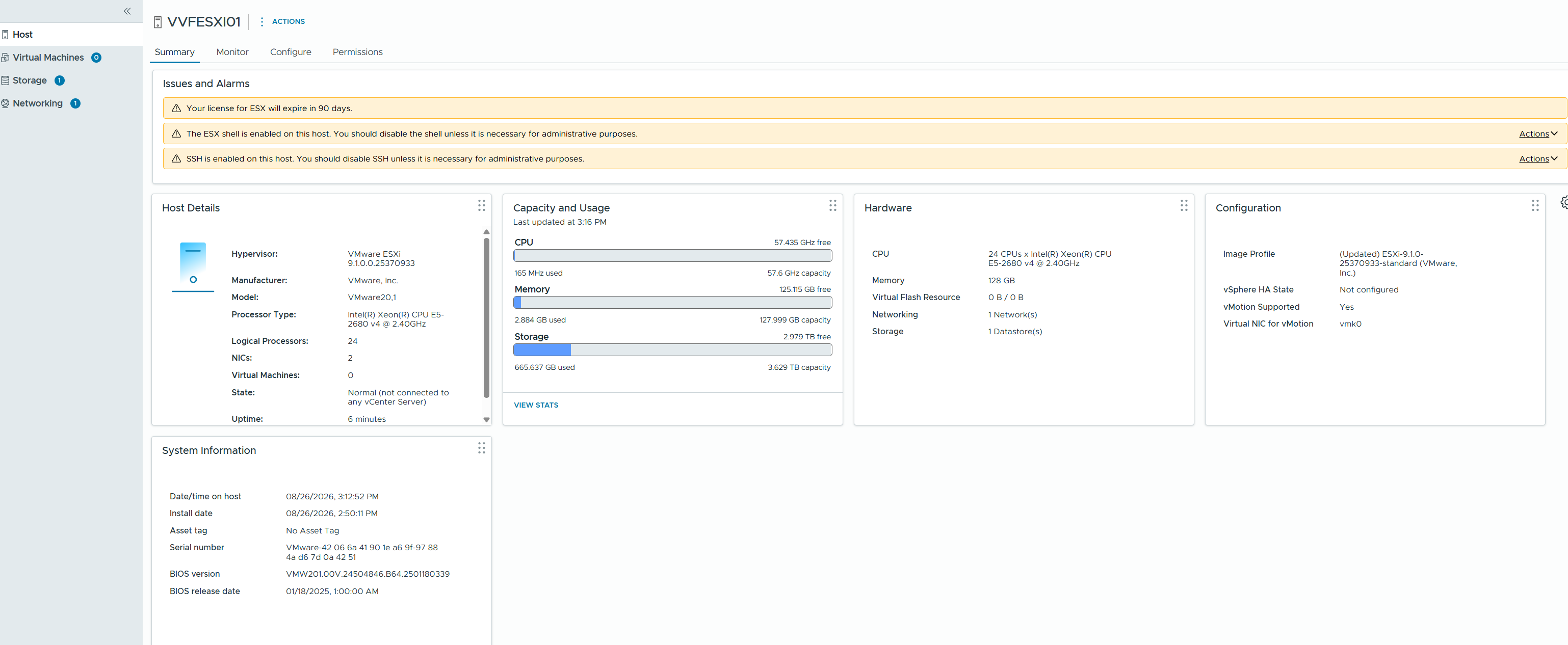
Now I have two ESXi Hosts (in my case, nested vvfesxi01.pollaio.lan and vvfesxi02.pollaio.lan) at version 9.1.0, just installed with no particular configuration (No Storage and more)
Deploy VVF
Let’s proceed with the deployment, selecting “Deployment Wizard” from the VCF Installer
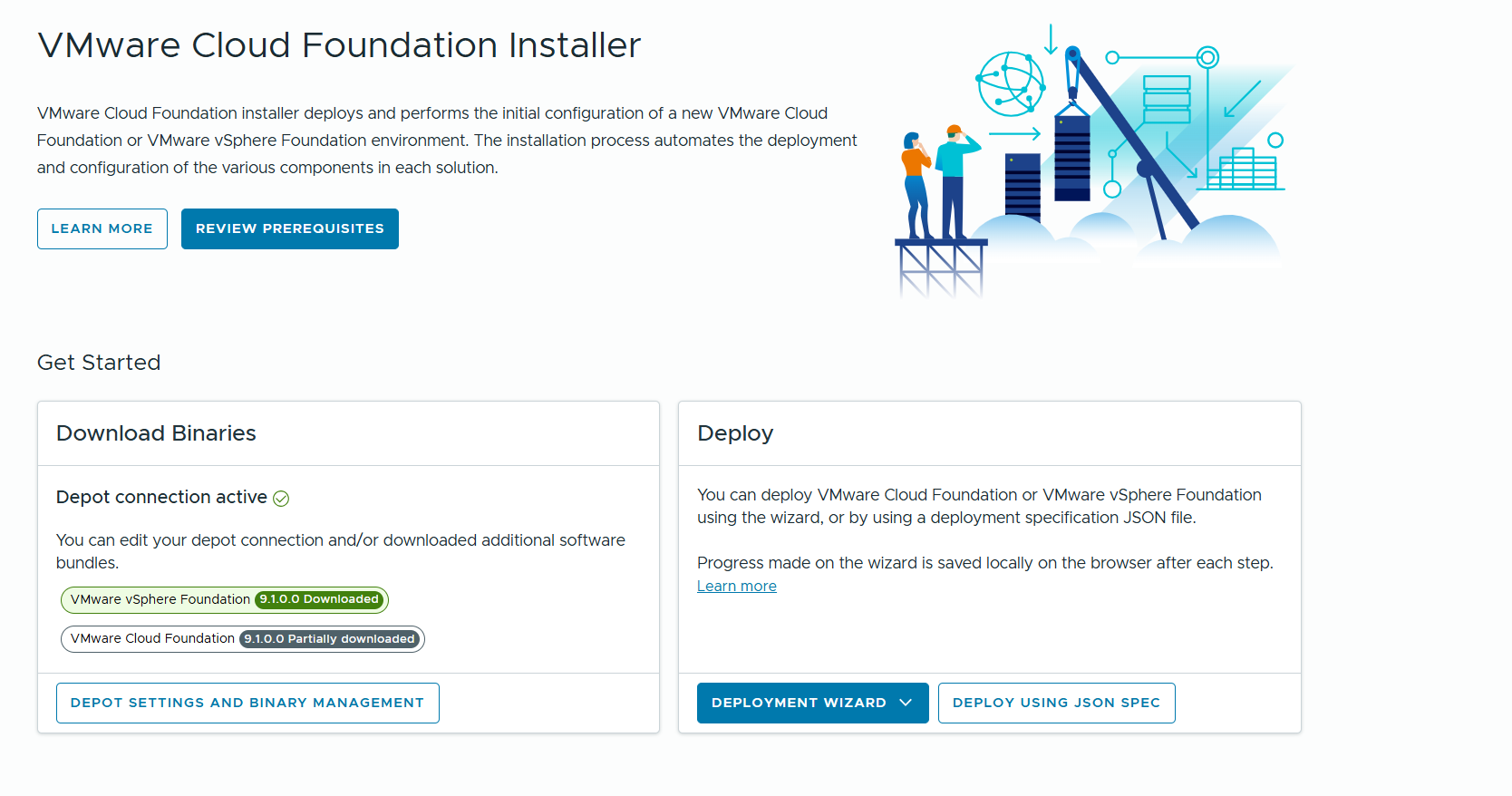
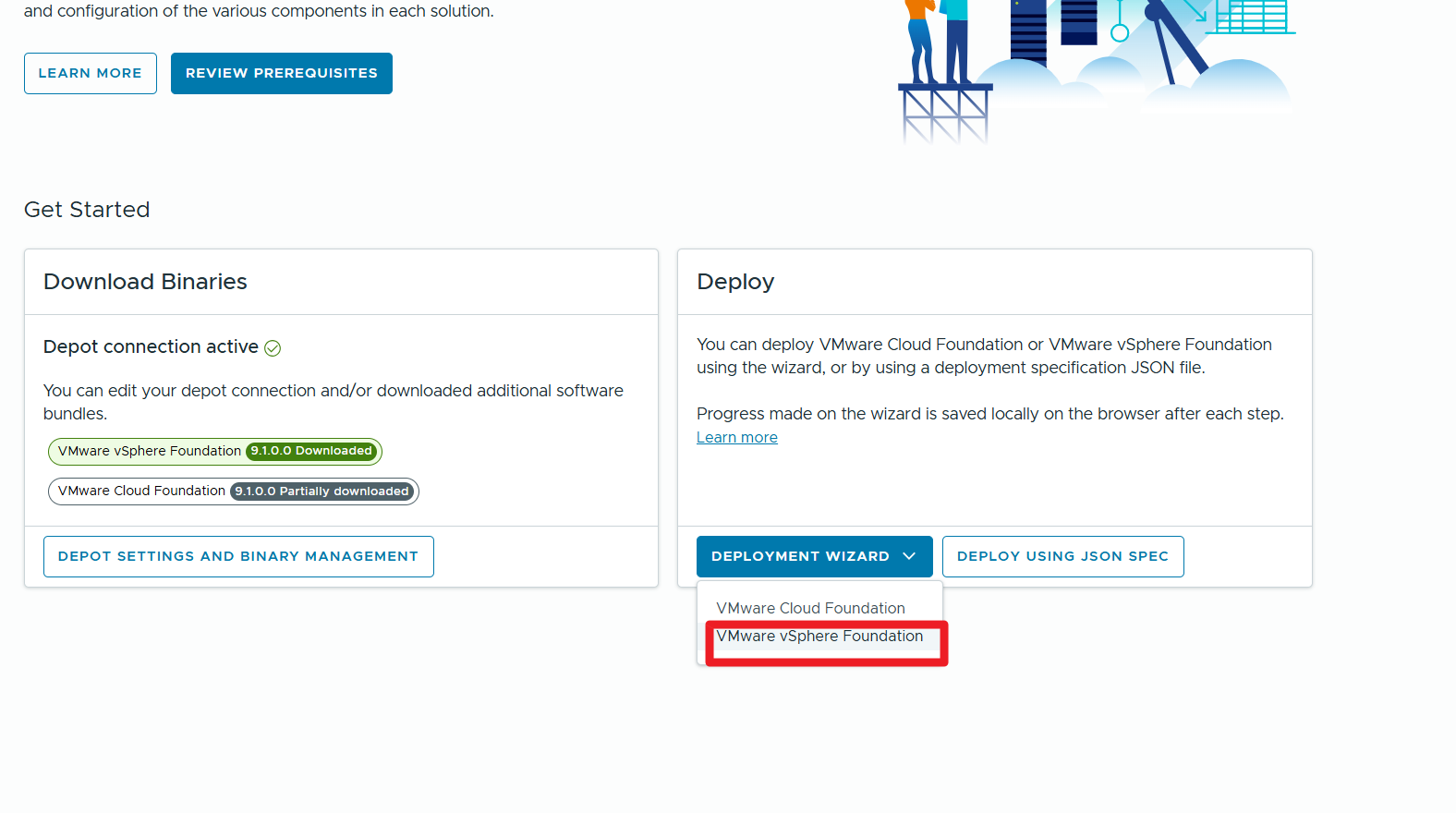
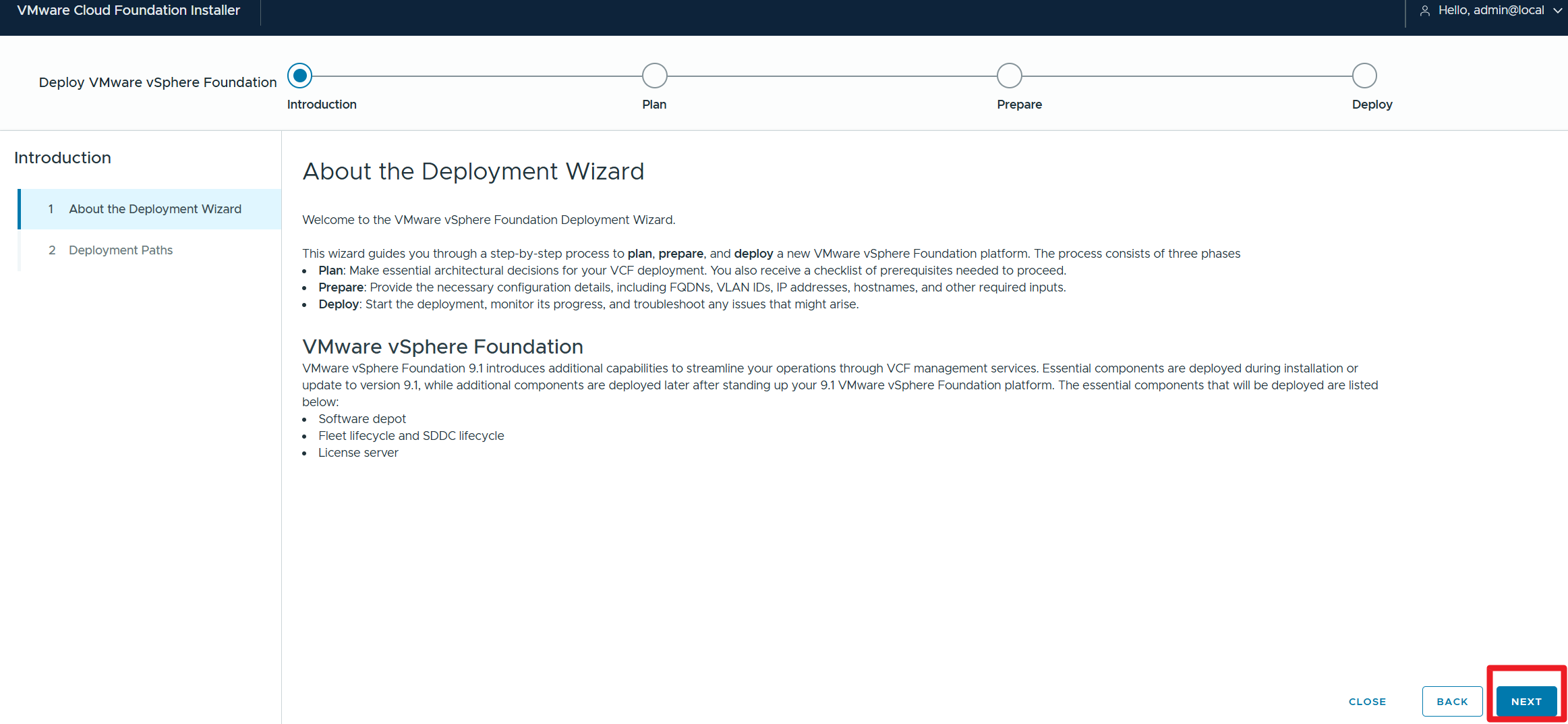
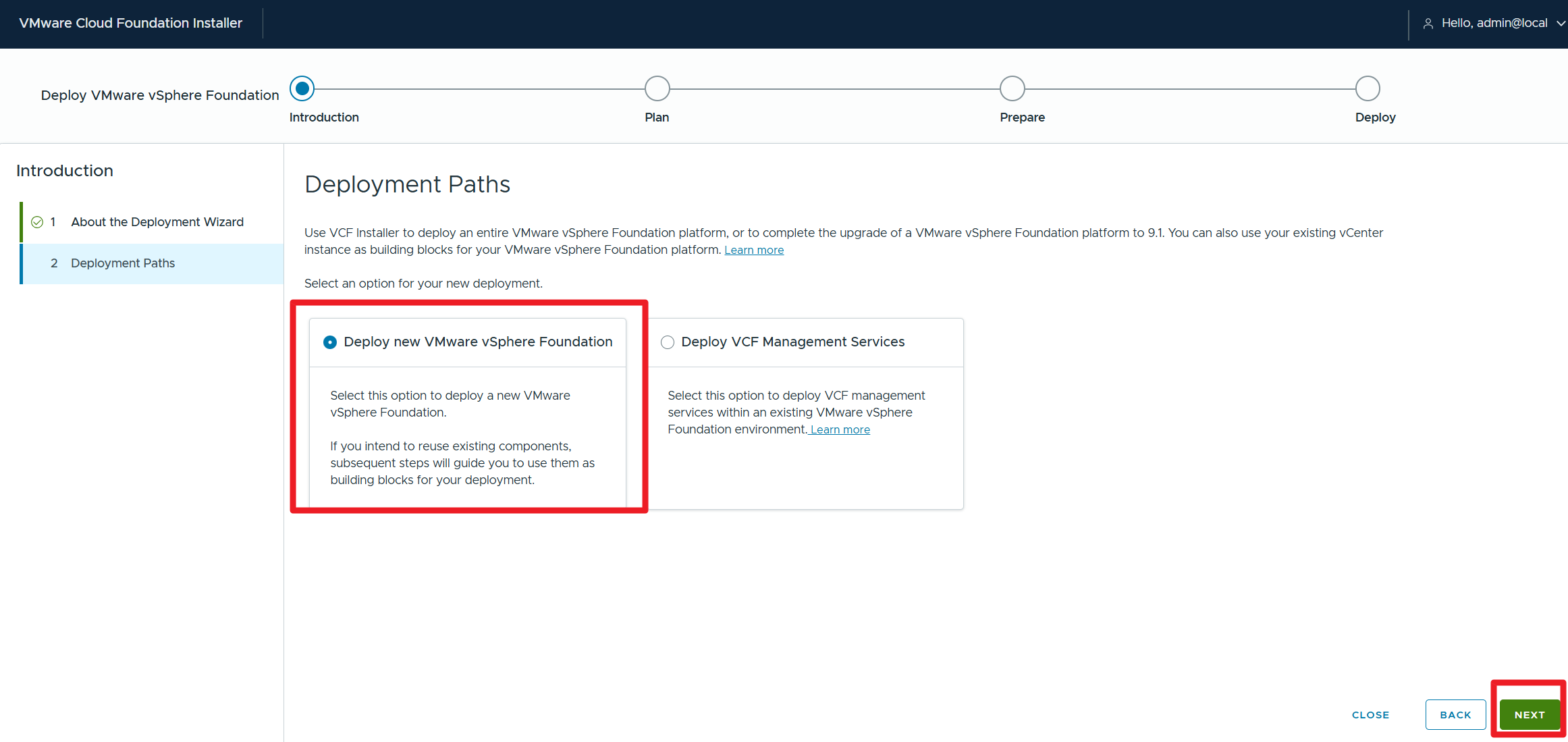
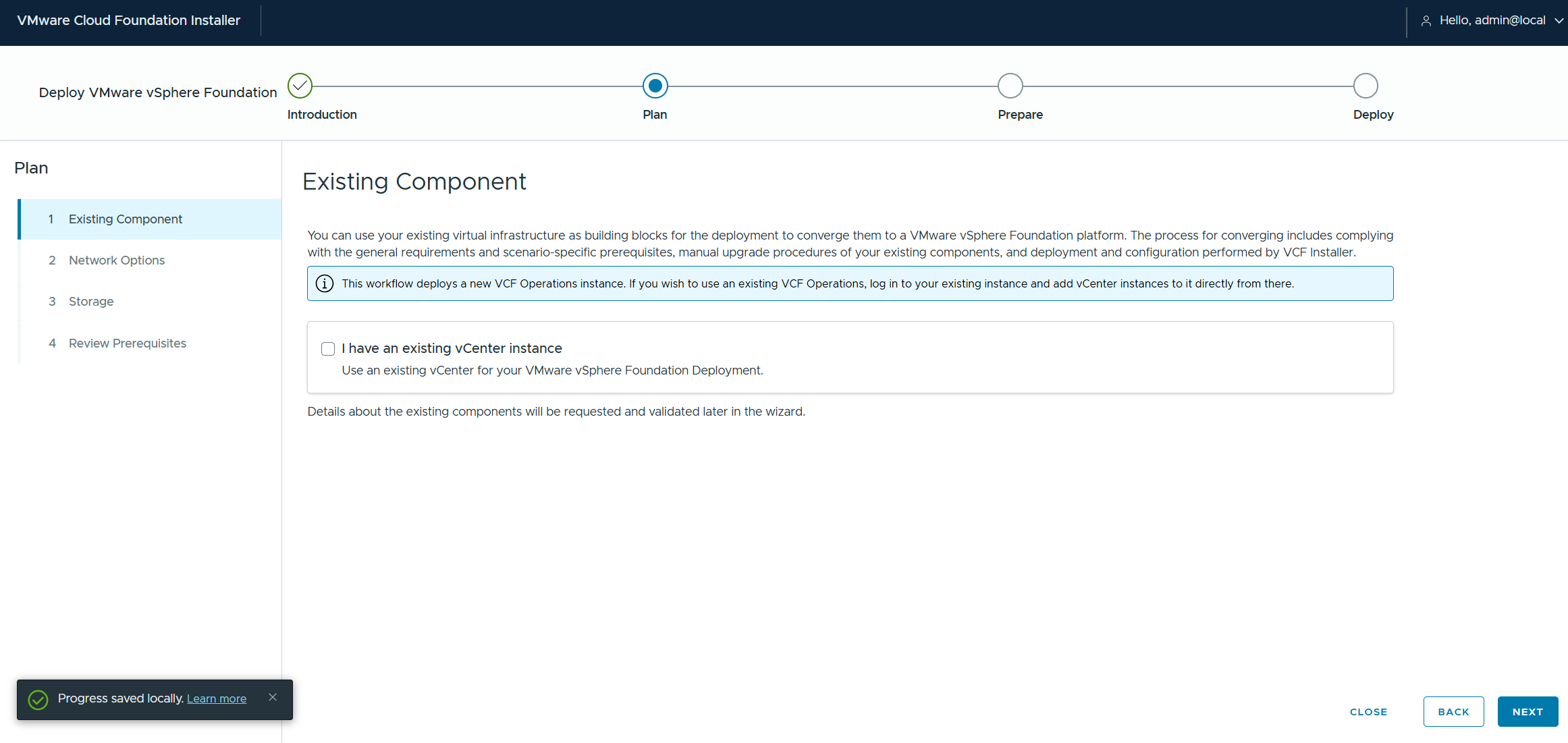
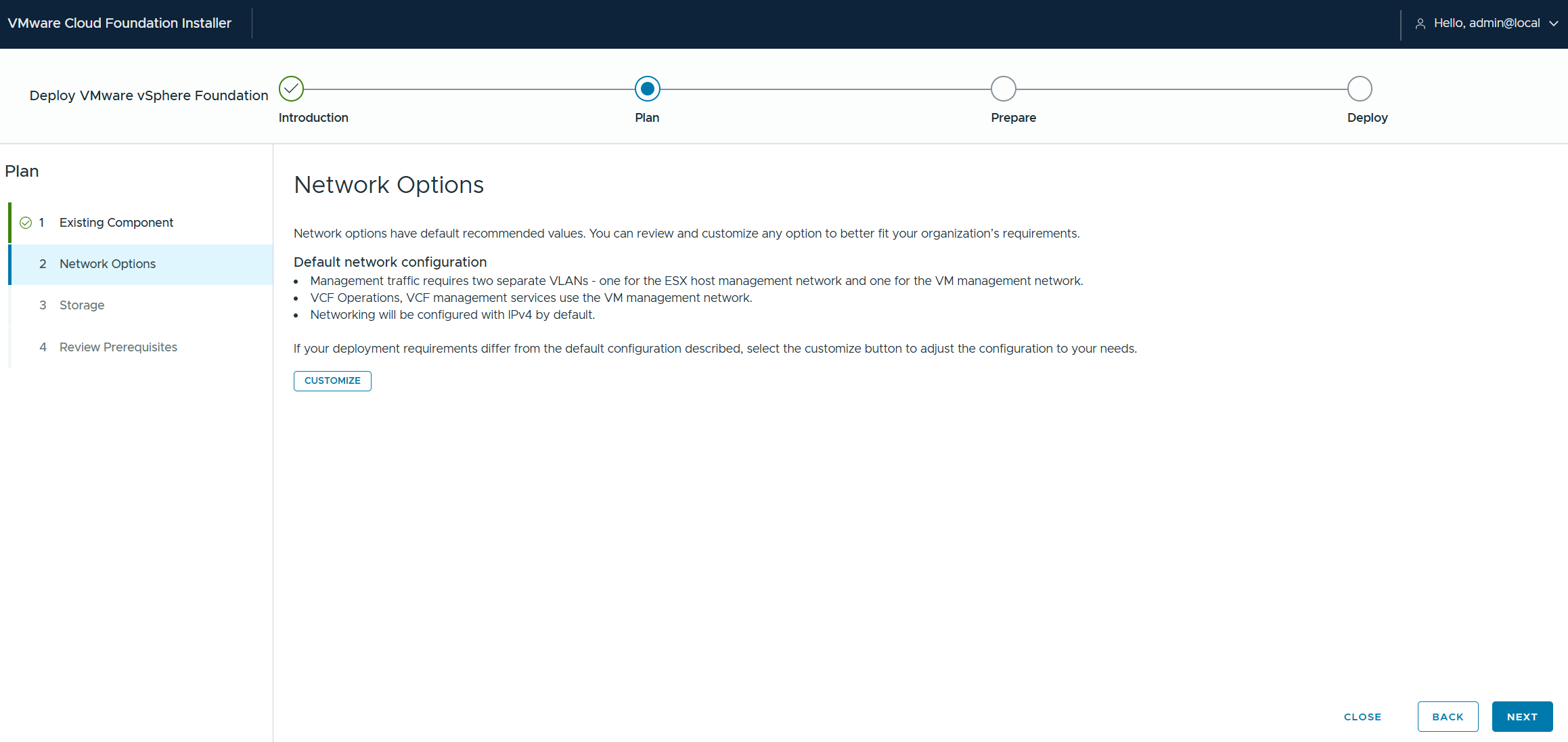
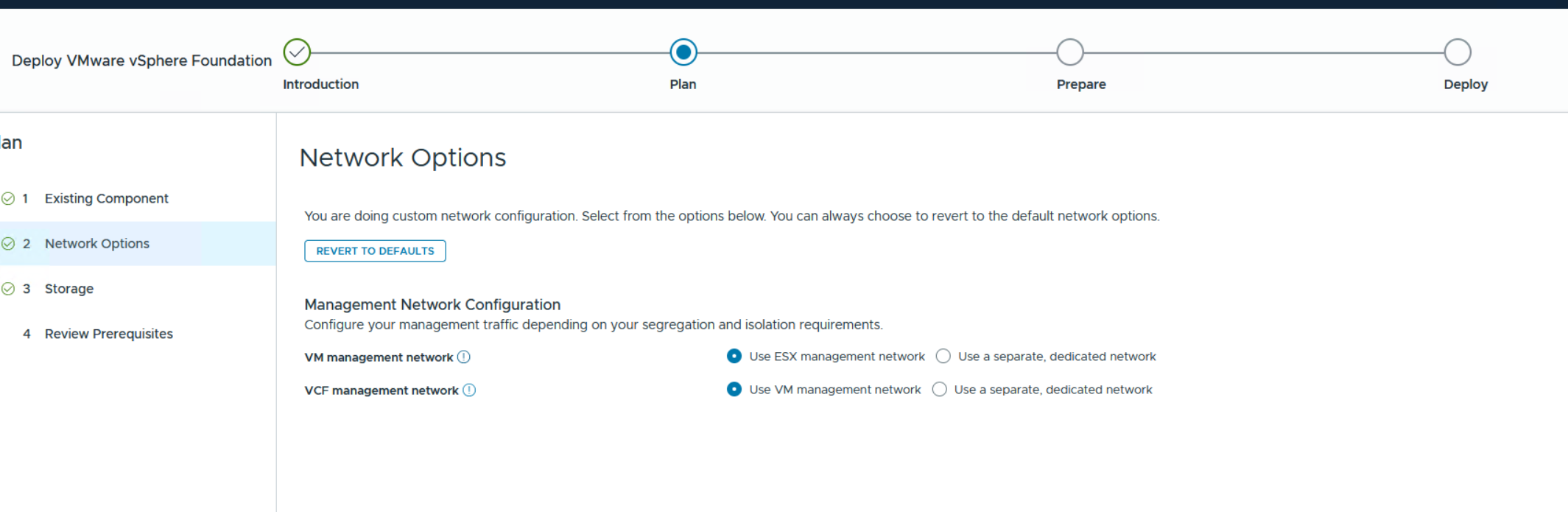
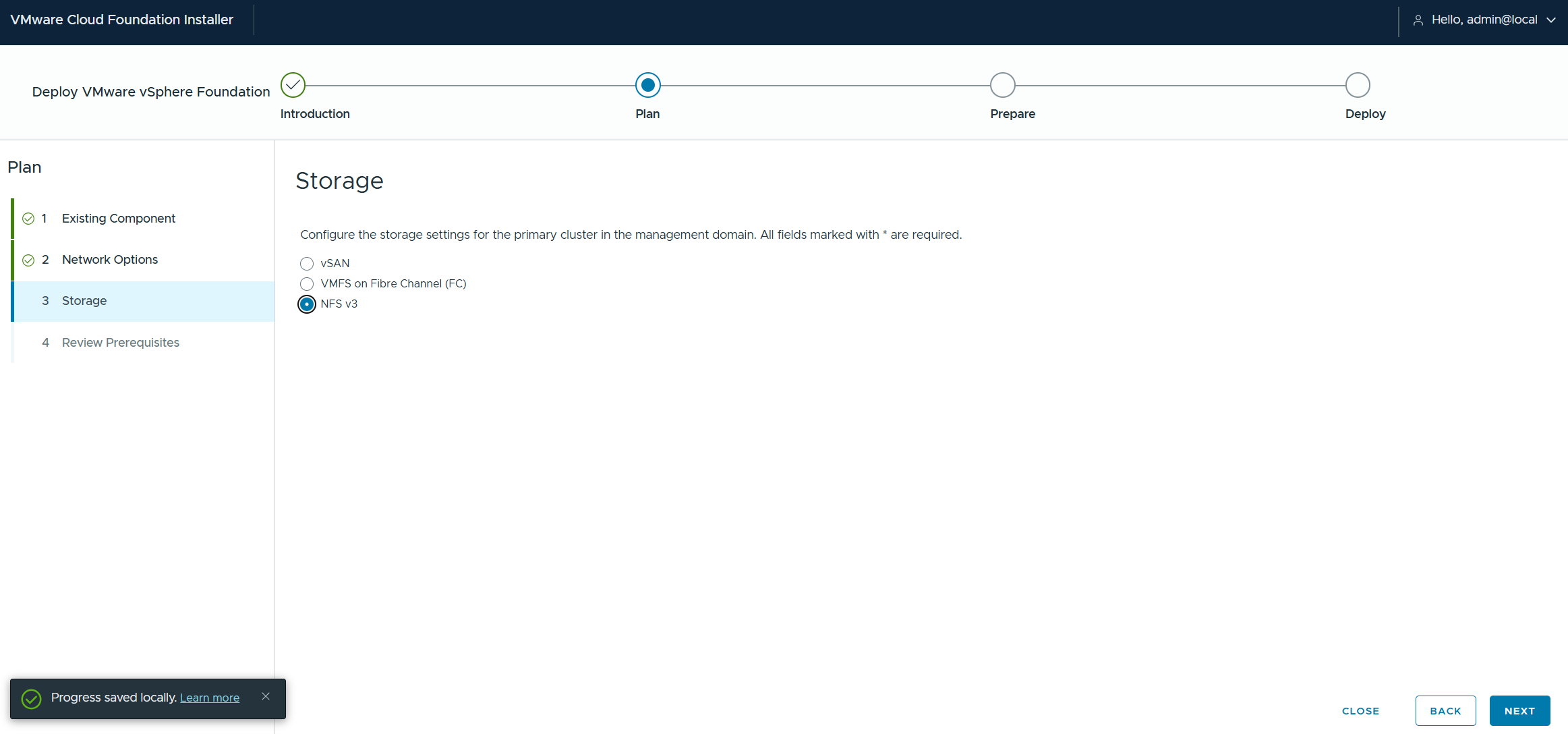
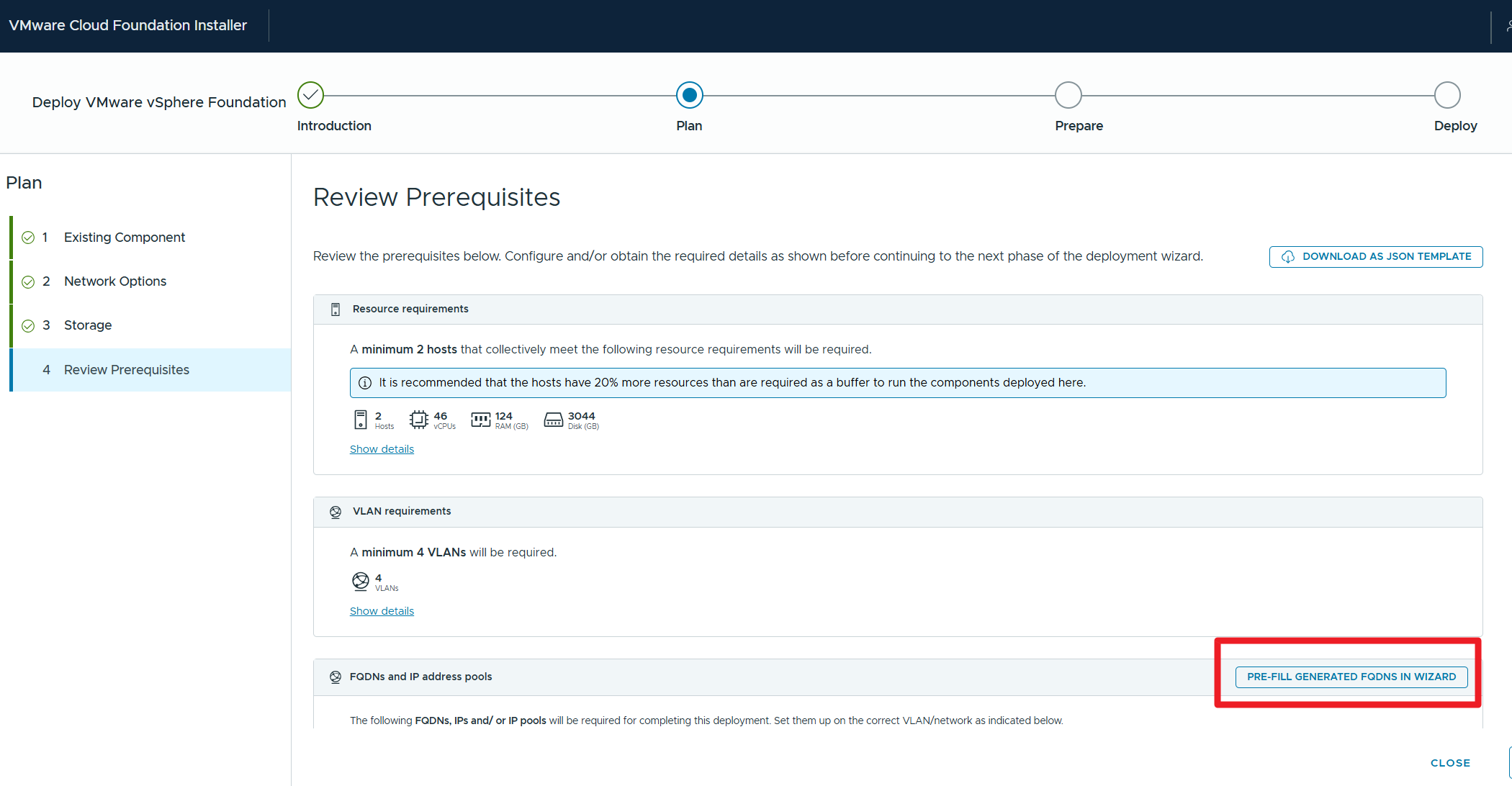
Let’s define the FQDNs for the various components (vCenter…), and I must obviously have already entered the association with the IP in my DNS (always remember the reverse of the DNS)
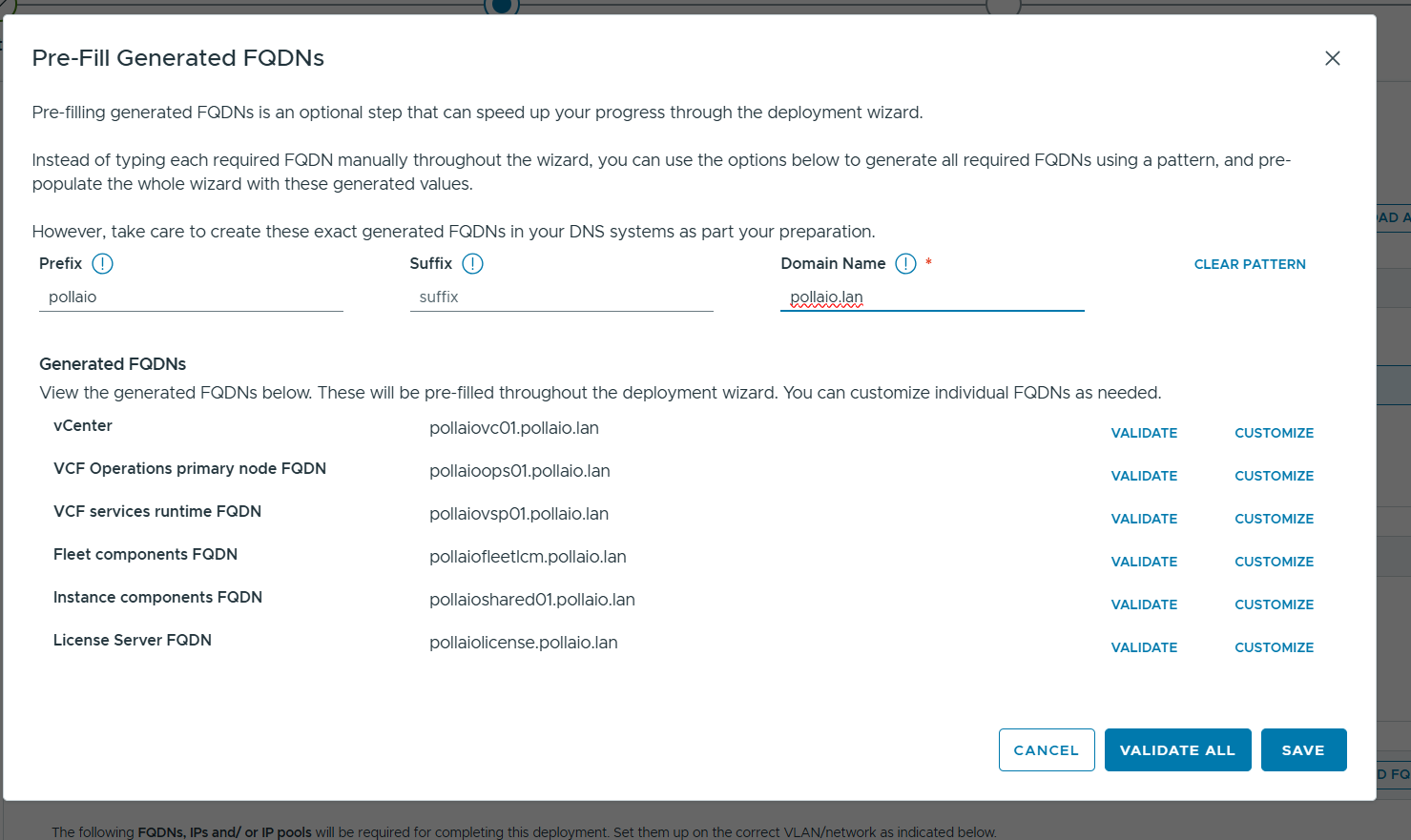
I run the validate all
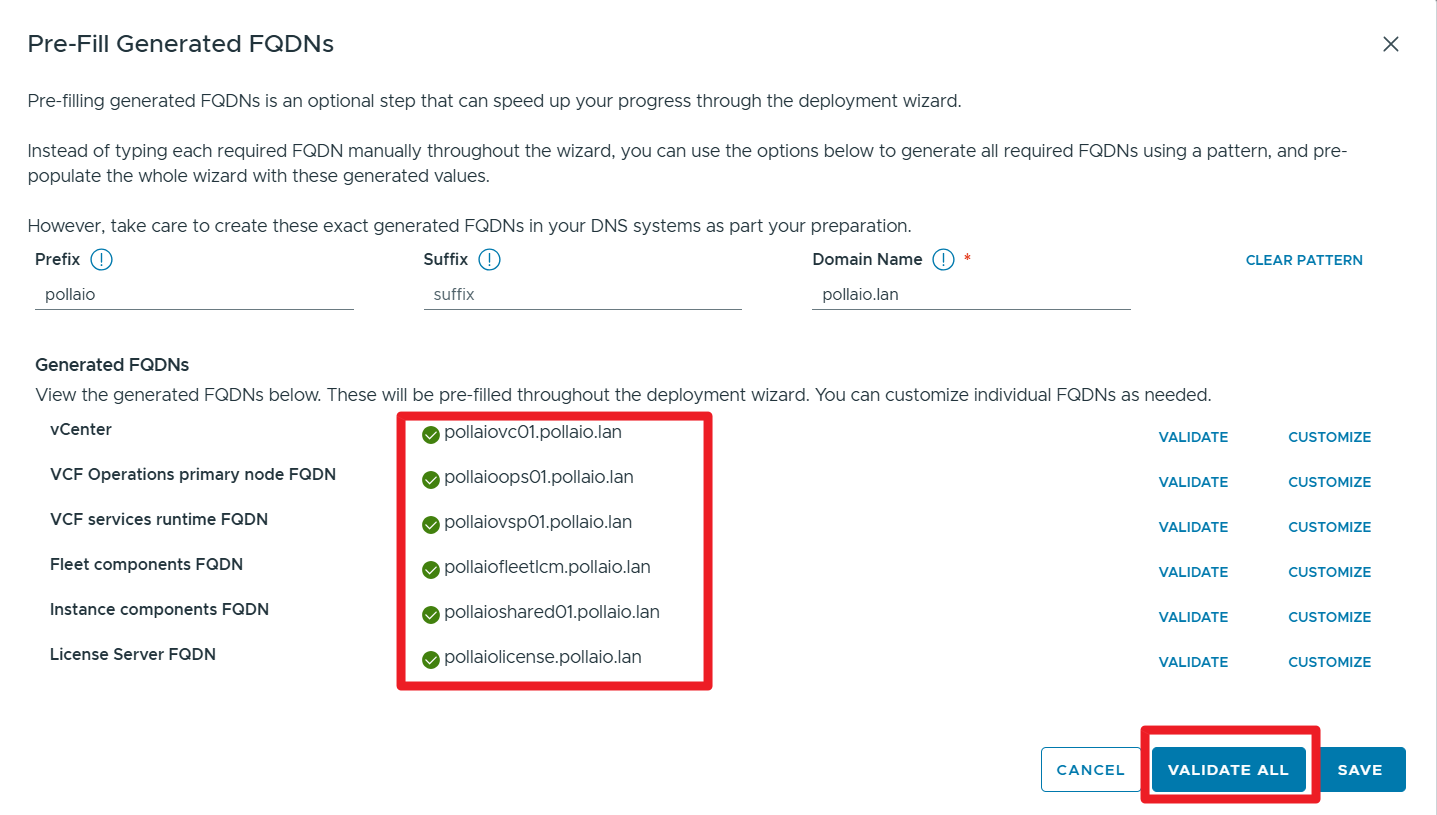
Now let’s save and continue
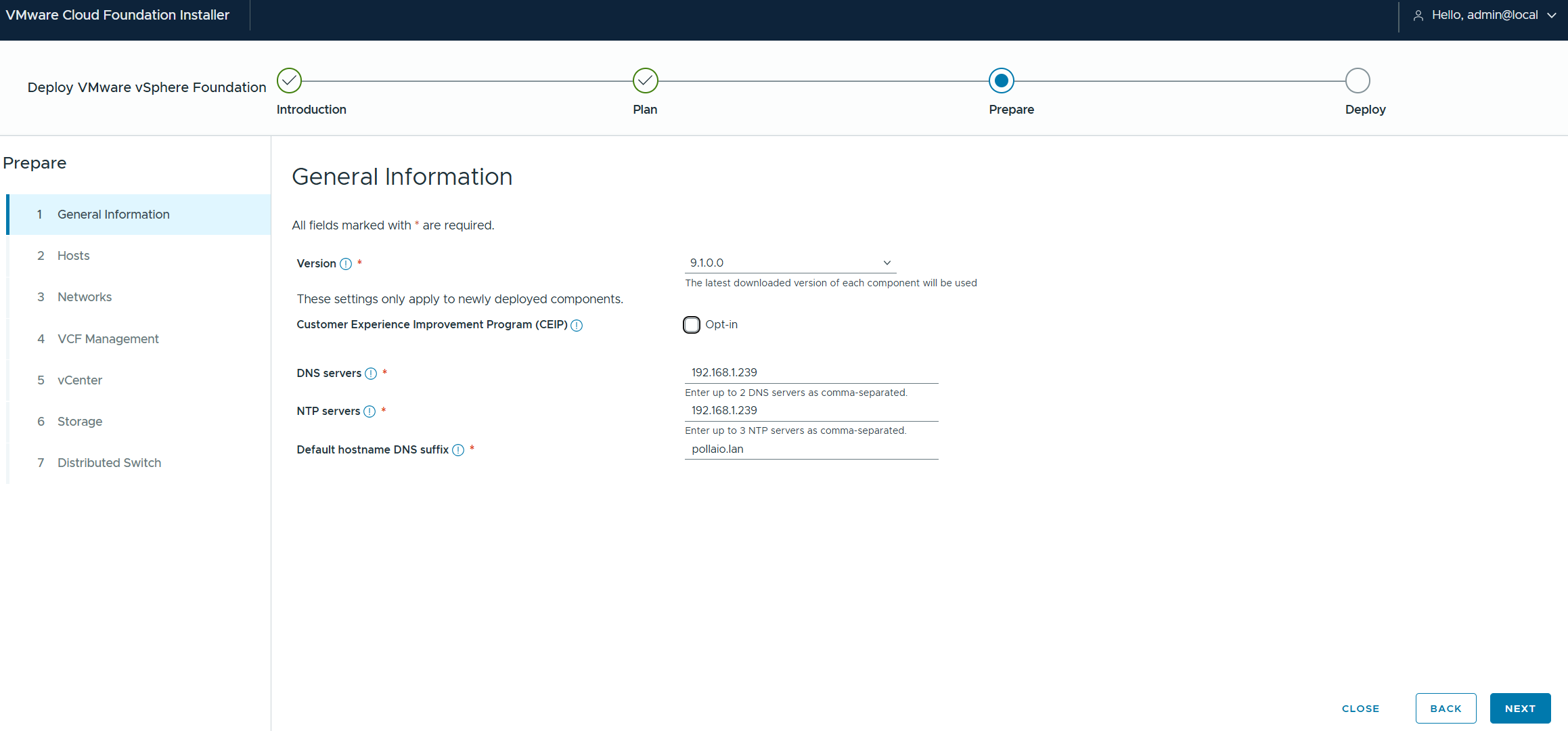
Select the version of VVF and DNS, NTP server and DNS suffix
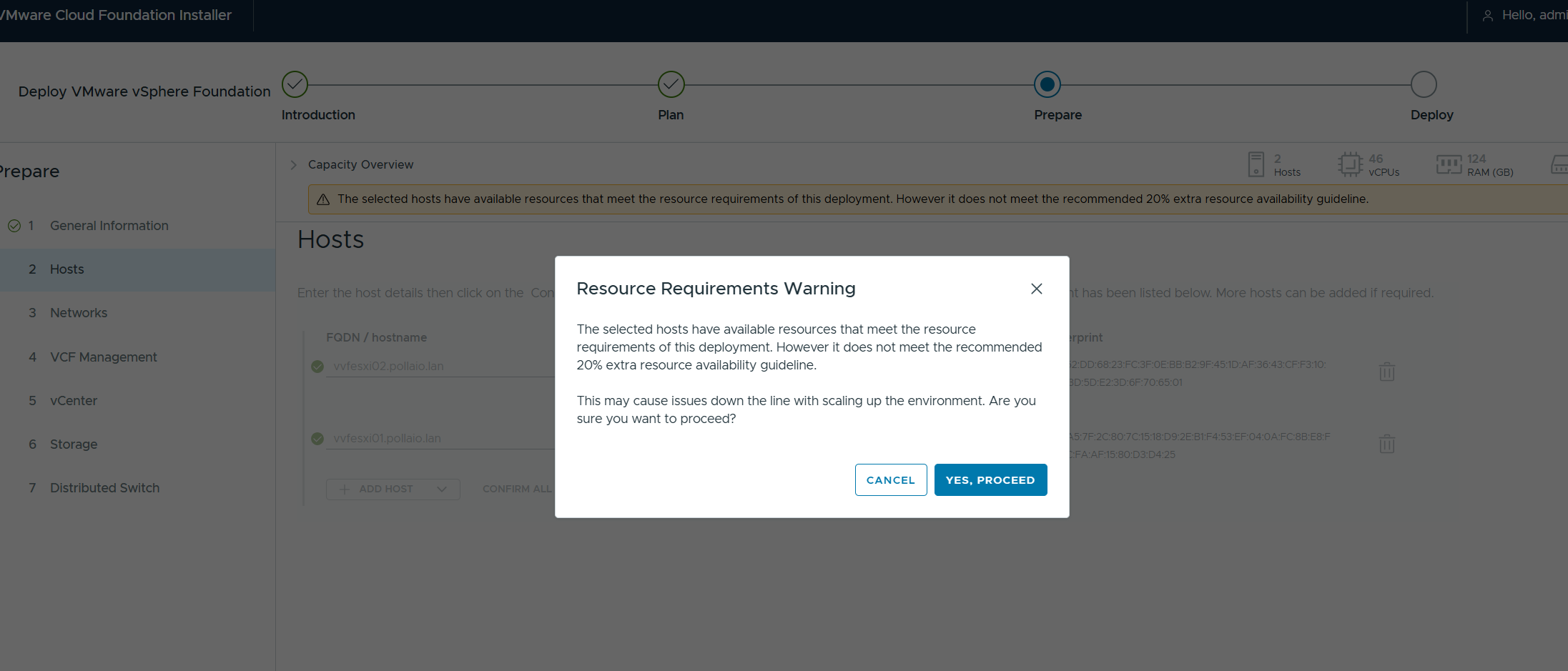
We add the ESXi hosts
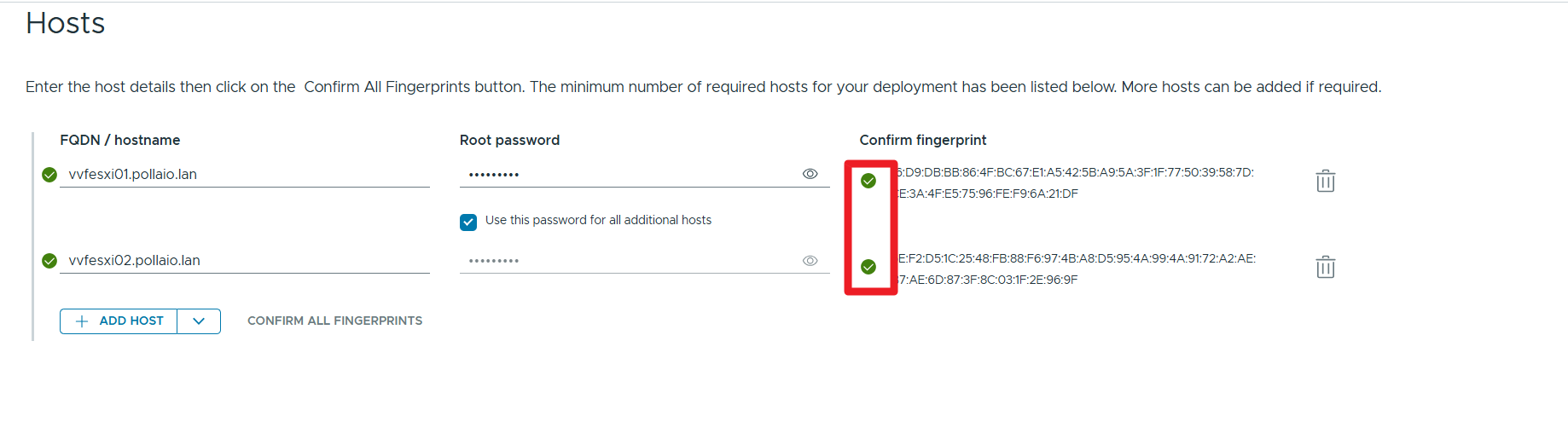
Caution: Verify the certificates correctly on the ESXi hosts, and that the hostname is populated correctly
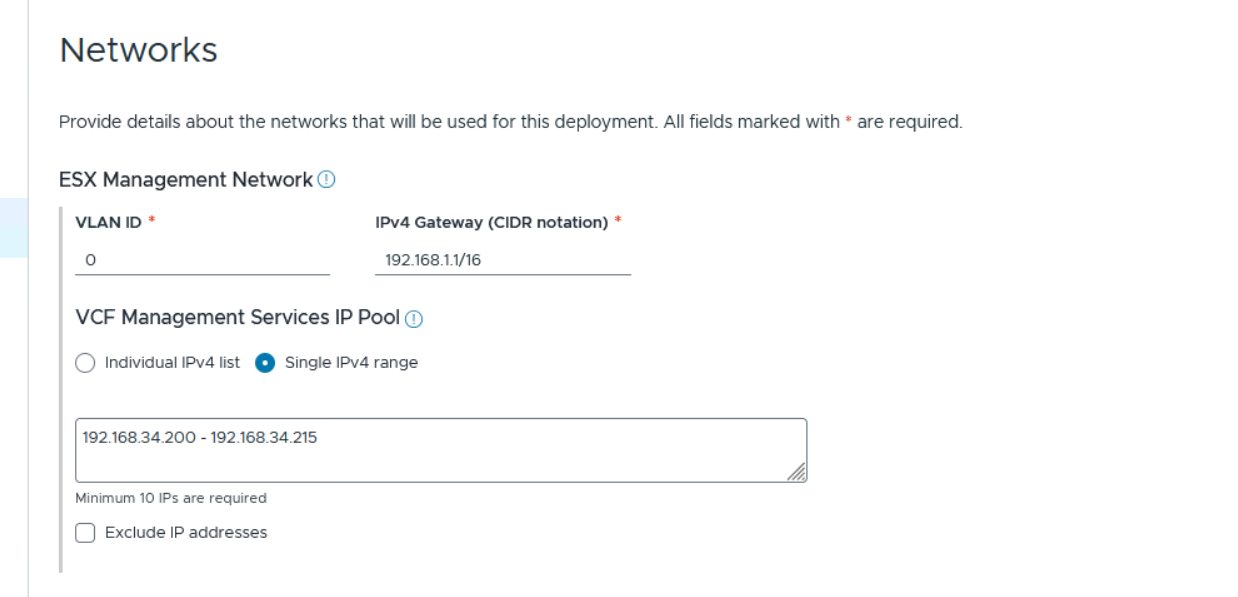
Let’s configure the network, where we will enter the configurations for the VVF management, vMotion and NFS part.