ThinApp is an application virtualization (Agent-Less) solution.
Application virtualization, therefore, the use of ThinApp, allows us to:
- Coexist different versions of the same application on the same Operating System
- Use Windows 7 and Windows XP applications on Windows 10 and Windows 11 systems and thus simplify the migration from outdated operating systems to a modern OS
- Reduce IT support and related Help Desk costs
- Increase user mobility
- Stream applications
In detail, ThinApp captures the installation of one or more applications (including files and registry keys that are modified) in an ecosystem that looks like a single executable file.
The executable file is portable on other systems (of the same version or different) and we can control the level of interaction with the operating system on which we are going to run the application and with other applications in our system.
ThinApp allows various ways of isolation using a sandbox:
During the creation of the virtualized package, we can choose only two of the previous options (MERGE and WRITECOPY) the third (FULL) we can activate by modifying an INI file post-capture of the installation
In the following diagrams, we find the three modes
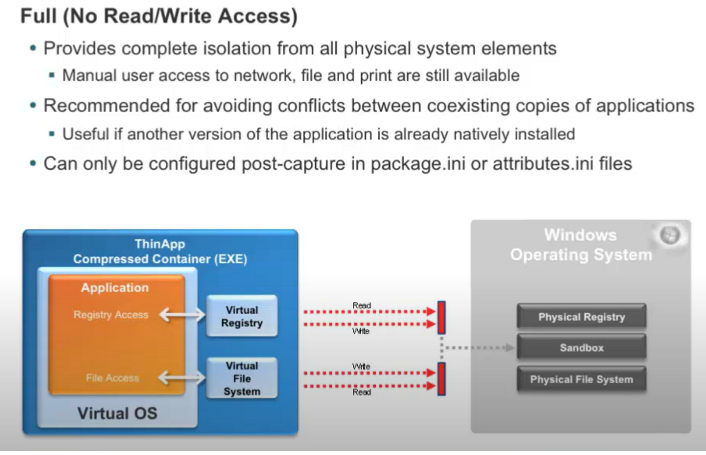
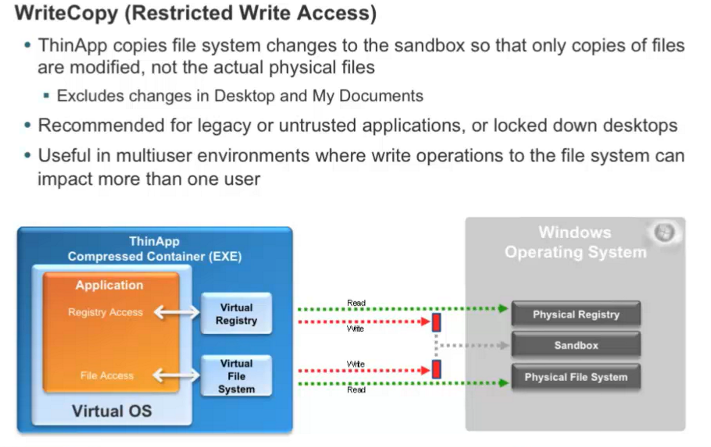
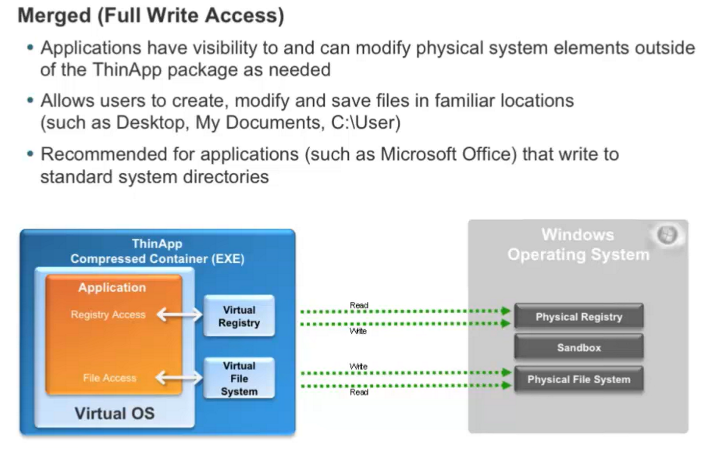
The Sandbox is our box where changes to the ThinApp package that the end user performs during use can (depending on the isolation mode chosen) be saved.
The sandbox is:
- Customizable the path where it resides
- Editable in .ini file that generates application capture
- Can reside in the same directory as the ThinApp EXE
- Can be on a network share
- By default is %appdata%\thinstall\application
- Each user has his own sandbox
- Resetting application configurations is executable by deleting the sandbox
The distribution of a ThinApp is feasible in several ways:
- Using a network share and running application streaming
- Using it from a USB device
- Copying it to your computer
The use of the network share for the distribution of ThinApp packages allows an easy updating of the packages themselves.