vSAN ESA and vSAN File Service

Requirements

Enable vSAN File Service

Limitations and Considerations

Limitations and Considerations of vSAN File Service

Networking Considerations for vSAN File Service

After deploying and configuring the vSAN ESA we are ready to enable and configure the vSAN file services.

Enable File Service

A screenshot of a computer

Description automatically generated

A screenshot of a computer service

Description automatically generated

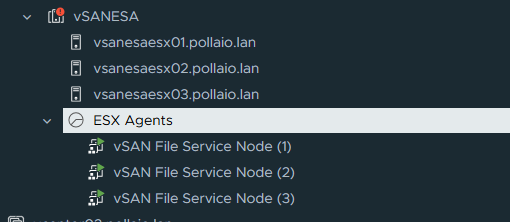
After Enabling the service we will see on the vCenter a new Resource Pool to allocate the File Service Node VM. (One for Each host ESXi)
A screenshot of a computer

Description automatically generated

Configure vSAN File service

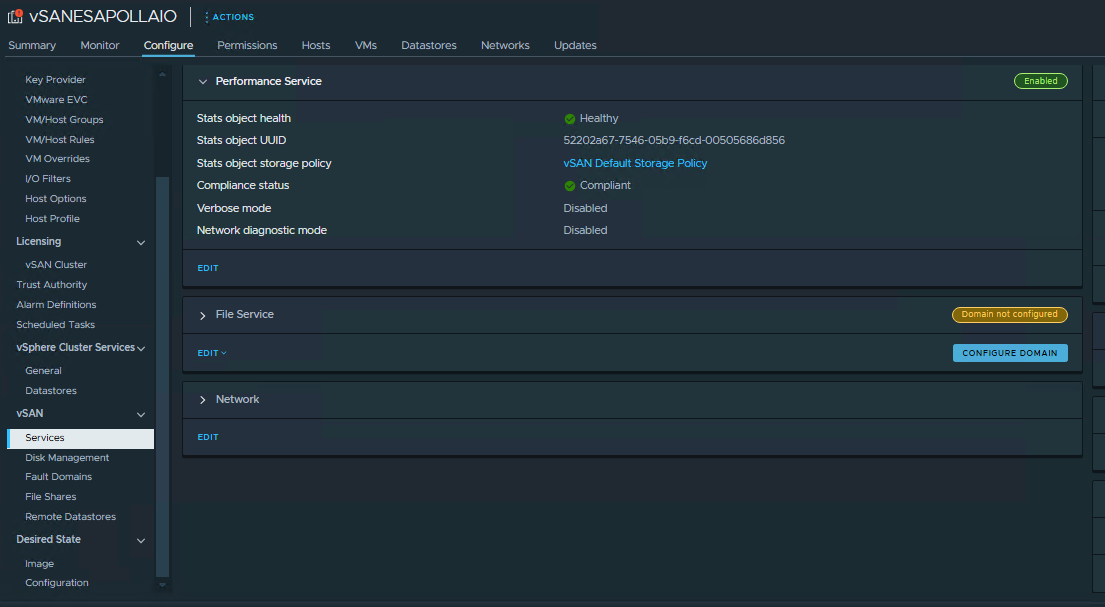
Go to vSAN, Services and under File Service click CONFIGURE DOMAIN
A screenshot of a computer

Description automatically generated

A screenshot of a computer

Description automatically generated

A screenshot of a computer

Description automatically generated

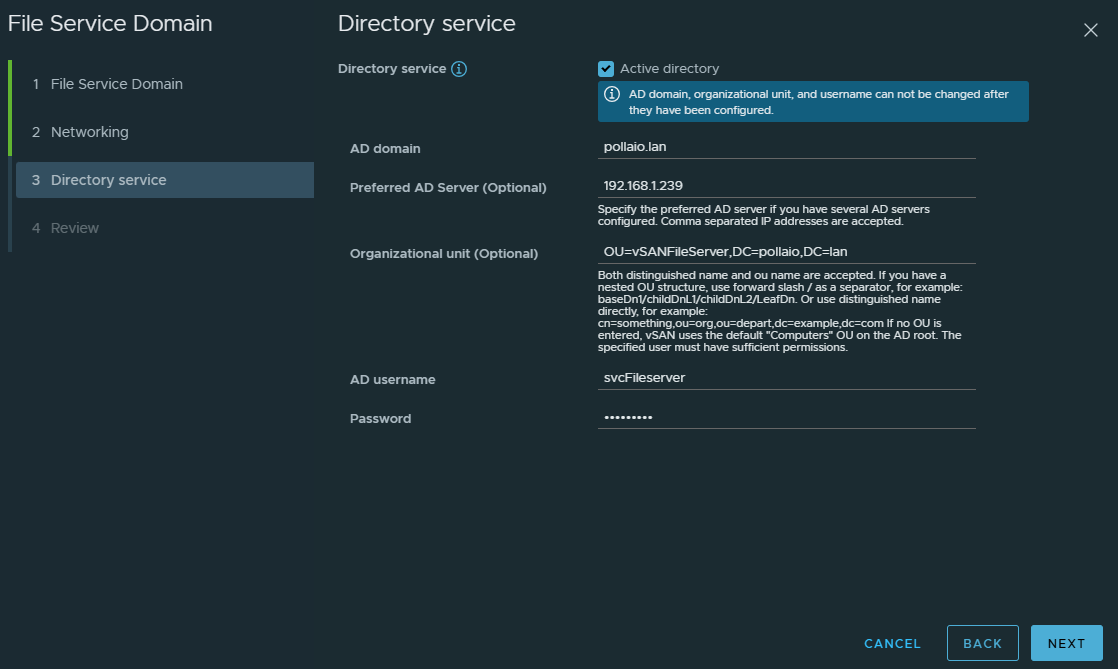
We need to configure the Directory Service to enable SMB share and NFS Kerberos Authentication.

The user identity for configuring the directory service must have the correct permission to do a join AD.
A screenshot of a computer

Description automatically generated

A screenshot of a computer

Description automatically generated

A screenshot of a computer

Description automatically generated

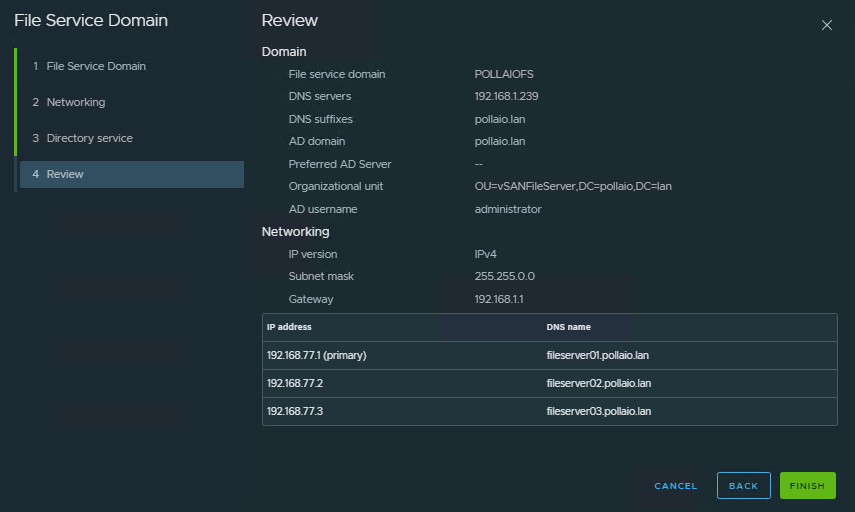
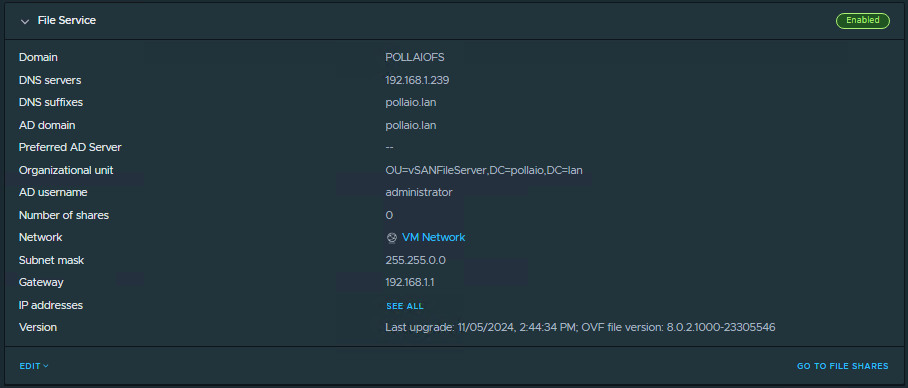
After completing the domain configuration we see the computer accounts in the OU select.

A screenshot of a computer

Description automatically generated

Create File Share

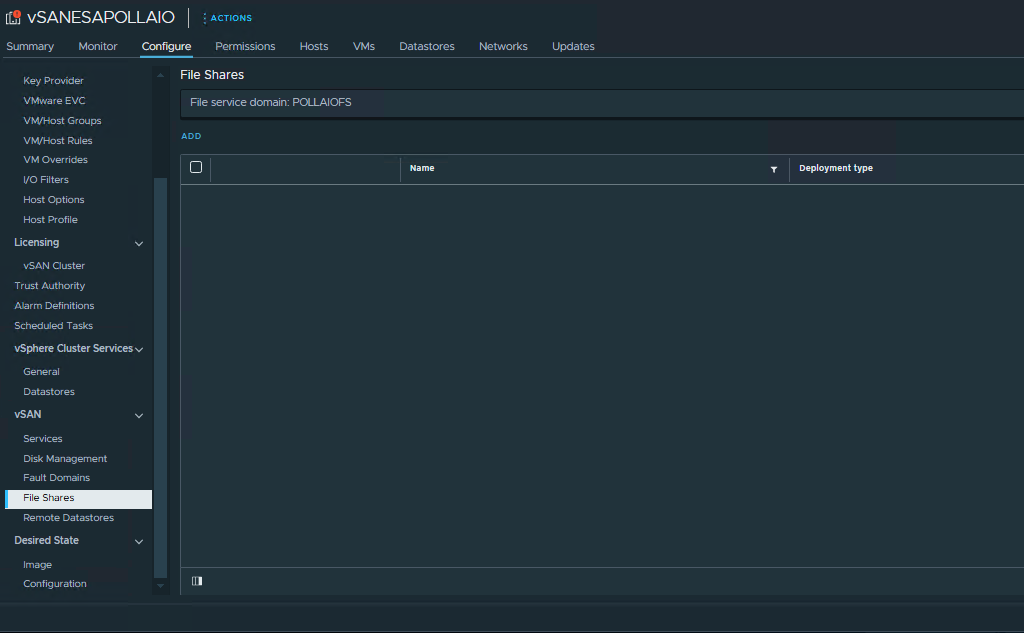
Now we can create the file share
A screenshot of a computer

Description automatically generated

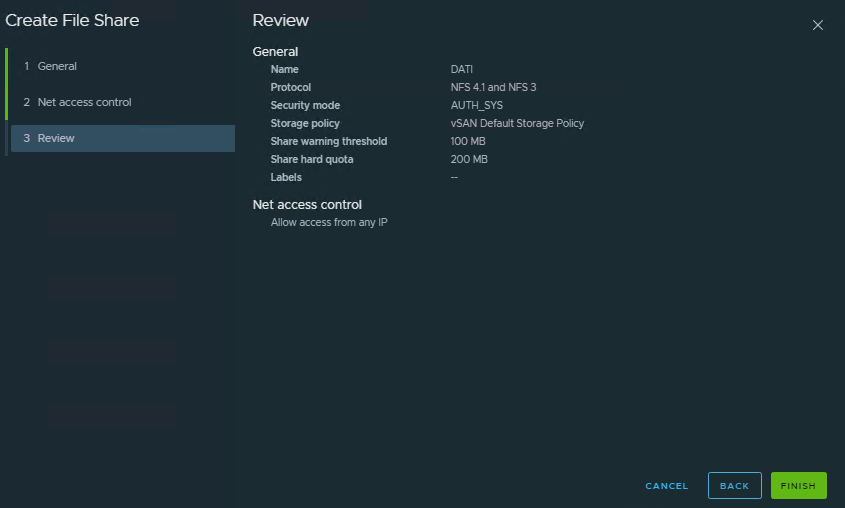
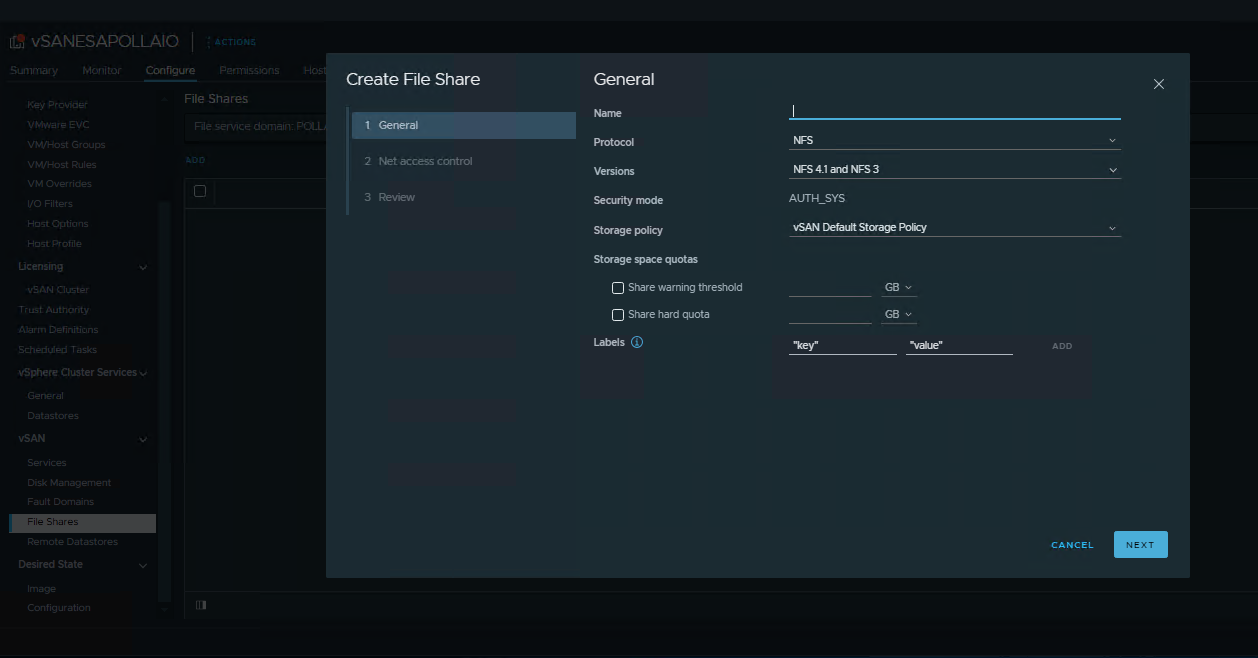
Will can create a NFS share with AUTH_SYS or Kerberos Authentication
A screenshot of a computer

Description automatically generated

A screenshot of a computer

Description automatically generated

A screenshot of a computer

Description automatically generated

A screenshot of a computer

Description automatically generated

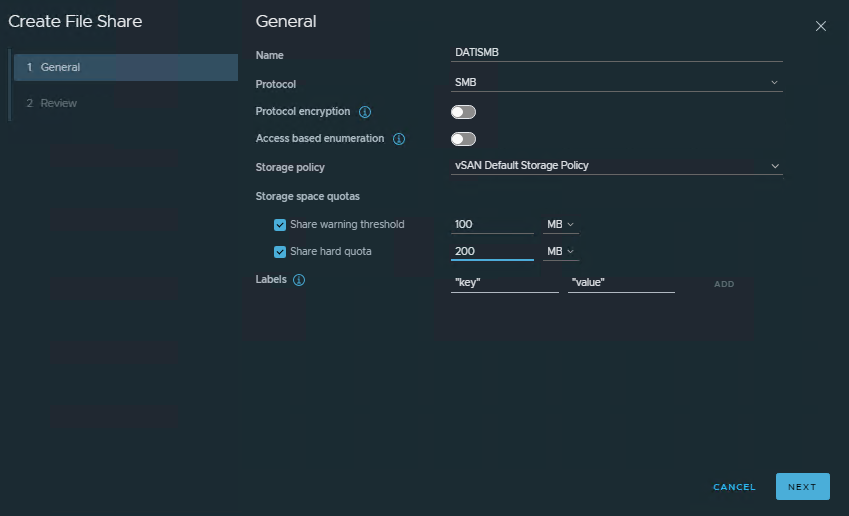
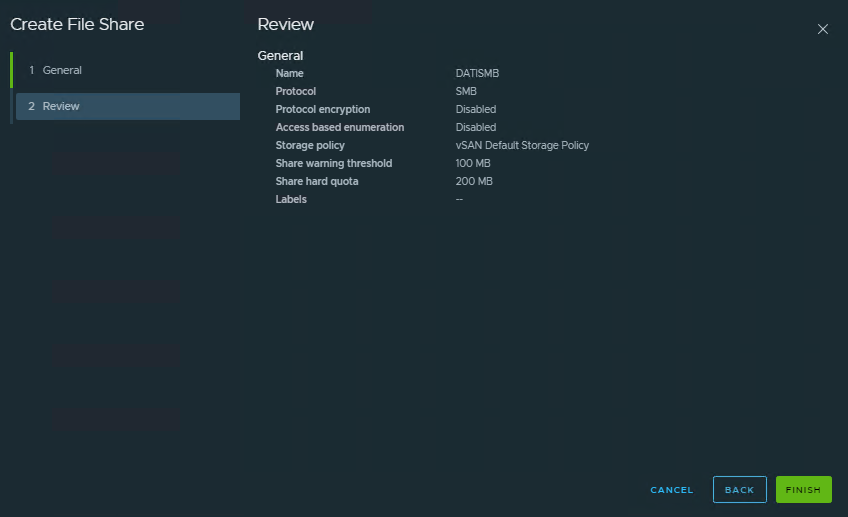
Will can create an SMB share

A screenshot of a computer

Description automatically generated

A screenshot of a computer

Description automatically generated

Configure ACL permission

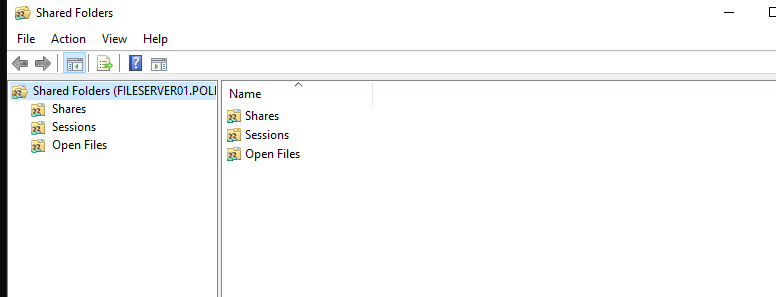
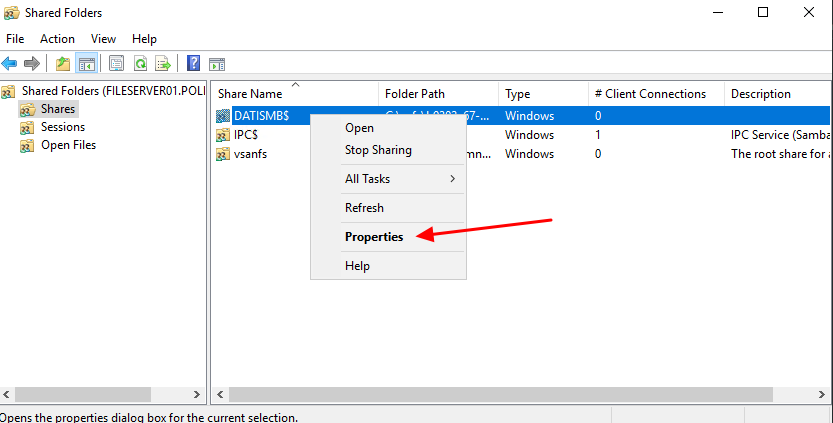
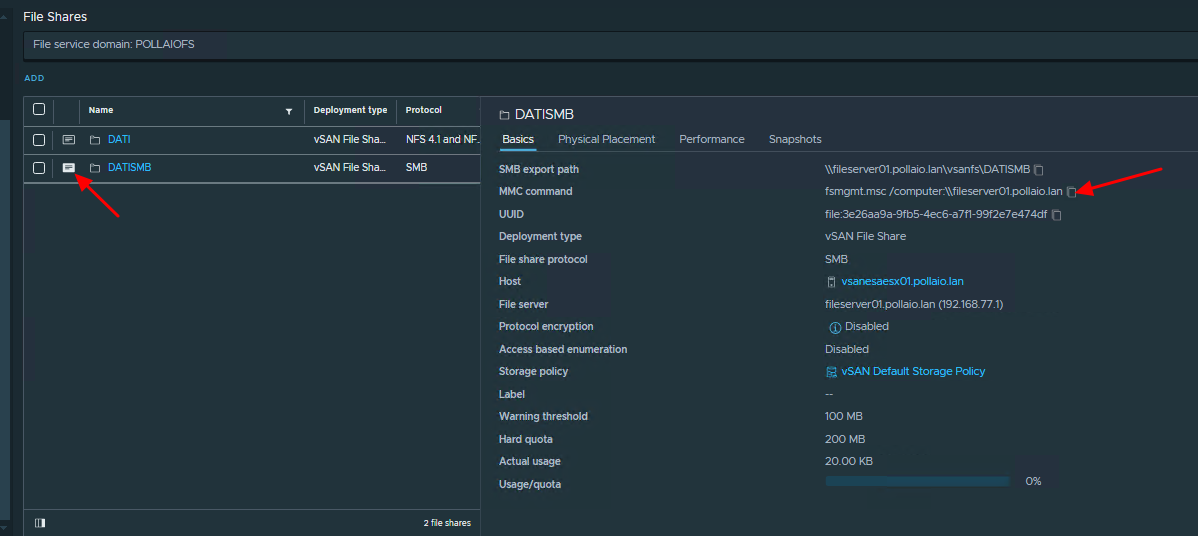
SMB SHARE can configure ACL for access use the FSM MMC from a windows OS.
A screenshot of a computer

Description automatically generated

A black background with white text

Description automatically generated

A screenshot of a computer

Description automatically generated

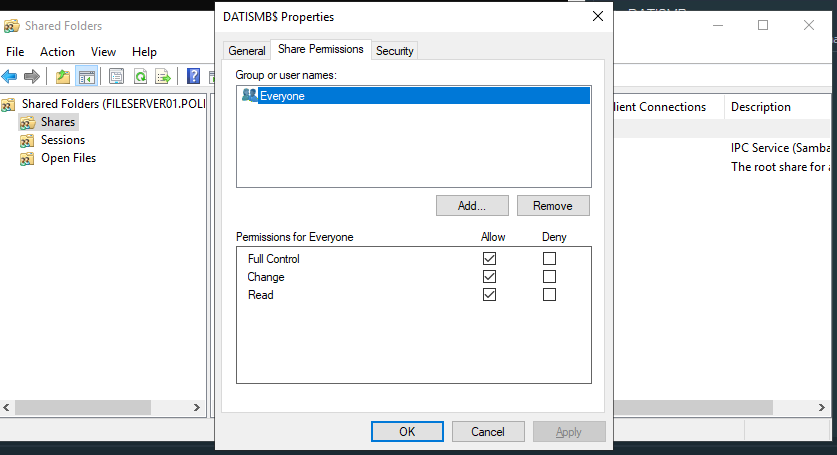
From best practices Microsoft it suggest to user Everyone on Share permission
A screenshot of a computer screen

Description automatically generated

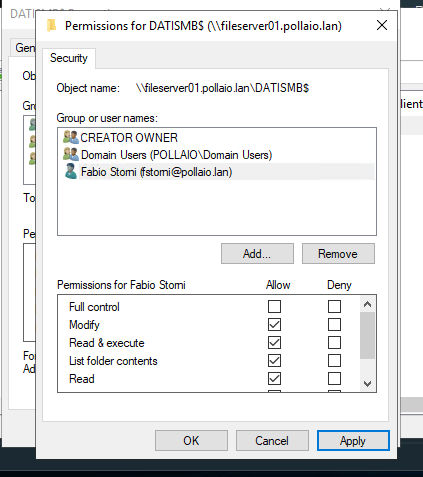
And set the permission on File Level (Security TAB)
A screenshot of a computer screen

Description automatically generated

Mount Share

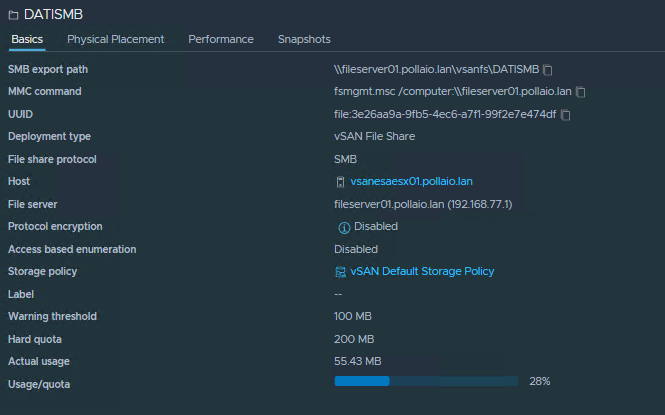
On every share proprieties, we can find the path to use for mounting the share (The SMB Export Path)
A screenshot of a computer

Description automatically generated

Share quota

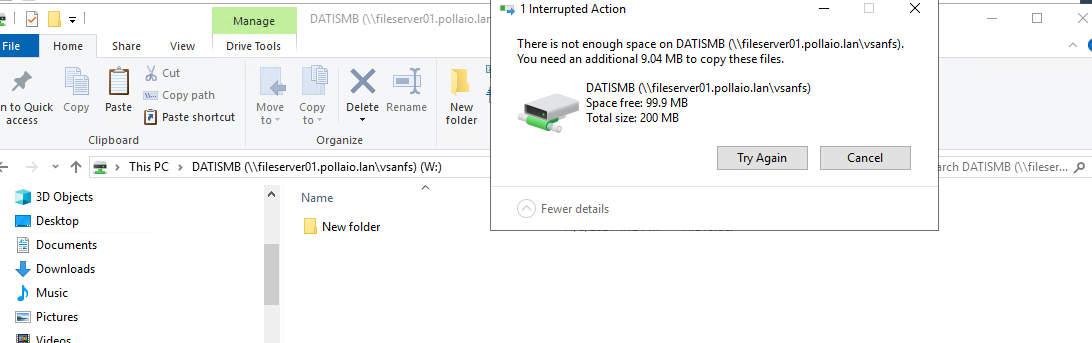
The quota control if a specified Share exceed the max space add for it.
A screenshot of a computer

Description automatically generated

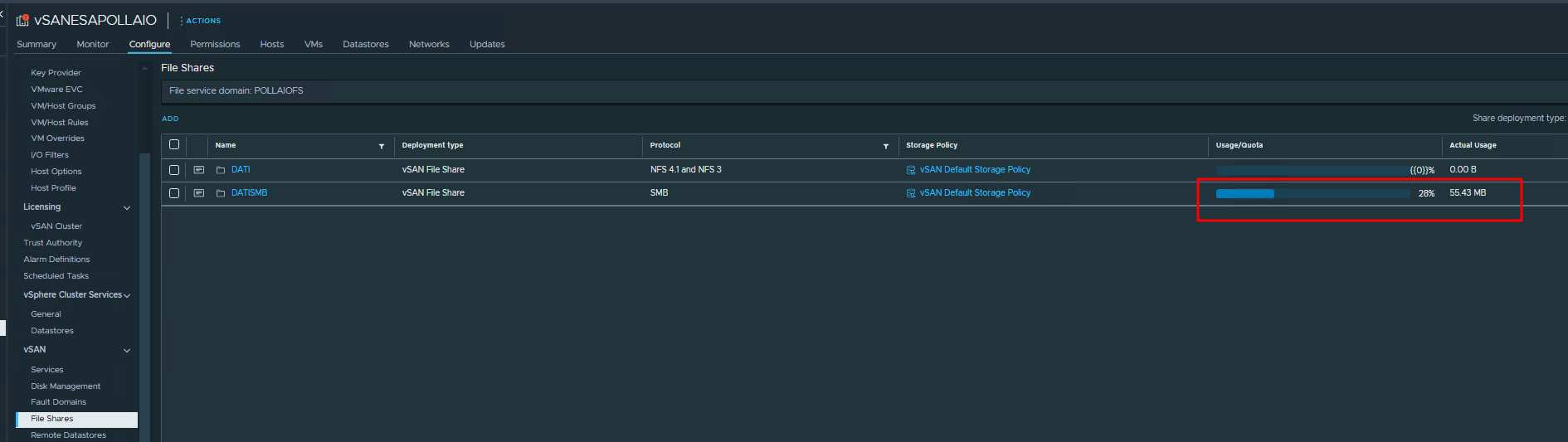
We can control the state of all share quotas from the vSphere console.
A screenshot of a computer

Description automatically generated

A screenshot of a computer

Description automatically generated

SMB Export Path -> The path to use for mounting the share

MMC Command -> The command to use for configuring the ACL
A screenshot of a computer

Description automatically generated

vSAN ESA and vSAN File Service