In today’s hybrid work environments, Virtual Desktop Infrastructure (VDI) solutions like Omnissa Horizon are critical to ensuring secure and flexible access to corporate resources. Yet, as we continue to shift towards distributed workforces, traditional authentication methods such as passwords and OTP tokens increasingly show their limitations — in both security and user experience.
This is where FIDO2/WebAuthn comes into play. By integrating FIDO2/WebAuthn into your Horizon deployment, you can deliver passwordless, phishing-resistant authentication that simplifies end-user access while dramatically improving security posture.
What is FIDO2/WebAuthn?
FIDO2 is an open standard developed by the FIDO Alliance and W3C. WebAuthn (Web Authentication) is the core API that enables browsers and web applications to leverage strong authenticators such as security keys, biometric devices (like fingerprint readers), or built-in platform authenticators (like Windows Hello or Apple Face ID).
In simple terms: it replaces passwords with secure, device-bound credentials that can’t be phished or reused.
Why combine FIDO2/WebAuthn with VMware Horizon?
Here are the key benefits for Horizon administrators and end users:
1. Stronger Security
Traditional passwords are susceptible to phishing, credential stuffing, and breaches. FIDO2/WebAuthn credentials are cryptographically unique and never leave the user’s device. Even if attackers obtain user data, they cannot reuse it to gain access.
2. Seamless User Experience
Users authenticate with something they have (a device) and something they are (biometrics) or something they know (PIN). The process is fast, intuitive, and eliminates password fatigue. No more forgotten passwords or frequent resets.
3. Simplified Endpoint Management
In distributed VDI environments, especially with BYOD policies, managing traditional credentials across devices is a challenge. FIDO2/WebAuthn allows users to authenticate securely from any compliant device, reducing helpdesk workload and administrative complexity.
4. Phishing Resistance
Unlike OTP or SMS-based 2FA, FIDO2/WebAuthn authentication is bound to the specific origin (domain). Credentials cannot be used on malicious lookalike websites, significantly reducing phishing attack vectors.
5. Future-Proof Compliance
Many modern security frameworks and regulatory guidelines encourage or require phishing-resistant MFA. Deploying FIDO2/WebAuthn puts your organization ahead of compliance mandates.
How does it work with Horizon?
With Horizon’s support for modern authentication protocols (including SAML and integration with identity providers that support FIDO2/WebAuthn), you can deploy passwordless authentication workflows seamlessly:
- Users access Horizon Client or Workspace ONE with their FIDO2 device (security key, biometrics, or platform authenticator).
- The identity provider (IdP) validates the FIDO2/WebAuthn credentials.
- Once authenticated, users are securely provisioned into their Horizon VDI sessions.
No passwords exchanged. No phishable credentials. Just fast, secure, and frictionless access.
Ready to try it?
Integrating FIDO2/WebAuthn with VMware Horizon is a clear step toward a more secure, modern, and user-friendly VDI environment. Whether you’re looking to reduce helpdesk tickets, strengthen security, or improve user experience, this technology is worth exploring.
Now is the time to test and adopt FIDO2/WebAuthn.
(If you want to use FIDO2 for login to VDI, see my post VMware Workspace One Access, VMware Horizon, and FIDO2 device – BIOLNX)
Environment:
- Horizon 2503
- Yubikey
- Windows 11 24H2 (Guest OS for VDI)
- Firefox and Edge
- Horizon GPO
- Use https://webauthn.io for authentication test

0 – Configure an account on WebAuthn.io
Insert the Yubikey on a physical PC
Go to https://webauthn.io
Insert the username and set the preferred authentication method


Select a security key (Yubikey)

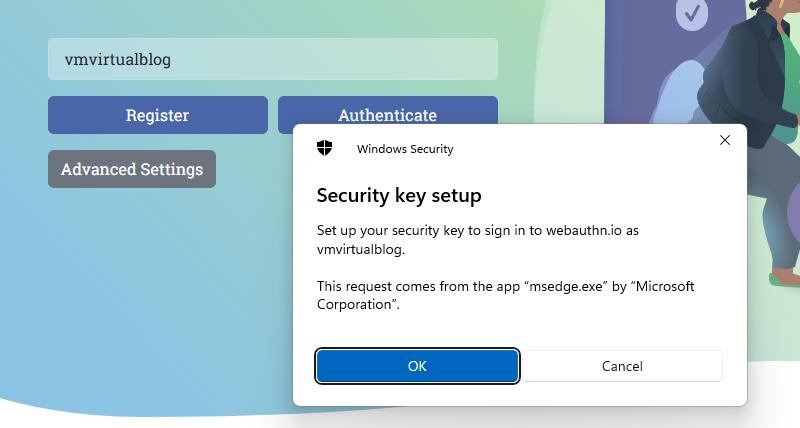
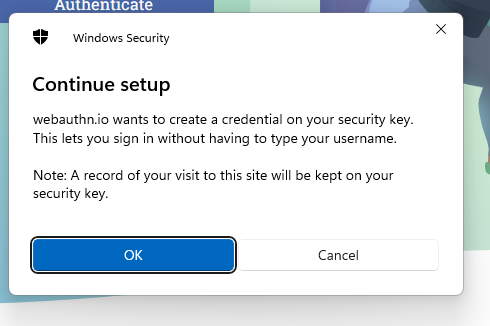
Enter the security key assigned to Yubikey



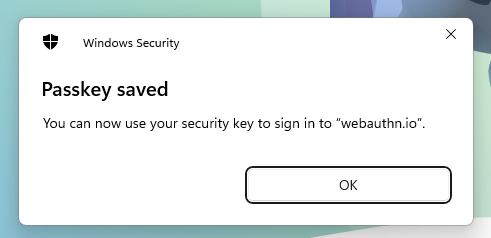
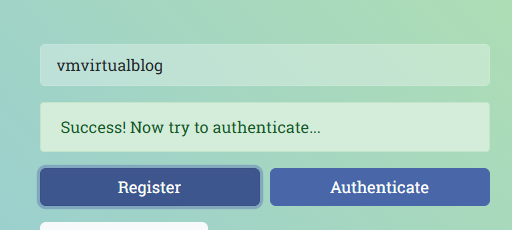
1 – Check Active Directory GPO
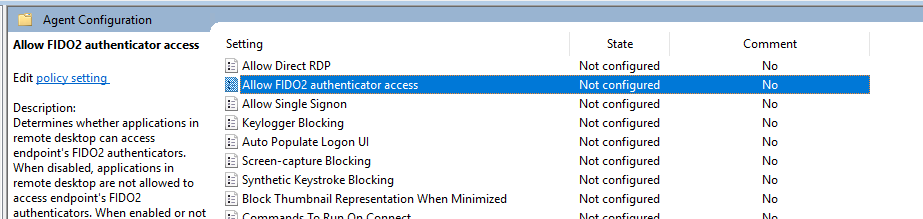
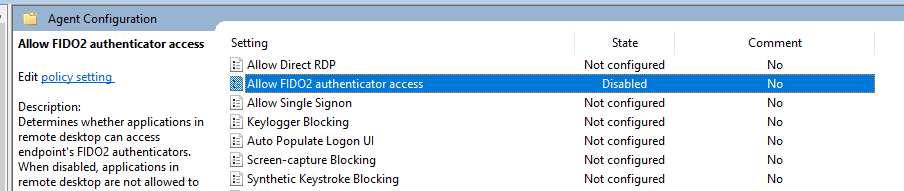
The default configuration for “Allow FIDO2 authenticator access” (under Agent Configuration) is Not Configured, and with this configuration, the FIDO2 WebAuthn is enabled.
2 – Test authentication
Now we can connect to VDI and access with edge to https://webauthn.io
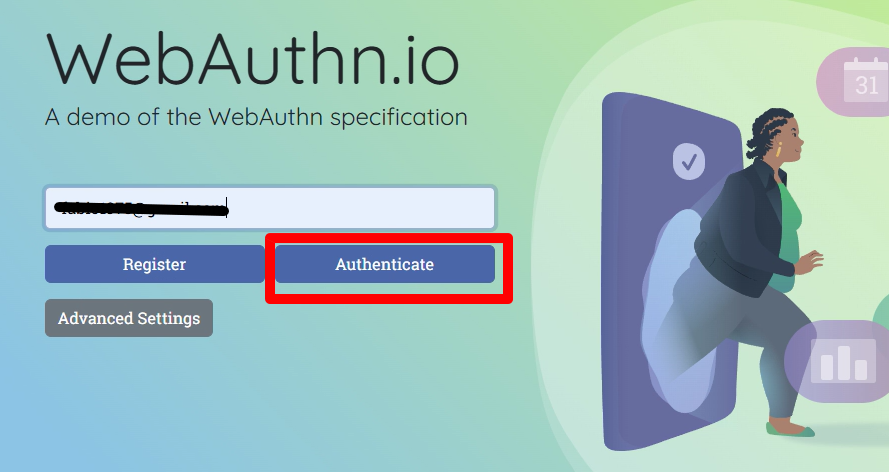
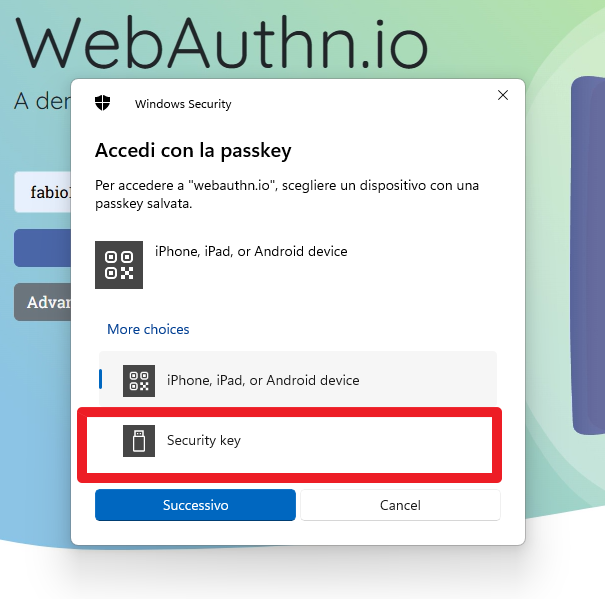
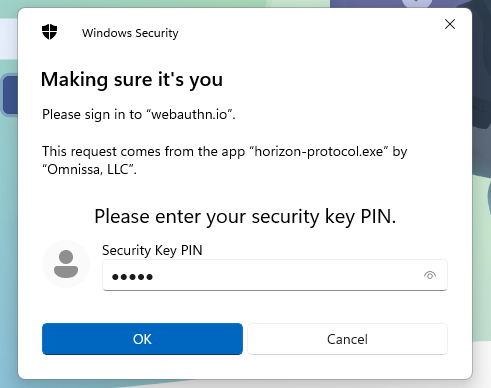
After selecting, authenticate in the next window, select the security key. (This window is up from your client (PC), not from VDI)
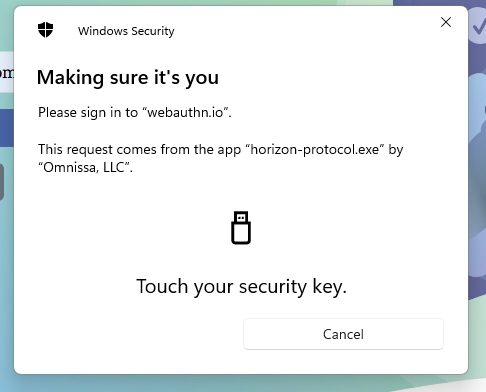

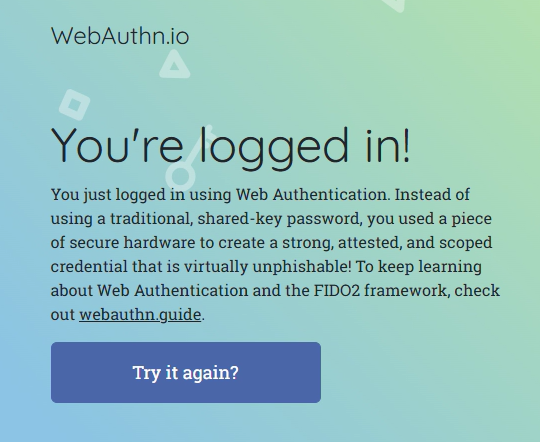
Spoiler 1
If you want to disable this function, you need to set the Allow FIDO2 authenticator access GPO with the value “Disabled”
And when you try to connect
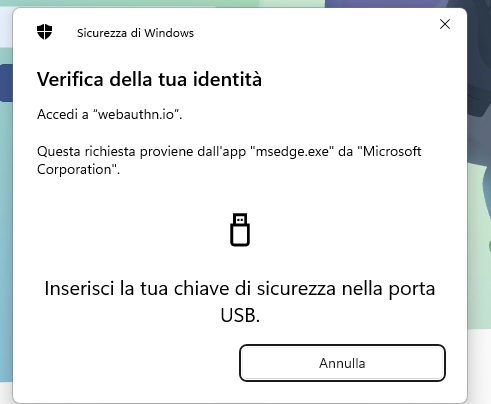
Spoiler 2
We can use the “FIDO2 allow list” GPO to select which browser to use with the WebAuthN and disable another browser.
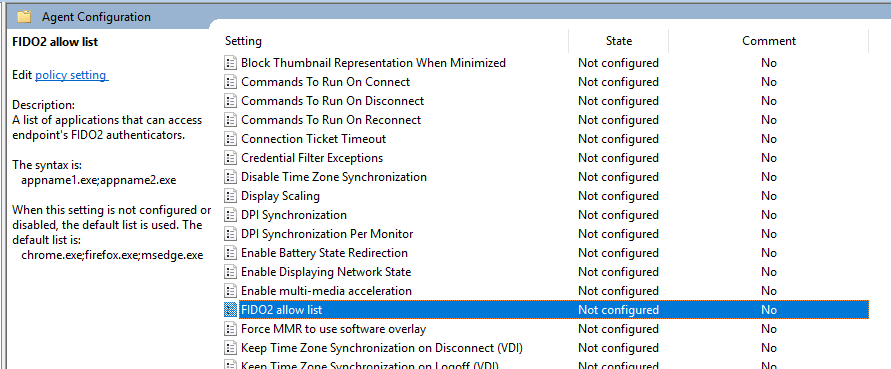
For example, enable only Firefox application

In this video, I show you how FIDO2 WebAuthN works and how to exclude certain browsers