Simplifying App Volumes Management with Recovery Admin in Version 2503

Introduction
With the release of App Volumes 2503, Omnissa has introduced a powerful new feature: Recovery Admin. Designed with IT administrators in mind, this addition simplifies troubleshooting and provides a safer, more streamlined way to handle App Volumes environments during critical issues.
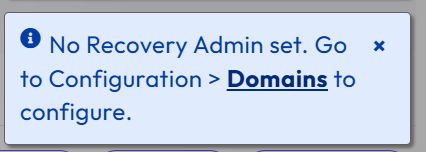
What is Recovery Admin?
Recovery Admin is a dedicated role introduced to improve operational resilience. It grants restricted access to App Volumes when standard administrators are locked out—typically in cases where directory services like Active Directory are down or misconfigured.

Think of it as a “break-glass” account: always available, highly secure, and essential when traditional access paths fail.

Key Capabilities

  • Read-Only Access: Recovery Admin can inspect configurations, assignment states, and errors—helpful for diagnostics without risking accidental changes.This account is strictly limited to managing domain configuration and administrator roles and is not associated with any domain.

  • No Directory Dependency: This role doesn’t rely on external identity providers. Credentials are defined during the initial setup, so access is always guaranteed.

  • Audit-Ready: All Recovery Admin activity is logged separately to maintain accountability.

How to Enable Recovery Admin

  1. Log in to the App Volumes Manager UI.

  2. Go to Configuration > Recovery Admin Settings.
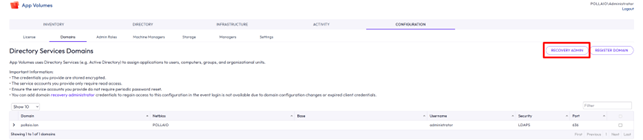
  3. Define a strong password and keep it secure.
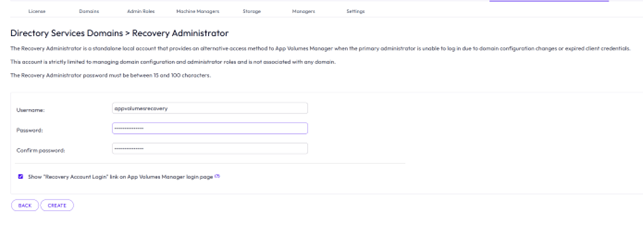
Once configured, the Recovery Admin account is ready for use when needed—no domain authentication required.

Use Case Scenario
Imagine your domain controller is unreachable and no administrators can log in. With Recovery Admin, you still have access to read logs, inspect app assignments, and validate system health—all without needing to restore full AD services immediately. It’s a crucial safety net.

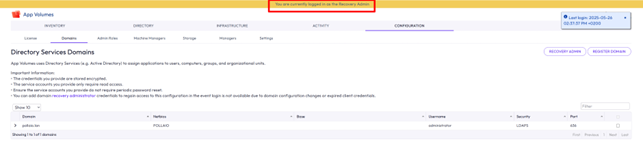
We can login with Recovery Admin from UI
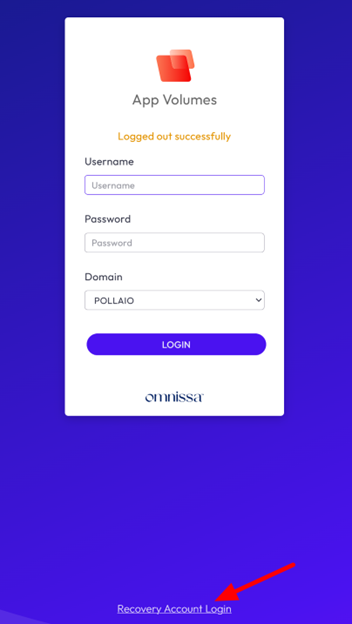
Add ?recovery_admin=true at the App Volumes Manager URL

and we check if we are in recovery mode with the yellow banner on the top of the UI.
Best Practices

  • Use Recovery Admin strictly for emergencies.

  • Limit access to trusted personnel.

  • Rotate credentials periodically.

  • Monitor audit logs for unusual activity.

Conclusion
Recovery Admin in App Volumes 2503 is a small but significant feature that enhances platform reliability and administrator confidence. Whether you’re running a single site or managing a distributed environment, having a backdoor to recover and investigate without risking configurations is a game-changer.
Image

Upgrade to 2503 and migrate ADAM Partition

The new version of Horizon (version 2503) continues the renaming started by Omnissa in version 2412 to remove references to the VMware name.

Let’s see in this guide (with a simple environment consisting of a single connection server) the update to version 2503 (from 2412) and the AD LDS Application Partition Migration (to remove references to VMware as well).

It is important to follow the instructions in this KB for partition migration:

Omnissa Horizon ADLDS Migration (6000797)

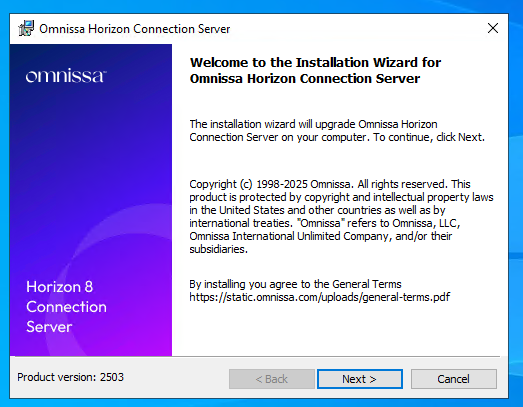
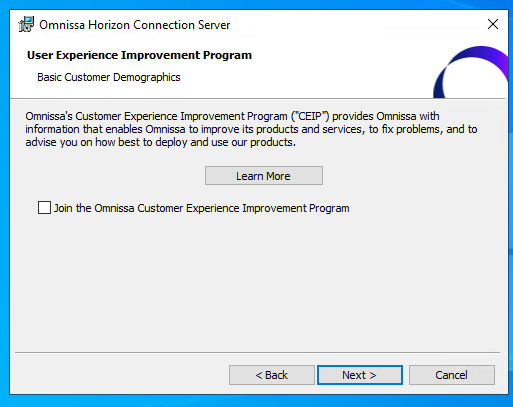
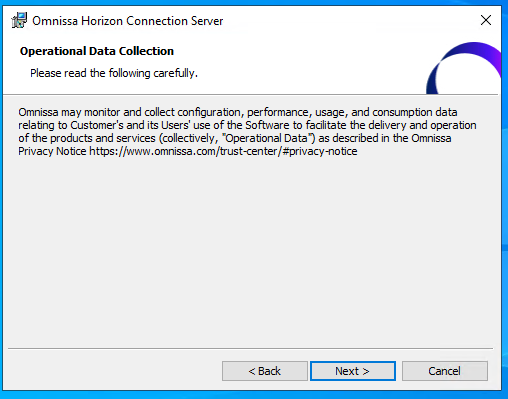
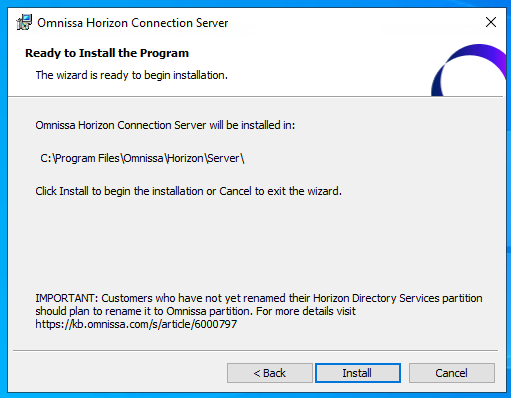
Upgrade to the 2503

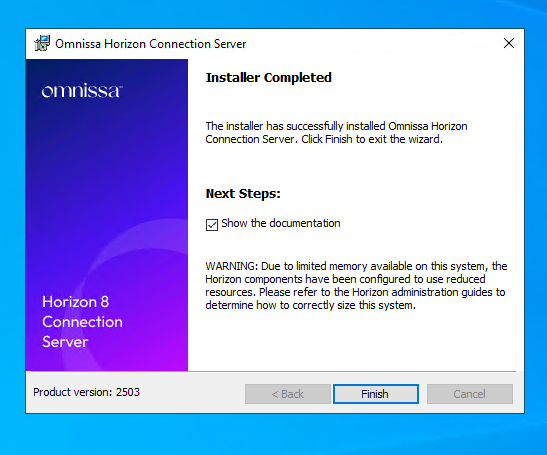
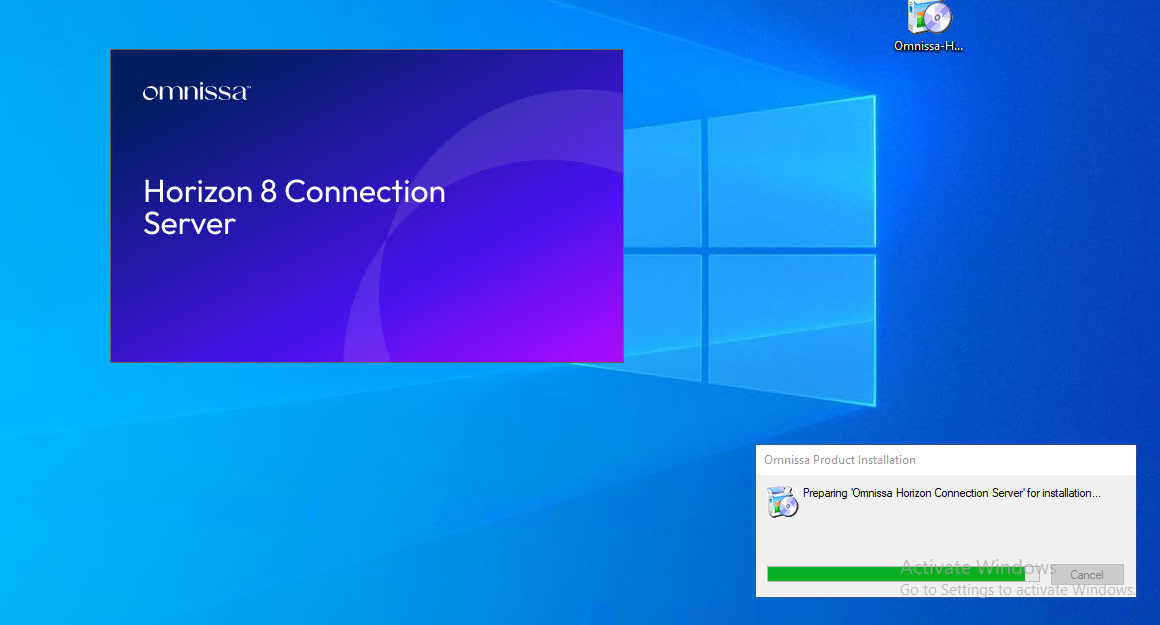
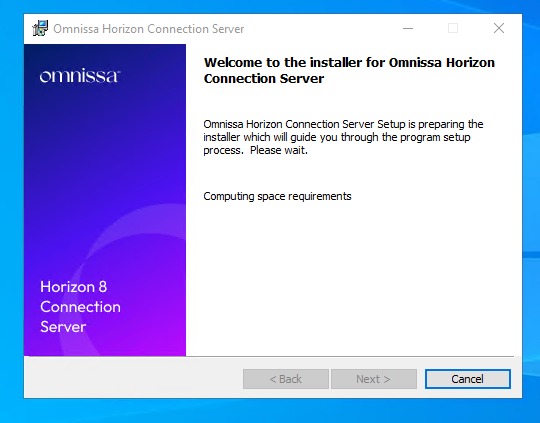
Upgrade to Horizon 2503 from 2412 (I recommend if you are coming from previous versions, to a new installation, whether the target version is 2412 or 2503)

  • Backup ADAM DB
  • Snapshot Connection Servers

A screenshot of a computer AI-generated content may be incorrect.

A screenshot of a computer AI-generated content may be incorrect.

A screenshot of a computer AI-generated content may be incorrect.

A screenshot of a computer program AI-generated content may be incorrect.

A screenshot of a computer error AI-generated content may be incorrect.

A screenshot of a computer AI-generated content may be incorrect.

A screenshot of a computer AI-generated content may be incorrect.

AD LDS Application Partition Migration

Migration of the AD LDS partition (WARNING: at this time, if you have Omnissa Access in your infrastructure, you must wait for the new version of Access before proceeding with the partition migration)

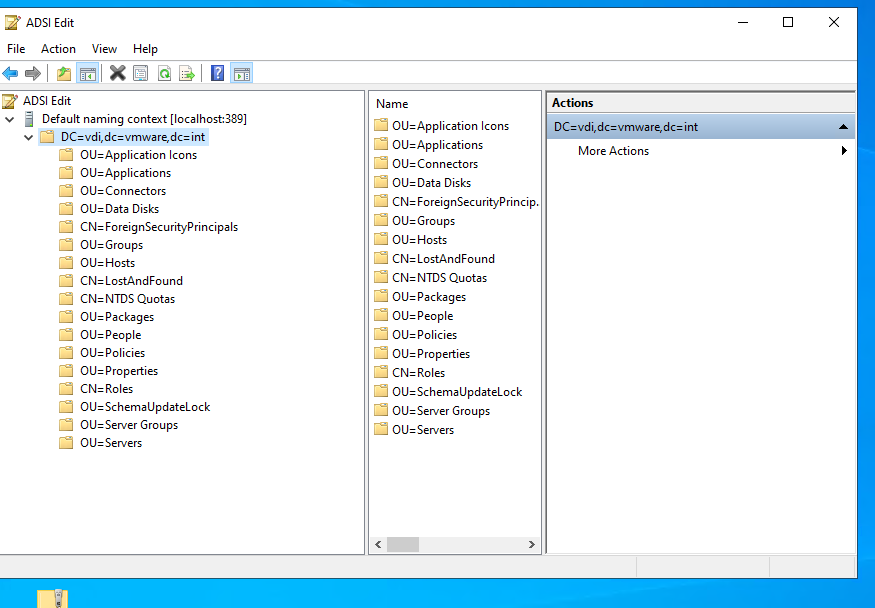
We connect to the LDS AD using the classic references dc=vdi,dc=vmware,dc=int

A screenshot of a computer AI-generated content may be incorrect.

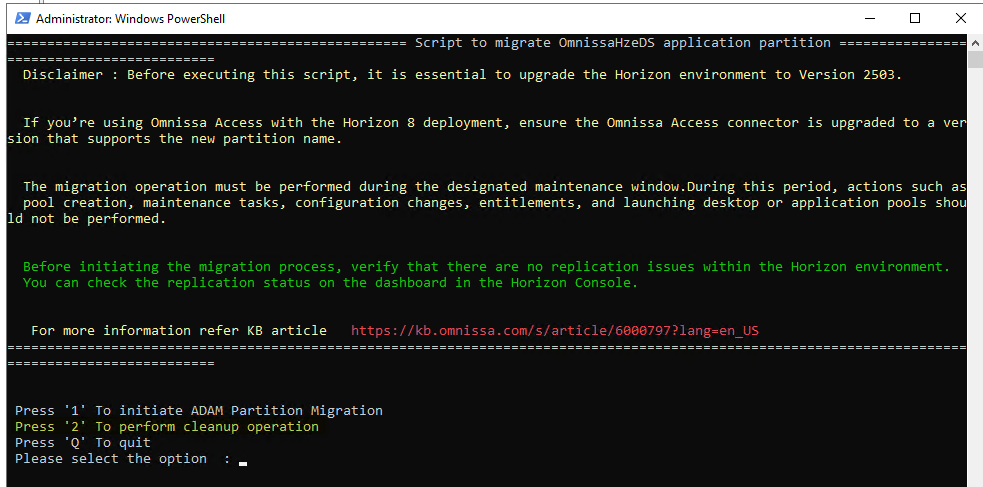
We use the script (OmnissaHorizonPartitionMigration-v1.ps1) attached to the KB previously mentioned (WARNING: you must have a maintenance window)

Run as admin

A black and white text on a black background AI-generated content may be incorrect.

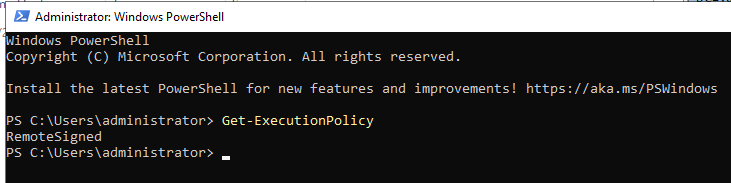
We test script execution at the policy level (must be RemoteSigned)

A screen shot of a computer AI-generated content may be incorrect.

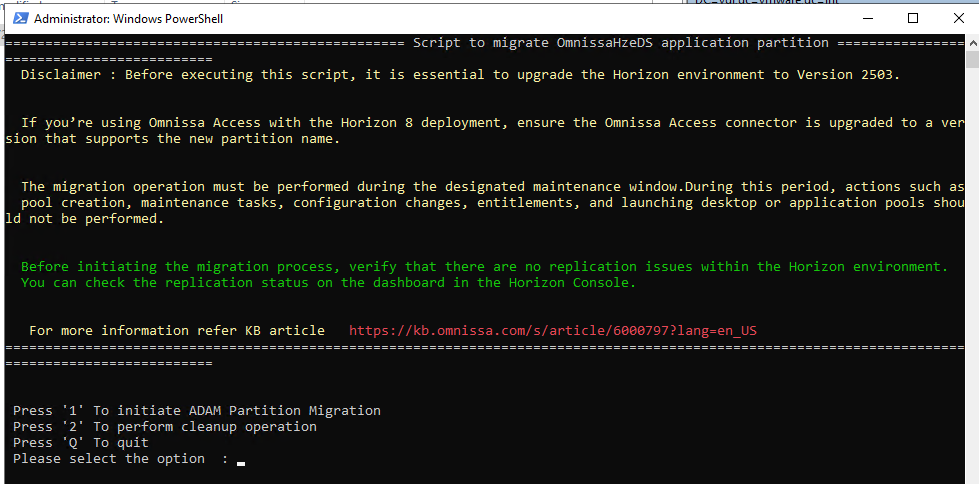
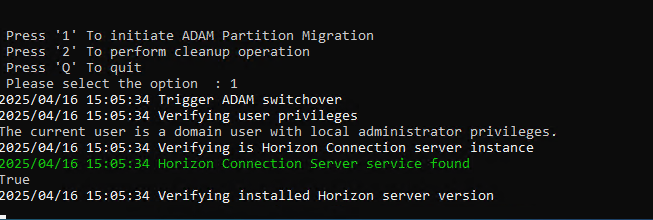
Let’s run the script

A screen shot of a computer AI-generated content may be incorrect.

We have the choice whether to migrate or clean the old partition (obviously, we do the cleaning of the old partition only after the migration and only after verifying that everything is ok)

A screenshot of a computer screen AI-generated content may be incorrect.

We select 1

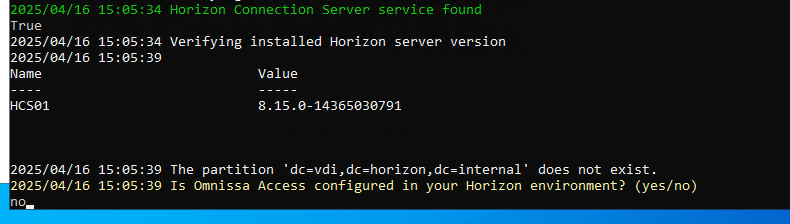
A screen shot of a computer AI-generated content may be incorrect.

A computer screen with white and green text AI-generated content may be incorrect.

We are asked if we have an Omnissa Access configured in our environment, and in this example, we do not have it (in case you need to update it to the latest version before doing this update)

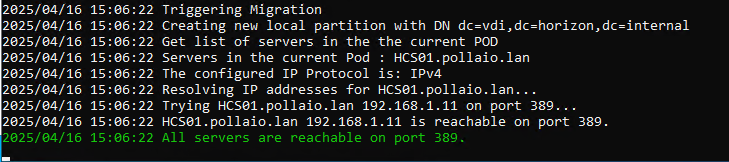
Then check that all the Connection servers are reachable (we have only one, in the case of multiple connection servers in a single POD, it is enough to run the script only once)

A screen shot of a computer AI-generated content may be incorrect.

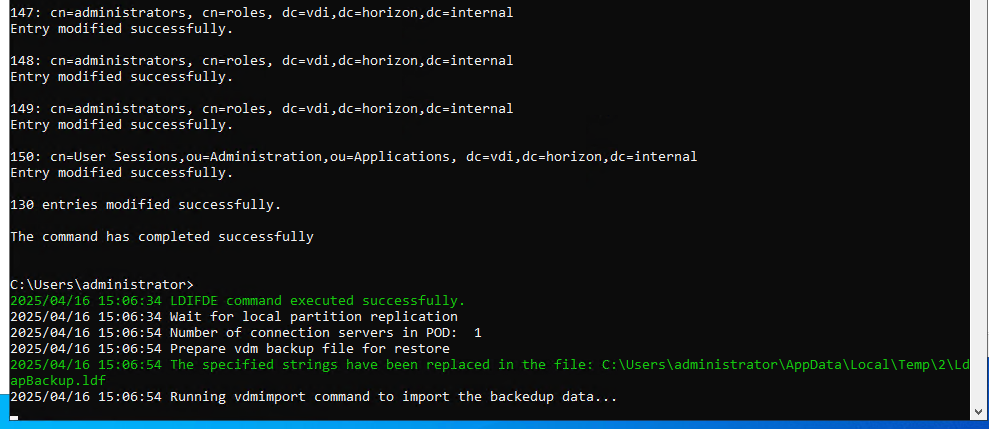
Backs Up

A computer screen with text on it AI-generated content may be incorrect.

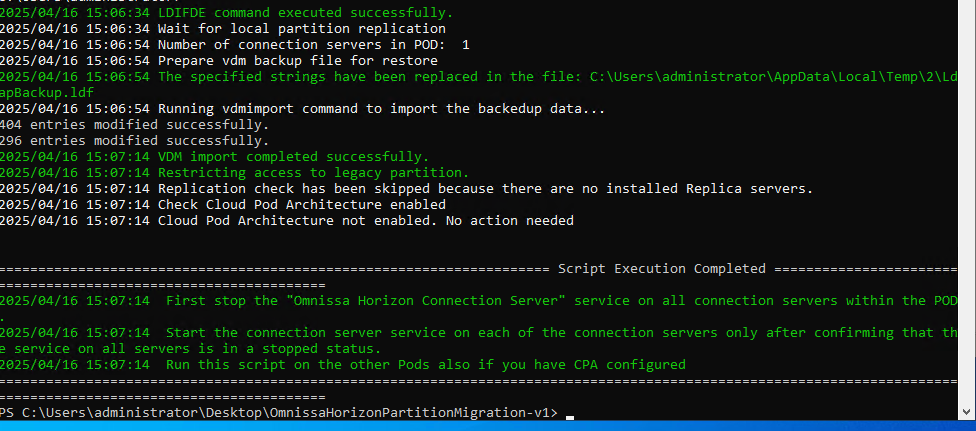
And import the information into the new schema

A screenshot of a computer program AI-generated content may be incorrect.

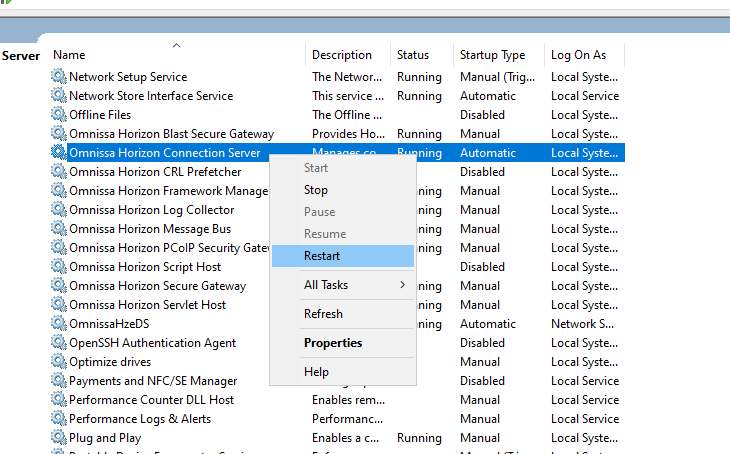
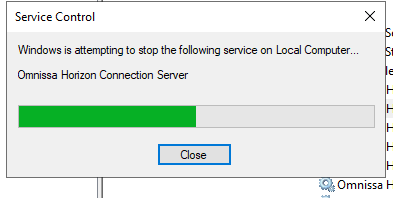
“Once the Script completes execution, stop the “Omnissa Horizon Connection Server” Windows Service on all Connection Servers in the POD. Only once the services on all servers in the pod are stopped, proceed to the next step. Note that rolling service restarts are NOT supported and will result in instability! 

Start the Connection Server Service one at a time on all Connection Servers in the POD.   You do not need to wait for the Connection server service to fully start up to before finish starting of services on remaining servers in the pod. The first service can wait up to 15 minutes per server in the pod to check back in for replication before allowing the service to start up. “

A screenshot of a computer AI-generated content may be incorrect.

A screenshot of a computer error AI-generated content may be incorrect.

Let’s wait for it to come back up

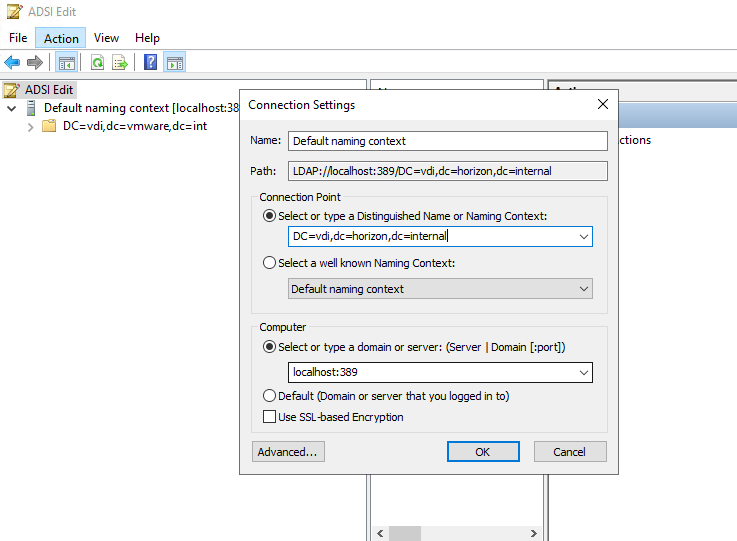
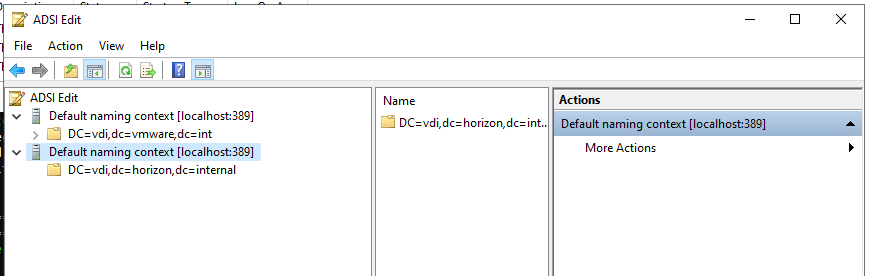
We connect with the ADSI edit using the new scheme dc=vdi,dc=horizon,dc=internal

A screenshot of a computer AI-generated content may be incorrect.

A screenshot of a computer AI-generated content may be incorrect.

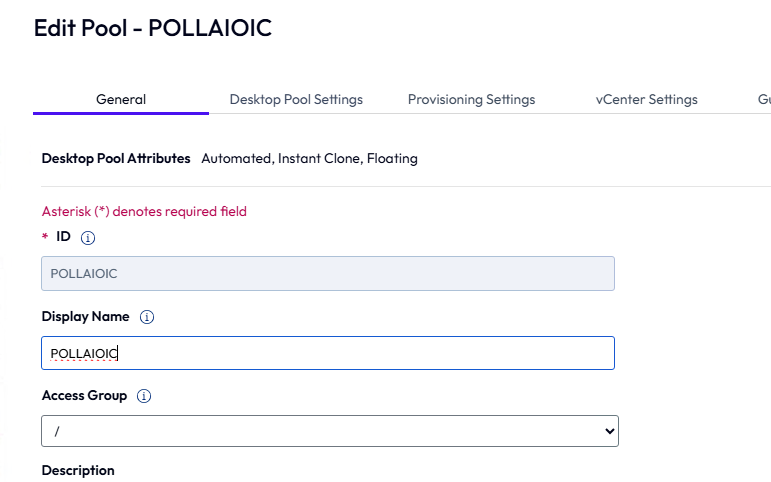
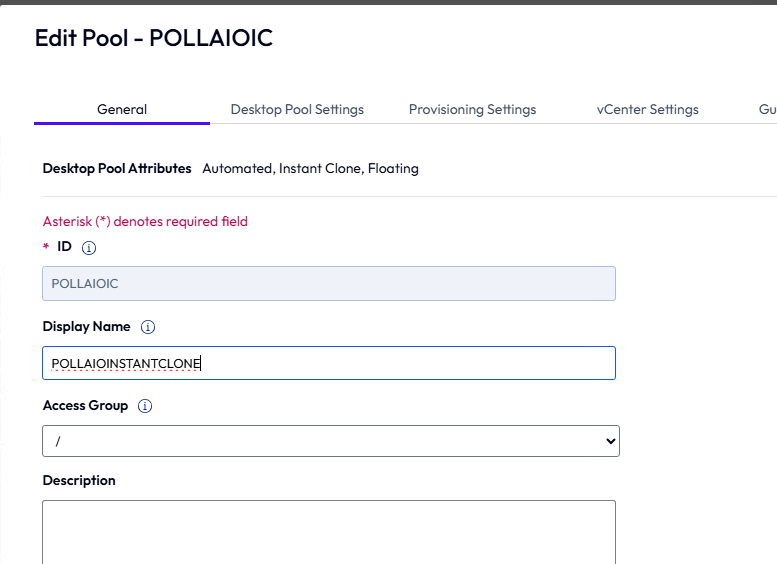
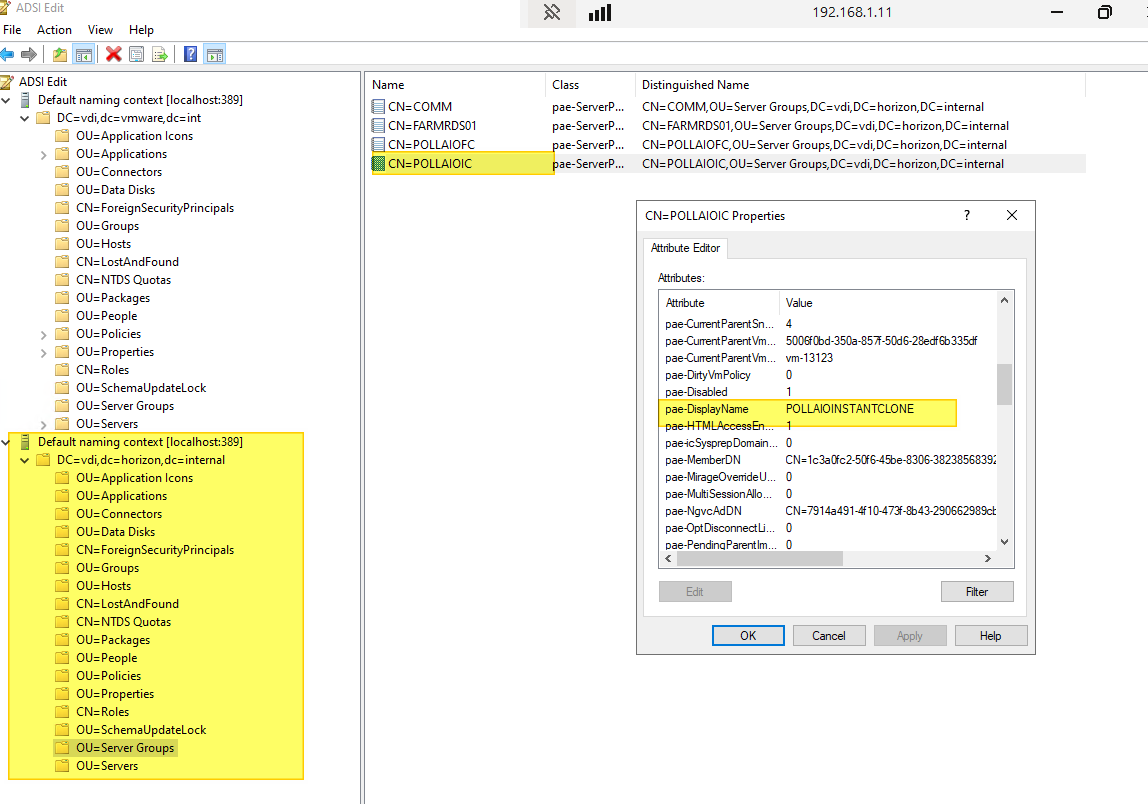
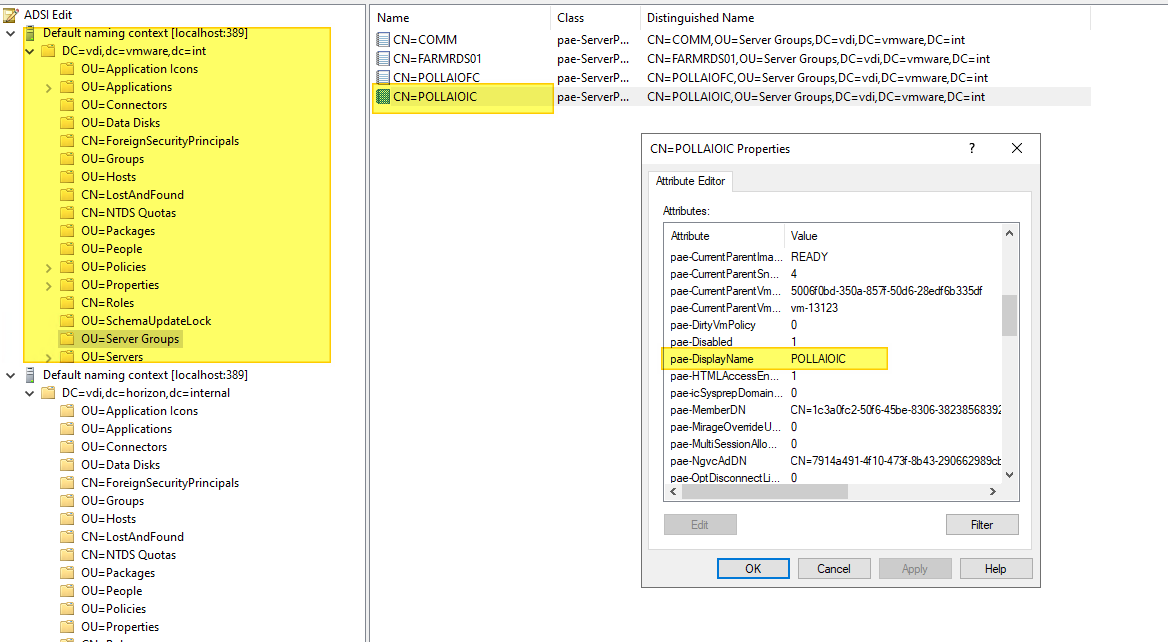
As a test, let’s try to remove a non-existent domain and see which one the change actually applies to (I expect the second)

Let’s change the display name of a pool

A screenshot of a computer AI-generated content may be incorrect.

A screenshot of a computer AI-generated content may be incorrect.

The new has changed

A screenshot of a computer AI-generated content may be incorrect.

The old has not changed

A screenshot of a computer AI-generated content may be incorrect.

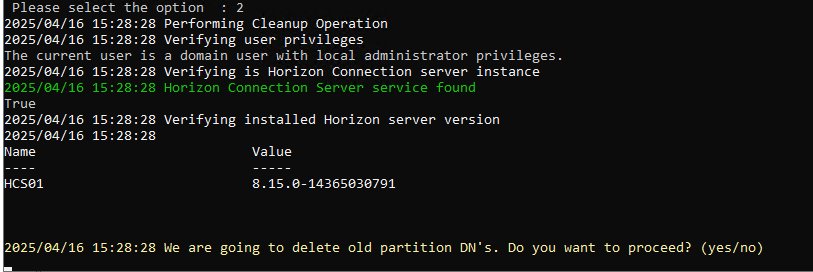
Once we finish the tasks and see that everything is stable, we erase the old pattern

A screenshot of a computer program AI-generated content may be incorrect.

A computer screen with white text AI-generated content may be incorrect.

A computer screen with text AI-generated content may be incorrect.

A screen shot of a computer screen AI-generated content may be incorrect.

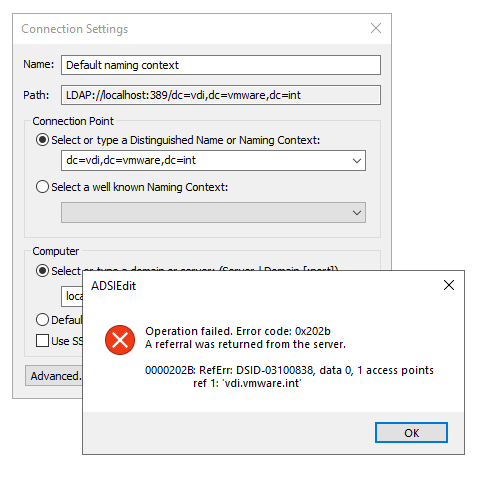
The old scheme no longer exists

A screenshot of a computer error message AI-generated content may be incorrect.

Upgrade to 2503 and migrate ADAM Partition