In the latest versions of Horizon, it is recommended to use the SaaS subscription, which requires the installation of an EDGE Gateway component generated by the Omnissa Connect portal under Horizon in the customer section.
This involves the need to install a Linux VM on our vSphere environment; not for everyone is this feasible:
For this last point and since I need to install version 2606 as a test, I decided to explain how to do it… step by step.
Installed my connection server on a Windows Server 2025. The first thing to do is access the administration console and activate the license:
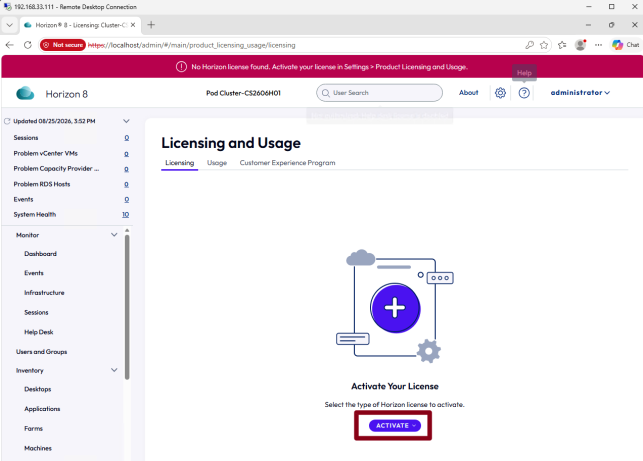
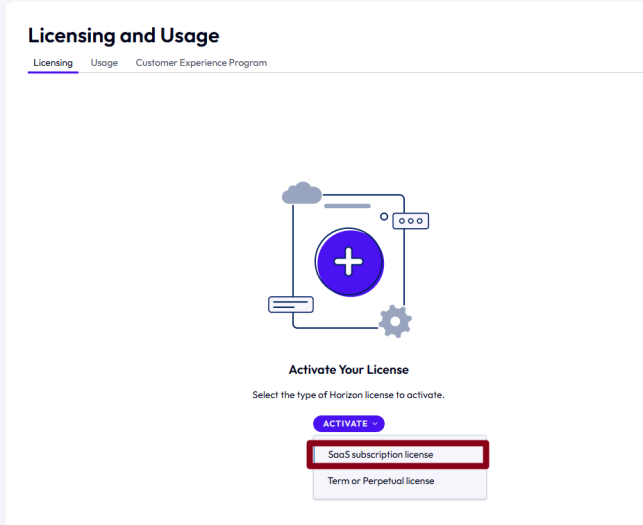
Verify that you have received the activation email or that you have a Horizon SaaS subscription and that you have access to the Connect Omnissa portal
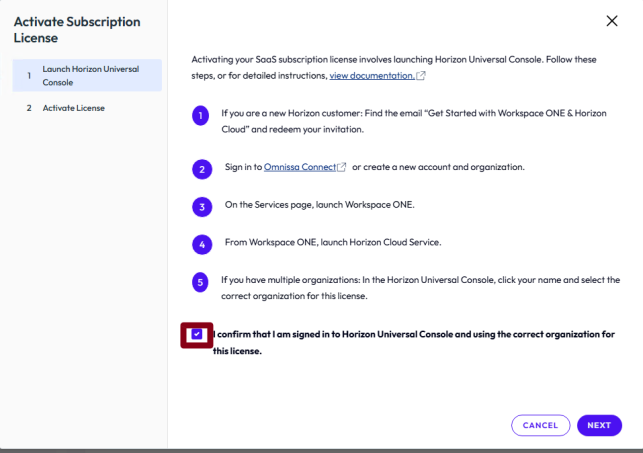
So you must log in to the Omnissa Connect portal (by opening a TAB from the Browser you are using to access the Horizon console) and authenticate on connect.omnissa.com and keep the tab open.
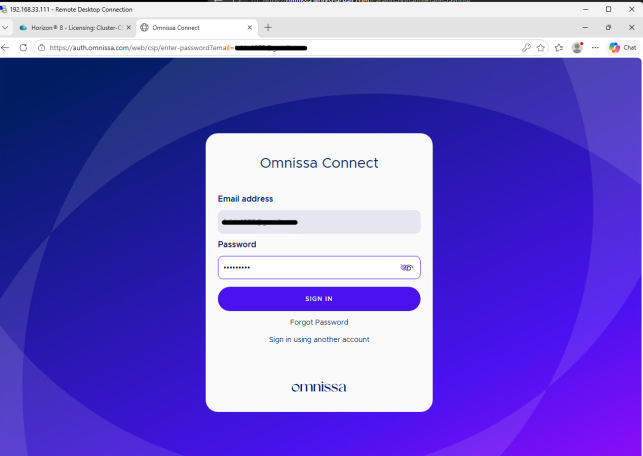
Enter accounts, passwords and if necessary, do MFA
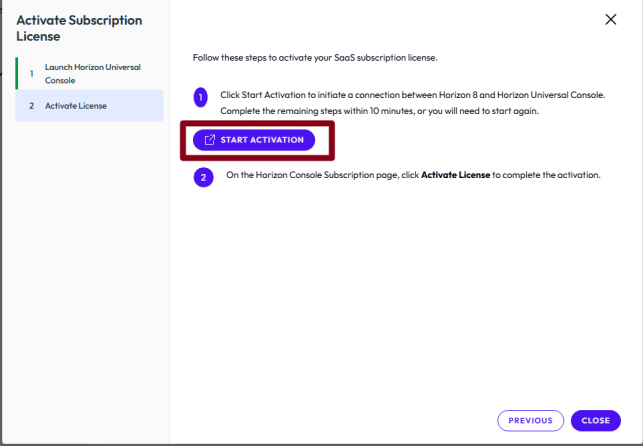
A new tab will automatically open with the login already made
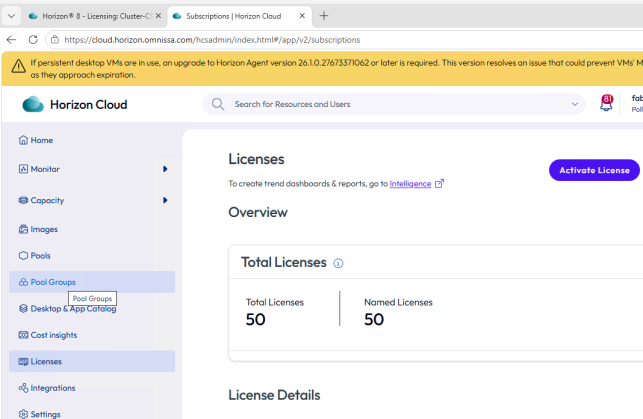
Now run

The following message will appear

And on the Horizon console, the license status will be as follows
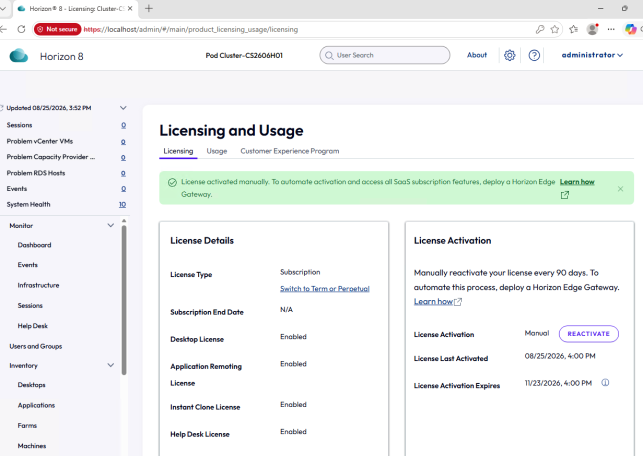
Two important points