Securing Horizon Event DB to SQL Server with TLS

.

Because Who Likes Sniffers Anyway?

So you’ve installed Horizon (2503 is last version) and got your Event Database humming along on a shiny SQL Server. But hold on a sec — did you remember to lock down that traffic with TLS encryption? Or are you letting your event logs float around in plain text like it’s still 1999?

Let’s fix that.
Here’s how to set up
SSL/TLS encryption between Horizon and your SQL Server, with a proper certificate from your Microsoft CA, and make sure your event data isn’t the low-hanging fruit on your network.

.

 Why bother?

Because:

• Anyone with Wireshark can eavesdrop on your events and see user logins, VM power actions, etc.
• Your security team will buy you more coffee if you’re nice to them.

.

The Plan

1.Request & issue a certificate from your Microsoft CA infrastructure.
2.Install the certificate on your SQL Server.
3.Configure SQL Server to force encryption using that cert.
4.Enable Horizon to use SSL for SQL connection
5.Test it and sleep better.

.

1. Request a certificate from your Microsoft CA

On your SQL Server, create a certificate request:

Use certreq or just the MMC GUI.
Here’s the quick-and-dirty via MMC:

1.Open mmc.exe ➔ Add the Certificates snap-in for Computer account.
2.Right-click Personal ➔ Certificates ➔ All Tasks ➔ Request New Certificate.
3.Select your Active Directory Enrollment Policy.
4.Choose a template that includes “Server Authentication” EKU (typically Web Server template).
5.Fill in the common name (CN) with your SQL Server’s FQDN (must match exactly what clients connect to).

(Example: sql01.contoso.local)

6.Enable that private Key is exportable
7.Finish and you’re done. Your cert should show up in Personal ➔ Certificates.

.

2. Install, verify and assign right permission to the cert

Technically it’s already installed, but verify:

• It’s under Computer -> Personal ➔ Certificates on your SQL Server .
• It has Server Authentication (1.3.6.1.5.5.7.3.1) EKU.
• The private key is present (little key icon when you look at the cert).

.

Now we need to assign to the user that starts the SQL server service the permissions to read the private key.
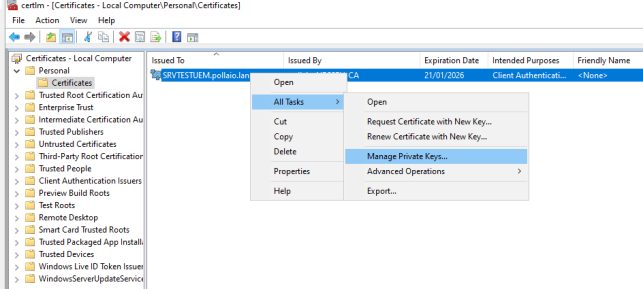
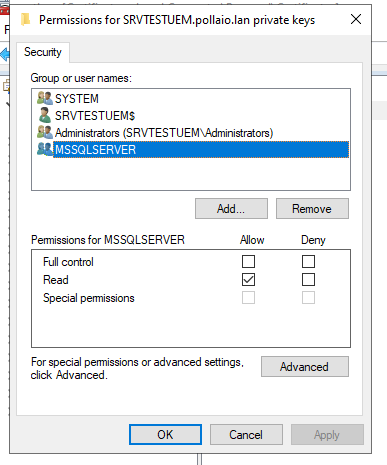
A screenshot of a computer AI-generated content may be incorrect.

.

A screenshot of a computer screen AI-generated content may be incorrect.

.

3. Tell SQL Server to use it

Configure SQL Server
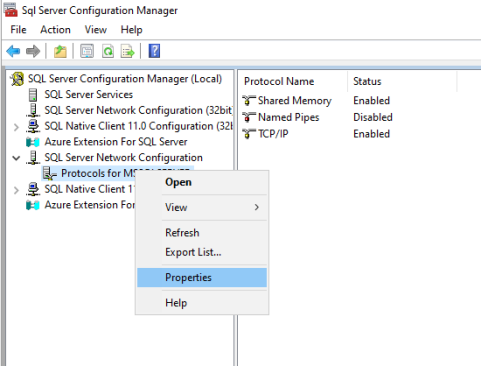
1.Open SQL Server Configuration Manager.
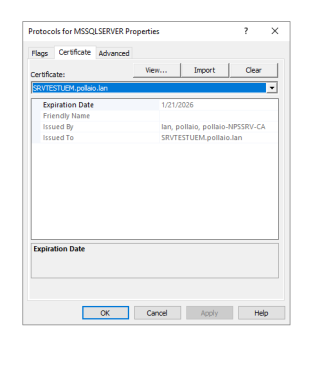
2.Go to SQL Server Network Configuration ➔ Protocols for MSSQLSERVER ➔ Properties ➔ Certificate tab.

A screenshot of a computer AI-generated content may be incorrect.

3.Select your cert from the dropdown.

.

A screenshot of a computer AI-generated content may be incorrect.

If it doesn’t show up:

• Check that CN matches the machine’s FQDN.
• Make sure it has Server Authentication EKU.
• Ensure it’s in LocalMachine\My (Personal store).

Force encryption (optional but recommended)

Still in Protocols for MSSQLSERVER ➔ Flags tab ➔ Set Force Encryption = Yes.
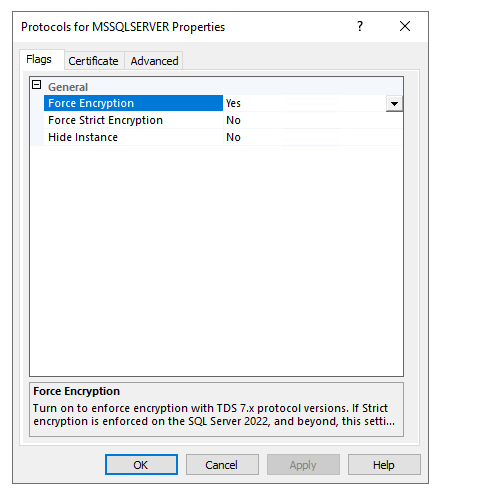
A screenshot of a computer AI-generated content may be incorrect.

.

Restart SQL Service

You knew this was coming:

Restart-Service MSSQLSERVER
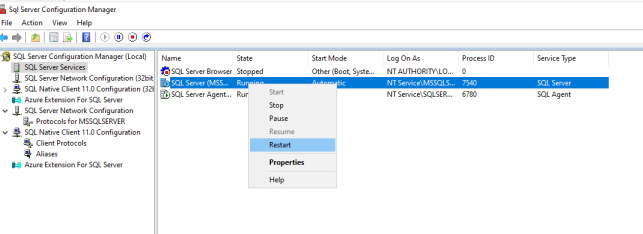
A screenshot of a computer AI-generated content may be incorrect.

.

Testing time

Use SQL Server Management Studio (SSMS) to connect, then run:

SELECT session_id, encrypt_option

FROM sys.dm_exec_connections

WHERE session_id = @@SPID;

If encrypt_option says TRUE, congrats! 🎉

.

What about Horizon?

Enable SSL with modification in the ADAM DB pae-enableDbSSL and set it to 1
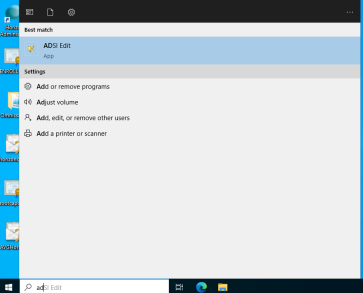
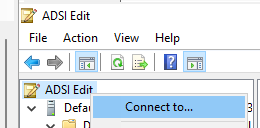
1. Start ADSI Edit

A screenshot of a computer AI-generated content may be incorrect.

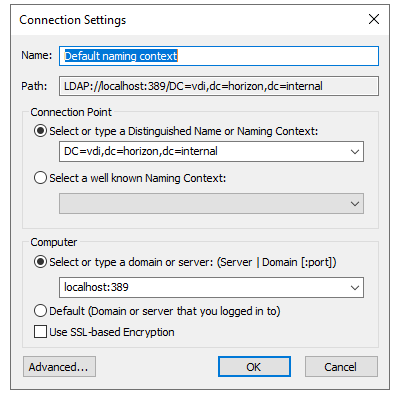
2.Connect to the ADAM DB

A screenshot of a computer AI-generated content may be incorrect.

A screenshot of a computer AI-generated content may be incorrect.

Remember that the Distinguished Name is different if you use the OLD ADAM Schema or the new Schema (the DN indicated in the image is the new schema with the rebranding Omnissa)

3.Go to OU=Properties > OU=Global > CN=Common and set the pae-enableDbSSL flag to 1 .

A screenshot of a computer AI-generated content may be incorrect.

4. Restart the omnissa Horizon Connection Server Service

A screenshot of a computer AI-generated content may be incorrect.

.

When you configure your Event Database settings in Horizon Administrator, it’ll negotiate TLS automatically if your SQL Server is set up for it.

Just make sure:

• Horizon connects via the FQDN matching the cert CN.
• The client OS trusts your CA (install the CA root cert if needed).

.

Done! Enjoy encrypted peace of mind.

Now your Horizon events are zipped up nice and secure in transit.
No more plain-text passwords, no more nosey packet sniffers. You
can go brag to your security team and earn those extra donuts.

.

.

Bonus topic!

Now I check the traffic from Horizon Connection Server and SQL Server

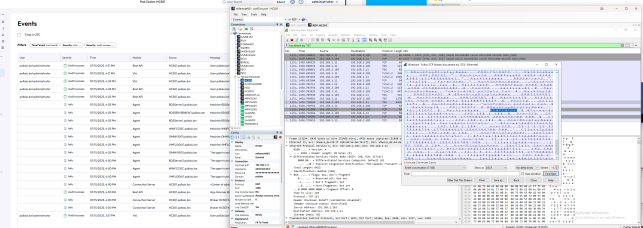
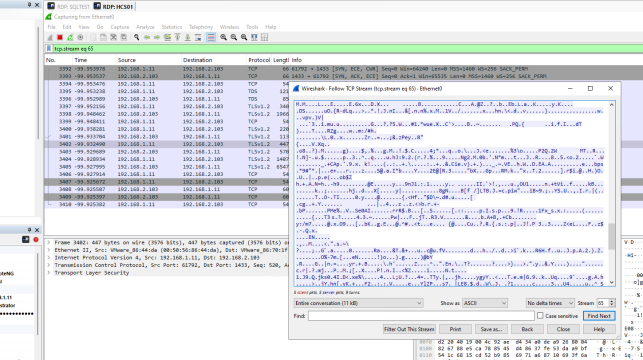
With Wireshark, we can check if the traffic is encrypted:
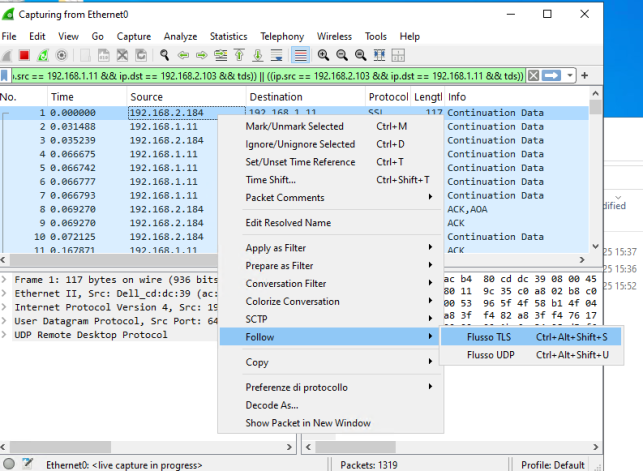
1. Install Wireshark and Npcap on the Windows server of one of your connection servers
2.Enable filter ((ip.src == <IP CS> && ip.dst == <IP SQL SERVER>)) || ((ip.src == <IP SQL SERVER> && ip.dst == <IP CS>))
3. Start the capture
4. Log in to the connection server and create an Event filter
5 . Check

A screenshot of a computer AI-generated content may be incorrect.

.

Whitout encryption

A screenshot of a computer AI-generated content may be incorrect.

With Encrypted


A screenshot of a computer AI-generated content may be incorrect.

Securing Horizon Event DB to SQL Server with TLS

Leave a Reply

Your email address will not be published. Required fields are marked *