Introduction
With the release of App Volumes 2503, Omnissa has introduced a powerful new feature: Recovery Admin. Designed with IT administrators in mind, this addition simplifies troubleshooting and provides a safer, more streamlined way to handle App Volumes environments during critical issues.
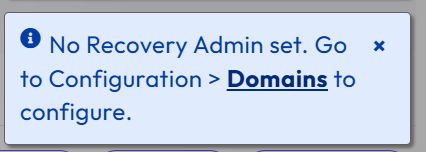
What is Recovery Admin?
Recovery Admin is a dedicated role introduced to improve operational resilience. It grants restricted access to App Volumes when standard administrators are locked out—typically in cases where directory services like Active Directory are down or misconfigured.
Think of it as a “break-glass” account: always available, highly secure, and essential when traditional access paths fail.
Key Capabilities
-
Read-Only Access: Recovery Admin can inspect configurations, assignment states, and errors—helpful for diagnostics without risking accidental changes.This account is strictly limited to managing domain configuration and administrator roles and is not associated with any domain.
-
No Directory Dependency: This role doesn’t rely on external identity providers. Credentials are defined during the initial setup, so access is always guaranteed.
-
Audit-Ready: All Recovery Admin activity is logged separately to maintain accountability.
How to Enable Recovery Admin
-
Log in to the App Volumes Manager UI.
-
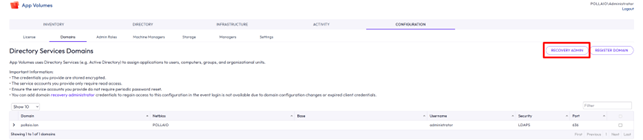
Go to Configuration > Recovery Admin Settings.
-
Define a strong password and keep it secure.
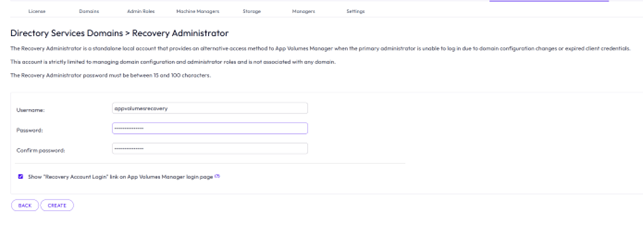
Once configured, the Recovery Admin account is ready for use when needed—no domain authentication required.
Use Case Scenario
Imagine your domain controller is unreachable and no administrators can log in. With Recovery Admin, you still have access to read logs, inspect app assignments, and validate system health—all without needing to restore full AD services immediately. It’s a crucial safety net.
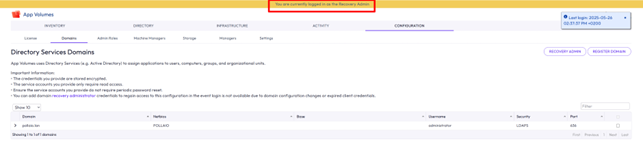
We can login with Recovery Admin from UI
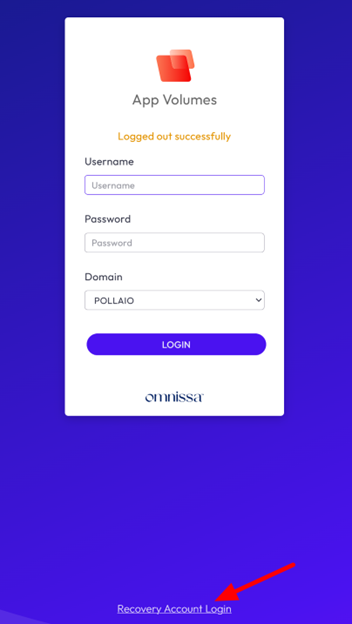
Add ?recovery_admin=true at the App Volumes Manager URL

and we check if we are in recovery mode with the yellow banner on the top of the UI.
Best Practices
-
Use Recovery Admin strictly for emergencies.
-
Limit access to trusted personnel.
-
Rotate credentials periodically.
-
Monitor audit logs for unusual activity.
Conclusion
Recovery Admin in App Volumes 2503 is a small but significant feature that enhances platform reliability and administrator confidence. Whether you’re running a single site or managing a distributed environment, having a backdoor to recover and investigate without risking configurations is a game-changer.